NetDrive on Windows 10 — Running It Now and Planning the Move to 11
NetDrive still supports Windows 10. How to install and run NetDrive on Windows 10 machines you keep, including 32-bit PCs, and how to carry drives over to Windows 11.
A small accounting office still has six Windows 10 desktops at the front counter, plus one older 32-bit PC that runs the label printer. Each machine mounts the same Dropbox Business folder as S: through NetDrive. The owner wants to know two things: does NetDrive keep working on these machines for now, and what has to be written down before the hardware gets replaced with Windows 11 PCs? This post answers both.
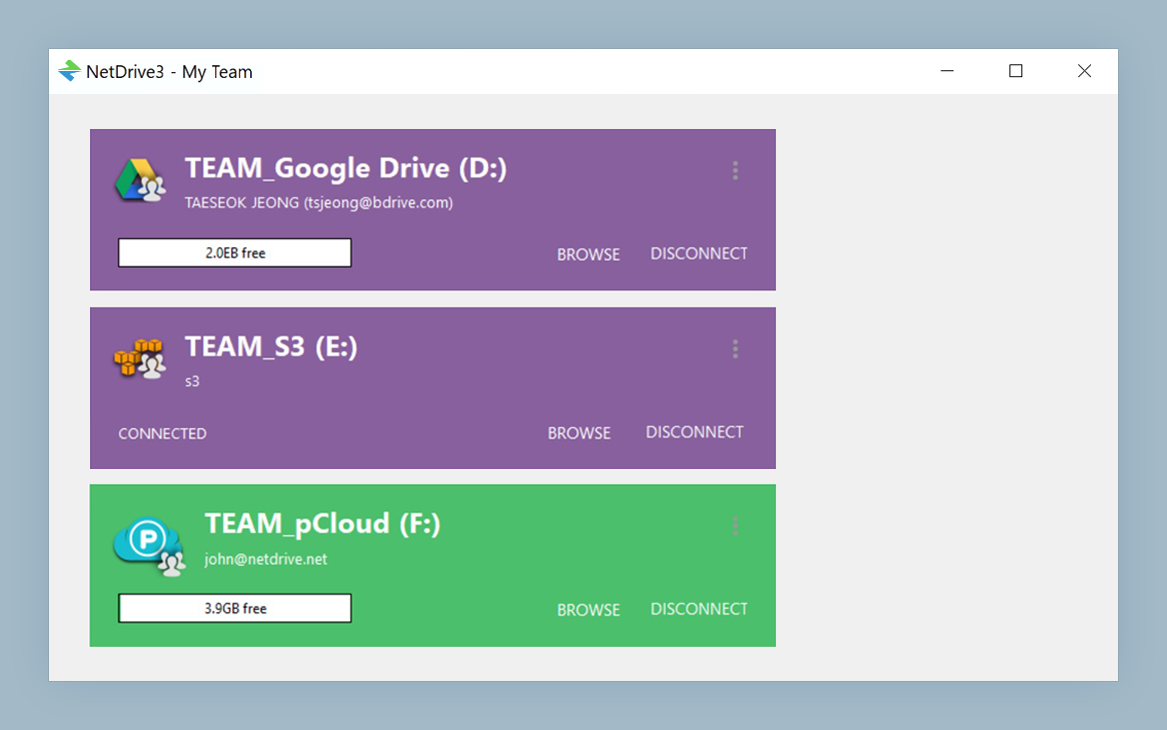
Cloud Drives on Windows 10 and 11
NetDrive lets Google Drive, OneDrive, S3, SFTP, WebDAV and more appear as native drives on Windows and macOS — no syncing, no full downloads.
- Supports Windows 8, 8.1, 10, and 11
- 32-bit and 64-bit Windows both covered
- EXE for single PCs, MSI for managed rollouts
Free trial. Lifetime and subscription plans available.
Where Windows 10 Stands for NetDrive Users
Microsoft ended standard support for Windows 10 on October 14, 2025 (Microsoft end-of-support notice). That date applies to Windows itself. It doesn’t change NetDrive’s own requirements, and NetDrive’s Windows download page still lists Windows 8, 8.1, 10, and 11, plus Windows Server 2012 through 2022.
In practice, a Windows 10 machine runs the same NetDrive as a Windows 11 machine. You get the same Drive Manager, the same provider list (Google Drive, OneDrive, Dropbox, SharePoint, Amazon S3, WebDAV, SFTP, and the rest), and the same drive types. The OS you run is a security and IT-policy decision for your organization. NetDrive doesn’t force it.
Installing on Windows 10, Including 32-bit PCs
NetDrive for Windows ships for both x86 (32-bit) and x64 (64-bit). This matters for Windows 10 more than for any other version, because Windows 10 was the last Windows release with a 32-bit edition. Windows 11 is 64-bit only. That label-printer PC can run NetDrive today, but it can’t move to Windows 11 on its current install.
Pick the installer by situation:
- EXE installer for a single machine. Run it, then start NetDrive from the Start menu.
- MSI installer for machines managed by IT. Deploy with
msiexec /i NetDrive3-version.msi REINSTALL=ALL REINSTALLMODE=vamusthrough your usual software distribution tool. Deploying NetDrive with the MSI Installer covers this in more depth.
NetDrive depends on the Microsoft Visual C++ Redistributables. On a fully patched machine they are usually present already. If NetDrive fails to start with a missing-DLL error, install the redistributable that matches the machine’s architecture. Fix the vcredist Missing Error lists the exact packages.
One Windows 10-specific note: if a machine was upgraded in place from Windows 7 or 8.1 and NetDrive was installed before the upgrade, you may need to reinstall NetDrive before drives mount again. Fix NetDrive Not Mounting After a Windows 10 Upgrade walks through that.
Day-to-Day Behavior on Windows 10
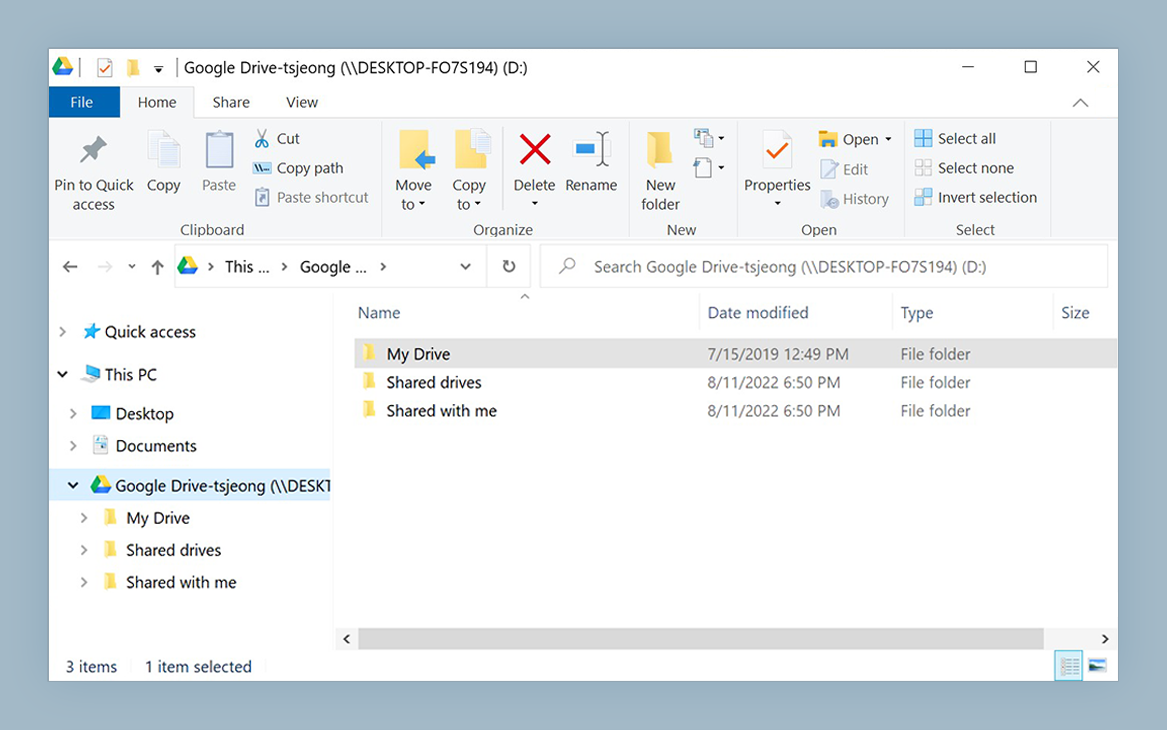
Once a drive is added, it appears under This PC in File Explorer with the drive letter you assigned. Any application that can open a local path can open files on it, whether that’s Excel, a PDF viewer, or the accounting package’s import dialog.
Three settings are worth checking on shared front-desk machines like the ones in this office:
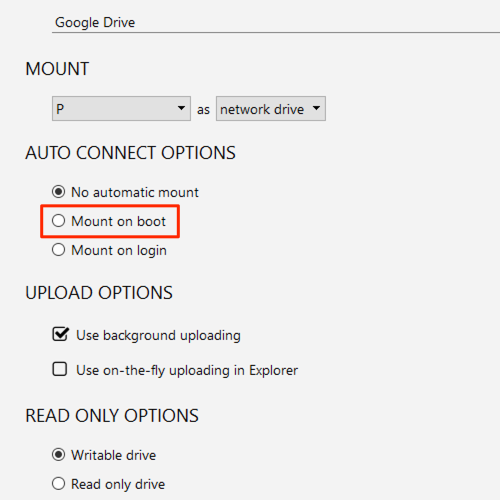
- Auto-mount. Each drive can mount at boot, at login, or not automatically. For a shared PC that people sign in to at different times, mounting at boot without login keeps
S:available as soon as the machine is up. - Drive type. Network drive is the default. Read-only fits a reference folder that front-desk staff should not edit. Local disk helps when an application refuses to work on network locations. See Local Disk Mode in NetDrive.
- Explorer status icons. NetDrive’s overlay icons show which files are still uploading. That tells staff whether it’s safe to shut down at the end of the day.
Planning the Move to Windows 11
When the Windows 10 hardware gets replaced, write down each drive’s settings before the old machine is wiped:
- Open NetDrive → Drive Manager on the Windows 10 machine.
- For each drive, record the provider, the account or endpoint, the bucket or root folder if one is set, the drive letter, the drive type, and the auto-mount option.
- Also record any per-drive options you changed from the defaults, such as the upload mode.
- Install NetDrive on the Windows 11 machine and add each drive again with the same drive letter. Shortcuts, macros, and saved file paths that point at
S:\will keep working.
If you upgrade a Windows 10 machine to Windows 11 in place instead of replacing it, check after the upgrade that every drive mounts. If one doesn’t, reinstall NetDrive first, before you change any drive settings. For 64-bit machines that are moving to Windows 11, NetDrive on Windows 11 24H2 covers what changes on the new OS.
Wrap-up
NetDrive runs on Windows 10 just as it does on Windows 11. That includes 32-bit PCs, which can’t move to Windows 11 at all. Keep using it on the machines you have, use the MSI for managed rollouts, and record every drive’s settings before the hardware changes. Your drive letters, and everything that depends on them, will then survive the move. You can try it on your own machines with the 7-day free trial.
— Tayson, NetDrive