Developers with NetDrive Mobile — Check Buckets and Servers from a Phone

Developers use NetDrive Mobile on iPhone and Android to browse Amazon S3, SFTP, FTP and WebDAV storage, preview files and upload from the phone when away from a laptop.
It is Saturday evening, the pager goes off, and your laptop is in a bag two hours away. You do not need a terminal to answer the first question, only a quick look at the export an S3 job wrote or the config file sitting on an SFTP host. NetDrive Mobile lets you browse those locations from an iPhone or Android phone.
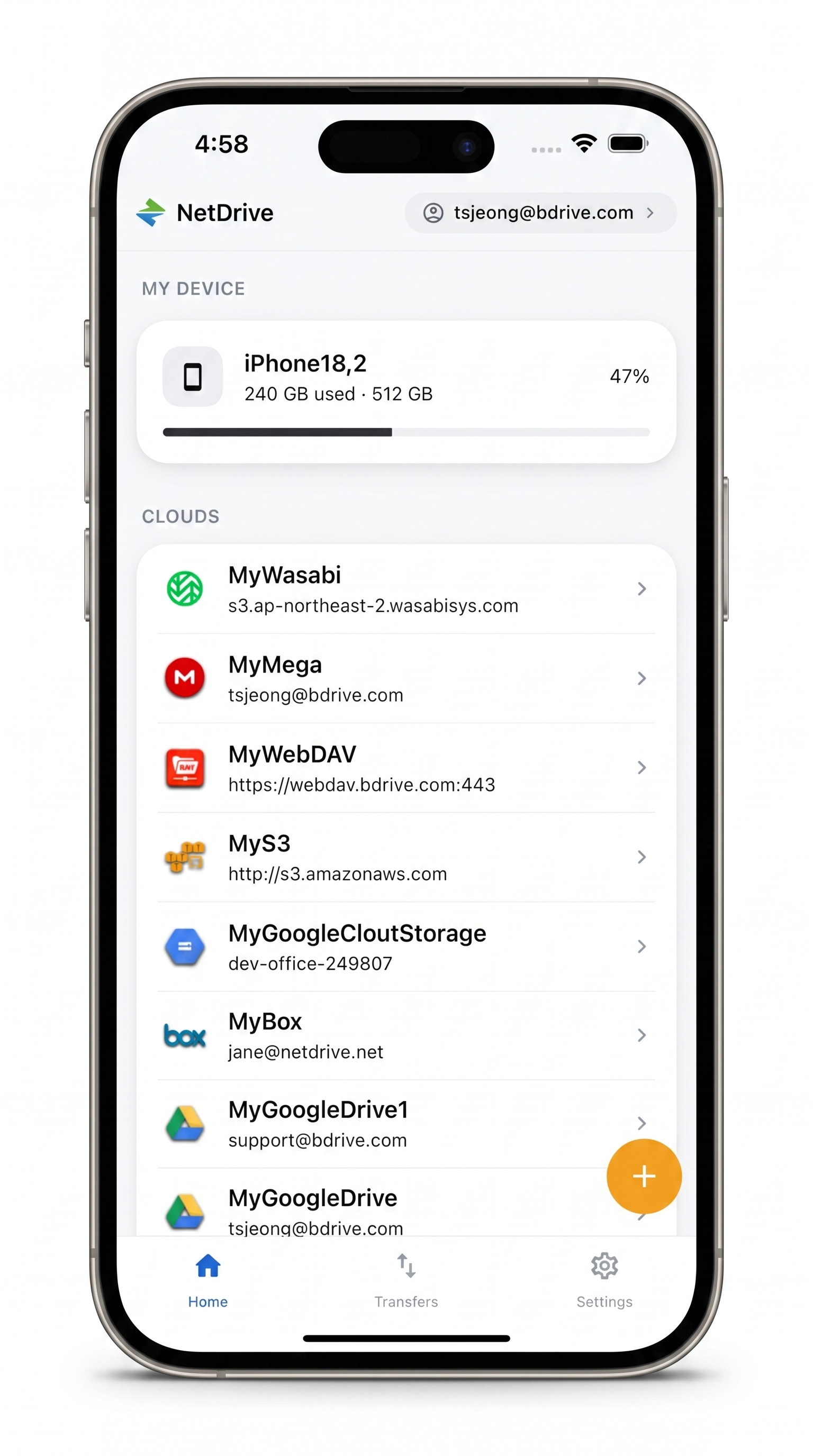
Your storage, in your pocket
Browse S3, SFTP, FTP, WebDAV and cloud drives from one app.
- Add S3, SFTP, FTP and WebDAV alongside cloud drives
- Preview files in the app before you download
- Upload from the camera, photos or the file picker
Free Bdrive account required.
What a Phone Is Good For (and What It Is Not)
Be realistic. NetDrive Mobile is a file manager, not a shell or an editor. It will not restart a service. It is useful for the read-mostly jobs that interrupt a weekend: confirming a file landed, checking its size and timestamp, grabbing a report to forward, or dropping a screenshot into a shared folder.
NetDrive Mobile needs a free Bdrive account. After signing in, each storage location you add stays in the home screen list.
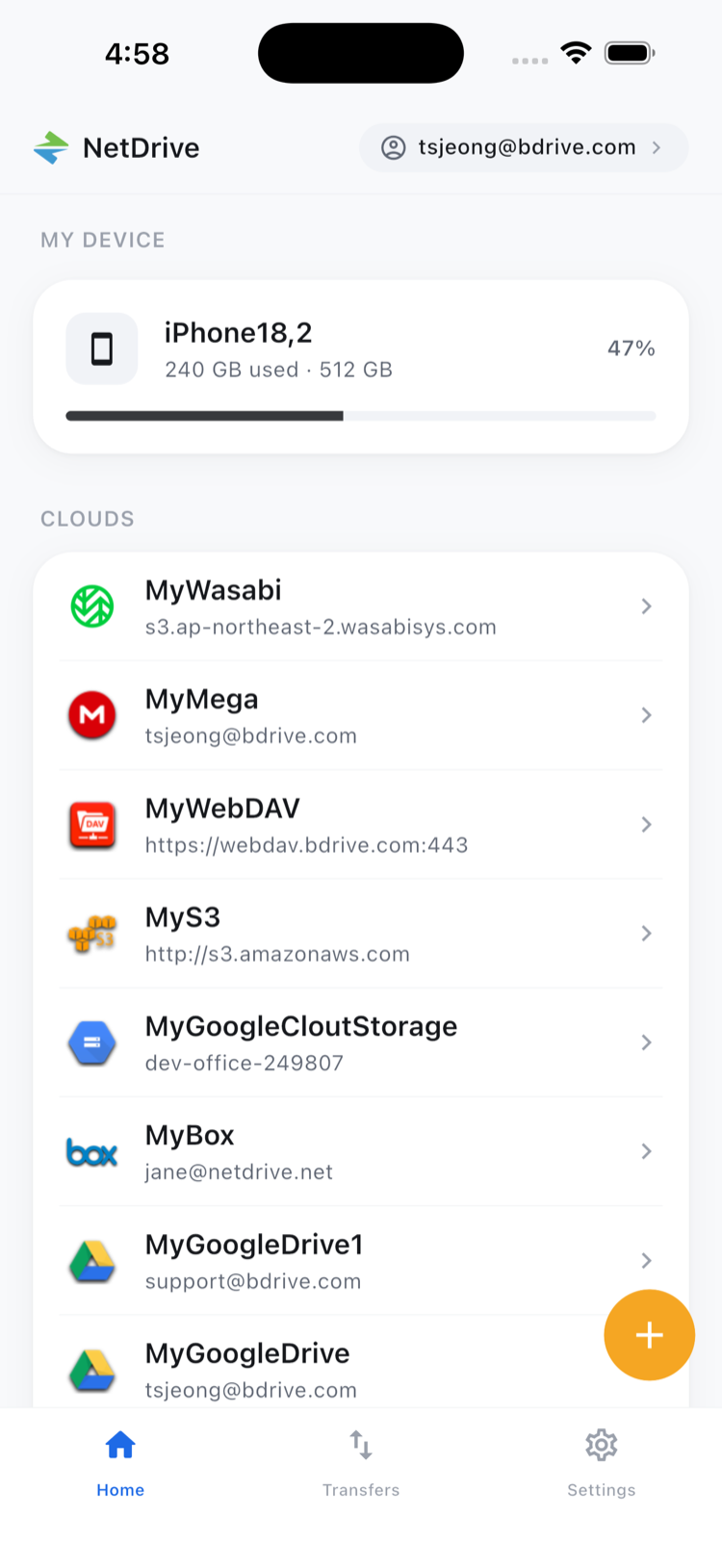
Adding Your Storage
Open the Add a drive sheet and pick a provider. For developer workflows the useful entries are Amazon S3 (and S3-compatible services such as Wasabi), Backblaze B2, Google Cloud Storage, Azure Blob Storage, SFTP, FTP/FTPS and WebDAV, next to the usual Google Drive, Dropbox and OneDrive.
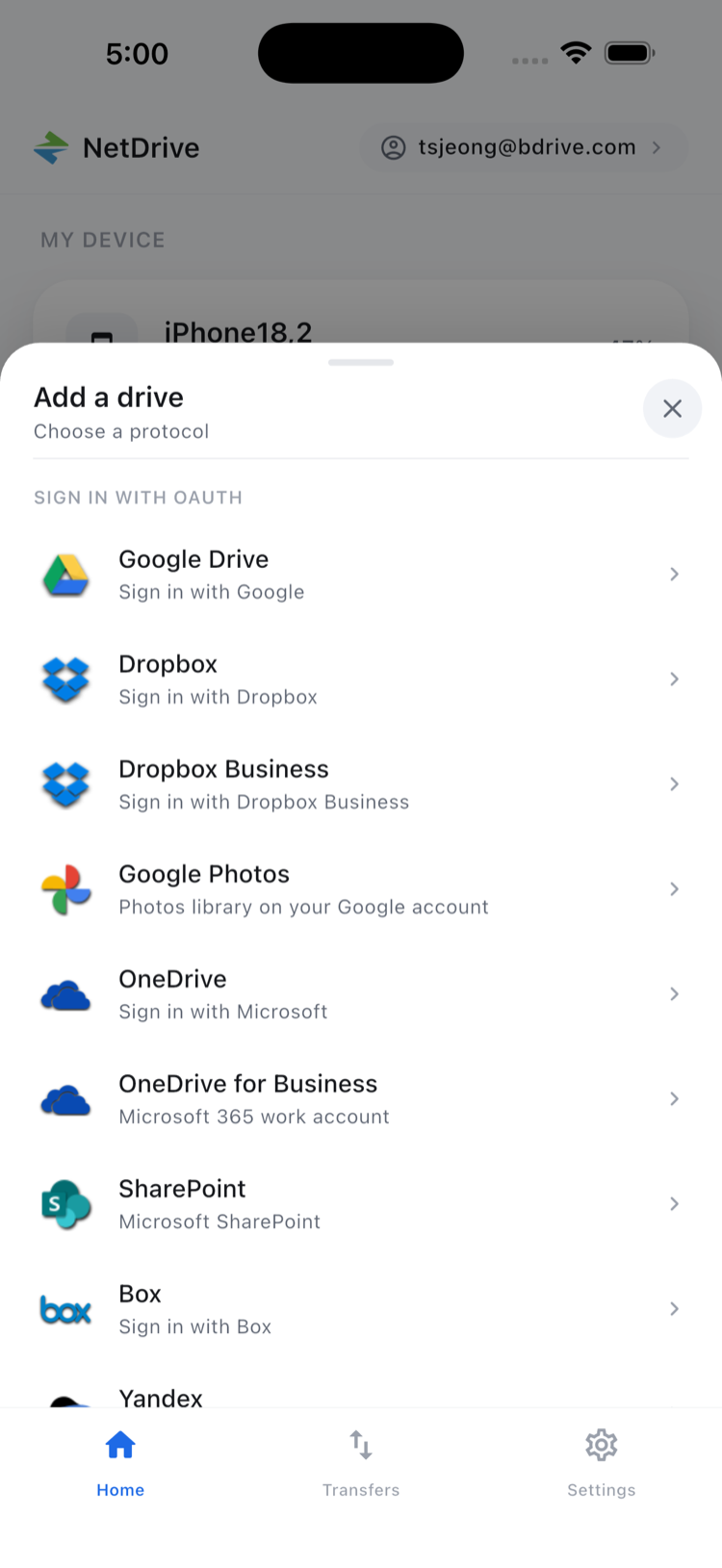
Use a dedicated, least-privilege credential. For S3, create an IAM user limited to the bucket and read access if reading is all you need. Credentials are kept in the phone’s secure storage (Keychain on iOS, Keystore on Android) and do not leave the device unencrypted. If the Bdrive account uses two-factor login, the approval code arrives as an app notification, including on the lock screen.
Browsing, Previewing and Checking Metadata
Open a location and the file browser lists folders and files with sorting and a list or grid toggle. Tap a file for the actions sheet: Preview, Download, Rename, Move, Copy, Get info and Delete. Get info is the quick way to confirm size and modified time. Preview opens documents and images in the app, so you can check a report before downloading it.
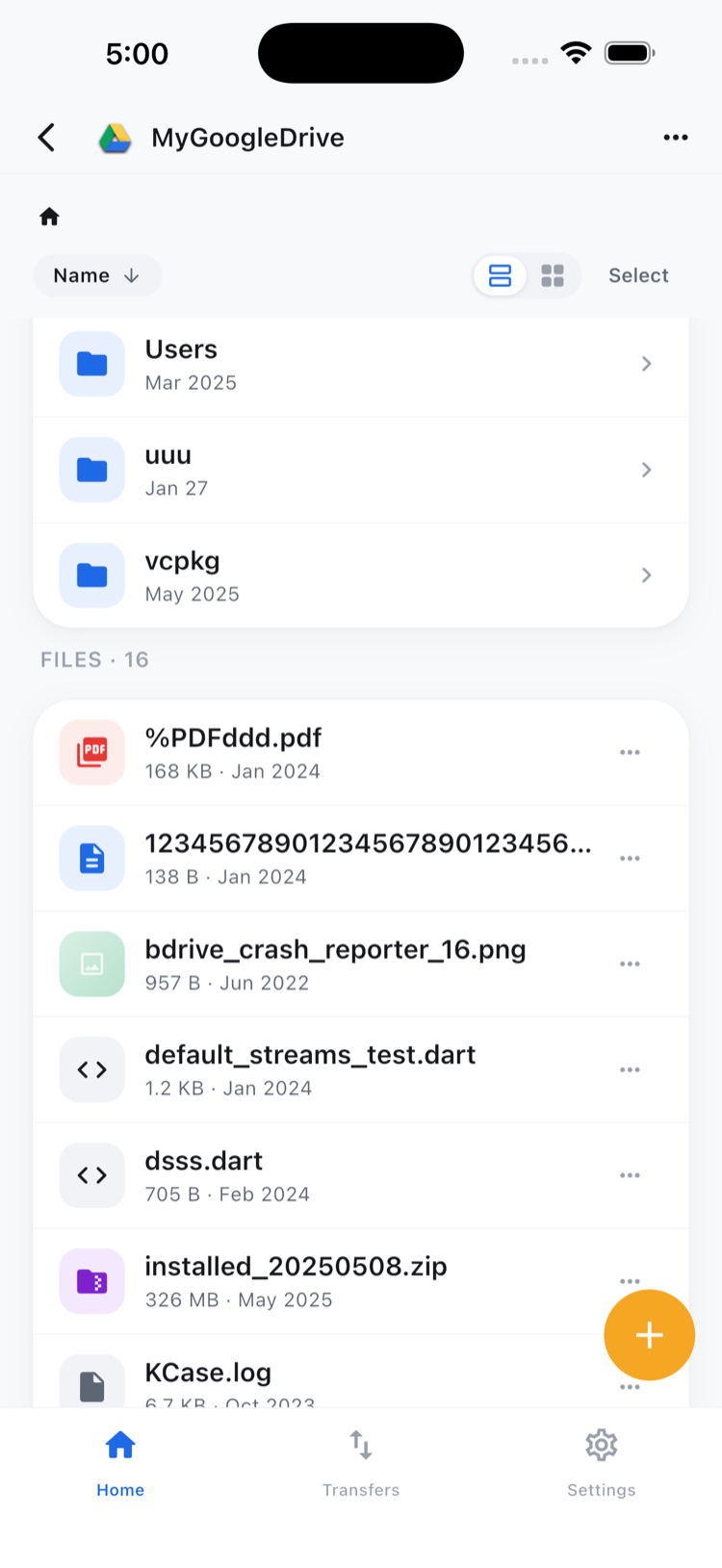
Be careful with Delete and Rename on a production bucket from a phone. This is where a read-only credential saves you from a thumb slip.
Uploading and Moving Files
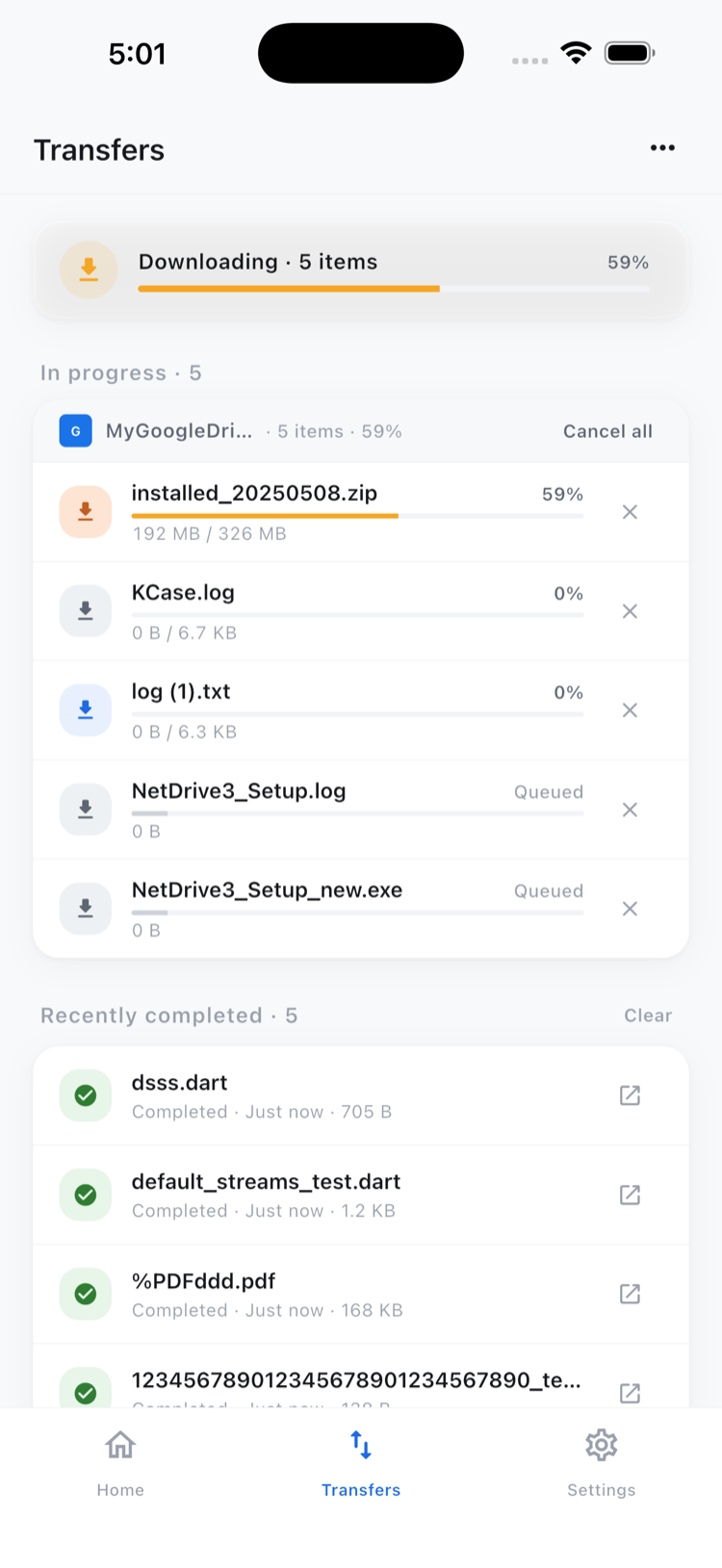
You can upload from the camera, the photo library or the file picker, with live progress and a cancel option on the Transfers tab. Copy and move work inside a single storage location. NetDrive Mobile does not copy a file directly from one provider to another; to get a file from S3 to an SFTP server, download it, then upload it where it belongs.
A Short On-Call Checklist
- Add the S3 bucket or SFTP host once, at your desk, with a read-only credential.
- Name the entries clearly, for example by environment.
- Test Preview and Get info on a sample file.
- Keep a mobile-friendly folder of runbooks in a cloud you already use.
Wrap-up
NetDrive Mobile will not replace your laptop, but it shortens the gap between an alert and a first answer. For per-protocol detail, see View Amazon S3 on iPhone and Android, Browse an SFTP Server on Mobile and NetDrive Mobile — Getting Started.
— Robin, NetDrive