Read-Only Drive Mode in NetDrive — Protect Cloud Archives from Accidental Change
NetDrive lets you mount Google Drive, S3, SharePoint, and more as a read-only drive on Windows and macOS. Here's when and how to use this powerful but overlooked option.
Last quarter a legal team at a professional services firm lost three hours recovering a contract from SharePoint version history after someone overwrote the signed PDF through a mapped network drive. The fix would have taken ten seconds: when NetDrive mounts a drive, it lets you declare it read-only at the OS level. Every application on the machine — Word, Explorer, scripts, anything — gets blocked from writing, renaming, or deleting files through that drive. No special permissions to configure, no cloud-side policy to manage.


Mount any cloud as a read-only drive in minutes
NetDrive lets Google Drive, OneDrive, S3, SFTP, WebDAV and more appear as native drives on Windows and macOS — no syncing, no full downloads.
- Supports Google Drive, S3, SharePoint, OneDrive, and 20+ providers
- OS-level write block — no application can bypass it
- Auto-mount at system boot without user login
Free trial. Lifetime and subscription plans available.
Four Drive Types, One Setting
When you add or edit a cloud connection in NetDrive, the configuration dialog exposes a Drive Type selector with four options:
| Drive Type | What the OS sees |
|---|---|
| Network drive | A standard networked volume — read and write. This is the default. |
| Read-only drive | A write-protected volume. Saves, renames, and deletes are rejected at the file system layer. |
| Local disk | Appears under “This PC” as a local drive rather than a network location. |
| Removable drive | Shows as a removable device, useful for workflows that treat cloud storage like a USB key. |
NetDrive is one of the few cloud mount tools that exposes all four types — most competitors support only the network drive variant. The read-only type is particularly underused, which is a missed opportunity for the scenarios below.
Write protection at the OS level is stronger than folder-level permissions. A user with full SharePoint permissions can still accidentally overwrite a file through the normal UI — but if the drive is mounted read-only, the “Save” command in Word or a drag-and-drop delete in Explorer fails immediately with a write-protection error before any cloud API call is even attempted.
When Read-Only Mounting Makes Sense
Regulatory archives. Finance teams, law firms, and healthcare organizations are often required to retain records without alteration for years. Mounting an S3 bucket or Azure Blob container read-only means analysts can query files freely, but no one — including automation scripts running under their credentials — can change a byte.
Master asset libraries. A video production house keeps 800 GB of licensed music tracks and B-roll footage on Backblaze B2. Editors need to browse and pull clips daily; the originals must never be touched. A read-only mount lets any workstation access the library without the risk of an accidental drag-and-drop delete.
Cross-team handoffs and audits. When a project moves from development to QA, or from production to audit review, read-only access to the source folder lets the receiving team inspect deliverables without the ability to modify them during the review window.
Shared reference drives. An architecture firm keeps CAD standards, font libraries, and template files on OneDrive for Business. Staff need to copy from these files constantly, but only two leads should ever write to the standards folder. Rather than juggling SharePoint permission groups, a read-only mount on every workstation enforces this at the file system level.
Setting Up a Read-Only Drive in NetDrive
The change is a single step inside NetDrive’s drive configuration. These steps apply to both Windows and macOS:
- Open NetDrive and find the drive you want to protect in the Drive Manager, or click Add Drive to start a new connection.
- Open the drive’s settings — click the gear icon on the drive card.
- Locate the Drive Type field. The default value is Network drive.
- Switch it to Read-only drive and save the configuration.
- Mount the drive. On Windows it gets a letter (e.g., Z:); on macOS it appears under
/Volumes/.
Try opening a file through the mounted drive and saving it — any application will report a write-protection error. The block sits at the virtual file system driver layer, so it holds regardless of the application, the user account, or how the cloud provider’s own permissions are configured.
Switching back to writable is equally fast: open the drive settings, set the Drive Type back to Network drive, and remount. No reinstall, no cloud-side changes required.
Auto-Mount at Boot for Always-On Archive Access
For compliance and archival use cases, the read-only archive drive usually needs to be available the moment any process needs it — including before anyone logs in. NetDrive supports mounting drives at system boot without requiring a user session (available since the first NetDrive 3.1 release in September 2017).
In the drive’s mount settings, switch the auto-mount trigger from When logged in to At system boot. NetDrive registers the mount with the OS during the boot sequence, so the read-only volume is already in place when the first user (or scheduled task) needs it.
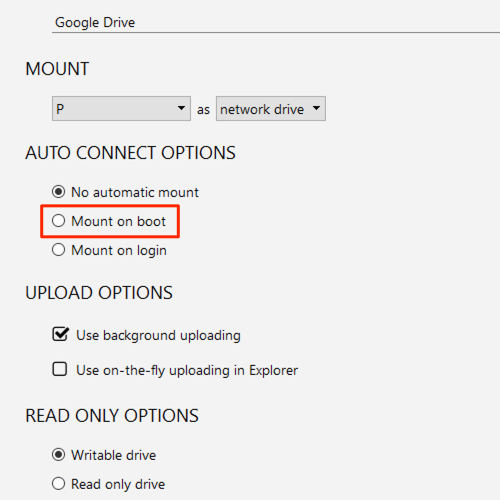
On Windows Server deployments this is especially useful: the archive share is available to any service or scheduled task immediately after the server starts, without an administrator needing to open an interactive session first. Combined with read-only mode, boot-time auto-mount gives you a permanently available, write-protected volume — set it once and forget it.
Wrap-up
Read-only drive mode is one dropdown away from the default configuration in NetDrive, but it removes an entire category of accidental data loss. For archive buckets, master asset libraries, and shared reference folders, it’s worth the ten seconds it takes to enable.
If you’re managing multi-user cloud access more broadly, the NetDrive Team Drive guide covers how to push shared drive configurations from an admin console to every team member. For Windows Server environments specifically, NetDrive on Windows Server 2022 covers installation and service-account configuration details.
— Tayson, NetDrive