NetDrive Mobile for Field Teams — Upload Site Photos Without a Laptop
Inspectors and field technicians use NetDrive Mobile to upload job-site photos to the project cloud and pull up specs, right from an iPhone or Android phone.
A facilities inspector walking a building takes forty photos of deficiencies before lunch, and every one of them needs to land in the right project folder before the afternoon’s follow-up call — not after a drive back to the office. The spec sheet for the equipment in front of them lives in a different cloud entirely, on the client’s shared Dropbox. Switching between two single-provider apps mid-walkthrough, on a phone, is exactly the kind of friction that makes field work slower than it needs to be. NetDrive Mobile puts both clouds in the same app.

Every project cloud, on the job site
NetDrive Mobile opens SharePoint, Dropbox, Google Drive, S3 and more in one app — upload photos from the camera and pull up specs without leaving the site.
- Switch between every connected cloud without app-switching
- Upload straight from the camera with background progress and cancel
- Preview PDFs, photos, and documents in-app
Free Bdrive account required.
Why field work and single-cloud apps don’t mix
Most cloud apps are built around one provider. That’s fine at a desk, where switching between the official Dropbox app and the official SharePoint app costs a few seconds. On a ladder, in a client’s mechanical room, with a phone in one hand, it costs a lot more — enough that people either skip the lookup or wait until they’re back at a desk, which defeats the point of documenting anything in real time. A field team’s files rarely live in one place anyway: internal project data sits in SharePoint or Google Drive, while a client’s own specs or drawings usually arrive through whatever cloud the client already uses.
One app, every connected cloud
NetDrive Mobile connects each provider as its own drive and lists them together on the home screen — a project’s SharePoint site next to a client’s shared Dropbox folder next to a personal Google Drive, without merging them into one pool. Copying or moving a file stays within the cloud it came from; the point isn’t consolidating storage, it’s not having to leave the app to check a second cloud.
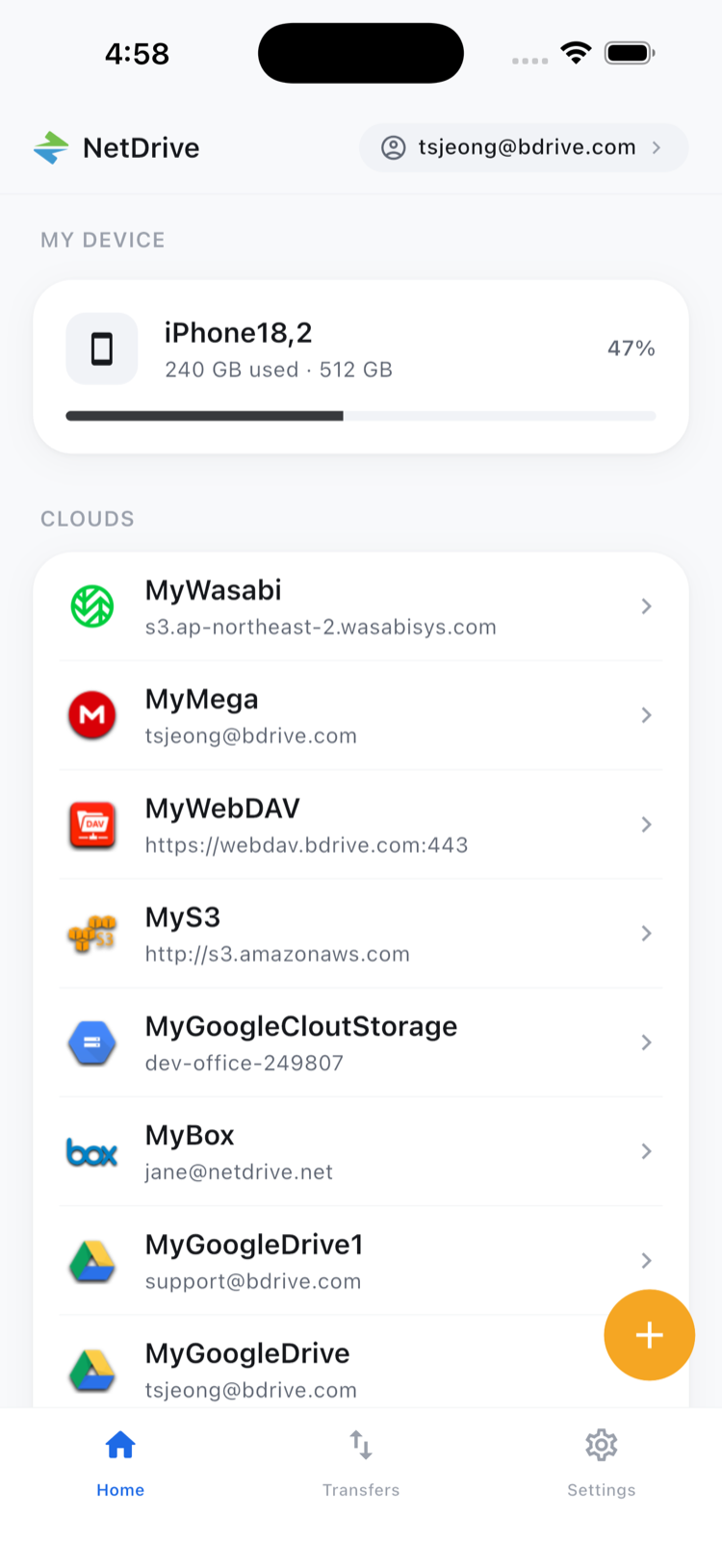
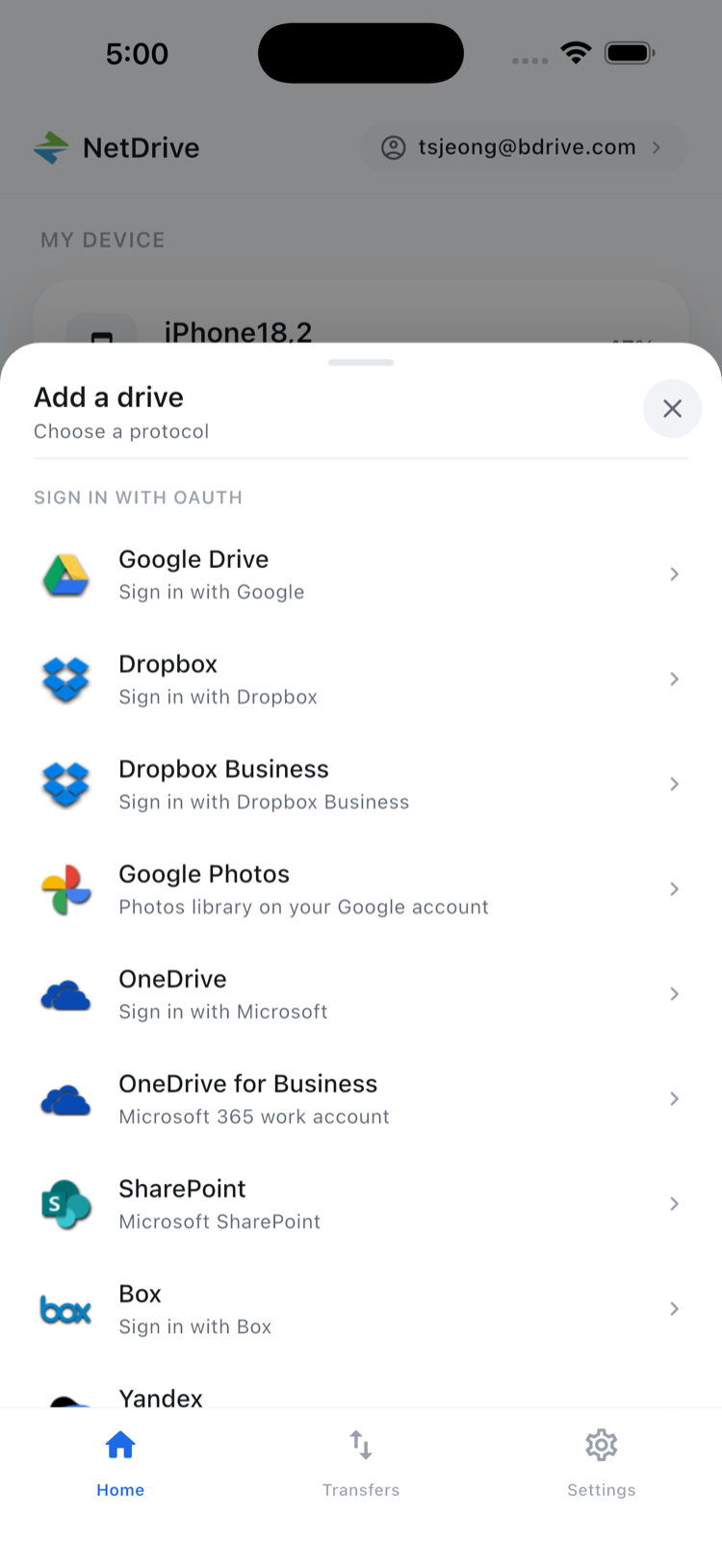
Setup happens once per site or per client. Open the Add a drive sheet, pick the provider — SharePoint for the internal project site, Dropbox for a client’s shared folder — and sign in. A free Bdrive account covers every drive added afterward, so a technician isn’t juggling separate logins for separate clouds.
Uploading from the camera in real time
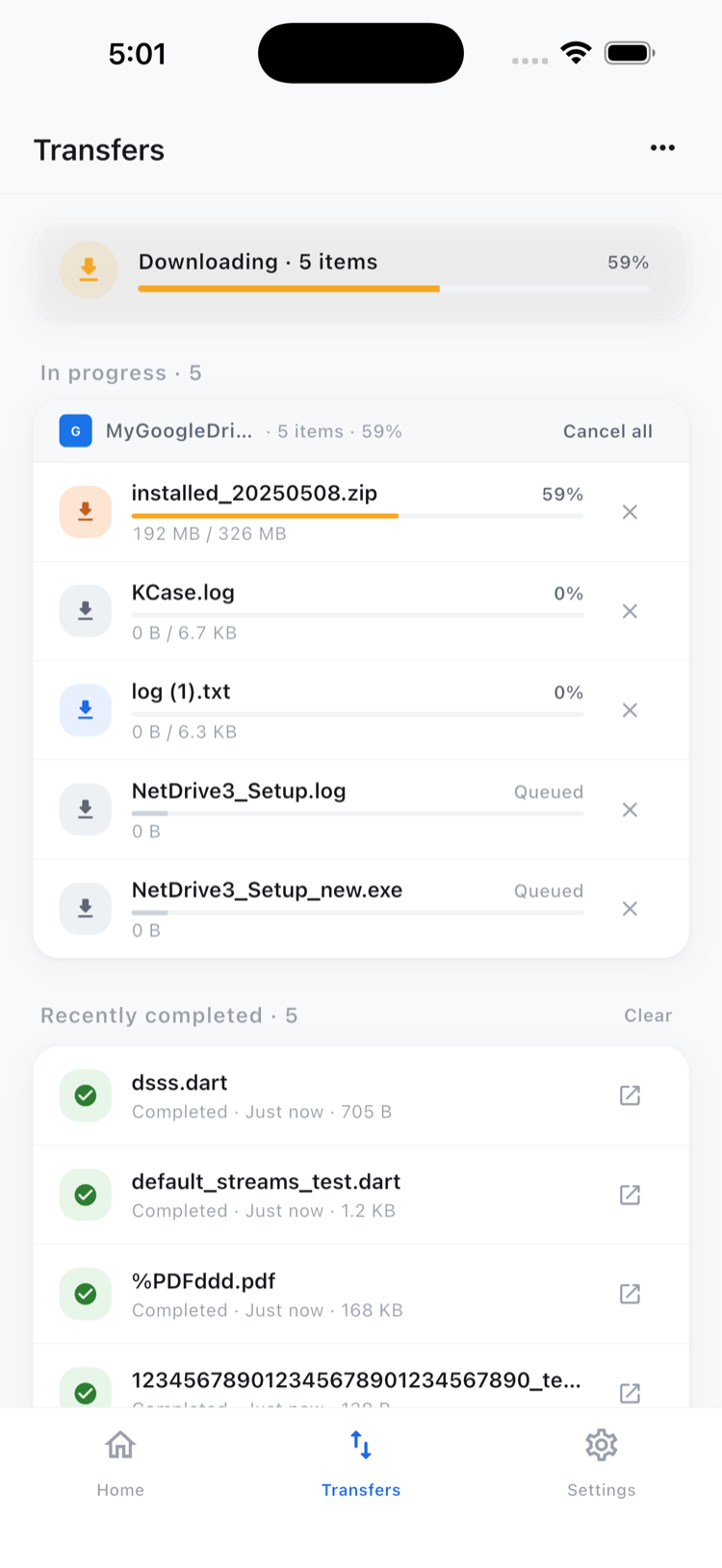
The moment a deficiency photo gets taken, it can go straight into the project’s cloud folder — no waiting to plug the phone in later. Open the target drive, navigate to the right folder, and upload directly from the camera or photo library. Uploads run in the background with live progress and the option to cancel, so a technician can queue several photos and keep walking the site instead of watching a progress bar.
Pulling up a spec sheet mid-walkthrough
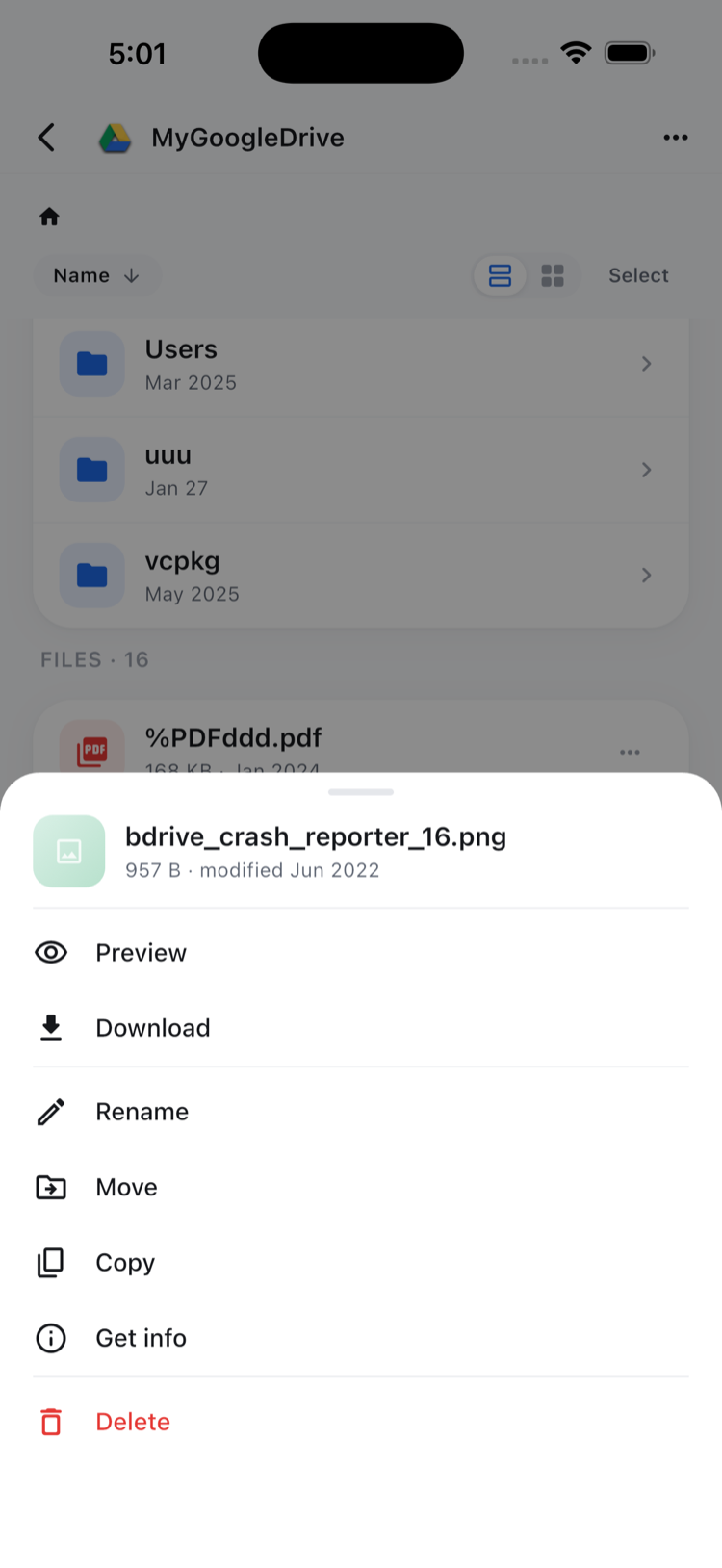
The reverse trip matters just as much. A PDF spec sheet or an equipment manual sitting in a client’s Dropbox opens in NetDrive Mobile’s in-app preview — no separate PDF reader, no downloading a copy that’s outdated by the next visit. Tap the file, preview it, and get back to the inspection.
Getting a crew set up
- Create a free Bdrive account at netdrive.net if the team doesn’t already have one.
- Install NetDrive Mobile from the App Store or Google Play.
- Add each drive the crew needs — the company’s SharePoint or Google Drive, plus any client-specific cloud — through the Add a drive sheet.
- Sign in once and every added drive is available to whoever’s logged in on that device.
Wrap-up
A field crew’s files rarely sit in one cloud, and NetDrive Mobile doesn’t ask them to pretend otherwise — every connected drive shows up in the same app, ready to upload into or preview from on site. For the sign-up flow in more detail, see NetDrive Mobile — Getting Started; for more on camera uploads specifically, see Upload Photos from Your Phone to Any Cloud; and for SharePoint on mobile, see Browse SharePoint on iPhone & Android.
— Tayson, NetDrive