Interior Designers with NetDrive Mobile — Site Photos and Mood Boards

How interior designers use NetDrive Mobile on iPhone and Android to preview drawings, show mood boards, and upload site photos across Dropbox, Google Drive, and more.
An interior designer is standing in a client’s half-demolished kitchen. The client asks to see the tile option from last week’s presentation, the contractor wants the latest elevation PDF, and the designer needs twenty photos of the existing plumbing before the walls close up. The presentation is in Google Drive, the contractor’s drawings come through Dropbox, and the studio archive lives in a OneDrive for Business account. NetDrive Mobile puts all three in one app on an iPhone or Android phone.
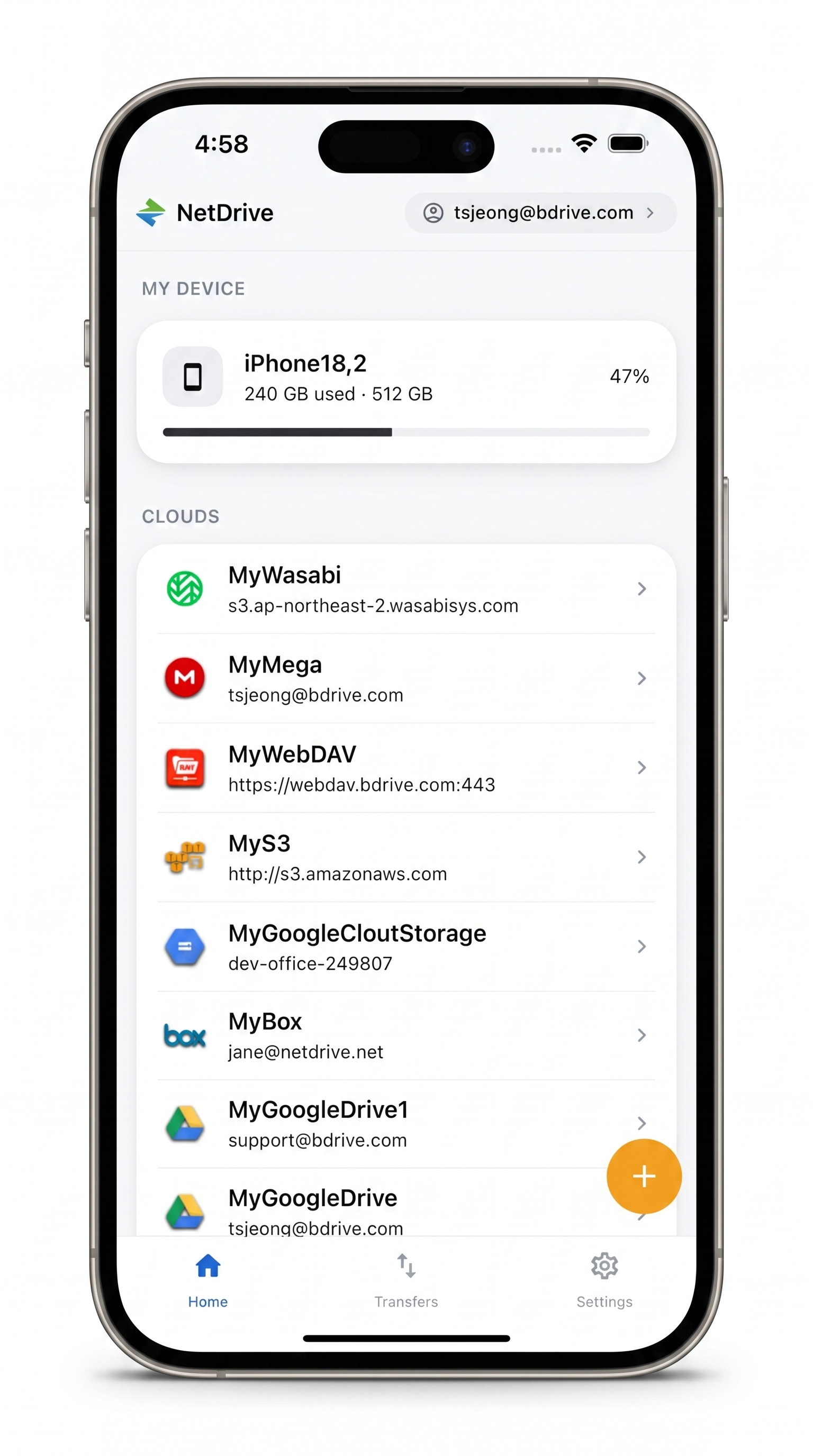
Every project folder, one app
NetDrive Mobile opens Google Drive, Dropbox, OneDrive, S3, WebDAV, SFTP and more in one app — browse, upload, download, and preview right from your phone.
- Dropbox, Google Drive, OneDrive, SharePoint and more together
- Preview PDFs, images, and videos in the app
- Upload site photos straight from the camera
Free Bdrive account required.
Why Design Projects Scatter Across Clouds
A residential project rarely sits on one storage service. The studio has its own system, but clients share inspiration folders from whatever they use at home. Contractors and architects send drawings through their firm’s Dropbox Business or SharePoint, and vendors post spec sheets wherever they like. On a laptop, that’s a few browser tabs. On a phone at a job site, it’s a lot of app-switching and signing in.
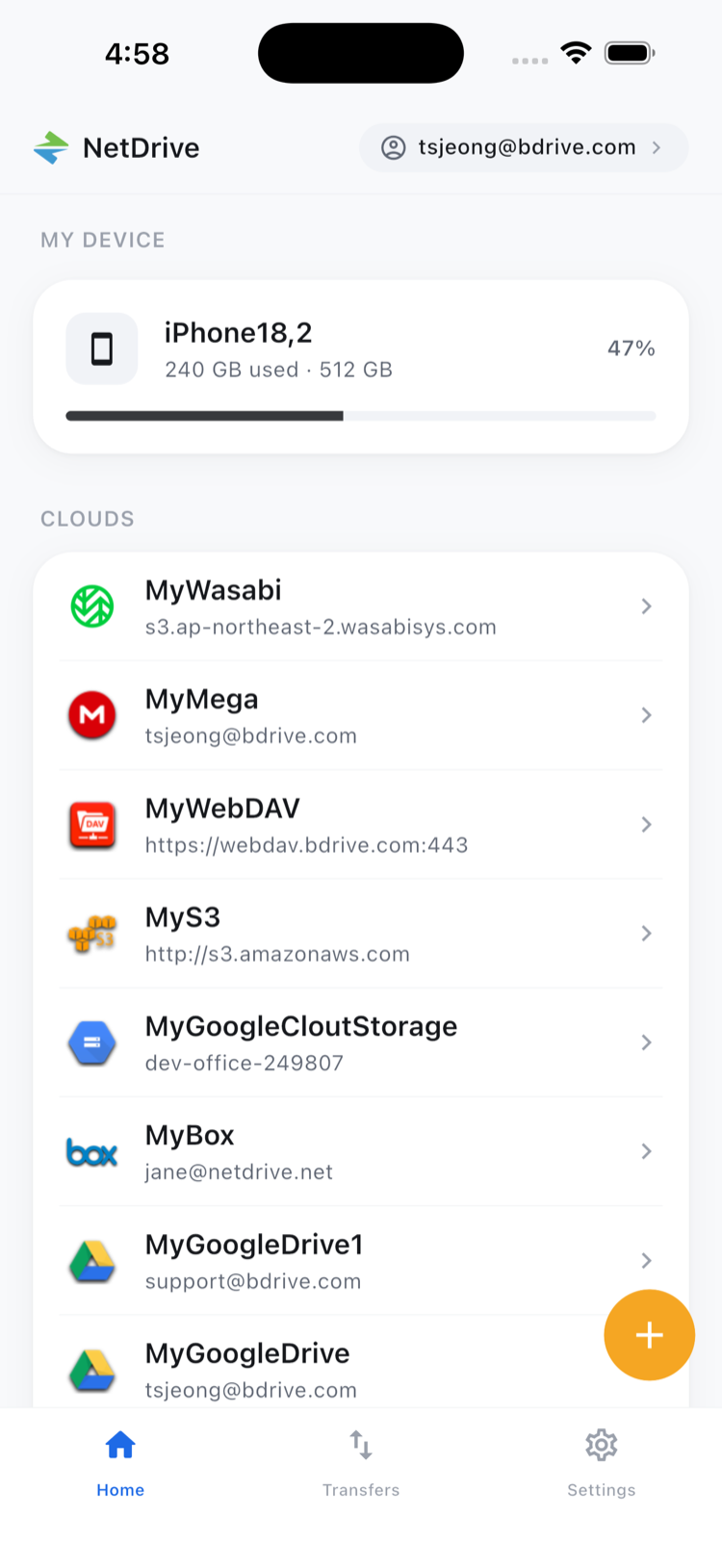
NetDrive Mobile treats each of those accounts as a cloud on its home screen. You add Google Drive, Dropbox, OneDrive for Business, SharePoint, or Box once, and they appear together under Clouds, with your phone’s own storage under My Device. If your studio keeps a project archive on a NAS, you can add it over WebDAV or SFTP the same way. You need a free Bdrive account to sign in.
Setting Up Before the First Site Visit
Do this at your desk, not in the client’s driveway:
- Install NetDrive Mobile from the App Store or Google Play and sign in with your Bdrive account. You can use Sign in with Apple or Google.
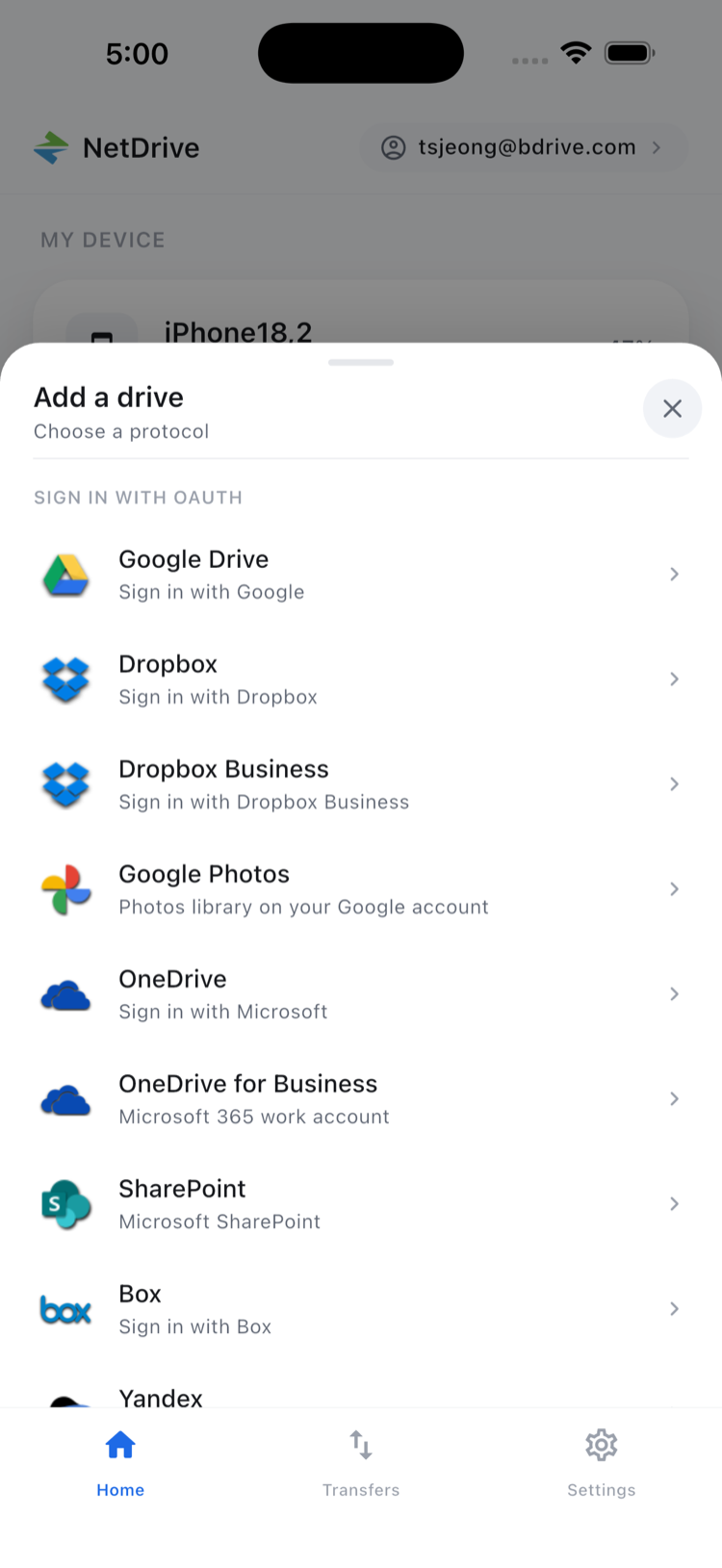
- Open the Add a drive sheet and pick a provider, for example Google Drive for client presentations.
- Sign in to that provider when prompted. NetDrive Mobile stores the credentials in the phone’s secure storage (Keychain on iOS, Keystore on Android).
- Repeat for each service a current project uses: the contractor’s Dropbox, the studio’s OneDrive for Business, a SharePoint site from an architect.
- Open each cloud once to confirm you can reach the project folders you’ll need.
Showing Mood Boards and Drawings On-Site
Client conversations move fast. Someone asks “what was the other sconce?” and you have about ten seconds before the conversation moves on. Open the cloud, go to the project folder, and tap the file. NetDrive Mobile’s in-app preview opens images, PDFs, and videos without sending you to another app. That covers a mood board export, a finish schedule PDF, or a short walkthrough render the 3D artist sent last night.
Because every cloud is in the same app, you can go from the client’s Google Drive inspiration folder to the contractor’s Dropbox drawings in a couple of taps. No signing out, no second app. In bright rooms with no window coverings yet, switching to light theme in settings helps. Late evening reviews are easier in dark mode.
Capturing Site Photos Where They Belong
Existing-condition photos are only useful if they end up in the right project folder with names someone can search. Standing in the room:
- Upload from the camera, photo library, or files. Go to the project’s
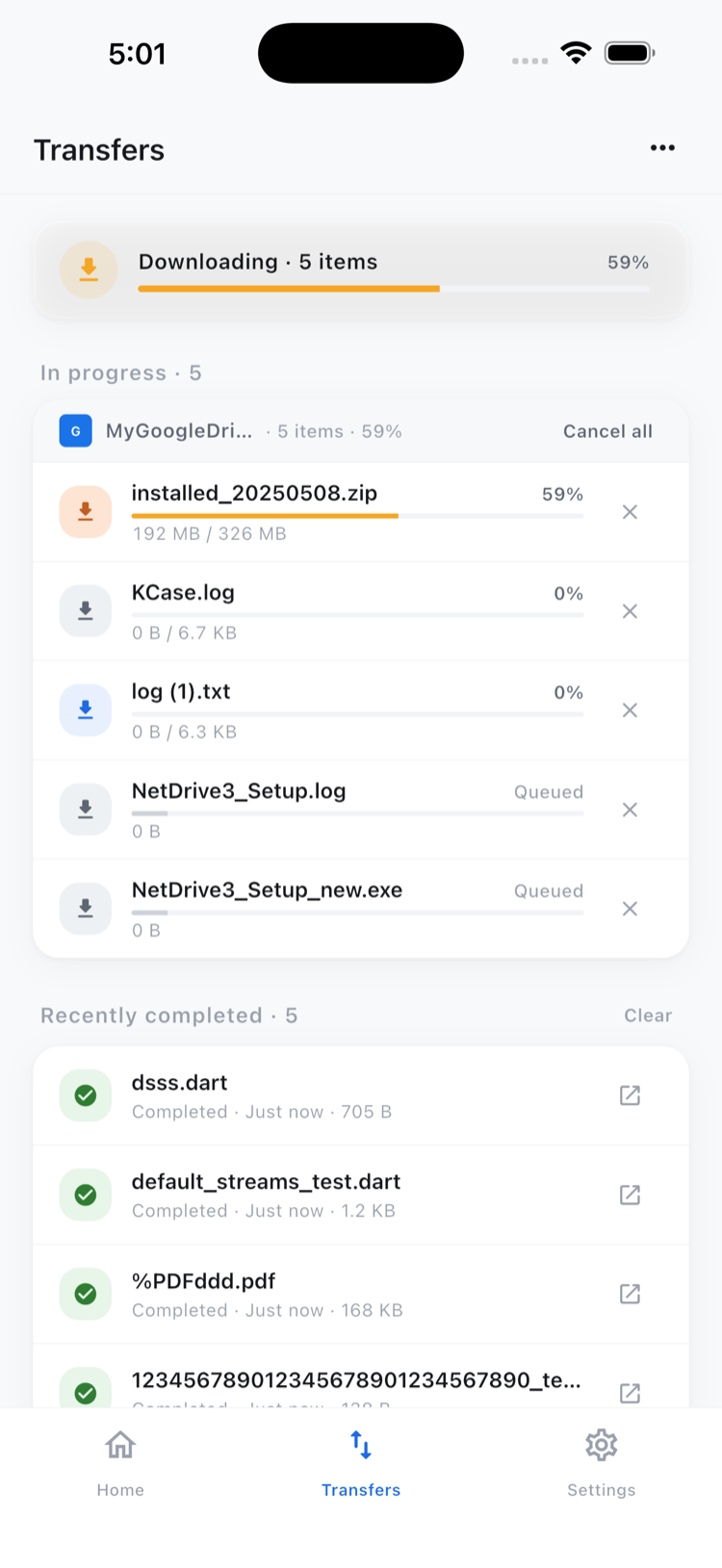
Site Photosfolder in the studio cloud and upload directly. That saves you from a camera roll full of unlabeled pictures to sort later. - Send several at once. NetDrive Mobile handles multiple uploads together. The Transfers tab shows live progress for each file, so you know when the batch has finished before you leave the site, and you can cancel one that’s going to the wrong place.
- Make a folder per room. Create
Kitchen,Primary Bath, and so on as you go, then rename files to match your studio’s convention.
Tidying Up Between Appointments
Between site visits, the waiting room or the passenger seat is a good place to keep folders tidy. Use Select in the file browser to pick several photos and move them into the right room folder. You can also delete duplicates or copy a reference image into the Selections folder. These actions work within a single cloud, so organize each project in the storage where it lives. NetDrive Mobile doesn’t copy files directly from one provider to another.
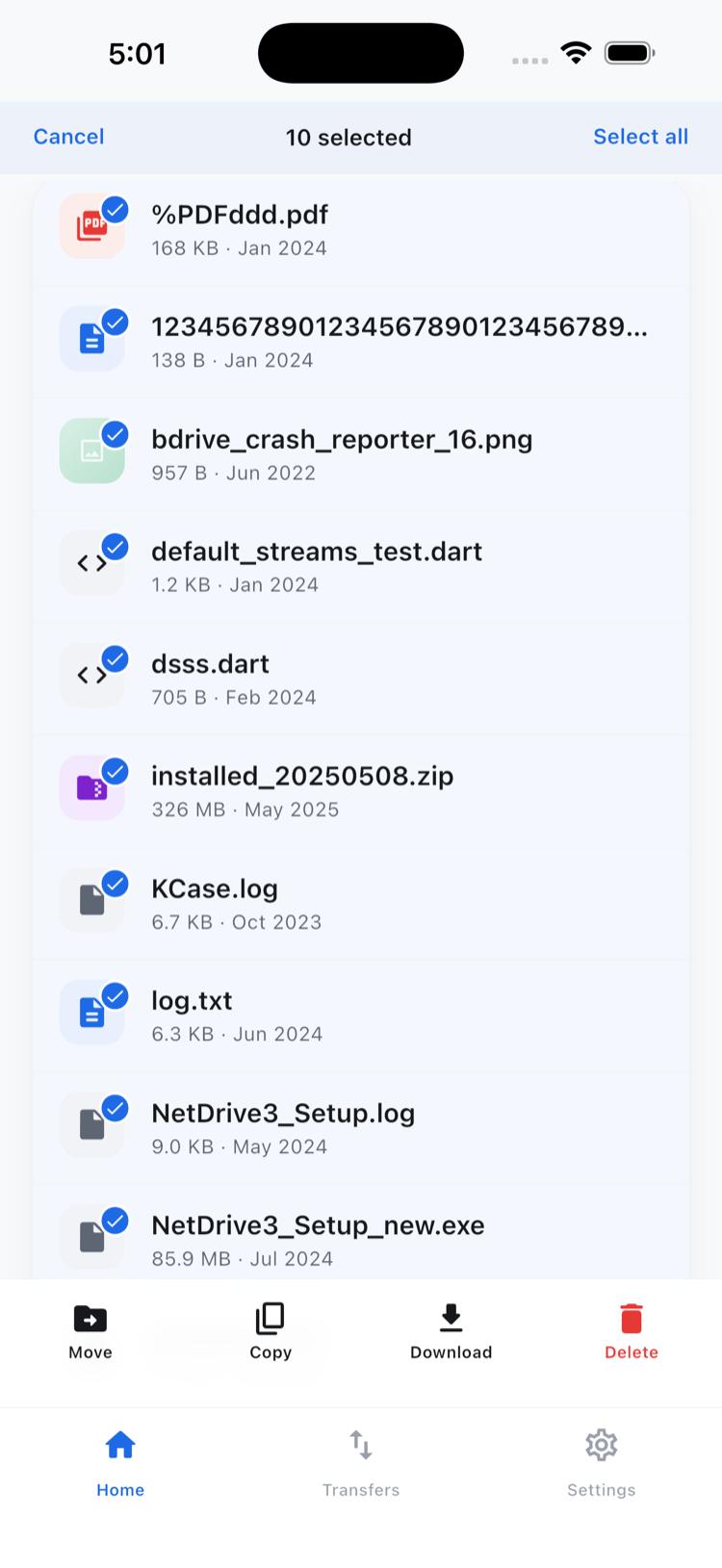
For a deeper look at these actions, see Organize Files with NetDrive Mobile.
Wrap-up
Interior design work happens on-site, with files spread across your clients’, contractors’, and studio’s clouds. NetDrive Mobile brings those accounts into one iPhone or Android app. You can preview drawings and mood boards on the spot, upload site photos straight into the right folder, and clean up between appointments. If photo capture is your main use, read Upload Photos from Your Phone to Any Cloud next. Teams who also need drawings on the job site may find NetDrive Mobile for Construction Teams useful.
— Jay, NetDrive