Mount Backblaze B2 on Windows — NetDrive Setup Guide

Mount Backblaze B2 as a native Windows drive letter with NetDrive. Stream objects directly from your bucket—no sync required. Setup takes under five minutes.
Your video production pipeline drops 4K master files into Backblaze B2 every night, but retrieving them means navigating the web console and triggering individual downloads one at a time. NetDrive mounts your B2 bucket as a Windows drive letter—open those masters directly in Premiere, DaVinci Resolve, or any other application without a manual download step in between. NetDrive has supported Backblaze B2 natively since version 3.5.434.


Open B2 Objects Like Local Files on Windows
NetDrive lets Google Drive, OneDrive, S3, SFTP, WebDAV and more appear as native drives on Windows and macOS — no syncing, no full downloads.
- Assign your B2 bucket a drive letter (D:, E:, Z:, etc.)
- Stream objects on demand — no full bucket sync required
- Works on Windows 8 through 11 and Windows Server 2012–2022
Free trial. Lifetime and subscription plans available.
Why Drive-Letter Access Changes Your Workflow
When B2 is a drive letter, every application on your machine that can open a file path can work directly against your bucket. A colorist reviewing a day’s shoot does not need to know where the footage lives—they double-click Z:\Project\Day1\A001.mov and it streams through NetDrive. The same applies to scripts: a Python batch-processor that walks a directory tree works unchanged whether the directory is on a local SSD or a B2 bucket.
NetDrive supports four mount types for any cloud provider: network drive (the default), read-only drive, local disk, and removable drive (available since 3.7.687). Read-only mode is especially useful for archive buckets where an accidental write or delete would be catastrophic—Windows will reject any write operation at the OS level before it ever reaches B2.
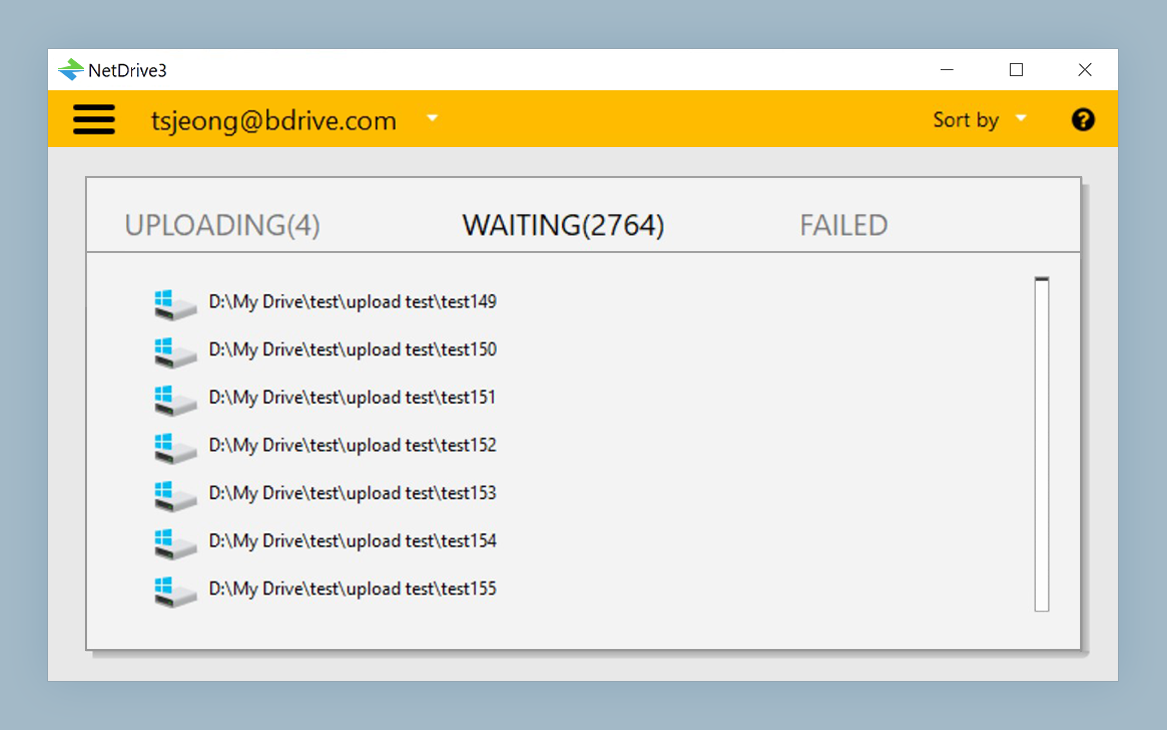
Background uploads let your applications return immediately after saving. NetDrive queues the upload and transfers the bytes while you keep working, so writing a 20 GB render to a B2-backed drive feels the same as writing to a local SSD from the application’s point of view.
What You Need Before Connecting
Before you add B2 in NetDrive, gather three things from the Backblaze console:
- Application Key ID — create a dedicated app key rather than using your master key. Scope it to only the permissions the mounted drive needs (read-write or read-only).
- Application Key — the secret shown once at creation time. Copy it immediately; Backblaze does not show it again.
- Bucket name — each NetDrive entry mounts one bucket, so know which one you’re targeting.
On the Windows side, make sure you’re running NetDrive 3.5.434 or later (Backblaze B2 was added in that release). The current version is 3.19.7, available from netdrive.net/download/windows. A 7-day trial is included with no license required to evaluate the full feature set.
Connecting B2 in NetDrive — Step by Step
- Open NetDrive from the system tray or Start menu and click the + (Add Drive) button in the Drive Manager.
- Select Backblaze B2 from the provider list.
- Enter your Application Key ID and Application Key in the credential fields. NetDrive stores these encrypted on your local machine.
- Choose your bucket from the dropdown or type the bucket name directly.
- Assign a drive letter — pick any available letter. Letters near the end of the alphabet (Y:, Z:) are less likely to conflict with existing drives on a typical workstation.
- Set the auto-mount option: choose Login to reconnect automatically each time you sign in, or Boot to reconnect before login—useful on unattended machines and Windows Server environments.
- Click Save, then Mount. Within seconds, the drive letter appears in Windows Explorer.
Working With Your Mounted B2 Bucket Day-to-Day
Large file transfers: NetDrive handles background uploads asynchronously, so saving a large file to the drive returns control to your application immediately. You can monitor upload progress from the Drive Manager.
Stale directory listings: If another machine uploaded files to the same bucket and you can’t see them yet, right-click the folder in Explorer and select Force Refresh from the NetDrive context menu. This fetches a fresh listing from B2 without requiring a full remount.
Bandwidth control: NetDrive lets you cap upload and download bandwidth per drive, so a background B2 sync doesn’t crowd out other network traffic during business hours.
Team access: If multiple team members need to access the same B2 bucket, each installs NetDrive and configures their own credentials. With a team license, administrators can push shared drive configurations to members through the team management console.
Wrap-up
Mapping Backblaze B2 as a Windows drive letter removes the friction between your local workflow and cloud storage. Applications see a standard path, users see a familiar drive letter, and objects stream on demand instead of accumulating in a downloads folder.
For related reading, see the guide on mounting Amazon S3 on macOS, or visit netdrive.net/support for the full documentation library.
— Robin, NetDrive