NetDrive Mobile for IT Field Technicians — Pulling Firmware and Configs On-Site
Field IT technicians use NetDrive Mobile to download firmware images and NAS configuration backups from S3 and SFTP storage on a phone, without carrying a laptop.
A network technician arrives on-site to replace a failing switch and needs two things from the truck-roll laptop that got left at the office: the current firmware image from the team’s Backblaze B2 bucket, and last week’s configuration backup from the customer’s NAS, reachable over SFTP. Neither file is large, but neither is reachable without opening a laptop the technician doesn’t have with them. NetDrive Mobile puts both storage locations in the same app on the phone already in hand.

Firmware and configs, no laptop required
NetDrive Mobile opens S3, Backblaze B2, SFTP, and WebDAV in one app — pull the file you need and get back to the rack.
- Download firmware images and config backups straight to the phone
- Preview text-based config files without a separate app
- Browse an on-prem NAS over SFTP alongside cloud object storage
Free Bdrive account required.
Why a Technician’s Files Live in Two Different Places
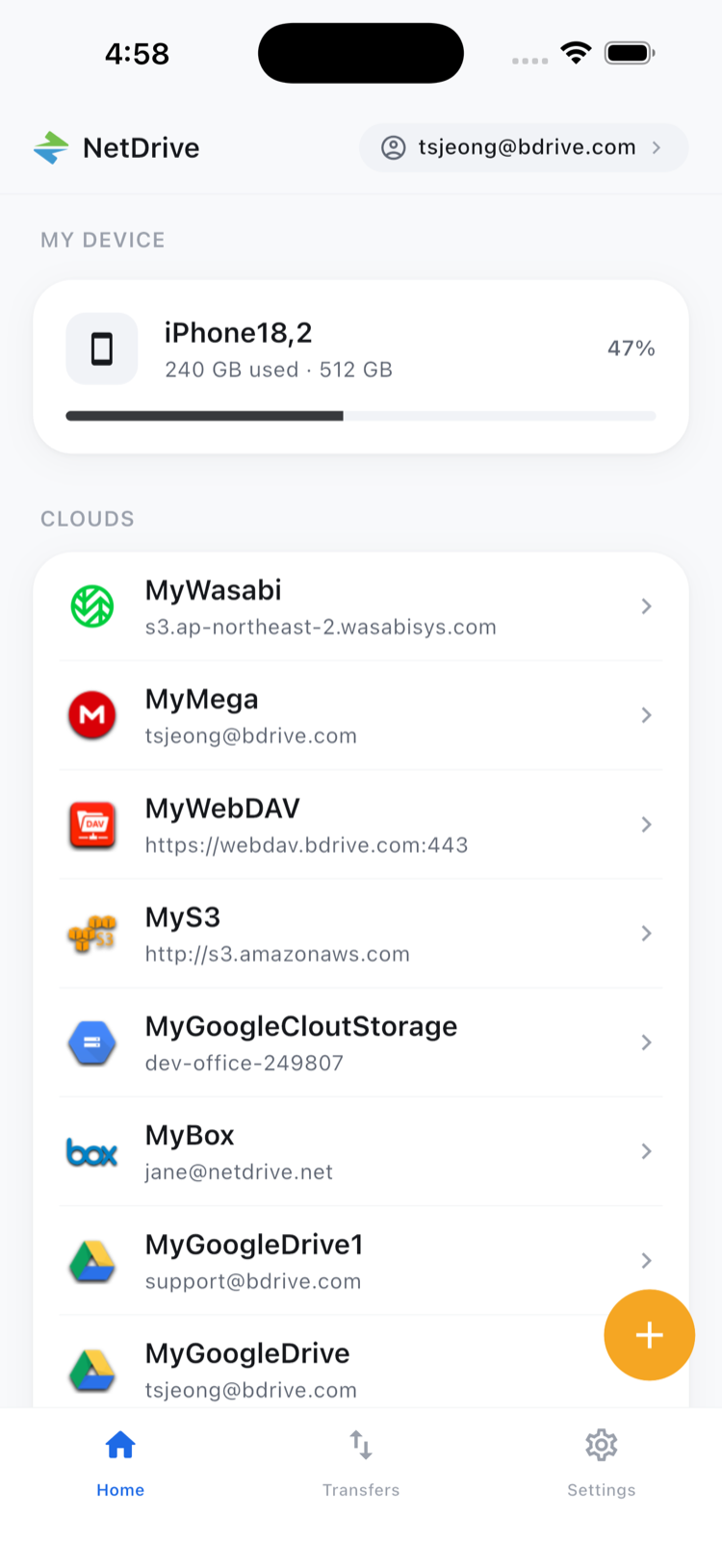
Firmware images and installer packages usually sit in object storage — an S3 bucket or a Backblaze B2 bucket the team maintains as a versioned firmware repository. Configuration backups, by contrast, often live on the customer’s own equipment: a NAS or file server reachable over SFTP on the local network, or occasionally a WebDAV share. A technician working a ticket needs both, and neither storage type is something a generic phone file-transfer app is built to reach. NetDrive Mobile connects to both kinds of storage the same way it connects to Google Drive or Dropbox, so switching between “the firmware repo” and “the customer’s NAS” is a tap between two entries on the home screen rather than two different tools.
Grabbing a Firmware Image From the Object Storage Repo
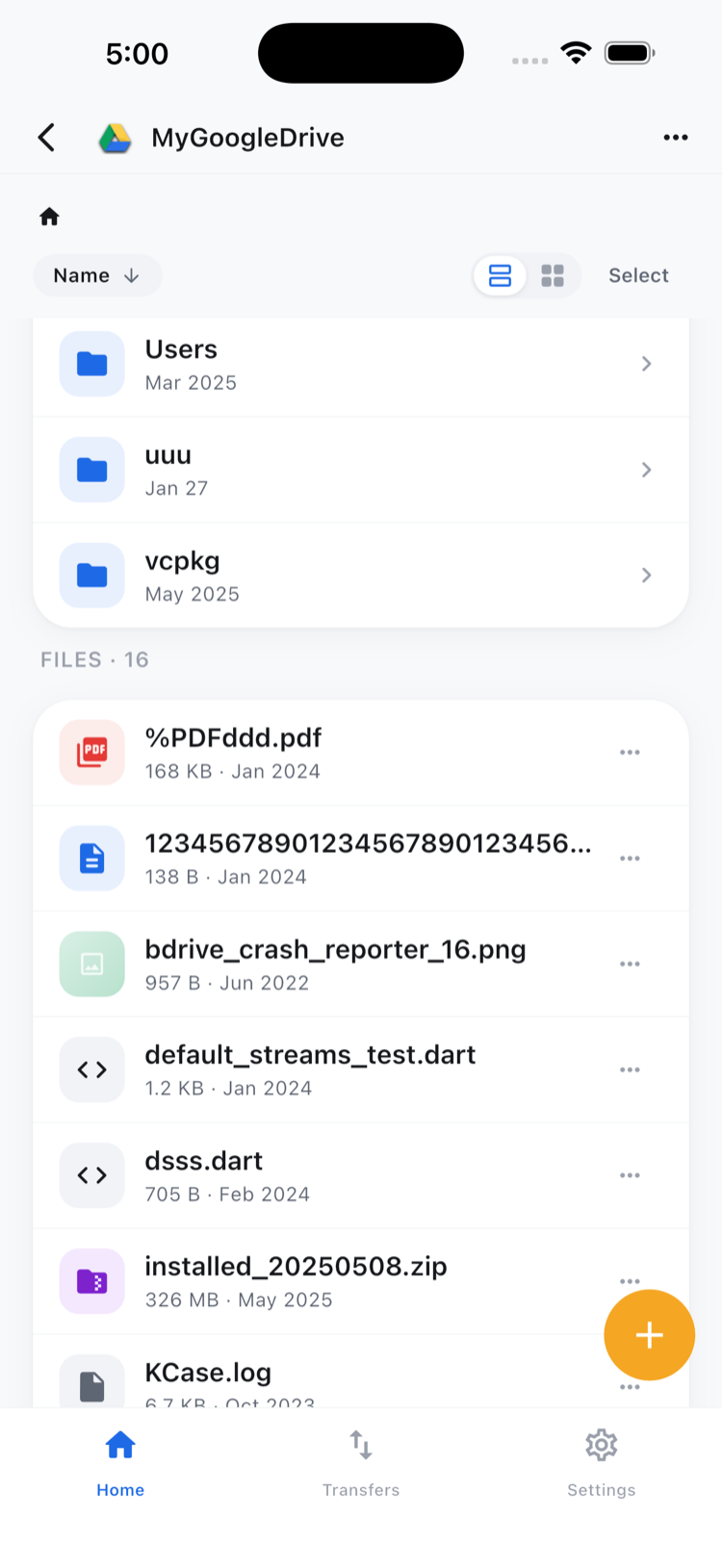
Open the S3 or Backblaze B2 drive from the home screen and browse to the version the ticket calls for — firmware repos are typically organized by device model and version number, so the file browser’s sort options make it fast to find the newest build for a given model.
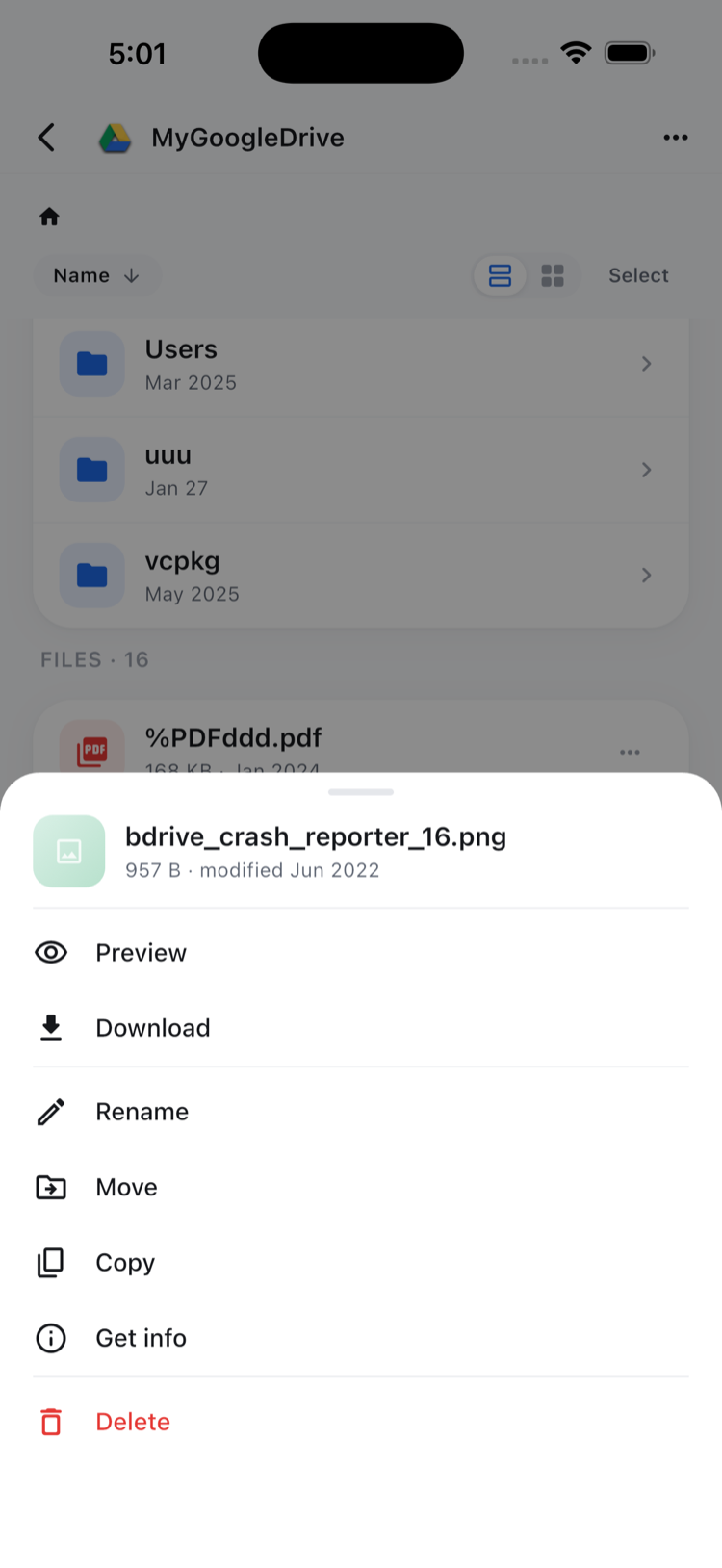
Tap the firmware file and choose Download from the action sheet. The file lands on the device’s local storage, where it can be handed off to whatever tool actually flashes the device — a USB transfer, a local web UI upload, or a companion desktop app reached later. NetDrive Mobile’s job here stops at getting the file off remote storage and onto the phone; it downloads and previews, it doesn’t push firmware to hardware directly.
Pulling a Config Backup Over SFTP
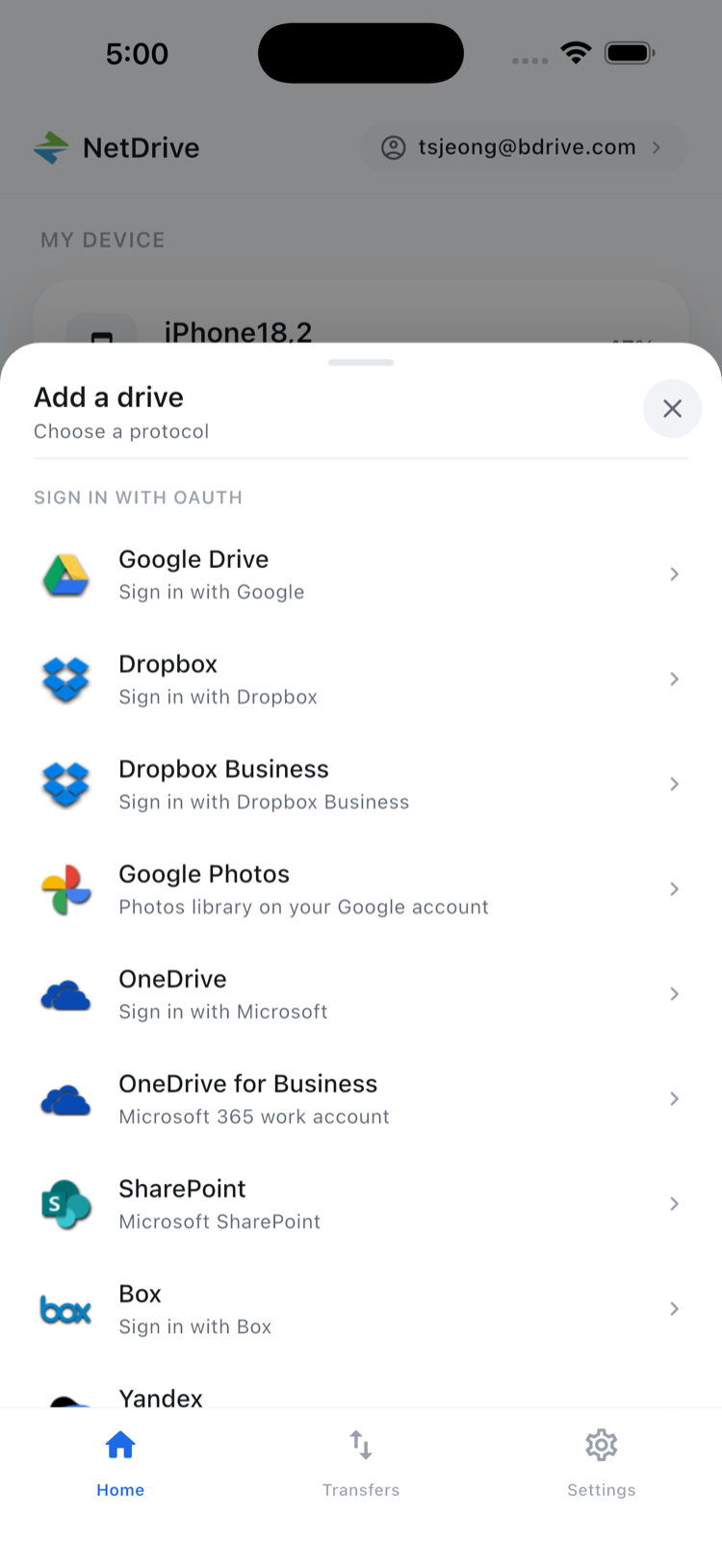
The customer’s NAS or router config backups are added as a separate drive using the device’s SFTP credentials — host, port, username, and either a password or key, entered once in the Add a drive sheet. Once connected, browsing the backup folder over SFTP works exactly like browsing an S3 bucket: the same list view, the same sort and select options.
Text-based configuration files — a .conf, .cfg, or plain-text export — open directly in NetDrive Mobile’s in-app preview, so confirming a VLAN setting or an IP range from a backup doesn’t require downloading the file and opening a separate text editor first. For a binary config format the preview doesn’t render, Download still pulls a copy to the device for use in whatever tool the vendor provides.
Downloads Queue in the Background
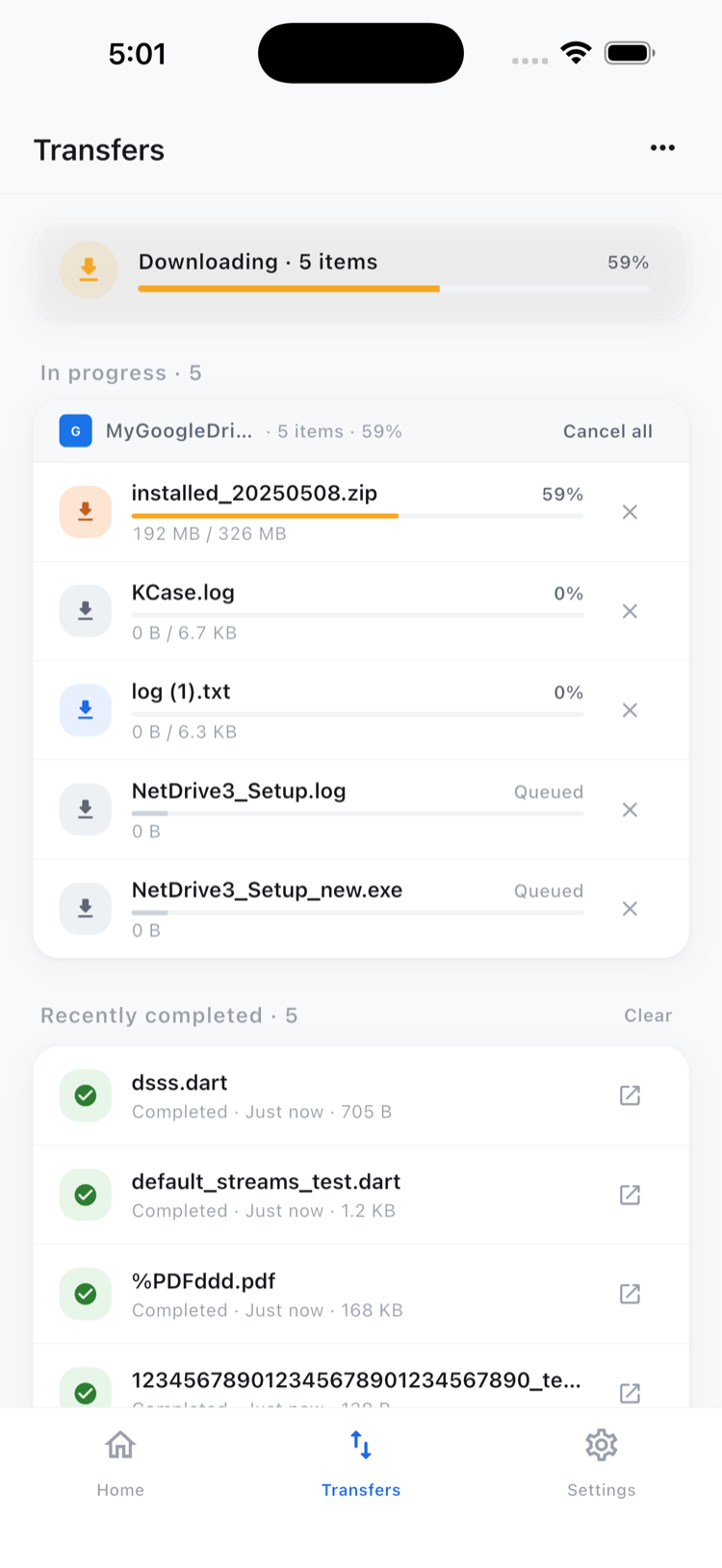
Pulling a firmware image and a config backup back to back doesn’t mean waiting for one to finish before starting the other — both queue in the Transfers tab with independent progress, so a technician can start the firmware download, switch over to browse the SFTP backup while it finishes, and check back on the transfer list once the rack work is underway.
Setting Up Before the Next Truck Roll
- Create a free Bdrive account at netdrive.net if the team doesn’t already have one.
- Install NetDrive Mobile from the App Store or Google Play.
- Add the firmware repository — S3 or Backblaze B2 — using the team’s read access credentials.
- Add each customer NAS or SFTP endpoint as a separate drive when a site is first onboarded, so it’s ready the next time a technician is dispatched there.
Wrap-up
Object storage for firmware and SFTP access to customer hardware are different systems built for different purposes, and NetDrive Mobile doesn’t try to merge them — it just makes both reachable from the same app on the phone a technician already carries. For SFTP and WebDAV specifics, see Access NAS Files on Mobile via WebDAV and SFTP; for the object-storage side, see Browse Backblaze B2 on iPhone & Android.
— Tayson, NetDrive