Mount Dropbox as a Windows Drive Letter with NetDrive

Connect your Dropbox account to NetDrive and access all your files as a native Windows drive — no full sync required. Works on Windows 10 and 11.
A video production team storing 800 GB of project assets on Dropbox runs into a familiar problem: the official Dropbox desktop client wants to sync everything to disk before editors can open files in Premiere Pro. With NetDrive, that Dropbox account becomes drive letter D: in Windows Explorer, and nothing downloads until you actually open a specific file. The same setup works for Dropbox Business teams who need shared folders accessible across multiple workstations without filling up every local drive.


Dropbox as a drive letter — in under two minutes
NetDrive lets Google Drive, OneDrive, S3, SFTP, WebDAV and more appear as native drives on Windows and macOS — no syncing, no full downloads.
- Mount any Dropbox plan as a native Windows drive
- Files stream on demand — no full sync to disk
- Works alongside your existing Dropbox app or independently
Free trial. Lifetime and subscription plans available.
Why Mount Dropbox Instead of Syncing It
The Dropbox desktop client is a sync tool: it copies files from the cloud to a local folder and keeps them current. That model works well when your storage budget and your Dropbox quota are similar in size. When you’re on a 512 GB laptop and your team’s shared Dropbox holds 3 TB of footage, renders, and archived deliverables, syncing everything is simply not an option.
NetDrive takes a different approach by mounting Dropbox as a drive using CBFS (Callback File System), a user-space filesystem driver from Callback Technologies. Windows applications — Premiere Pro, After Effects, Excel, whatever you use — see a real drive letter with folders and files. Nothing hits local disk until you open a file. You can configure a cache size of up to 1 TB for frequently accessed files, but the cloud content itself stays remote.
NetDrive also supports Dropbox Business accounts, added in version 3.9.1190. Teams on Dropbox Business can mount shared team folders alongside personal Dropbox accounts, each assigned its own drive letter in the Drive Manager.
Setting Up Dropbox in NetDrive on Windows
-
Download and install NetDrive from https://www.netdrive.net/download/windows/. The installer bundles the CBFS driver; a reboot may be required after first install to load the driver.
-
Open NetDrive from the system tray icon or the Start menu. The Drive Manager window displays your configured drives as a card list.
-
Add a new drive: click the + button in the Drive Manager. A provider list appears showing all supported cloud services and protocols.
-
Select Dropbox from the list (or Dropbox Business for enterprise accounts).
-
Authenticate via OAuth: NetDrive opens your default browser to Dropbox’s authorization page. Sign in with your Dropbox credentials and grant access. NetDrive stores the OAuth token — you won’t need to re-authenticate on future launches unless you revoke access in Dropbox’s account settings.
-
Assign a drive letter: in the drive configuration panel, choose any available letter (
D:,Z:, etc.). You can also set the mount type: Network drive is the default and shows the drive in the “Network locations” section of Explorer; Local disk makes it appear alongside internal drives; Read-only prevents any writes to Dropbox, useful for archival access. -
Configure auto-mount: under Auto Mount, choose Mount at boot (mounts before Windows login — handy for server setups), Mount at login, or Disabled for manual control.
-
Click Mount. The drive letter appears in Windows Explorer within seconds.
Getting the Most From Your Dropbox Mount
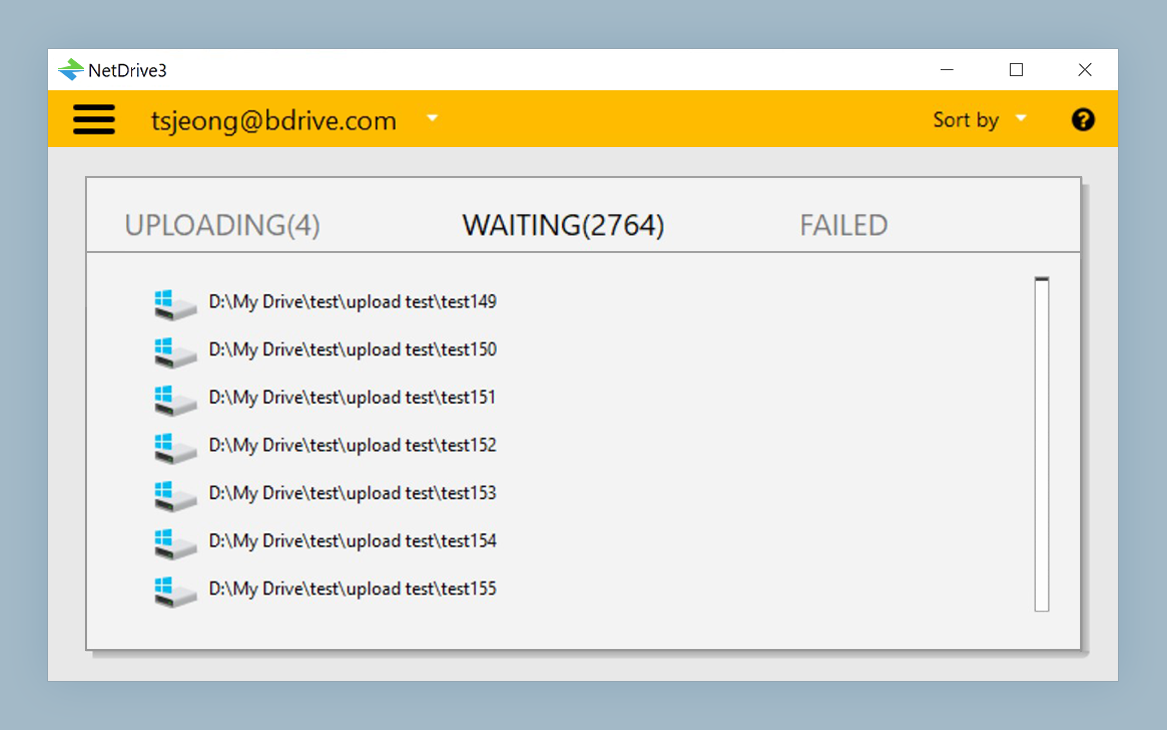
File status overlays — NetDrive adds overlay icons to files in Windows Explorer so you can tell at a glance which files are fully cached locally, which are actively uploading, and which had errors. When you copy files into the mounted Dropbox drive, the background upload queue handles the transfer asynchronously — you can keep working in Explorer or other apps while the upload runs.
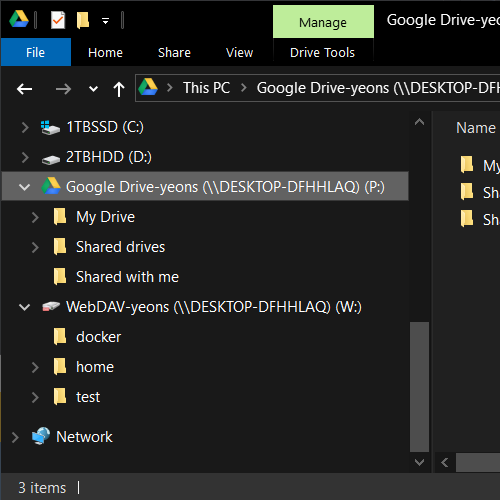
File locking — Teams that edit shared Dropbox files benefit from NetDrive’s file lock feature. Right-click any file on the mounted drive and select Lock File; colleagues using NetDrive see a lock icon overlay on that file. If someone tries to open a locked file in an application, they get a read-only warning — the same behavior as Microsoft Office’s built-in document sharing protection, extended to all file types. File lock for all file types was introduced in version 3.9.1190.
Background uploads in detail — The background upload queue shows each file’s transfer progress, queued items, and any failed uploads. If an upload fails due to a transient network error, NetDrive retries automatically.
Force folder refresh — If Dropbox’s change feed is slow to surface a file another team member just uploaded, right-click any folder on the mounted drive and select Refresh Folder to force an immediate directory listing update.
Bandwidth limits — NetDrive lets you cap upload and download throughput per drive. If your Dropbox mount is on a machine that also runs video encoding jobs, setting a bandwidth ceiling prevents cloud transfers from saturating the uplink during renders.
Wrap-up
Mounting Dropbox as a Windows drive letter with NetDrive takes about two minutes and makes terabytes of cloud content available to any Windows application without a local sync. Dropbox Business accounts get the same setup — each shared folder can be a separate drive letter in Drive Manager. Start with a 7-day free trial from the download page and see how it handles your team’s actual file sizes.
For more provider guides: Mount Backblaze B2 on Windows with NetDrive and Mount Amazon S3 on macOS with NetDrive.
— Steve, NetDrive