NetDrive Mobile for Home Health Teams — Forms and Photos, One App

Home health aides use NetDrive Mobile to pull intake forms from SharePoint and upload visit photos to the agency's cloud from a phone between visits.
A home health aide pulls into a driveway between visits with ten minutes to spare, needs to check the intake form the agency posted to SharePoint that morning, and has to get yesterday’s wound-care photos off the phone and into the shared folder before the next stop. The agency’s paperwork lives in SharePoint, a partner clinic shares scanned referrals through Dropbox, and the aide’s own photos and notes need to land in whichever cloud folder the coordinator is tracking that patient in. NetDrive Mobile keeps all three reachable from one app instead of three separate logins juggled between visits.

Forms and photos, one app between visits
NetDrive Mobile opens Google Drive, Dropbox, OneDrive, S3, WebDAV, SFTP and more in one app — browse, upload, download, and preview right from your phone.
- Open the latest SharePoint intake form without downloading the whole folder
- Upload visit photos straight from the camera to the right patient folder
- Switch between the agency's SharePoint and a partner clinic's Dropbox without changing apps
Free Bdrive account required.
Why One App Beats a Stack of Logins Between Visits
Home health work rarely sits on a single cloud. The agency’s own document library and intake templates typically live in SharePoint. A referring clinic might share scanned paperwork through Dropbox instead. And the aide’s own visit photos, signed forms, and notes need to end up in whatever folder the coordinator uses to track that particular patient’s file. Signing into three separate apps between short visits — each with its own login and its own upload screen — is exactly the kind of friction that gets skipped when there’s a car running and another address to reach.
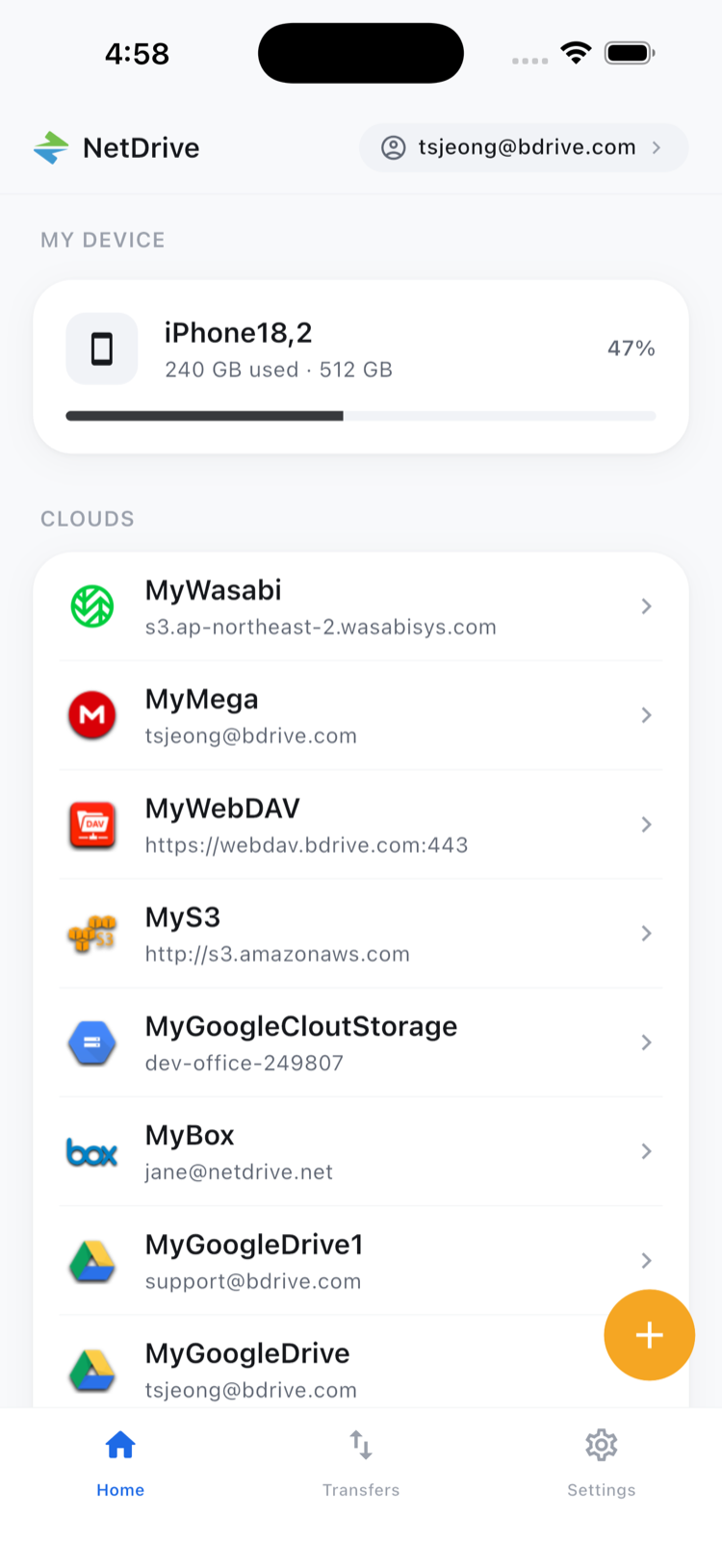
NetDrive Mobile’s home screen lists every connected cloud account side by side, so moving from the agency’s SharePoint library to a partner clinic’s Dropbox folder is a tap, not an app switch. A free Bdrive account is the only sign-up required to tie the connections together, and credentials for each cloud stay in the device’s own secure storage rather than a shared password sheet.
Pulling Up the Current Intake Form On Site
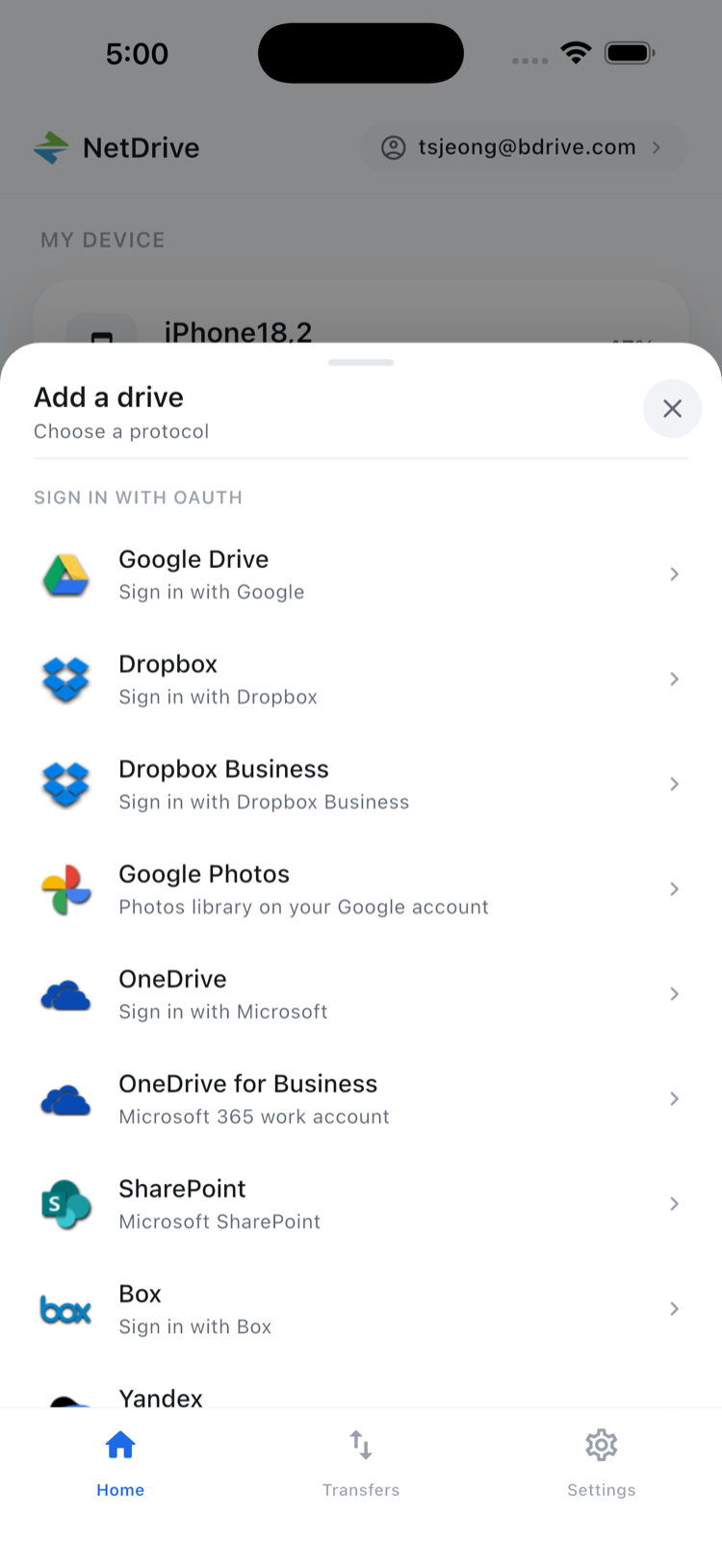
- Open the app and tap the connected SharePoint drive — added ahead of time through the Add a drive sheet.
- Browse to the patient or route folder where the agency keeps current paperwork.
- Tap the intake form to preview it in-app, whether it’s a PDF or a scanned image, without downloading the full folder first.
- Confirm the details on screen before knocking on the door, instead of guessing from a form printed the week before.
In-app preview for common document and image formats means the aide isn’t waiting on a separate PDF reader to open, or pulling down every file in a shared folder just to check one page.
Getting Visit Photos Off the Phone and Into the Right Folder
- Browse to the day’s patient folder in the destination cloud.
- Tap upload and choose Camera or Photos as the source, then select the shots taken during the visit.
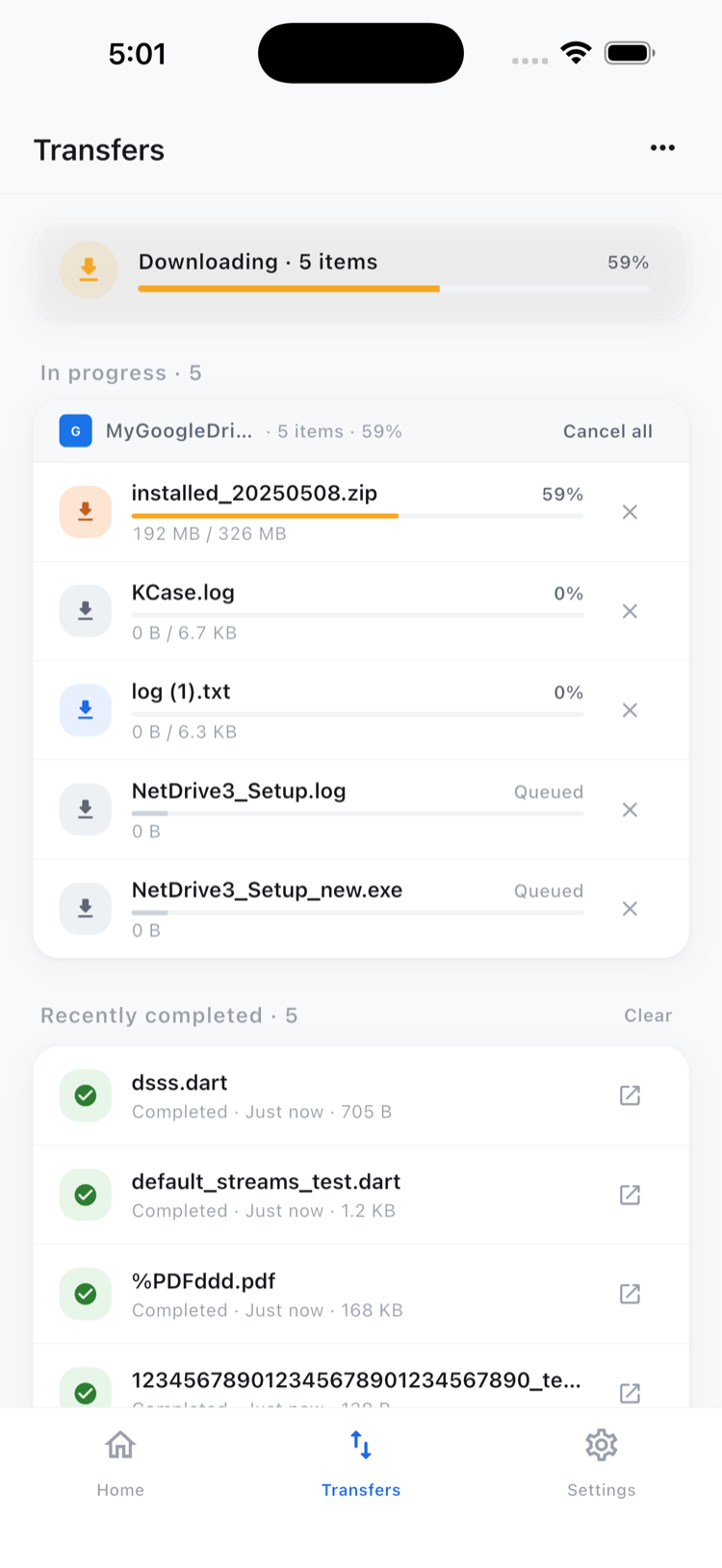
- Watch each transfer in the Transfers tab, where progress shows per file and any upload can be canceled individually if the wrong batch got selected.
- Use multi-select afterward to delete duplicates or move the final set into a subfolder before the coordinator reviews it.
Uploads keep running in the background if the aide answers a call or starts driving to the next address mid-transfer.
One limit worth knowing up front: moving a referral a partner clinic sent through Dropbox directly over to the agency’s SharePoint folder — cloud to cloud, in one step — isn’t something the mobile app does. Copy and move stay within a single connected cloud; a photo can move from an “Inbox” folder into a dated visit folder on the same SharePoint site, but getting a file from one provider straight into a different one is the domain of NetDrive’s sibling product, RcloneView.
Wrap-up
The value for a home health team isn’t any single feature — it’s not carrying a laptop bag between short visits just to check a form or hand off a photo. For the batch cleanup workflow in more depth, see Organize Files On the Go. For a similar multi-cloud field workflow in a different industry, see NetDrive Mobile for Field Teams.
— Jay, NetDrive