Audio Studios with NetDrive — Shared Sessions Without Local Drive Space

Mount Amazon S3 as a shared drive for multitrack session files, lock tracks while mixing, and keep engineers off each other's work with NetDrive's team features.
A four-person mixing studio keeps its multitrack session archive on Amazon S3 — a finished album can run past 400 GB once every stem, print, and alternate mix is counted, and none of the engineers’ laptops have room to keep a full local copy of every active project. The studio’s problem isn’t storage cost, it’s access: an engineer opening a session needs the DAW to see files at a normal path, not through a browser download queue, and two engineers should never silently overwrite the same session file. NetDrive mounts the S3 bucket as a native drive on each workstation and adds file locking on top, so the session behaves like it’s sitting on local disk without anyone needing a full copy of it.


Mount your session archive as a shared drive
NetDrive lets Google Drive, OneDrive, S3, SFTP, WebDAV and more appear as native drives on Windows and macOS — no syncing, no full downloads.
- Amazon S3, Backblaze B2, or Dropbox — mounted as a drive letter or Finder volume
- File locking stops two engineers from overwriting the same session
- On-demand streaming — only the tracks a DAW actually opens get pulled
Free trial. Lifetime and subscription plans available.
Why a Mounted Drive Fits a DAW Better Than a Sync Client
Most sync clients are built around the assumption that a folder’s contents should exist in full on every machine that touches it — fine for a document archive, expensive for a studio where the active project folder alone can hold gigabytes of 24-bit multitrack audio across a dozen alternate mixes. A DAW like Pro Tools or Logic doesn’t need the whole archive resident locally either; it needs to open the specific session and stem files a project calls for, right now.
NetDrive mounts the storage account as a regular drive letter on Windows or a volume in Finder on macOS, and streams file contents on demand instead of syncing everything up front. An engineer browses the shared archive exactly like a local folder, and only the files a session actually references get pulled down.

Keeping Engineers Off Each Other’s Sessions
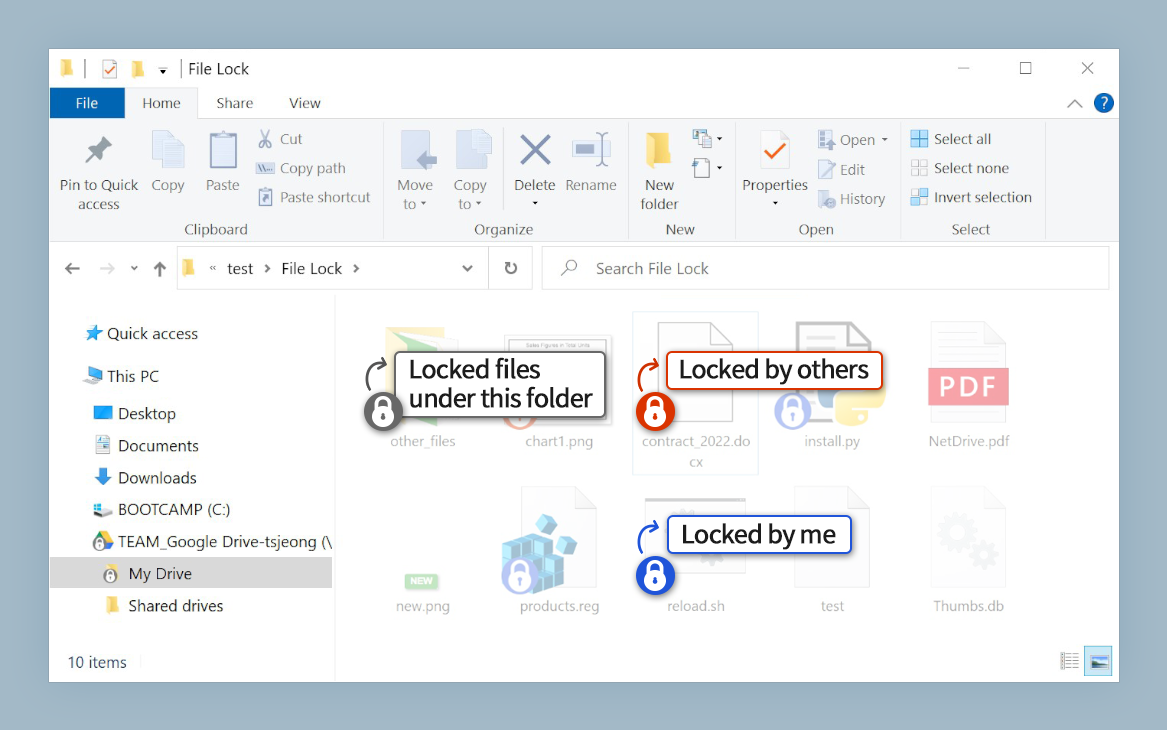
The real risk in a shared archive isn’t storage — it’s two people opening the same session file at once and one of them losing changes. NetDrive’s file locking feature addresses this directly: when an engineer opens a file from the mounted drive, NetDrive can lock it so a second person sees it as read-only until the first person closes it. This works across file types, not just Microsoft Office documents, so it covers session files, bounce folders, and shared reference mixes the same way.
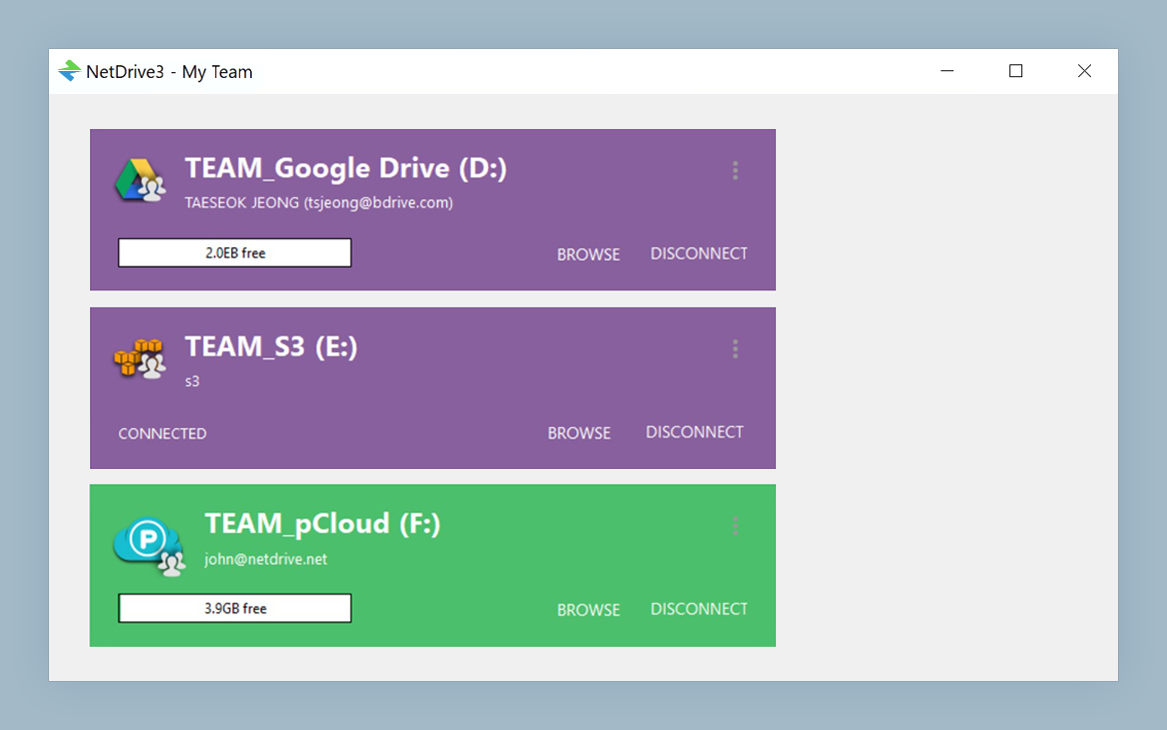
Pair this with Team Drive, which lets a studio publish the shared archive to specific team members with their own licenses rather than passing around one shared login. A studio manager assigns and revokes access as engineers rotate onto and off projects, without touching S3 bucket permissions directly.
Setting Up the Shared Drive
- Open NetDrive’s Drive Manager and click + Add Drive.
- Select Amazon S3 (or Backblaze B2, if the studio archives to B2 instead) from the provider list.
- Enter the bucket’s access key and secret key.
- Assign a drive letter on Windows, or a mount path on macOS.
- Click Connect. The bucket appears as a native drive on that workstation.
- From the drive’s settings, turn on file locking so open sessions show as read-only to other engineers.
Each engineer repeats the same steps on their own workstation, connecting to the same bucket with credentials scoped by the studio’s Team Drive license.
Tuning Cache Size for Large Sessions
A session pulling from dozens of high-resolution stem files can chew through a small local cache quickly, especially during a full album bounce. NetDrive’s cache size setting runs from 100 GB up to 1 TB per drive, so a workstation with the disk space to spare can hold more of an active project locally and avoid re-fetching the same stems on every playback pass. On a laptop with limited disk space, a smaller cache keeps NetDrive from competing with the DAW’s own project files for local storage — background uploads still queue normally regardless of the cache size chosen.
Wrap-up
Mounting the studio’s S3 archive through NetDrive turns a browser-based storage bucket into something a DAW can treat like local disk, while file locking and Team Drive licensing keep engineers from stepping on each other’s sessions. For the archive-heavy end of this same workflow, see Photography RAW Archive on Backblaze B2 with NetDrive and Team Drive — Shared Drives Guide for more on managing access across a team.
— Jay, NetDrive