Organize Files On the Go — Copy, Move, and Rename in NetDrive Mobile

NetDrive Mobile lets you rename, move, copy, and delete cloud files right from your phone, with multi-select for batch cleanup between shoots or meetings.
A field photographer wraps a shoot, uploads 300 shots to Dropbox from their phone in the parking lot, and needs to weed out duplicates, rename the keepers, and move the final set into a client folder — all before the drive home, without opening a laptop. NetDrive Mobile handles that entire cleanup pass from the same screen where the files landed.
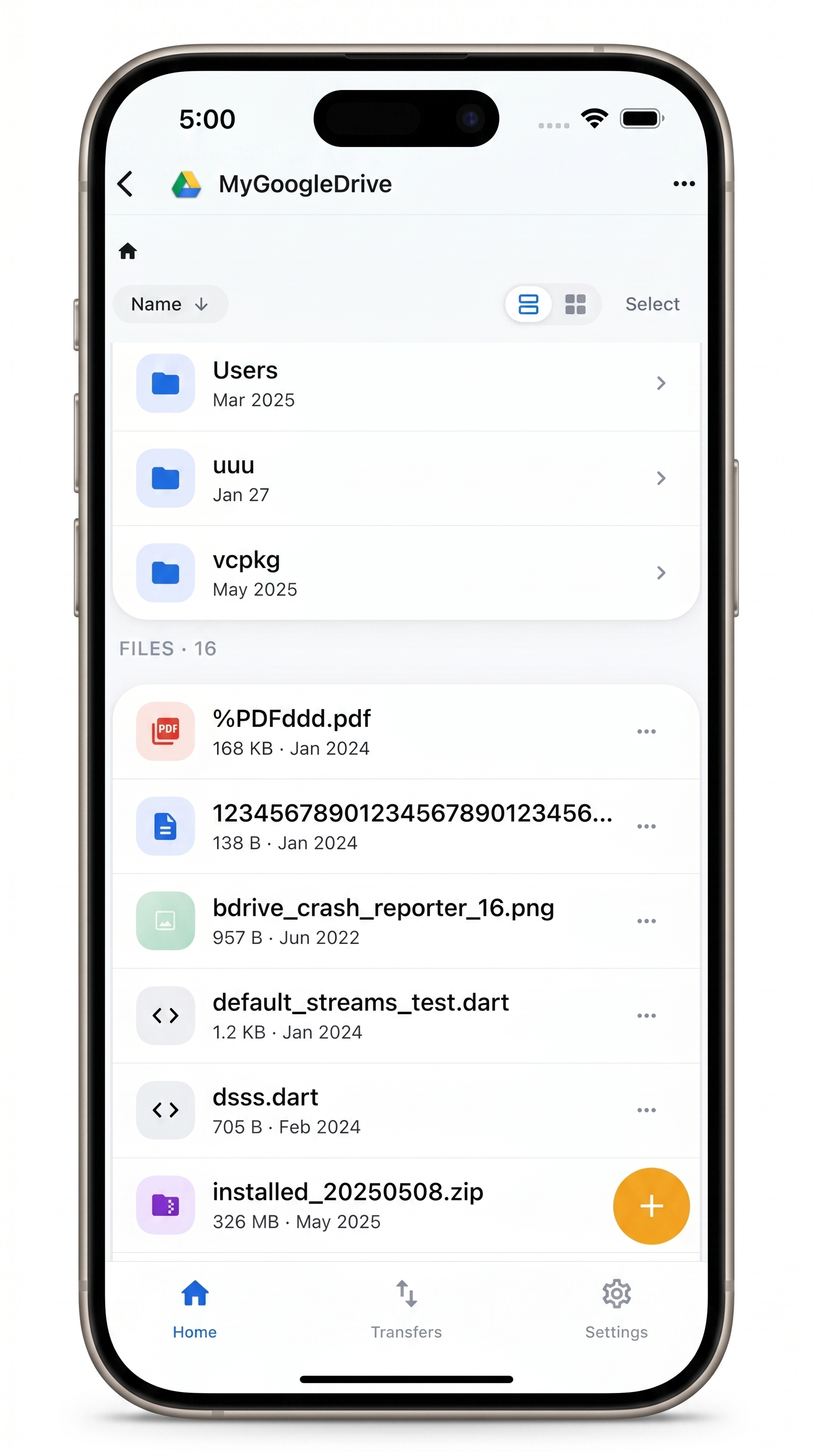
Clean Up Cloud Files Without a Laptop
NetDrive Mobile opens Google Drive, Dropbox, OneDrive, S3, WebDAV, SFTP and more in one app — browse, upload, download, and preview right from your phone.
- Rename, move, copy, and delete without leaving the app
- Multi-select for batch actions across dozens of files at once
- Works across Google Drive, Dropbox, S3, and every connected cloud
Free Bdrive account required.
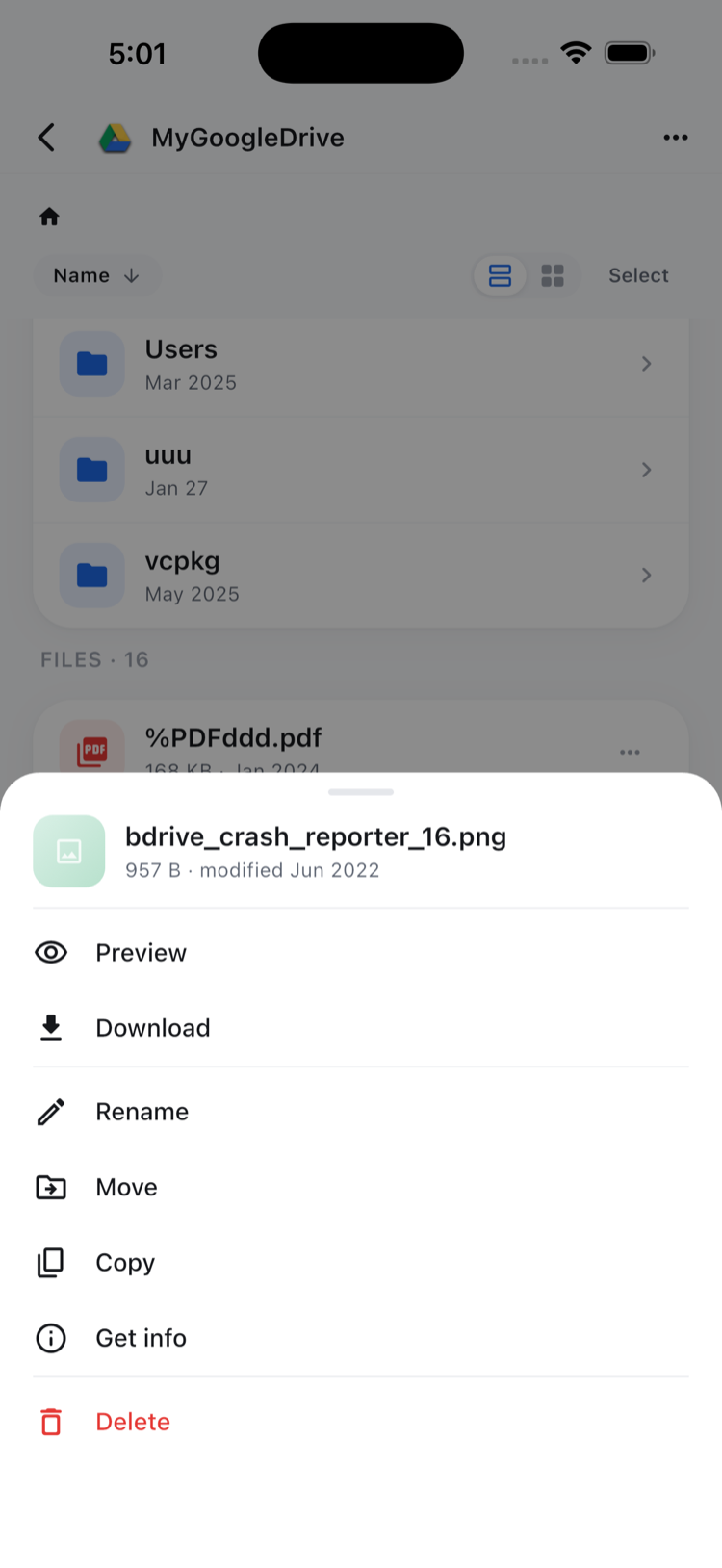
The file actions sheet
Tap and hold any file in the browser and a sheet slides up with the everyday file operations: Preview, Download, Rename, Move, Copy, Get info, and Delete. There’s no separate “manage” mode to switch into first — the same list view used for browsing is where cleanup happens. Renaming a batch of export files to match a client’s naming convention, or moving a folder of raw uploads into a properly named subfolder, takes the same handful of taps whether the files are sitting in Google Drive, Dropbox, or an S3 bucket.
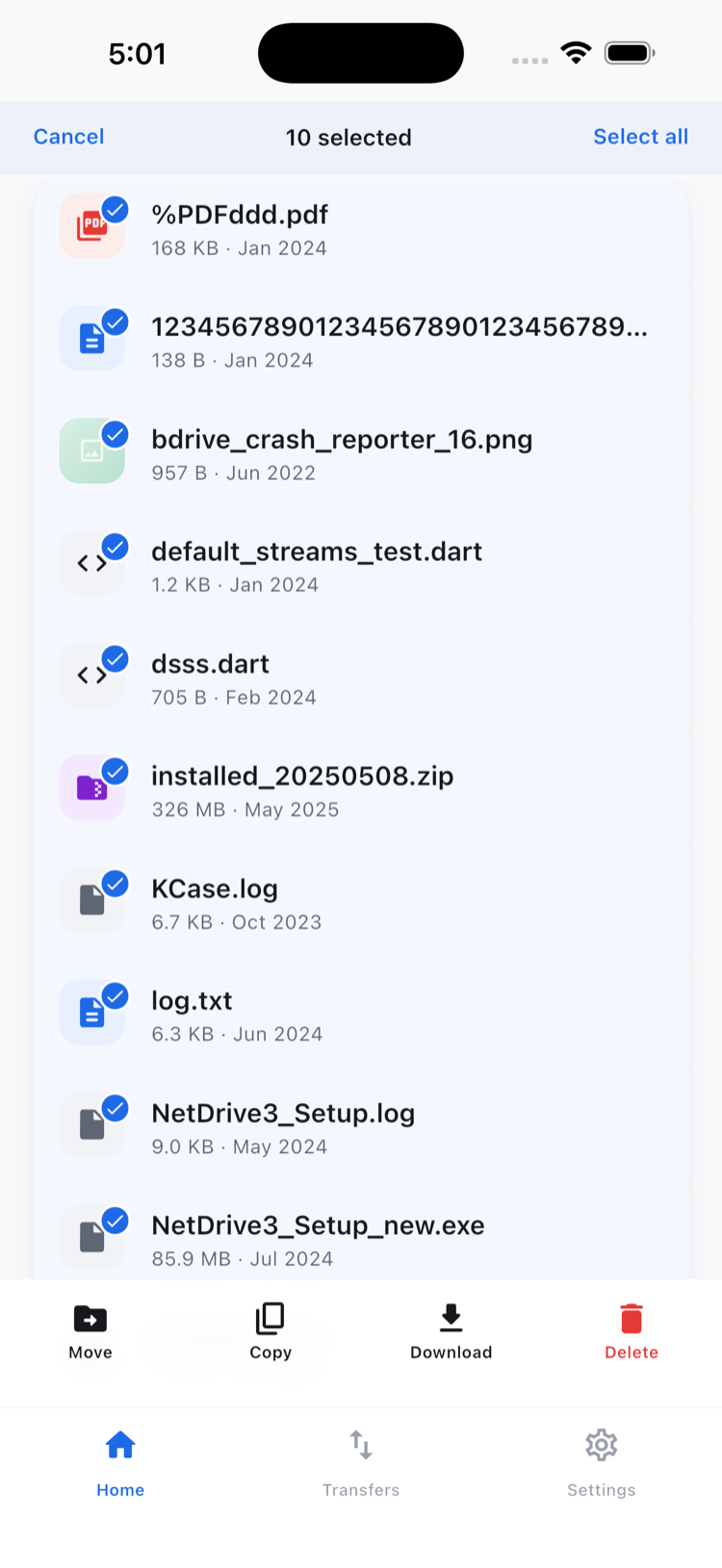
Multi-select for batch cleanup
For anything beyond a single file, switching into multi-select turns the browser into a checklist: tap to select as many files as needed, then apply one action — move, copy, download, or delete — to the whole selection at once. That’s the difference between tapping through 40 duplicate shots one at a time versus clearing them in a single pass. The same multi-select flow works for moving a week’s worth of scanned receipts into an “Expenses” folder or bulk-downloading a folder before a flight.
What copy and move can — and can’t — do
Copy and move operations stay inside the cloud account you’re working in. Moving a file out of a Dropbox folder into another Dropbox folder, or copying it to a different folder in the same Google Drive, works exactly as described above. What NetDrive Mobile doesn’t do is move or copy a file directly from one provider to another — say, pulling a file out of Google Drive and dropping it straight into an S3 bucket. That kind of cross-cloud transfer is handled by NetDrive Mobile’s sibling app, RcloneView, which is built specifically for moving files between different cloud accounts.
Knowing that boundary up front avoids a frustrating search for a “move to another cloud” option that isn’t part of this app’s file actions sheet.
Doing a cleanup pass on your phone
- Open the cloud where the files live from the NetDrive Mobile home screen.
- Browse to the folder that needs organizing, then tap and hold a file to open the file actions sheet, or tap Select to enter multi-select mode for several files at once.
- Choose Rename for one-off naming fixes, or Move/Copy and pick the destination folder within that same cloud account.
- Use Delete — individually or via multi-select — to clear duplicates or rejects before they clutter the next browsing session.
Wrap-up
File actions and multi-select round out what was already possible with uploads and downloads on NetDrive Mobile — together they cover a full cleanup pass without a laptop in reach. For the upload and download side of the workflow, see multi-file transfers on NetDrive Mobile; for a broader look at what the app covers, see NetDrive Mobile — every cloud in one app.
— Jay, NetDrive