Browse Dropbox Business on iPhone & Android — NetDrive Mobile

Access your team's Dropbox Business account from iPhone or Android with NetDrive Mobile — browse, preview, and send files without the Dropbox app.
A sales rep waiting outside a client’s office realizes the signed proposal template is sitting in the team’s Dropbox Business folder, not in email. Switching accounts inside the regular Dropbox app, or hunting for a share link someone posted in chat, eats the minutes before the meeting starts. NetDrive Mobile connects straight to a Dropbox Business account and puts that folder one tap away.

Your team's Dropbox Business, one tap away
NetDrive Mobile opens Google Drive, Dropbox, OneDrive, S3, WebDAV, SFTP and more in one app — browse, upload, download, and preview right from your phone.
- Browse Dropbox Business folders alongside your other clouds
- Preview documents and images without downloading first
- Send files back to the team straight from your phone
Free Bdrive account required.
Adding a Dropbox Business Account
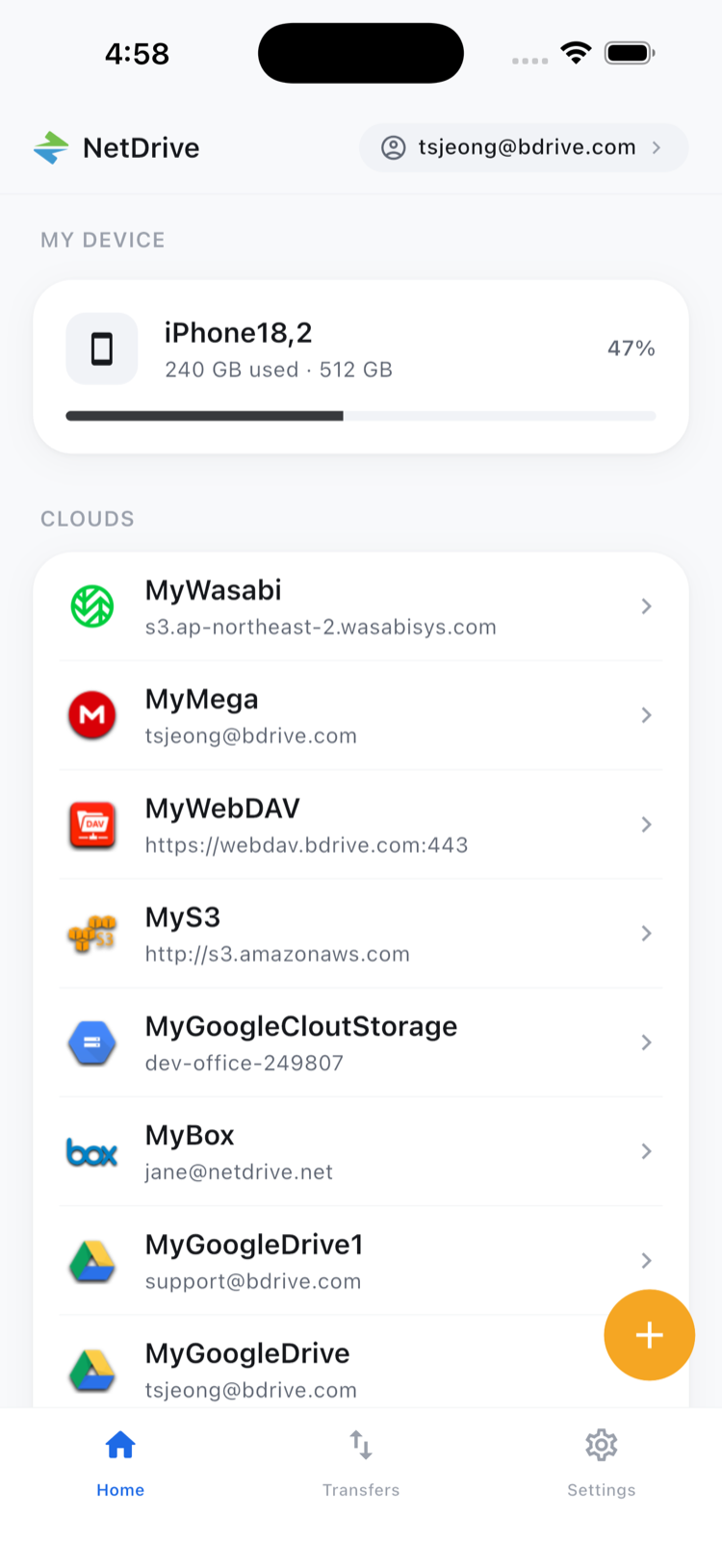
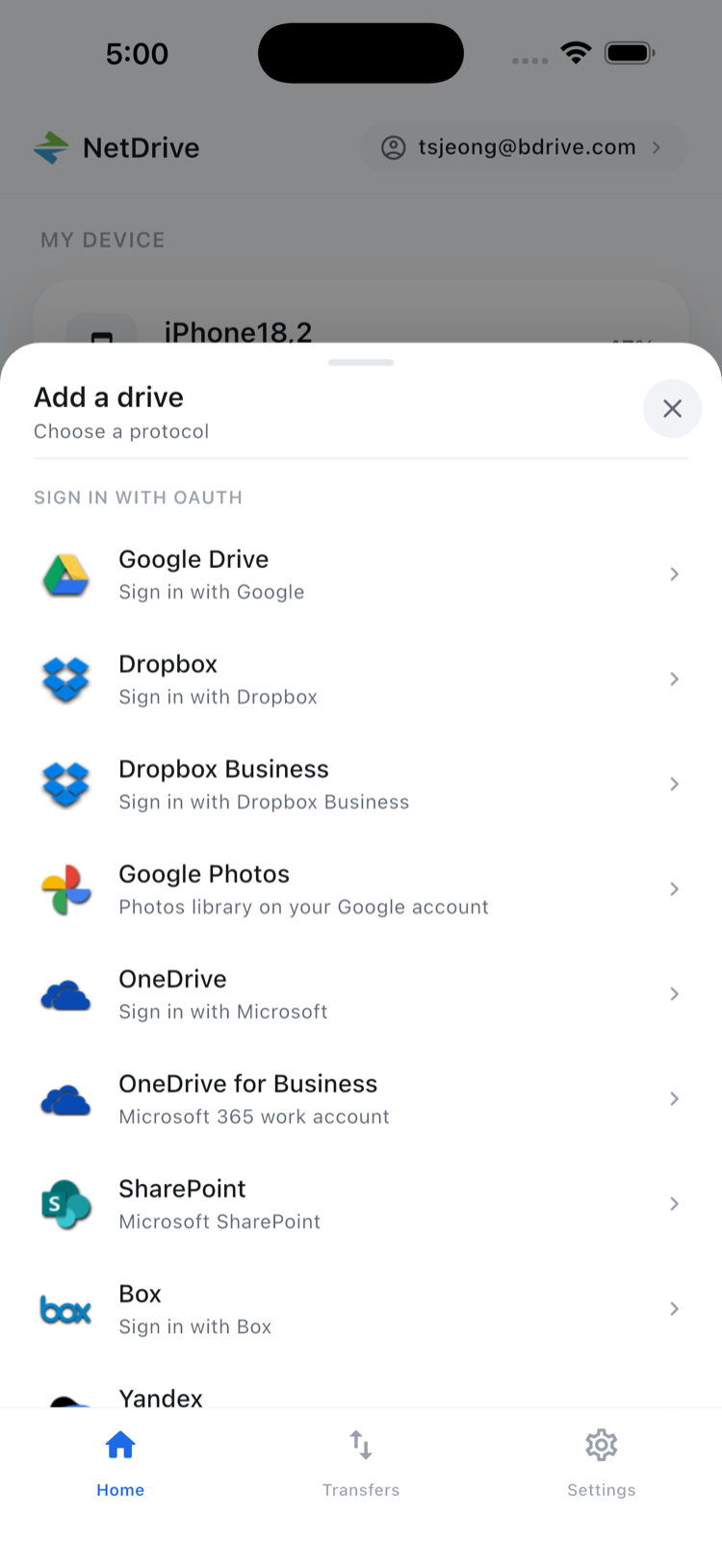
Open NetDrive Mobile and tap Add a drive from the home screen. The provider sheet lists Dropbox Business as a separate entry from personal Dropbox, so a team account and a personal account can both live in the app without getting mixed up. Sign in with the team credentials, and the Dropbox Business folder appears in the home screen’s cloud list within a few seconds — no separate app install needed.
That separation matters for anyone who uses Dropbox for personal files and Dropbox Business for work at the same time. Both show up as distinct cards on the home screen — one for the personal account, one for the team — instead of one login silently overwriting the other. Switching between them is a tap on the home screen rather than a full sign-out and sign-in cycle.
Finding Files Without Losing Context
Tap into the Dropbox Business entry and the file browser opens on the team’s folder structure — the same layout a desktop user would see, with sort options and a grid/list toggle for folders full of images. Tapping a document or photo opens an in-app preview, so checking whether a file is the right version doesn’t require downloading it first and hunting for it in the Files app afterward.
Sending Files Back to the Team
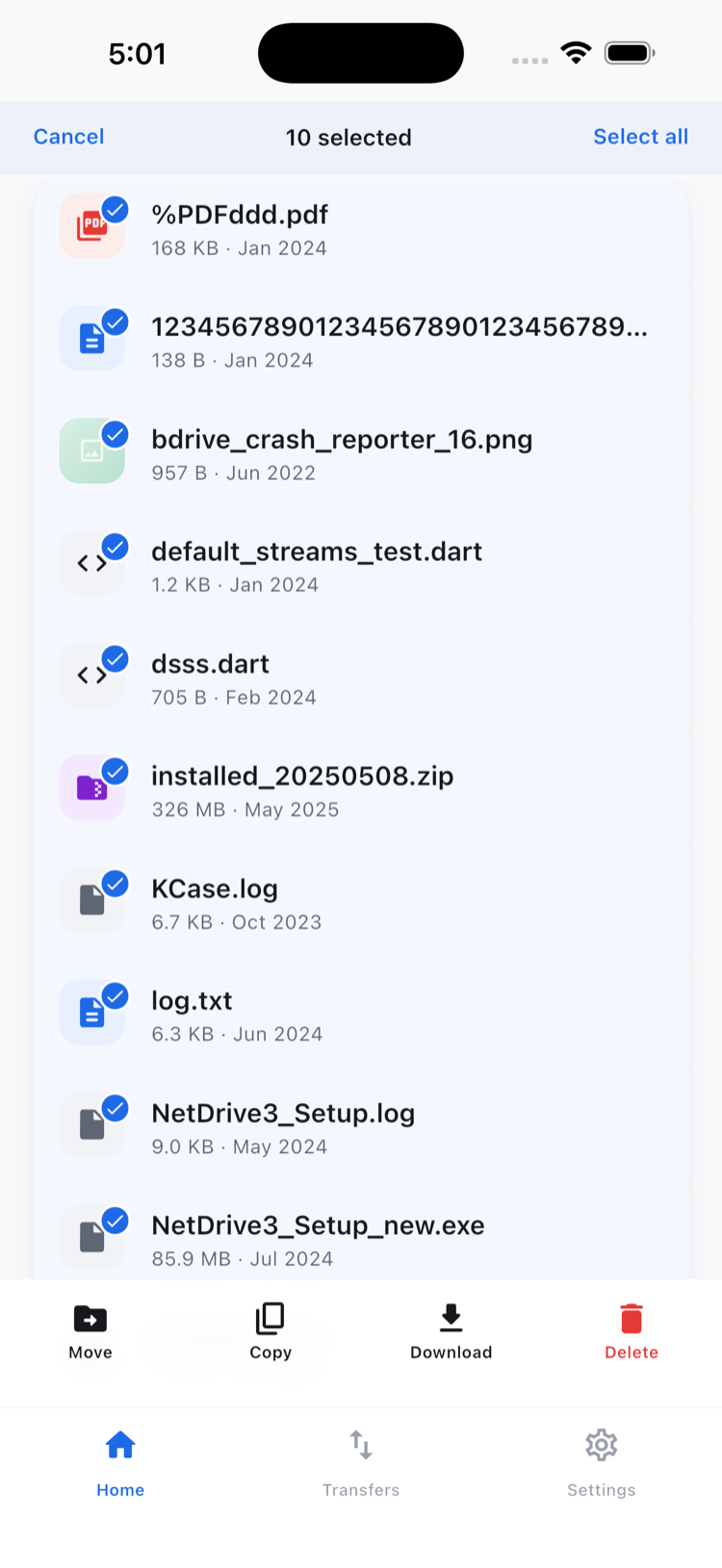
Long-press to enter multi-select, check off the files needed, and use the bottom action bar to download them to the phone or copy them to another folder within the same Dropbox Business account. Uploading works the other way — a photo taken on-site, or a file picked from the phone’s storage, uploads straight into the shared team folder with progress visible in the Transfers tab, so there’s no need to switch to a computer to get it into the team’s system. Copying or moving a file stays inside that same Dropbox Business account; pulling a file from Dropbox Business into a different provider still means downloading it to the phone first and uploading it separately.
Keeping the Team Account Secure
Adding Dropbox Business requires a free Bdrive account inside NetDrive Mobile first, separate from the Dropbox Business credentials themselves. Once signed in, the Dropbox Business credentials stay in the phone’s secure storage (Keychain on iOS, Keystore on Android) rather than in the app’s own files. Signing into the Bdrive account itself supports two-factor authentication, with the confirmation code arriving as a notification inside NetDrive Mobile — including on the lock screen — so unlocking the app doesn’t mean digging through a separate authenticator app first.
Wrap-up
Keeping a Dropbox Business account reachable from a phone means the team folder is available the moment it’s needed, not just when a laptop is open. For a broader look at what the app covers beyond a single provider, see NetDrive Mobile: every cloud in one app or the rundown on desktop vs. mobile.
— Morgan, NetDrive