Windows Terminal Server with NetDrive: Multi-User Cloud Drives

How NetDrive's team license handles multiple users on a Windows Terminal Server: per-user cloud drives, team drives, license assignment, and what to check first.
An accounting firm runs twelve staff on a single Windows Terminal Server. Everyone works from the same server image, yet each person needs their own Google Drive or OneDrive plus a shared client folder, and nobody should see a colleague’s personal cloud. NetDrive’s team license was built with that layout in mind: multi-user support for Windows Terminal Server has been part of it since release 3.1.286.
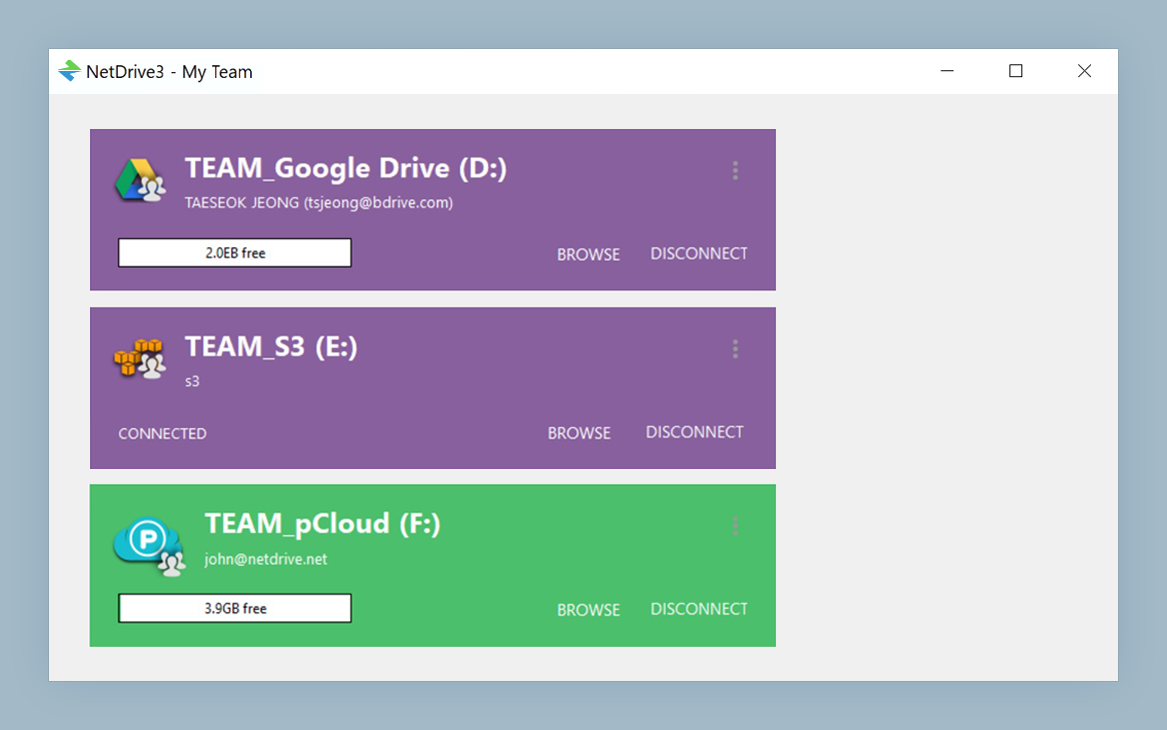
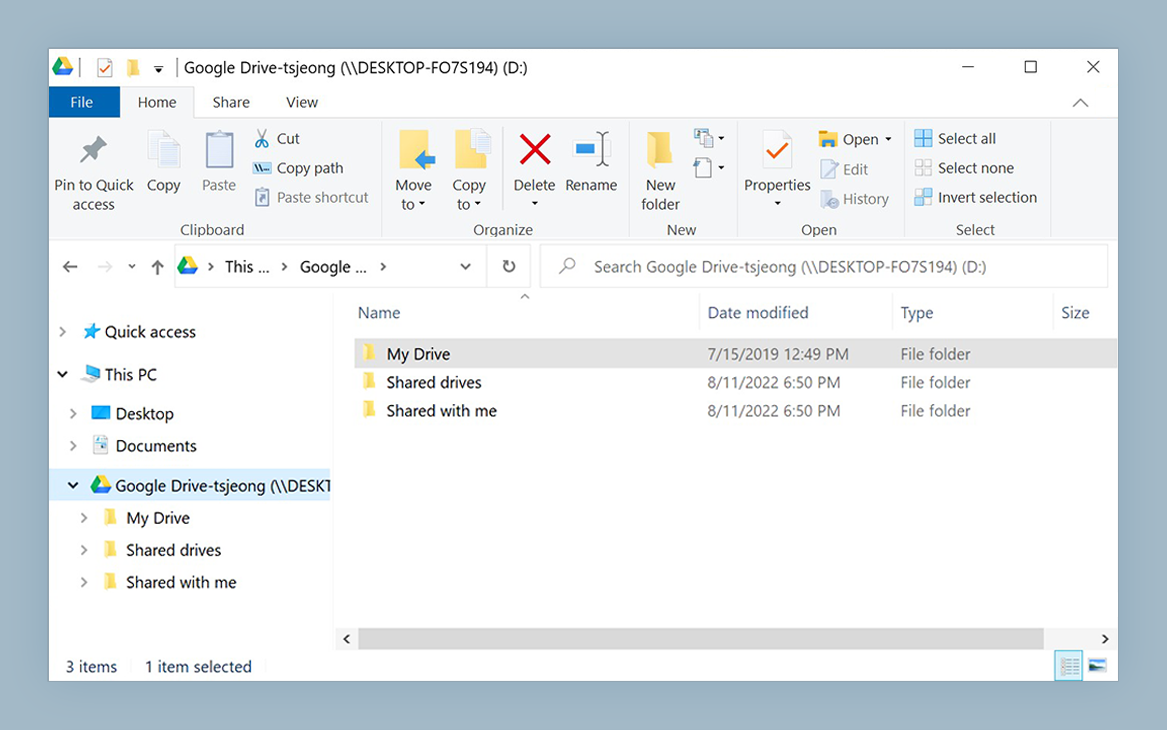
One server, many cloud drives
NetDrive lets Google Drive, OneDrive, S3, SFTP, WebDAV and more appear as native drives on Windows and macOS — no syncing, no full downloads.
- Give every Terminal Server user their own cloud drives
- Publish shared team drives to members from one console
- Assign and revoke member licenses without reinstalling
Free trial. Lifetime and subscription plans available.
What Multi-User Support Actually Covers
NetDrive for Windows runs on Windows 8 through 11 and on Windows Server 2012, 2016, 2019 and 2022. On a shared server, the team license lets several people use NetDrive at once, each with their own configured drives. Release 3.16.589 added visibility improvements for team-license multi-user setups on Windows, so each session sees the drives that belong to that user.
Two things are worth separating:
- Personal drives are the cloud accounts one person adds for themselves, such as their own OneDrive for Business or an S3 bucket.
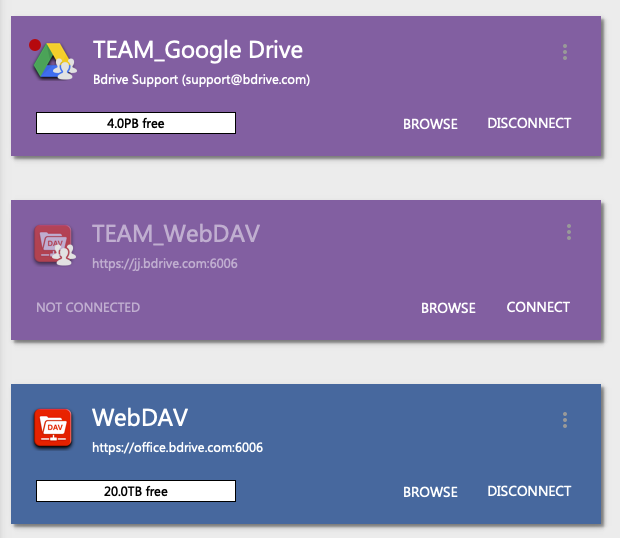
- Team drives are published by an administrator and appear for the members they are shared with.
Keep that split in mind when you plan the rollout, because it decides who configures what.
Planning Licenses and Team Drives
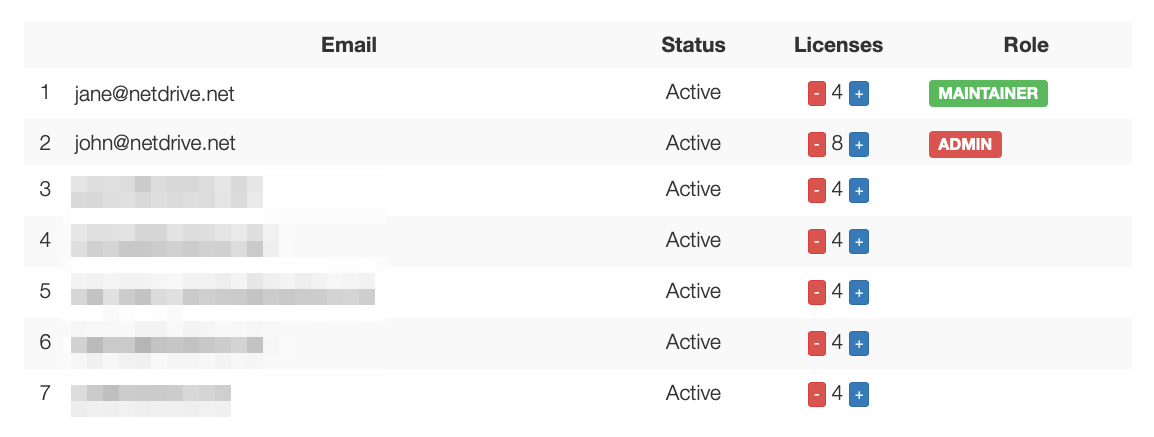
Team licensing is managed through the Bdrive accounts site (accounts.bdrive.com), where an admin assigns a license to each member and can release it again when someone leaves. That matters on a server, where people rotate in and out of seats more often than on personal laptops.
Before anyone logs in, decide which resources should be shared:
- List the shared folders the whole team needs, for example a client archive on SharePoint or an S3 bucket.
- Publish those as team drives from the team management console, and choose which members receive each one.
- Leave personal accounts (private Google Drive, individual Dropbox) for members to add themselves.
Team drives also support file locking for every file type. On a server where two people may open the same spreadsheet from different sessions, a lock stops one from silently overwriting the other. Microsoft Office files get dedicated lock handling as well; see Office File Locking in NetDrive for how that behaves.
Rolling It Out on the Server
- Install NetDrive on the server using the MSI package so the install is repeatable. The MSI deployment guide covers the command and the required Visual C++ redistributables.
- Sign in with a team member account in each user session and confirm the assigned license is recognised.
- Open the drive manager and check that the published team drives are listed for that member.
- Add personal drives from Add a Drive where a person needs their own cloud account.
- Test with two sessions at once. Open the same team drive from both and confirm each user sees only their own personal drives.
Since 3.18.1125, team drive credentials persist between sessions, so members are not asked to re-enter shared credentials every time they reconnect.
Known Limits to Plan Around
NetDrive does not offer an offline mode, and it does not encrypt files on the client side, so a server-side policy that requires either one needs a different answer. The number of simultaneous drives per user is not documented in the product spec, so test your own mix of drives under realistic load before you commit a whole department. Shareable links are available only from the file browser, not from the mounted drive itself.
Wrap-up
Terminal Server environments are where a per-user license model earns its keep: personal clouds stay personal, shared folders are published once, and licenses move with people. For platform-specific notes see NetDrive on Windows Server 2022, and for the shared-drive concept in detail read the team drive guide.
— Kai, NetDrive