YouTube Creators with NetDrive — Keep Raw Footage in the Cloud, Edit Locally

How solo YouTube and video creators use NetDrive to mount Backblaze B2, Wasabi, or Google Drive as a drive and stop running out of local disk space.
A creator posting two videos a week can fill a 2 TB SSD in a couple of months. The usual fix is an external drive for old projects, which works until the drive dies or you need a clip from last spring while travelling. Cloud object storage scales well past any single SSD, but a browser upload page is a poor fit for a folder of camera files. Mounting the bucket as a drive gives you cloud capacity with a normal file path.
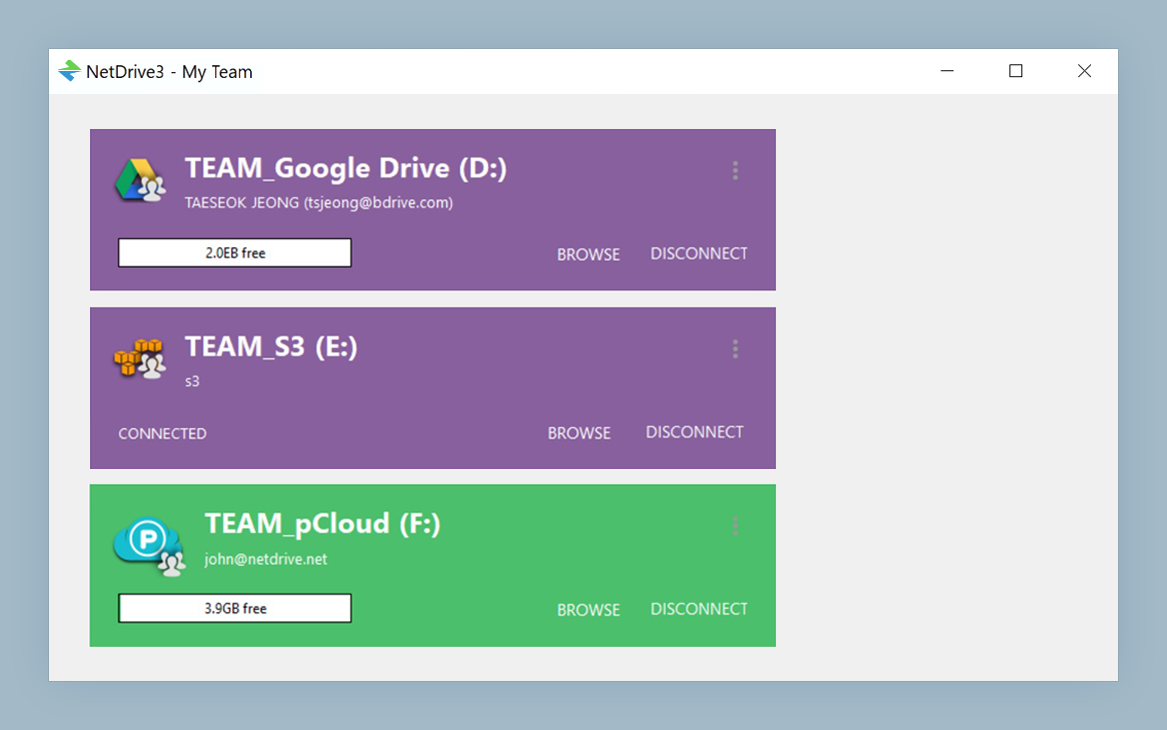
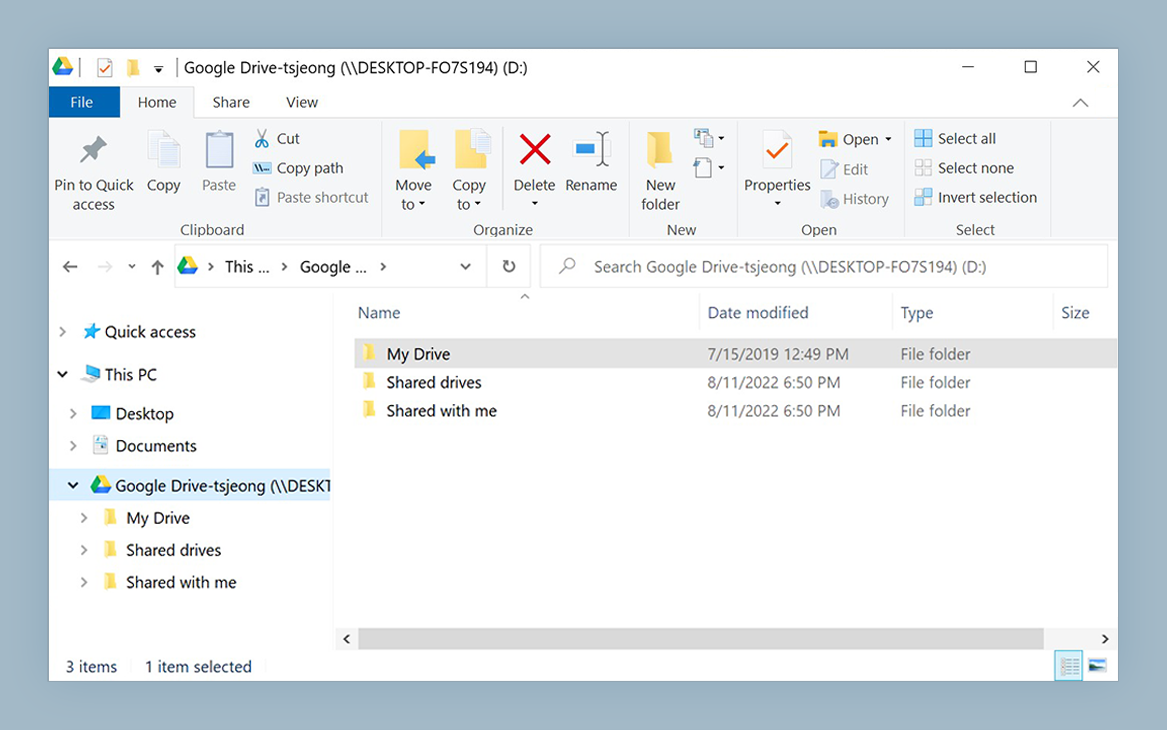
Cloud Capacity, Local Workflow
NetDrive lets Google Drive, OneDrive, S3, SFTP, WebDAV and more appear as native drives on Windows and macOS — no syncing, no full downloads.
- Mount B2, Wasabi, S3, or Google Drive as a drive
- Upload in the background while you keep editing
- Cap bandwidth so uploads never wreck a live stream
Free trial. Lifetime and subscription plans available.
A Simple Two-Tier Layout
Keep the current project on your fast local SSD. Mount a cloud drive for finished projects and the raw-footage archive. When a video ships, drag its project folder onto the mounted drive and delete the local copy once the upload finishes. Your editor sees the archive as just another drive, so reopening an old project is a File → Open away.
NetDrive supports Backblaze B2, Wasabi, Amazon S3, Google Drive, Dropbox, OneDrive and more. Setup guides: Backblaze B2 on macOS and Wasabi on Windows.
Upload While You Work
Large camera files take a long time to upload. NetDrive’s background upload mode queues them and lets you keep working, with progress visible in the upload view. Read more in background upload mode.
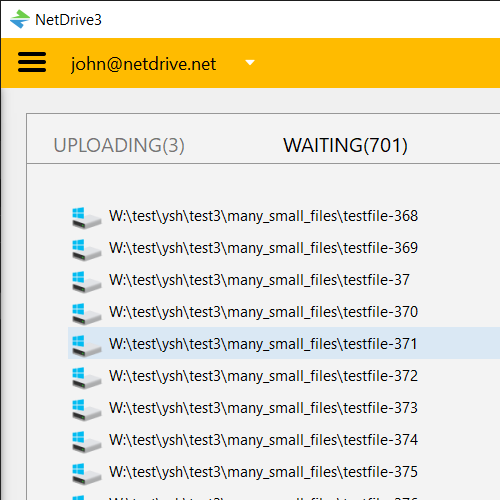
If you stream or take calls on the same connection, set a bandwidth limit so the upload takes only part of the line (bandwidth limits).
Cache and Disk Space
NetDrive keeps a local cache of recently used data. You can choose a cache size between 100 GB and 1 TB, which affects how much of a reopened project is already on disk. Details are in cache size options. Plan for it: a large cache on a small SSD defeats the point of moving footage off it.
Setup Steps
- Install NetDrive on Windows or macOS 14 or later.
- Add a drive in NetDrive, choose your storage provider, and enter your access details.
- Mount it and confirm it appears in Explorer or Finder.
- Pick your cache size in the drive settings to match your free disk space.
- Copy a finished project to the drive and watch the background upload complete before deleting the local copy.
What to Know First
NetDrive has no offline mode, so footage on a mounted drive needs an internet connection to open. Download anything you need for a trip beforehand. Editing directly from a remote drive depends on your connection speed, so edit from local disk and use the cloud for storage. NetDrive does not encrypt files on the client side, so use your provider’s own protections for unreleased material.
Wrap-up
Treat the cloud as an archive tier and your SSD as a workbench, and storage stops dictating your upload schedule. For a wider look at heavy video workflows, see video editing with 4K and RAW in cloud storage.
— Jay, NetDrive