NetDrive on Windows Server 2022 — Multi-User RDP Cloud Mounts

Deploy NetDrive on Windows Server 2022 to give multiple RDP users simultaneous access to mounted cloud drives. MSI deployment, boot-time mounts, and team license setup.
A legal firm running Windows Server 2022 for Remote Desktop Services needed every paralegal’s RDP session to see the same SharePoint library as a mapped drive — no manual reconnects, no per-user credential prompts, no inconsistent drive letters between sessions. NetDrive’s multi-user support on Windows Terminal Server handles exactly this setup, and the MSI installer integrates cleanly with Group Policy deployment.


Mount cloud storage on Windows Server for every RDP user
NetDrive lets Google Drive, OneDrive, S3, SFTP, WebDAV and more appear as native drives on Windows and macOS — no syncing, no full downloads.
- Shared cloud drives visible across all Terminal Server sessions
- Silent MSI deployment via Group Policy or msiexec
- Boot-time mount — drives ready before any user logs in
Free trial. Lifetime and subscription plans available.
Windows Server Support and Installation
NetDrive supports Windows Server 2012, 2016, 2019, and 2022. The installer comes in two forms: an EXE for interactive installs and an MSI for administrator-controlled deployment. For server environments, the MSI route is almost always preferable.
To install silently, the documented command is:
msiexec /i NetDrive3-version.msi REINSTALL=ALL REINSTALLMODE=vamusREINSTALLMODE=vamus ensures files, registry entries, and shortcuts are refreshed correctly on upgrade — useful when rolling out a new NetDrive version to multiple servers at once. If target machines are missing the Visual C++ Redistributables, deploy vcredist14_x86.exe and vcredist14_x64.exe from https://files.bdrive.com/common/redist/ before running the main installer, or bundle them into the same Group Policy object.
Download the MSI from netdrive.net/download/windows.
Multi-User Terminal Server Mode
NetDrive has supported multi-user Windows Terminal Server environments since version 3.1.286. Each user session sees the drives assigned to their account, and team drives published by an administrator are visible to all members with a seat.
To set up a shared drive for all Terminal Server users:
- Open NetDrive on the server as an administrator.
- Click + to add a new drive and select the cloud provider — Google Drive, OneDrive for Business, SharePoint, S3, or any supported provider.
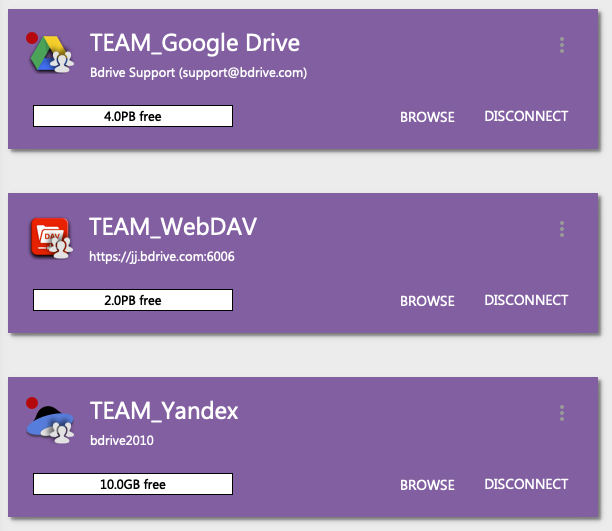
- In the drive settings, enable Team Drive.
- Open NetDrive → Team Drive Management and publish the drive to the team. Members with an active team license seat will see it in their own Drive Manager the next time they log in.
Each user session gets its own connection state and drive letter, but they all point to the same underlying cloud resource. File locking becomes important here — NetDrive’s file lock feature (added in version 3.9.1190 for all file types) prevents two RDP sessions from writing the same file simultaneously. When one session has a file locked, other sessions see it as read-only and get a notification.
Boot-Time Mounts for Headless and Scheduled Workloads
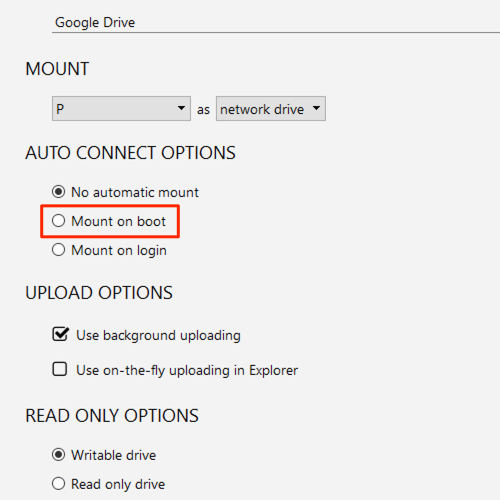
Scheduled tasks, backup agents, and batch-processing jobs on a server often start before any user logs in. NetDrive’s Mount on Boot option handles this: the drive is established during the Windows startup sequence, without waiting for an interactive logon.
In the drive’s settings panel, set Auto Mount to On Boot. NetDrive stores credentials in an encrypted local store and triggers the mount as part of the Windows startup sequence. The cloud drive is ready at its configured letter by the time the first service or scheduled task references it.
This matters for scenarios like:
- A render node that reads project assets from Amazon S3 starting at 3 AM.
- A backup agent writing nightly archives to Backblaze B2.
- A log aggregation service streaming output files to a WebDAV endpoint.
Explorer Integration and Status Overlays
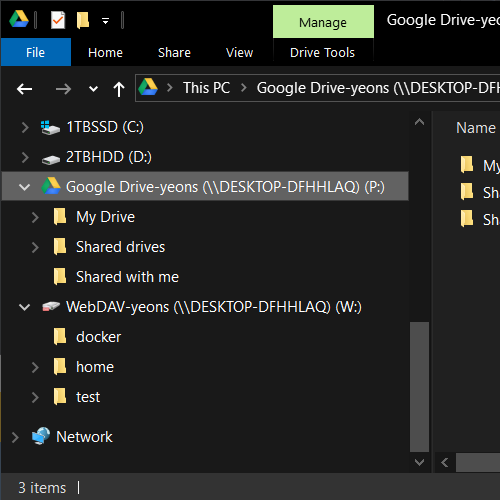
Even in a Terminal Server environment, NetDrive’s Windows Explorer file-status overlay icons work per session. Each user sees real-time upload and download status directly in their Explorer window — checkmarks for synced files, progress indicators for files in flight. This cuts down on support requests about whether a file has finished saving, because the answer is visible in the icon without opening NetDrive.
For administrators who manage servers remotely or prefer scripting, nd3cmd (added in version 3.8.921) provides a command-line interface for mounting, unmounting, and querying drive status from PowerShell or a configuration management system.
Team License Management
Each concurrent user session on a Windows Terminal Server deployment requires a NetDrive seat. Seats are managed from accounts.bdrive.com, where an administrator can assign and revoke licenses, publish team drives, and monitor which members are active. Licenses can be reassigned when team members change without purchasing additional seats.
A 7-day free trial is available to test the setup with a small group before committing to a team plan.
Wrap-up
NetDrive’s MSI installer, Terminal Server multi-user mode, and boot-time mount make it a practical fit for Windows Server 2022 environments that need cloud storage available to multiple concurrent RDP sessions. For setting up specific cloud providers on the server, the Mount Amazon S3 on Windows guide and the Mount OneDrive on Windows guide walk through the connection flow for the most common providers. If you run into issues with drives not appearing on first boot, the Fix NetDrive Auto Mount on Startup Windows post covers the most common causes.
— Jay, NetDrive