NetDrive Mobile for Video Editors — Review Footage from Any Cloud

Video editors use NetDrive Mobile to browse S3, Backblaze B2, Google Drive, and Dropbox, preview clips, and send camera files to the cloud from iPhone or Android.
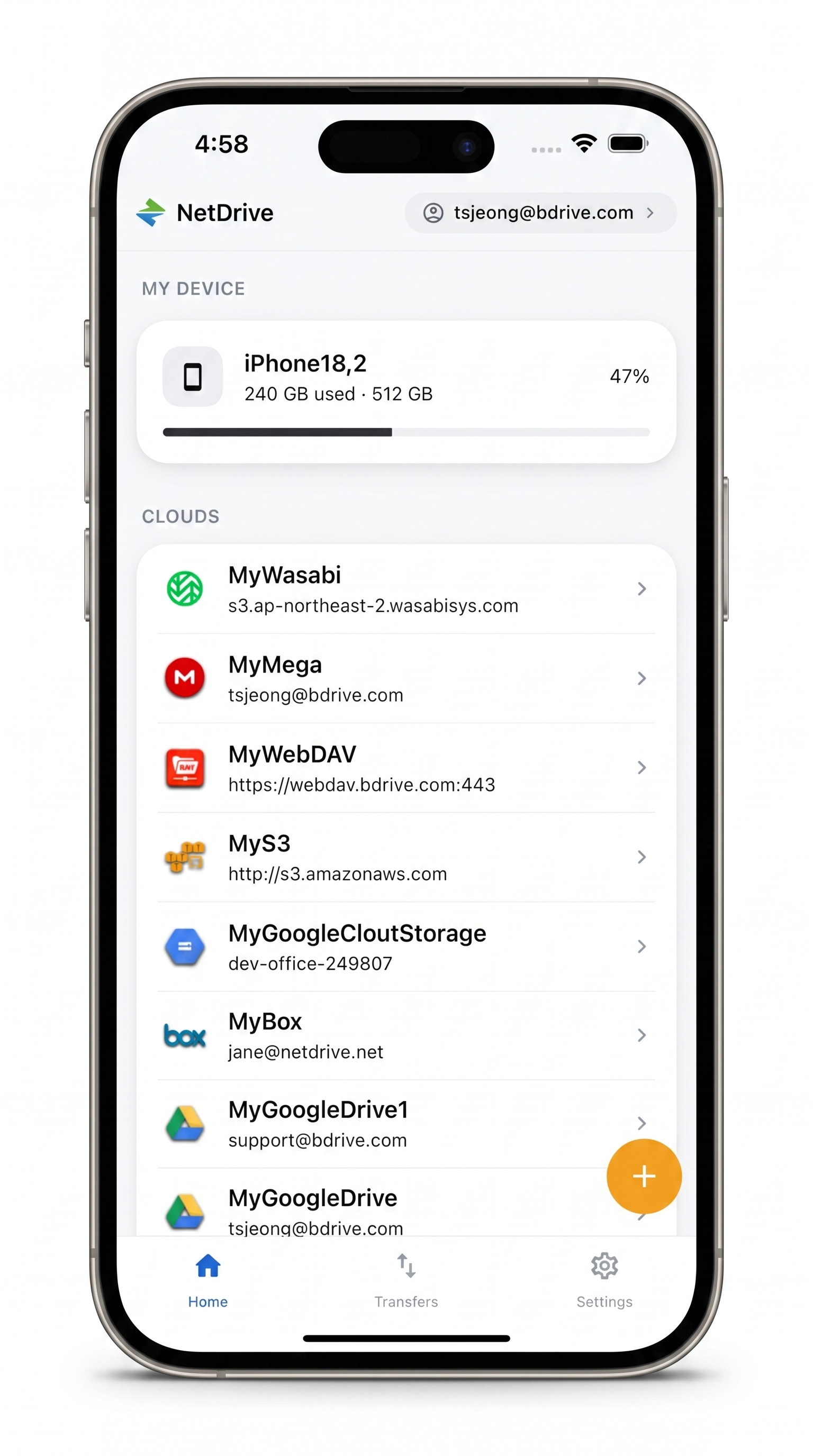
An editor is on a train when the director messages: “Did the second-unit clips from Thursday make it into the project folder?” The footage lives in a Backblaze B2 bucket, the cut-down exports are in Dropbox, and the client’s review folder is on Google Drive. Opening three web consoles on a phone is miserable. NetDrive Mobile lists all three clouds in one app, so the answer is a couple of taps away.
Check the footage from anywhere
Browse object storage and cloud drives side by side on iPhone or Android.
- Open S3, Backblaze B2, Google Drive, and Dropbox in one app
- Preview clips and stills without leaving the app
- Send camera files to the right folder from the phone
Free Bdrive account required.
Production files live in more than one place
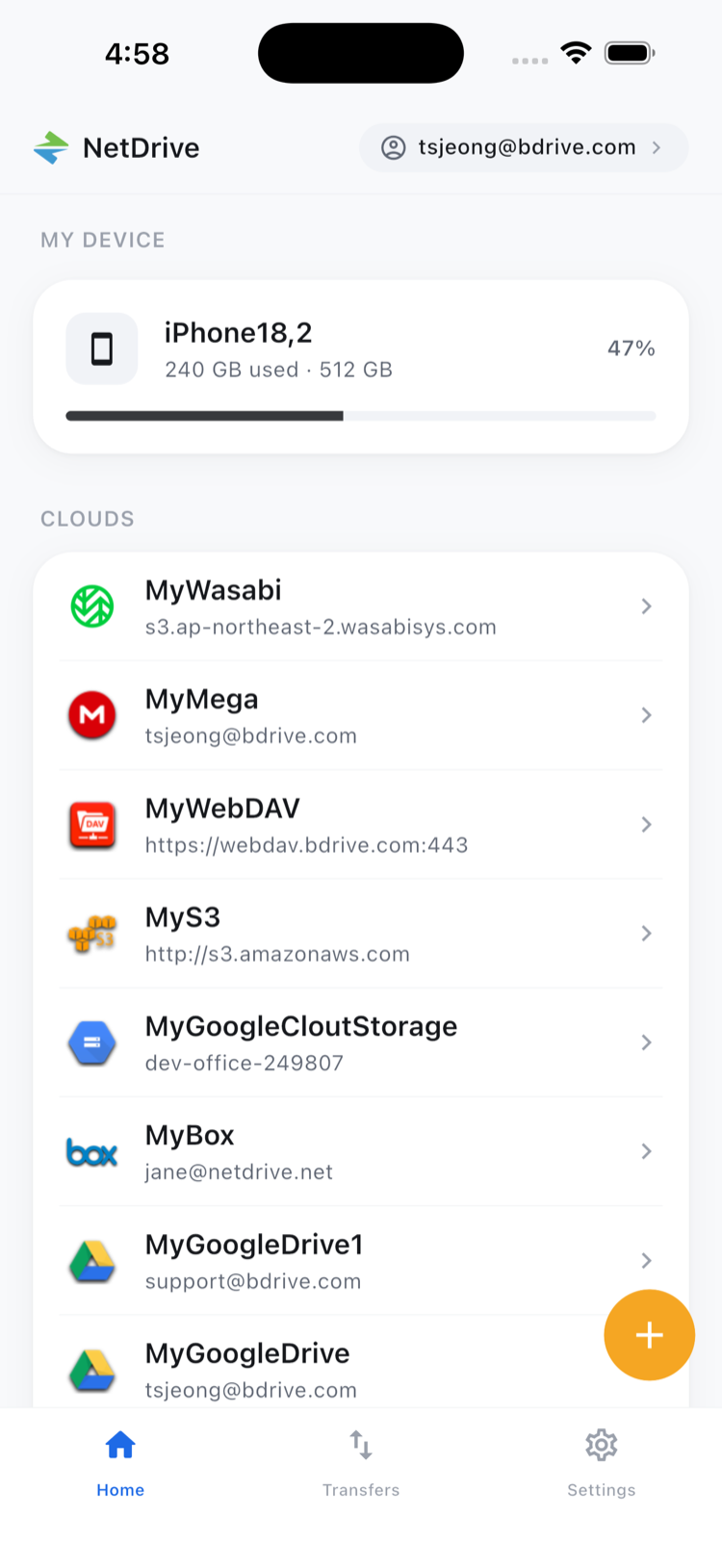
Post-production storage tends to be split by purpose: raw footage in an object store, working exports in a team cloud, client deliverables wherever the client asked. NetDrive Mobile shows connected clouds together on its home screen, so checking a folder in another account does not mean switching apps and signing in again.
Connect your storage once
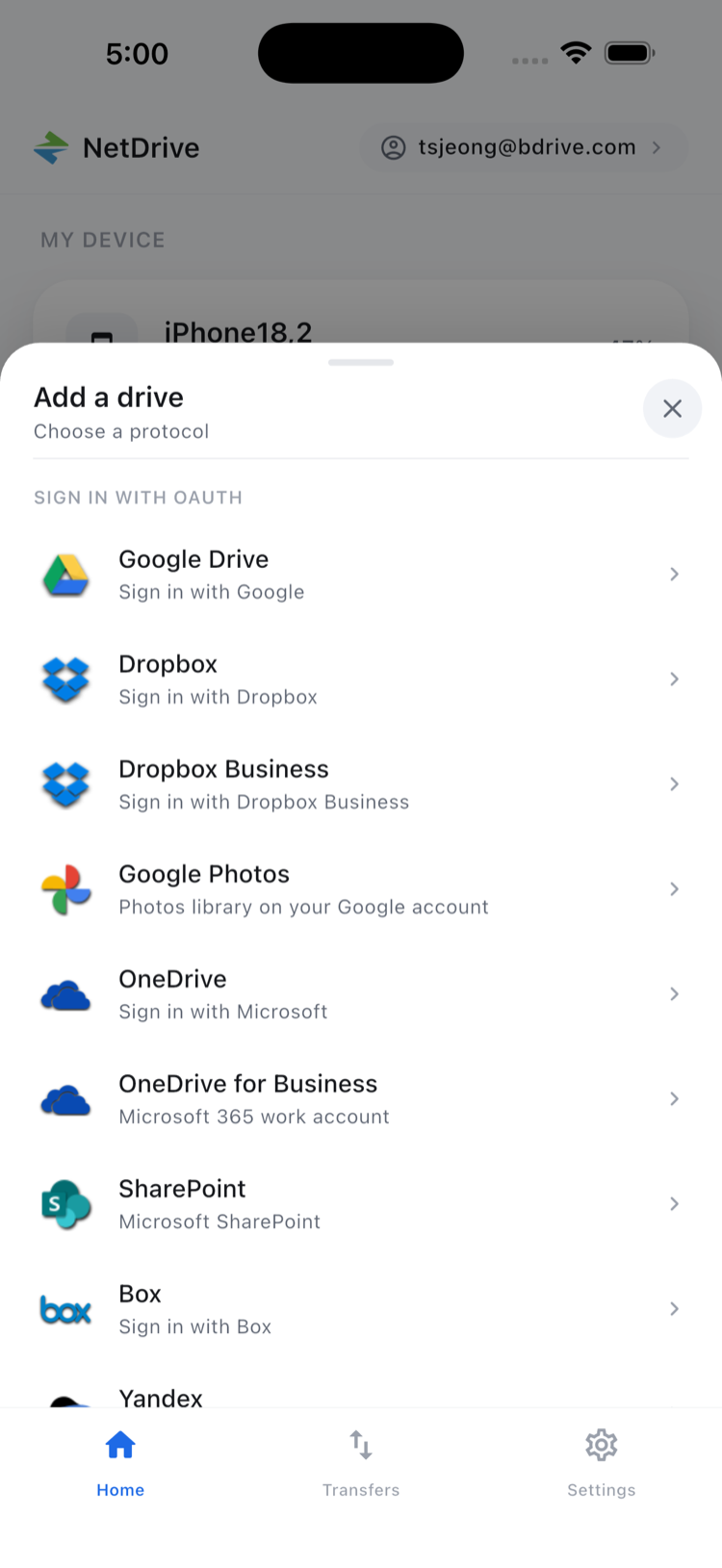
Tap to open the Add a drive sheet, pick a provider, and sign in. Amazon S3 and S3-compatible storage such as Wasabi, Backblaze B2, Google Drive, Dropbox, OneDrive, and SharePoint are all on the provider list, as are WebDAV, FTP, and SFTP for a studio file server. A free Bdrive account is required to use the app.
Browse, sort, and preview
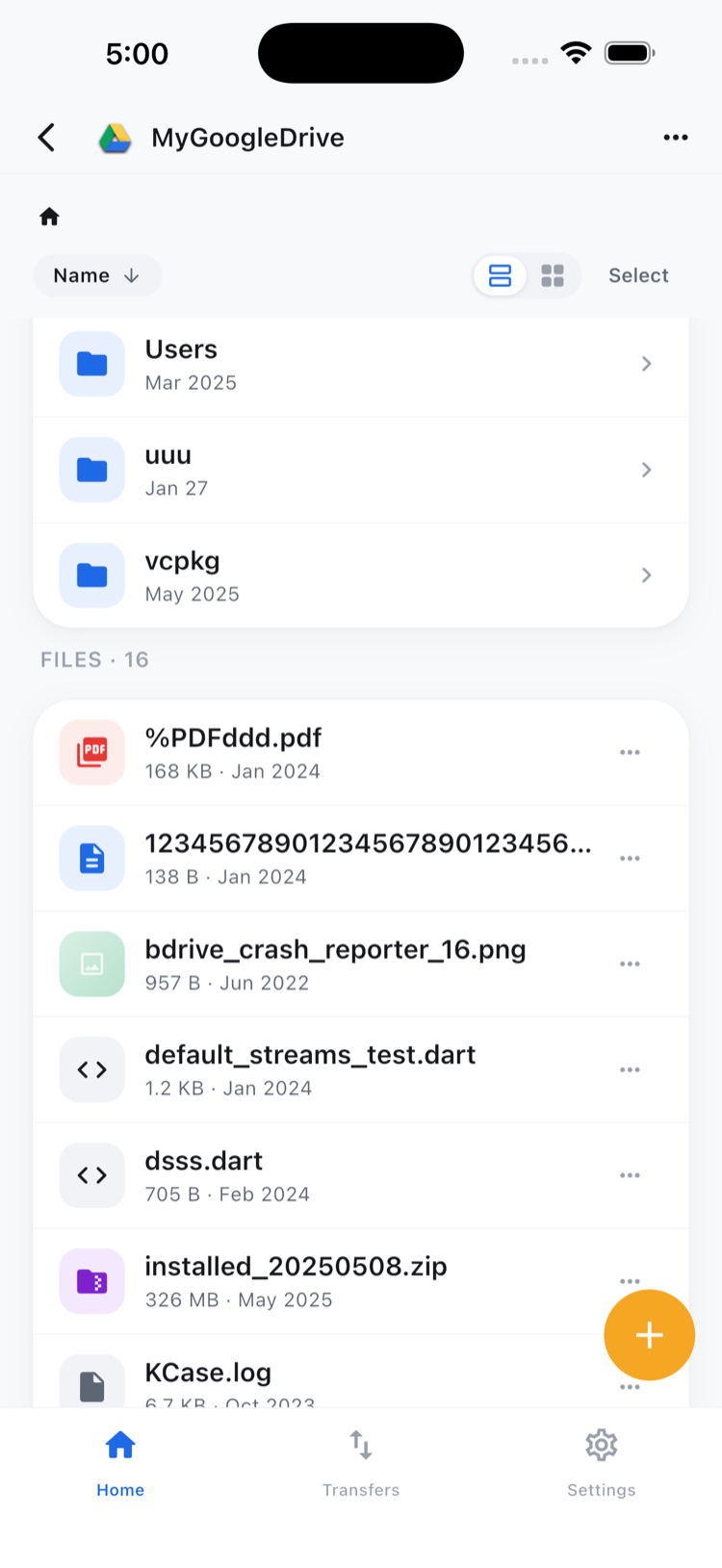
Open a bucket or folder and switch between list and grid, sorting to bring the latest ingest to the top. That is usually enough to confirm a day’s footage landed and the file names follow the show’s convention. Tap a clip or still and it opens in the in-app preview, so you can check it is the right take before you reply.
Be realistic about what a phone is for. Preview is a quick sanity check, not a colour-accurate review, and large camera originals take time on a mobile connection. For anything that needs real inspection, use the file action sheet to download it, or save the check for your edit machine.
Send files up from the field
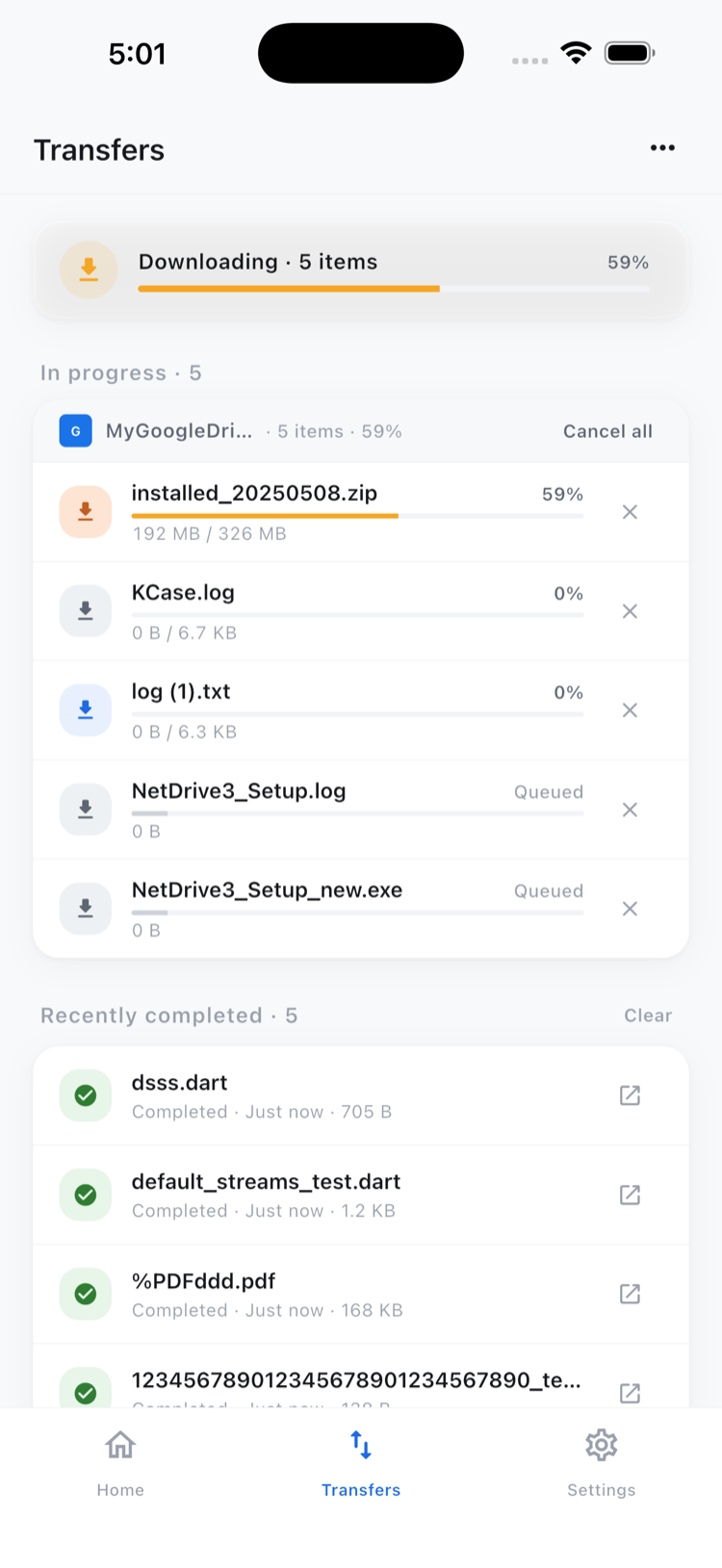
Reference stills, a quick phone clip of a location, or a scanned release form can go from the camera, photos, or files into the folder you choose. Several uploads can run together, and the Transfers tab shows progress for each one with a cancel option if you picked the wrong destination.
A quick routine for the road
- Create a free Bdrive account at netdrive.net.
- Install NetDrive Mobile from the App Store or Google Play.
- Add your footage, export, and client clouds from the Add a drive sheet.
- Check the ingest folder and preview a file or two.
- Tidy up with multi-select, moving or deleting several files at once. Moves and copies stay inside a single cloud.
NetDrive Mobile does not copy files directly from one cloud to another, so it will not replace the transfer step between your storage accounts.
Wrap-up
On the go, the useful part is not editing but knowing where things are and nudging a few files into place. For first-run steps see NetDrive Mobile — Getting Started; for object storage specifics, see View Amazon S3 on iPhone and Android and Browse Backblaze B2 on Mobile.
— Morgan, NetDrive