Photography RAW Archives on Backblaze B2 — NetDrive for Studios

Archive RAW photo libraries to Backblaze B2 and browse them as a native drive with NetDrive. A cold-storage workflow guide for photography studios.
A wedding and commercial photography studio shoots 60–80 GB of RAW files per job and keeps every frame — not just the edited selects — for at least seven years, per their client contracts. Local RAID arrays filled up years ago, and paying for enough NAS capacity to hold a decade of full-resolution archives stopped making sense. The studio now ingests each job to Backblaze B2 and mounts the archive with NetDrive, so any editor can browse and pull an old RAW file the moment a client asks for a reprint — without restoring from a separate backup system first.


Browse your RAW archive like a local drive
NetDrive lets Google Drive, OneDrive, S3, SFTP, WebDAV and more appear as native drives on Windows and macOS — no syncing, no full downloads.
- Mount Backblaze B2 as a read-only drive to protect archived originals
- Pull any file from years of shoots without a restore step
- Background uploads keep new jobs ingesting while you keep working
Free trial. Lifetime and subscription plans available.
Why Cold Object Storage Fits a RAW Archive
RAW files are shot once and rarely touched again — most get opened during editing, then sit untouched unless a client requests a reprint, an insurance claim needs proof of delivery, or the studio revisits a shoot for a portfolio update. That access pattern is exactly what object storage is built for, and Backblaze B2 in particular keeps the cost of holding years of full-resolution archives low compared to running local RAID capacity that mostly sits idle.
The gap has always been access. A studio doesn’t want its team learning a web console or waiting on a bulk restore job just to find one frame from a shoot two years ago. NetDrive has supported Backblaze B2 natively since version 3.5.434, and mounting the bucket as a drive means the archive shows up in Explorer or Finder exactly like any other folder — searchable, browsable, and open-able in Photoshop, Lightroom, or Capture One without a manual download step first.
Setting Up the Archive Drive
- Open NetDrive and click + Add Drive in the Drive Manager.
- Select Backblaze B2 from the provider list.
- Enter your Application Key ID and Application Key — create a dedicated key scoped to the archive bucket rather than reusing a master key.
- Enter the bucket name that holds the archive.
- In Drive Type, choose Read-only drive. This is the setting that matters most for an archive: once a shoot is ingested and verified, nobody on the team should be able to overwrite or delete an original from a workstation, whether by accident or by an application that writes temp files into the wrong folder.
- Assign a drive letter (Windows) or accept the default mount path (macOS), then click Mount.
Read-only mode is enforced at the OS level — Windows or macOS rejects the write before it ever reaches B2, so there’s no dependency on every editor remembering not to hit save-over.
Ingesting New Jobs
For active ingestion — the day after a shoot, when the memory cards get copied off — the studio keeps a second, separate NetDrive connection to the same bucket configured as a normal network drive rather than read-only, dedicated to the ingest folder. New RAW files copy in through Explorer or Finder like any local transfer, and NetDrive queues the upload in the background so a 70 GB job doesn’t block anyone from continuing to work.
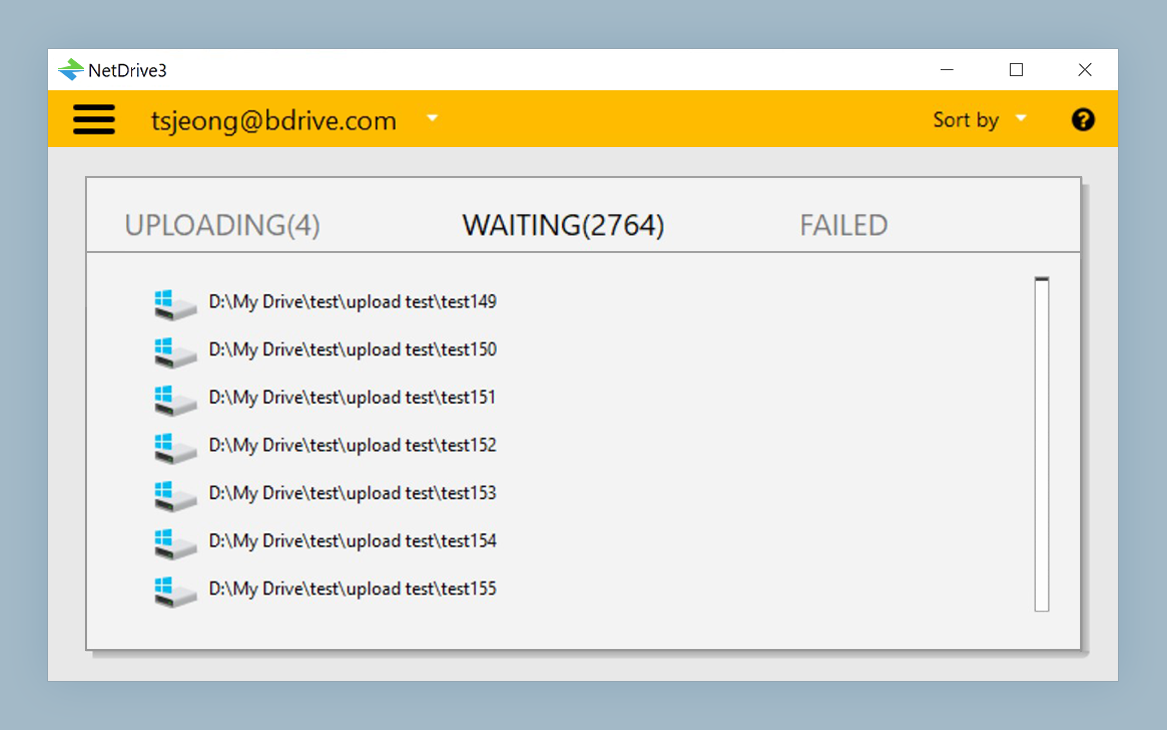
Once a job has fully uploaded and been spot-checked, it moves under the read-only archive path for long-term storage — separating “still being written” from “finished and protected” avoids the two connections ever fighting over the same files.
Finding a File From an Old Shoot
Because the archive is mounted as a normal drive rather than sitting behind a restore workflow, browsing it is no different from searching a local folder structure. An editor looking for a specific frame from a shoot two years back navigates by client folder and date, the same way they would on local disk — no ticket to IT, no waiting for a bulk-restore job to finish before the file becomes accessible.
For studios with a large archive, increasing NetDrive’s local cache (adjustable up to 1 TB) helps when the same client folder gets revisited repeatedly during a project — the second and third opens of a folder skip the network round trip entirely.
Wrap-up
Moving a RAW archive to Backblaze B2 and mounting it read-only with NetDrive gives a studio years of storage headroom without sacrificing the “just open the folder” access that a local drive provides. For the initial setup on each platform, see mounting Backblaze B2 on Windows or mounting Backblaze B2 on macOS. Studios running active video alongside RAW photo archives may also find the 4K RAW video editing workflow useful for tuning cache and upload settings on the ingest side.
— Casey, NetDrive