Reach Your NAS From Your Phone — WebDAV and SFTP

NetDrive Mobile connects to your NAS and servers over WebDAV, FTP, and SFTP on iPhone and Android — browse, download, and upload without being at your desk.
Your files are sitting on the NAS at home or the server in the office, and you’re somewhere else with only a phone. The document you need is right there on the share — you just can’t reach it. NetDrive Mobile connects to those machines the way your desktop does, over WebDAV, FTP, and SFTP, and turns the remote share into something you can browse from your pocket.
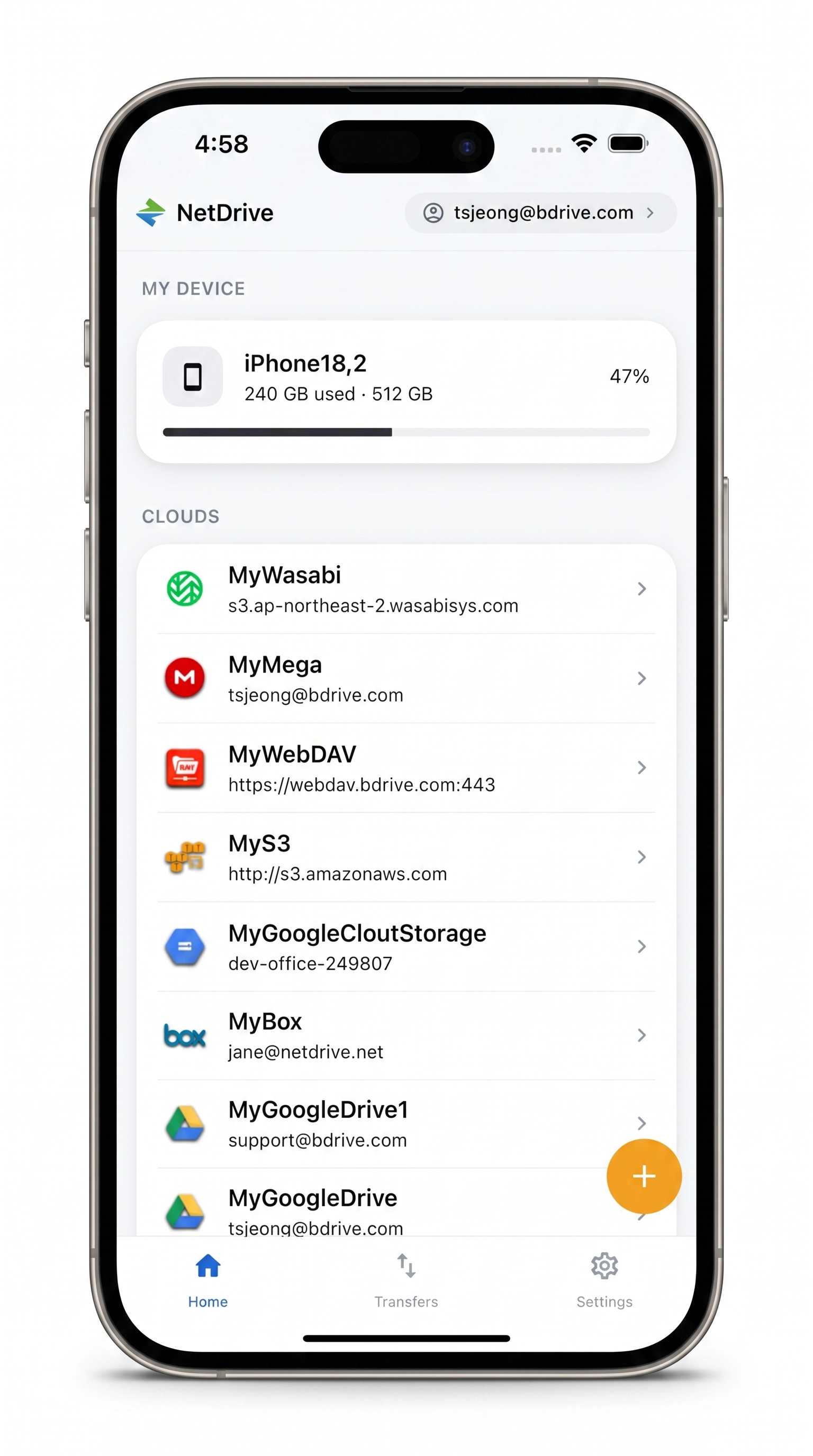
Your NAS and servers, one tap away
Connect to WebDAV, FTP, and SFTP from iPhone and Android — browse the share, pull a file down, push one back up.
- WebDAV, FTP/FTPS, and SFTP from your phone
- Browse a NAS or server like a normal folder
- Download and upload in the background
Free Bdrive account required.
The “I left it on my NAS” problem
A NAS is brilliant until you’re not on the same network. Synology and similar boxes expose their shares over standard protocols — WebDAV, FTP, SFTP — but on mobile those protocols are usually a gap. You end up emailing yourself files in advance, or remoting into a desktop just to grab one document. Neither is how it should work.
Connect over WebDAV, FTP, or SFTP
In NetDrive Mobile, open the Add a drive sheet and pick the protocol your server speaks. For a Synology share that’s typically WebDAV; for a Linux box it’s often SFTP. You enter the server address, the port, and your credentials — the same values you already use from the desktop.
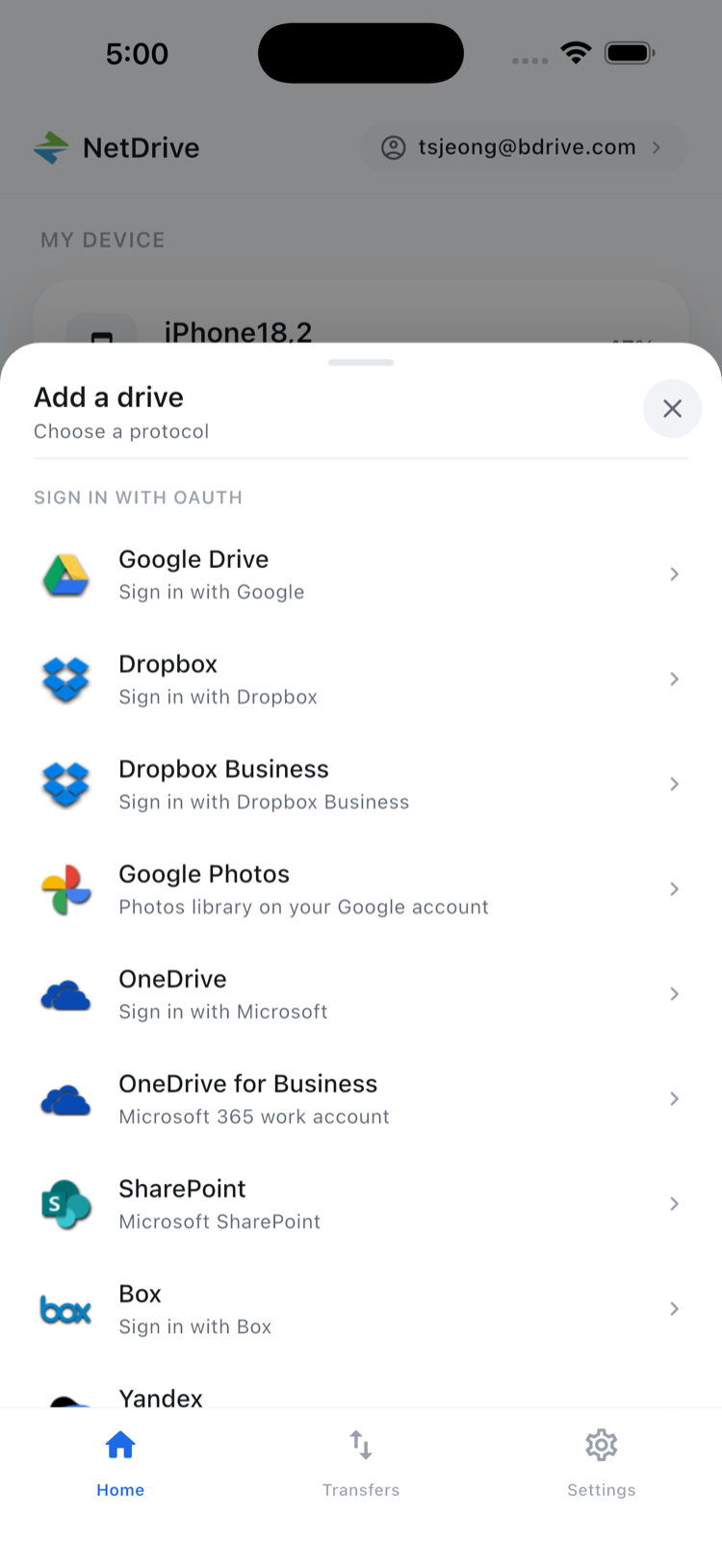
Those credentials live in the device’s secure storage (iOS Keychain, Android Keystore), so a connection you set up on your phone isn’t stored as plain text. If your NAS only exposes WebDAV externally, that one protocol is enough to get going.
Setting the same connection up on the desktop instead? See our guide on fixing WebDAV connections to Synology.
Browse your server like a local folder
Once connected, the share shows up on the home screen next to your clouds, and opening it drops you into a normal file list — folders, sizes, modified dates. Drill into directories, sort, switch between list and grid, and preview a file in the app to confirm it’s the right one before you do anything else.
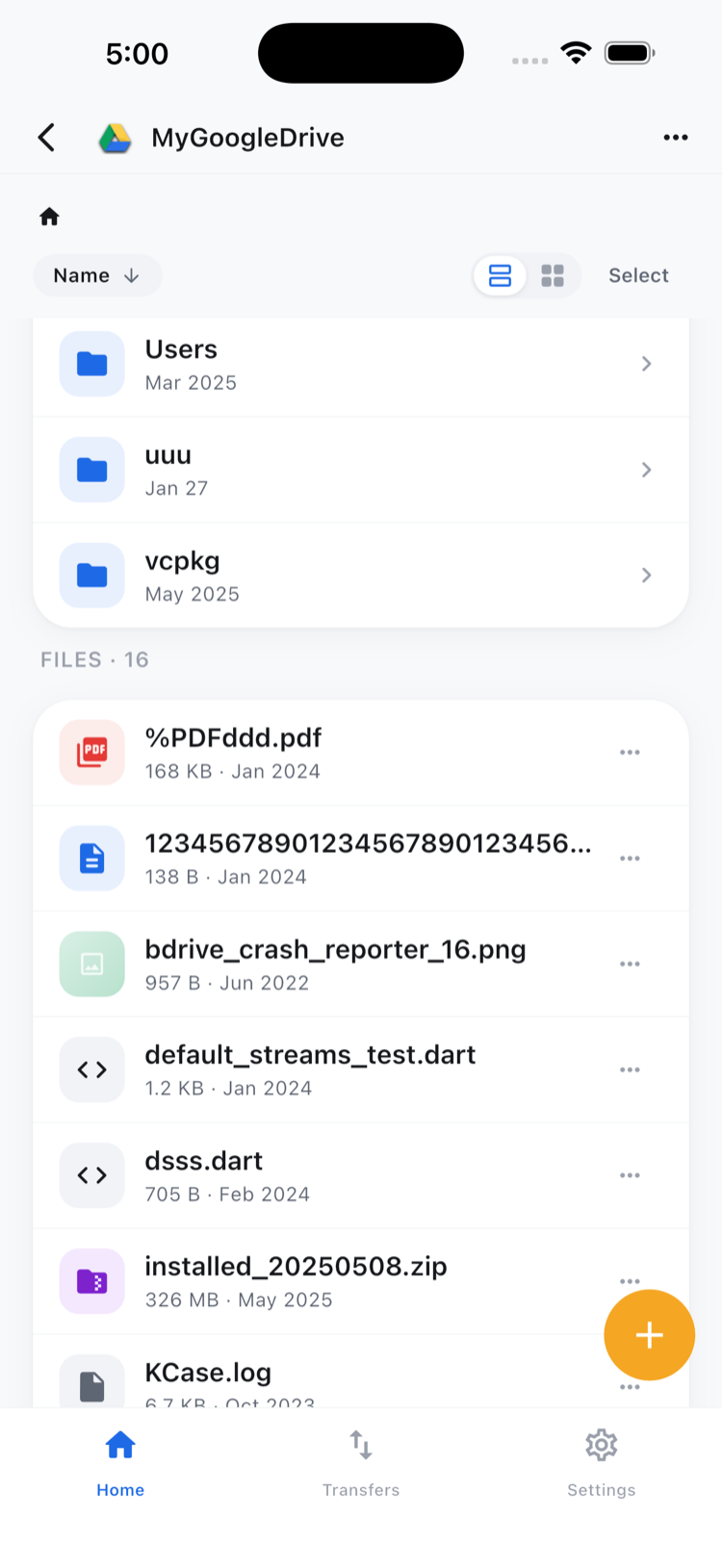
This is the part that turns a phone into a usable remote terminal for files: you’re not guessing at paths, you’re looking at the actual tree.
Servers and clouds, side by side
Your NAS doesn’t sit in a separate corner of the app. Once connected, a WebDAV or SFTP server appears on the same home screen as your cloud accounts, so the company file server lives right next to your personal Google Drive or a project bucket. When a task spans both — pull a file off the office SFTP, drop it into a shared cloud folder — you do it without leaving the app or switching tools. For teams that run a mix of self-hosted storage and commercial clouds, that single list is often the whole point.
Upload and download on the go
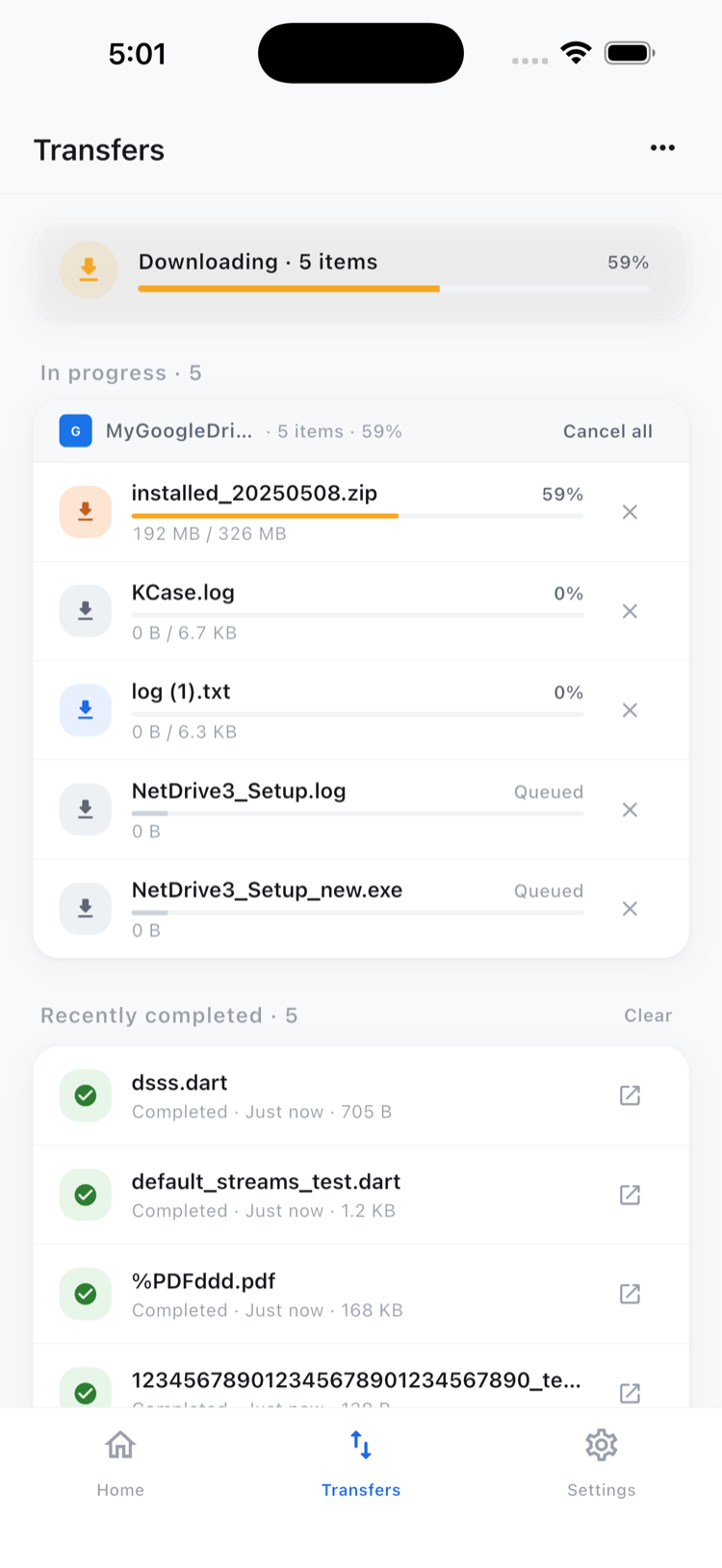
Grab a file off the NAS with a download — it runs on the Transfers tab with progress and runs alongside others. Need to put something back? Upload a photo or a file from the device to the share the same way. Both run in the background, and you can cancel anything mid-transfer.
Wrap-up
A NAS you can only reach from your desk is a NAS you’re only half using. NetDrive Mobile puts WebDAV, FTP, and SFTP in your pocket so the share is there whether you’re on the couch or on the road. Download it from the App Store or Google Play and sign in with a free Bdrive account to connect your first server.
— Morgan, NetDrive