Removable Drive Mode in NetDrive — Why Treat Cloud Storage Like a USB Key
NetDrive can flag any mounted cloud connection as a removable drive instead of a network drive. Here's what that changes and which workflows benefit.
A photo studio’s cataloging software watches for removable media — plug in an SD card, and it prompts to auto-import everything on it. The studio’s actual archive lives on Backblaze B2, not a card reader, and a normal network-mapped drive doesn’t trigger that same prompt. Flagging the B2 mount as a removable drive in NetDrive gets it classified the same way the OS classifies a USB key, without changing anything about how or where the files are actually stored.


Flag any cloud mount as removable
NetDrive lets Google Drive, OneDrive, S3, SFTP, WebDAV and more appear as native drives on Windows and macOS — no syncing, no full downloads.
- Same four Drive Type options: network, read-only, local disk, removable
- One dropdown to switch — no remount from scratch required
- Works with Google Drive, S3, SharePoint, and over 20 storage types
Free trial. Lifetime and subscription plans available.
The Four Drive Types, and Where Removable Fits
Every drive connection in NetDrive carries a Drive Type setting with four options: Network drive (the default), Read-only drive, Local disk, and Removable drive. NetDrive has let you flag a connection as removable since version 3.7.687 (February 2019) — the same release that made removable-drive mounting a standard option rather than a fixed default. For the write-protection option, see the Read-Only Drive Mode guide; this one is about the removable classification specifically.
What “Removable” Actually Changes
Switching a drive’s type doesn’t touch how files are stored or transferred — the cloud provider, credentials, and cache behavior are unaffected. What changes is how the operating system classifies the mounted volume.
On Windows, a removable-flagged drive shows up under Devices and Drives rather than as a network location, and offers the same Eject option from the system tray that a USB stick gets — useful for anyone used to safely removing external media before disconnecting. On macOS, the volume still appears under /Volumes, but publishes the same removable flag the OS uses for actual external media.
That classification matters to more than just Explorer’s icon set. Some cataloging and media-import tools only scan removable volumes for new content, the way a photo app watches for an inserted SD card. Some enterprise device policies and endpoint tools apply different rules to “network drive” and “removable” categories. And some backup or sync agents are explicitly configured to skip network paths but pick up removable ones (or the reverse) — worth checking against your own tooling’s configuration before relying on the classification for anything automated.
When Removable Beats Network Drive
Media import workflows. A photography or video studio whose ingest software is built around removable-media detection can point that same workflow at a NetDrive-mounted archive instead of maintaining a separate “watch this network folder” configuration.
Field and kiosk laptops. A technician who moves between client sites and expects a plug-and-go removable icon, rather than a persistent network-location entry that looks out of place on a machine with no fixed network home, gets a more familiar UI by mounting client storage as removable.
Matching existing device policy. If a security or backup tool in your environment already treats removable and network drives differently, the removable classification lets a NetDrive mount opt into whichever behavior the policy expects, without renegotiating an exception for “network drives that are actually cloud storage.”
Switching a Drive to Removable
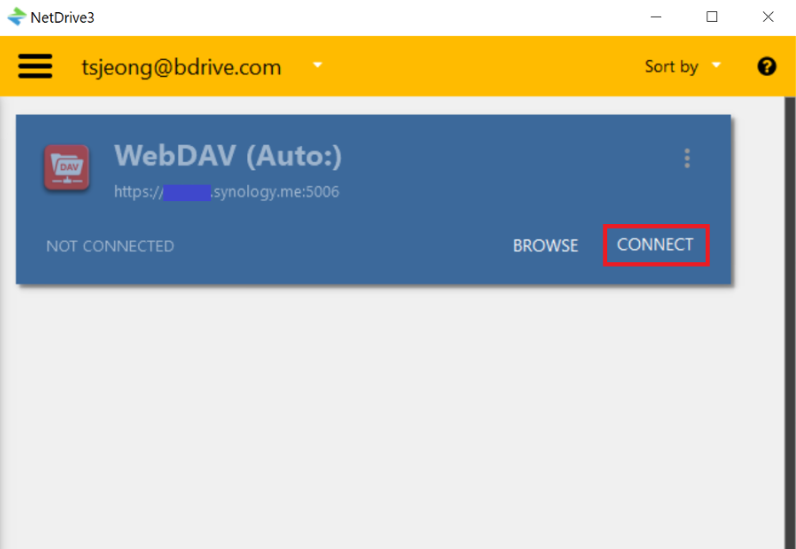
- Open NetDrive and find the drive in the Drive Manager, or click Add Drive to configure a new connection.
- Open the drive’s settings — click the gear icon on the drive card.
- Locate the Drive Type field, currently set to Network drive by default.
- Switch it to Removable drive and save.
- Mount (or remount) the drive. On Windows it still gets a letter; on macOS it appears under
/Volumes— but both now carry the removable flag.
No data moves and no reconnection to the cloud provider is required — the change is purely how the drive announces itself to the OS. Switching back to Network drive later is the same dropdown in reverse.
Wrap-up
Removable Drive Mode is a narrow setting, but it solves a specific class of problem: getting cloud storage recognized by tools and policies that were written with physical removable media in mind. If write protection rather than device classification is the goal, the Read-Only Drive Mode guide covers that option, and Local Disk Mode covers the third alternative to the default network drive. For drives that need to be available before anyone logs in, Auto-Mount on Boot pairs well with any of these types.
— Tayson, NetDrive