Fix Word and Excel Files Opening Read-Only from a Mounted Cloud Drive — NetDrive

Word and Excel files opening read-only from a NetDrive-mounted cloud drive? Learn why it happens and how to enable NetDrive's built-in Office file lock.
You open a Word document from your NetDrive-mounted SharePoint or OneDrive for Business folder. Word tells you the file is already open somewhere else and forces read-only mode — even though nobody on your team has it open. Closing and reopening makes no difference. This is one of the most common complaints from teams that switch from mapped network shares to cloud-mounted drives, and NetDrive has had a dedicated fix built in since version 3.8.921.


Edit Office Files from Cloud Drives Without Read-Only Conflicts
NetDrive lets Google Drive, OneDrive, S3, SFTP, WebDAV and more appear as native drives on Windows and macOS — no syncing, no full downloads.
- Built-in Microsoft Office file lock since NetDrive 3.8.921
- Lock any file type — not just Office documents
- See who has a file locked before you open it
Free trial. Lifetime and subscription plans available.
Why Office Forces Read-Only on Cloud-Mounted Files
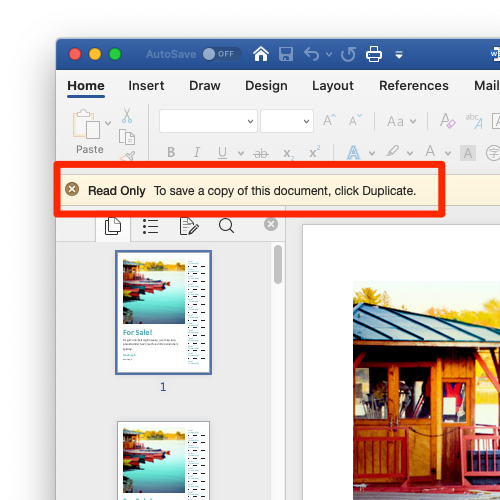
Microsoft Office uses a locking mechanism to prevent two users from overwriting each other’s changes. When you open a .docx file from a traditional SMB share, Office creates a hidden lock file (~$filename.docx) in the same directory. A second user’s Office detects that temp file and opens the document as read-only.
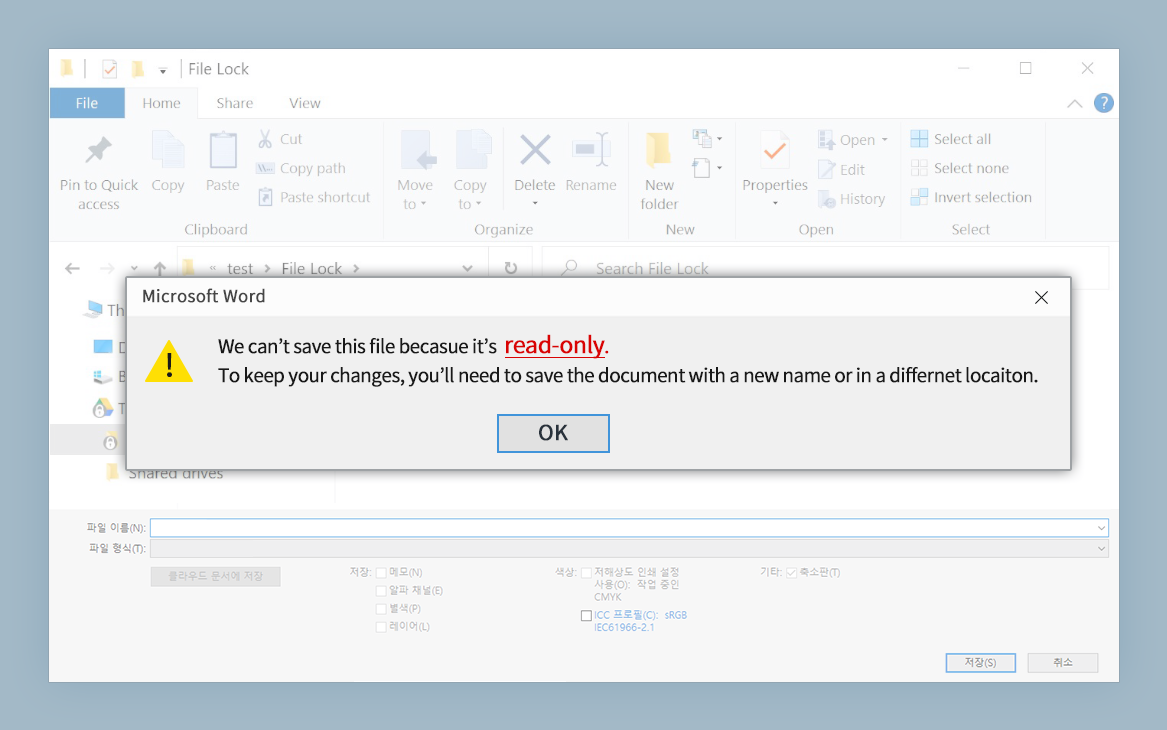
The problem with cloud storage is that lock-file behavior is inconsistent. Different providers handle hidden temporary files differently, and API delays mean the lock file sometimes persists after the editing session ends — or never gets cleaned up at all because the Office process crashed or the network dropped mid-session. The result is a ghost lock file that triggers the read-only prompt every time anyone tries to open the document, even when no active editor exists.
NetDrive’s Office File Lock — What It Actually Does
NetDrive 3.8.921 (September 2019) introduced dedicated Microsoft Office file locking. Rather than relying on Office’s own temp-file mechanism, NetDrive intercepts the lock at the filesystem driver level. When you open a .docx — or any Office file — from a mounted drive, NetDrive registers that file as locked in its own lock table and propagates that state to other NetDrive clients that have the same drive mounted.
When a second user on your team attempts to open the same file, NetDrive reports the file as locked before Office even touches it. Office then opens the document as read-only correctly — because someone genuinely has it open — rather than because a stale temp file survived a previous crash.
When you close the document, NetDrive clears the lock immediately. No ghost lock files. No “file is locked by another user” error on your own machine ten minutes after you finished editing.
Diagnosing a Stale Lock vs. an Active Lock
Before clearing anything, confirm whether the lock is genuine. NetDrive’s locked-files list shows exactly what is locked and by whom:
- Open NetDrive from the system tray or Start menu.
- Select the drive that contains the locked file.
- Click File Lock or open the File Browser for that drive.
- Find the file in the locked-files list. If it shows a user name other than yours, someone genuinely has it open — leave it locked.
If the file appears locked but you are certain no active session exists (everyone is offline, no other NetDrive clients connected), you can force-clear the lock from this panel. Do this only when you are sure: clearing a lock on a file someone is actively editing overwrites their unsaved changes.
File Lock for All File Types
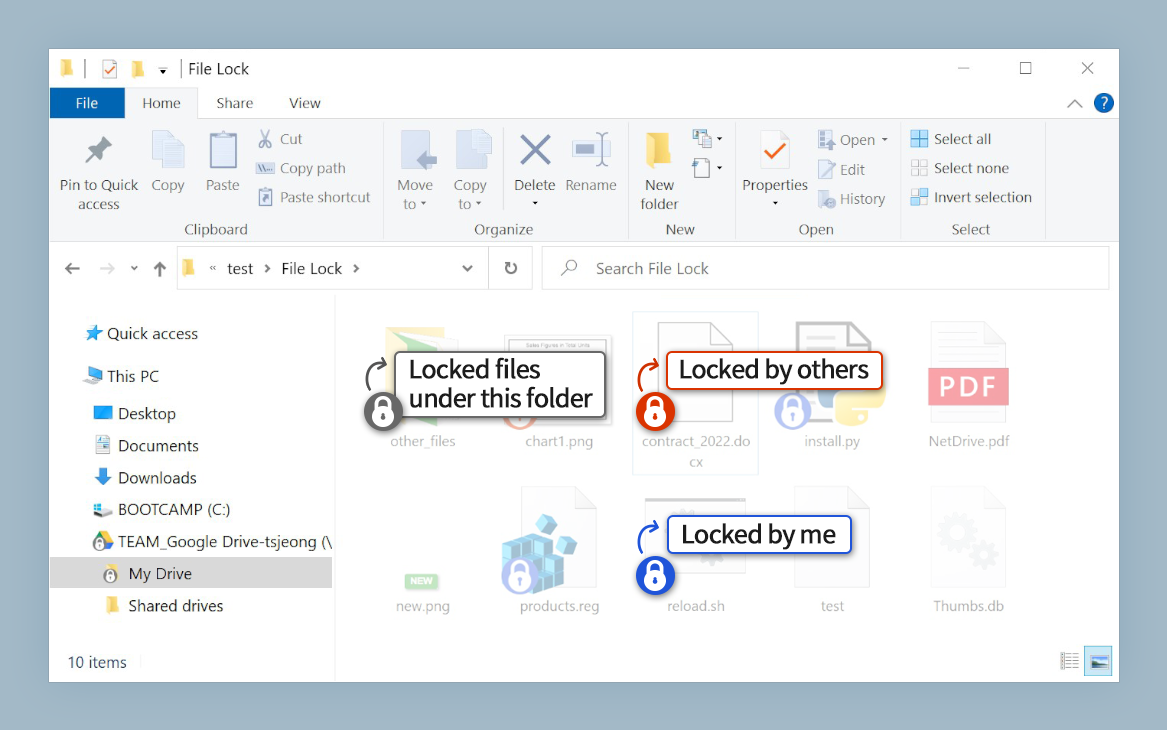
NetDrive 3.9.1190 (April 2020) extended file locking to all file types, not just Office documents. If your team edits shared Photoshop files, binary config files, or any custom format from a mounted drive, NetDrive can lock those too.
The lock state is visible through Windows Explorer overlay icons — a padlock badge on the file icon indicates it is locked, and whether the lock belongs to you or a teammate.
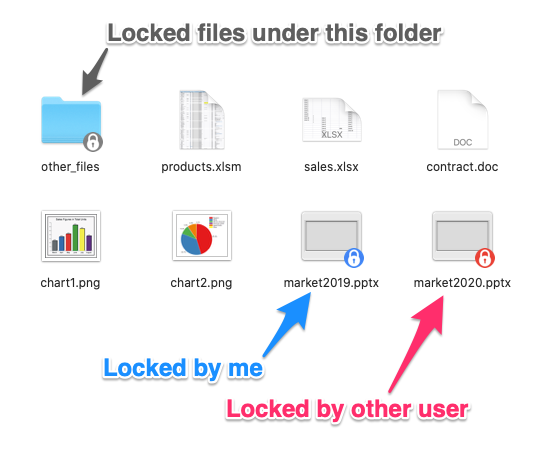
This eliminates the “please ping me before editing that file” step from team chat workflows. The lock signal is right there in Explorer, visible before anyone opens the file.
When the Read-Only Problem Persists After Enabling File Lock
If the read-only warning still appears after enabling NetDrive’s Office file lock, check these scenarios:
Both users must be on NetDrive. The lock protocol works between NetDrive clients. If one person has the drive mounted via NetDrive and another accesses the same storage through a web browser or the provider’s native desktop app, the lock is invisible to the non-NetDrive side.
SharePoint’s own checkout system. SharePoint has a separate co-authoring and file checkout mechanism that operates independently of NetDrive’s lock layer. If a file is checked out at the SharePoint level, NetDrive reflects that state — it is a SharePoint constraint, not a NetDrive bug. Check the SharePoint web interface to confirm checkout status and release it from there.
Ghost temp files from a crashed Office session. If Office crashed with the file open, it may have left a ~$filename.docx temp file in the same directory on the cloud storage. Browse to the folder using NetDrive’s File Browser, show hidden files, delete the stale temp file, then reopen the document.
Wrap-up
The read-only behavior on cloud-mounted Office files is almost always caused by stale lock files or a mismatch between Office’s temp-file lock mechanism and cloud API behavior. NetDrive’s built-in Office file lock, available since version 3.8.921, moves locking to NetDrive’s own layer — where it clears reliably on close, displays visibly in Explorer, and works consistently across the whole team.
For the SharePoint connection setup itself, see Mount SharePoint on Windows with NetDrive. If you are seeing disconnects rather than read-only issues on macOS, Fix Mount Disconnects After Sleep on macOS — NetDrive covers that separate problem.
— Steve, NetDrive