Mount SharePoint on Windows — NetDrive

Learn how to mount a Microsoft SharePoint document library as a Windows drive letter with NetDrive. Access SharePoint files directly without downloading or syncing.
Your legal team keeps 4,000 contracts in a SharePoint document library. Every time someone needs to open one, they either navigate the browser UI or wait for the SharePoint Sync client to download gigabytes they may never touch. NetDrive eliminates both workarounds by mounting your SharePoint library as a native Windows drive letter — open a .docx directly in File Explorer, edit it in Word, save it. Done.


Access SharePoint Files Like a Local Drive
NetDrive lets Google Drive, OneDrive, S3, SFTP, WebDAV and more appear as native drives on Windows and macOS — no syncing, no full downloads.
- Mount any SharePoint document library as a drive letter (S:, P:, etc.)
- Open, edit, and save Office files without downloading first
- Works with personal SharePoint and SharePoint for Business
Free trial. Lifetime and subscription plans available.
Why Skip the SharePoint Sync Client
SharePoint’s built-in sync client downloads your entire document library to local disk before you can work with files. For a team sharing a 50 GB contracts folder, that’s 50 GB per machine, plus the background sync process that runs CPU-intensive delta checks every few minutes. NetDrive works in the opposite direction: files stay in SharePoint, and NetDrive streams only what you actually open, on demand. The library appears in File Explorer as a drive letter the moment you connect.
SharePoint support arrived in NetDrive 3.16.589 (March 2022). NetDrive 3.17.799 added async directory listing, so large SharePoint sites with thousands of files open significantly faster during initial enumeration. Drive quota display was added in 3.16.667. The current release, NetDrive 3.19.7, runs on Windows 10 and Windows 11, as well as Windows Server editions 2012 through 2022.
What You Need Before Connecting
- Windows 10 or 11 (or Server 2012 / 2016 / 2019 / 2022)
- NetDrive 3.19.7 — grab the EXE installer from netdrive.net/download/windows. A 7-day trial activates on first launch, no credit card required.
- A Microsoft account with access to the SharePoint site you want to mount.
- The SharePoint site URL — it looks like
https://yourcompany.sharepoint.com/sites/LegalOps. Copy it from your browser’s address bar when viewing the site.
Connecting SharePoint in NetDrive
- Open NetDrive from the system tray icon or Start menu. The Drive Manager window lists all configured drives.
- Click + (Add new drive). A provider picker shows all supported storage types.
- Select SharePoint from the list. Both personal SharePoint and SharePoint for Business use this same entry.
- Sign in with Microsoft — NetDrive opens a browser OAuth window. Sign in with the account that has access to your SharePoint site. Your password stays with Microsoft; NetDrive stores only the OAuth token.
- Enter your SharePoint site URL — paste the address of the site whose document library you want to mount.
- Choose a drive letter —
S:is a natural choice for SharePoint, but any available letter works. - Set Mount Type:
- Network drive (default) — standard Windows network-share representation. Works for all use cases.
- Local disk — shows a hard-drive icon in “This PC” instead of a network icon. Functionally identical.
- Read-only — useful when you want users to browse files without risk of accidental changes.
- Click Connect. NetDrive authenticates and mounts the document library. The drive letter appears in File Explorer within seconds.
Working With Files After Mounting
With SharePoint mounted, your standard Windows workflow applies. Navigate in File Explorer, double-click to open a document in Word or Excel, edit it, and press Ctrl+S. The save goes back to SharePoint through NetDrive over HTTPS. Other team members see the updated version as soon as SharePoint propagates it — no manual upload step.
File status overlays: NetDrive adds small status icons to files and folders in Explorer. A spinning indicator means an upload is in progress; a clean icon means the file is idle. These overlays work identically across all NetDrive providers, so your team’s existing habits carry over.
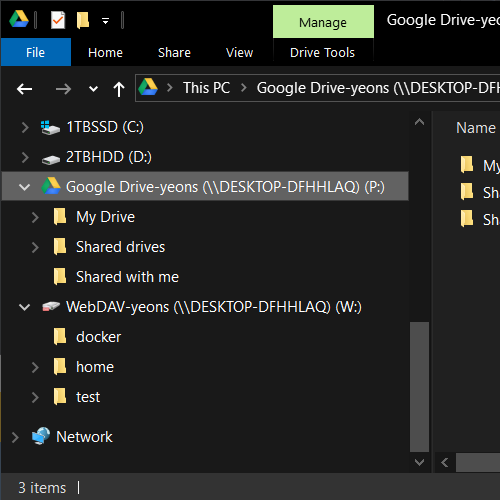
Forcing a folder refresh: SharePoint has its own propagation delay. If a colleague just uploaded a file that isn’t appearing in your mounted drive yet, right-click the folder in Explorer and choose NetDrive → Refresh Folder to force a fresh directory read.
Automating the Mount at Boot
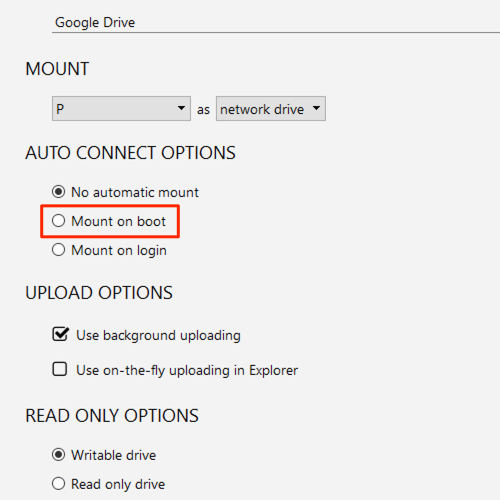
Open-plan offices and shared workstations often need the SharePoint drive available the moment Windows starts — before any user logs in, so automated scripts and background services can reach their configuration or template files. In Drive Manager, select your SharePoint drive entry and open the Mount dropdown:
- Boot: Mounts before the login screen. NetDrive authenticates silently using the stored OAuth token. Ideal for shared workstations and CI machines.
- Login: Mounts when the current user’s session starts.
- Disabled: Manual mount only.
After selecting Boot, the drive letter and your SharePoint library will be available every time Windows comes up, with no user interaction required.
Wrap-up
NetDrive’s SharePoint integration turns a browser-first collaboration tool into a familiar drive-letter workflow. Files stay in SharePoint; you work in File Explorer. Legal teams, HR departments, and engineering orgs that rely on SharePoint as a document store can stop managing sync clients and focus on their actual work.
If your organization also uses OneDrive alongside SharePoint, both can be mounted simultaneously on separate drive letters. See Mount OneDrive on macOS with NetDrive for the macOS workflow, or Mount Dropbox on Windows with NetDrive for a comparison with a consumer-cloud setup.
— Jay, NetDrive