Law Firms with NetDrive — Matter Folders Across SharePoint, Box, and Dropbox

How law firms use NetDrive to mount SharePoint, Box, and Dropbox as drives, with read-only access, team drives, and file locking for shared matter files.
A mid-sized litigation firm keeps its internal matter files on SharePoint, while a major client insists on sharing exhibits through its own Box account and a co-counsel sends deposition transcripts into Dropbox. An associate preparing for a hearing ends up hunting through three browsers, then drags files onto the desktop to attach them to a brief. NetDrive lets each of those clouds appear as an ordinary drive, so the matter folder is just a path in Explorer or Finder.


Every matter folder, one drive list
NetDrive lets Google Drive, OneDrive, S3, SFTP, WebDAV and more appear as native drives on Windows and macOS — no syncing, no full downloads.
- Mount SharePoint, Box, Dropbox and more as native drives
- Publish team drives to a matter team, revoke when it closes
- Read-only drives and file locking for shared documents
Free trial. Lifetime and subscription plans available.
Why legal work ends up spread across clouds
Law firms rarely control where every document lives. The firm’s own document store is one system, but clients and co-counsel bring their own. Each extra provider means another login, another sync client, and another place where a stale copy can hide.
NetDrive does not move or merge any of that. It mounts each existing cloud as a drive in Windows Explorer or macOS Finder, and your word processor, PDF tools, and review software open files by path as usual. Supported providers include SharePoint, OneDrive for Business, Box, Dropbox, Dropbox Business, Google Drive, and Amazon S3, plus WebDAV, FTP, and SFTP.
Limiting what each person can change
A paralegal pulling exhibits for a binder does not need the ability to delete the originals. Set a connection’s drive type to Read-only drive and no application on that machine can save, rename, or delete files through it. It is a sensible default for closed matters and for a client’s exhibit folder. The Read-Only Drive guide walks through the setting.
For active matters, a team license lets an administrator publish drives to specific members from the team management console and remove access when the matter wraps up. See the Team Drive guide for the setup.
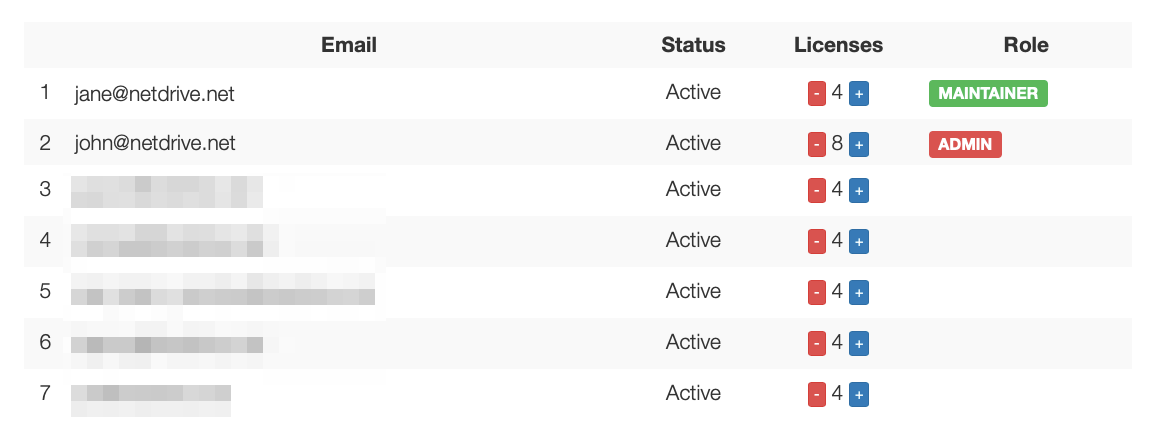
One workable pattern: a team drive per matter, published only to the attorneys and staff assigned to it.
Keeping two people out of the same draft
Two attorneys redlining the same agreement on the same afternoon is how a version gets lost. File locking on team drives applies to all file types, and Microsoft Office files are covered as well. When someone else has a file locked, you see it flagged before you can overwrite their changes. The Office File Locking guide shows what each person sees.
Setting up a matter drive
- Open NetDrive and click Add Drive in the Drive Manager.
- Choose the provider that holds the matter, for example SharePoint or Box, and sign in.
- Pick the drive type. Use Network drive for people who edit, Read-only drive for reference or closed files.
- Set auto-mount so the drive appears at login or at boot. See Auto-Mount on Boot.
- For a team, publish the drive to members from the team console and assign licenses.
What NetDrive does not do
Be clear-eyed about the limits before you put privileged material through any tool. NetDrive has no offline mode and no client-side encryption: files stream from your provider when opened, and protection comes from the provider’s own access controls, retention, and audit features. It does not replace a document management system or a conflict-check process, and it is not a backup. Confirm with your firm’s IT and compliance policies which providers are approved for client data.
NetDrive is available for Windows and macOS (Linux support is experimental), and every plan starts with a 7-day free trial, so a single matter team can test the workflow first.
Wrap-up
For firms whose files live in several clouds by necessity, mounting them as drives removes a lot of friction without migrating anything. A good next step is Mount SharePoint on Windows with NetDrive, or Mount Box on Windows if client exhibits arrive that way.
— Steve, NetDrive