Upload Photos from Your Phone to Any Cloud — NetDrive Mobile

See how NetDrive Mobile uploads photos straight from your camera roll to Google Drive, Dropbox, S3, and any other connected cloud on iPhone and Android.
A phone fills up with photos from a weekend trip, and the “storage almost full” notification shows up right when someone’s trying to take one more picture. The fix usually means picking through the camera roll, then dealing with whatever separate app each cloud account requires — one flow for the personal Google Drive, another for the S3 bucket a client uses, a third for a work SharePoint library. NetDrive Mobile collapses that into one flow: pick photos from the camera roll or the Photos app, choose which connected cloud they go to, and upload.

Send phone photos to any connected cloud
NetDrive Mobile opens Google Drive, Dropbox, OneDrive, S3, WebDAV, SFTP and more in one app — browse, upload, download, and preview right from your phone.
- Upload straight from your camera roll, Photos app, or any file
- Works the same for Google Drive, Dropbox, S3, WebDAV, and every other connected cloud
- Multiple photos at once, with live progress and cancel
Free Bdrive account required.
Three Ways to Start an Upload
NetDrive Mobile’s upload picker offers three sources: Camera (shoot a photo and upload it right away), Photos (pick from the existing camera roll), and Files (anything else on the device, including files saved from other apps). All three land in the same destination picker, so choosing which cloud a photo goes to works identically whether it was just taken or has been sitting in the camera roll for months.
That consistency is the actual point. A photographer culling a shoot doesn’t need to remember that this client’s delivery folder lives in Dropbox while the last one used a WebDAV share — the picker and the upload flow look the same regardless of which cloud is on the other end.
Picking a Destination Cloud
Every drive connected to the account shows up as an upload destination, so sending photos to Google Drive, an S3 bucket, or a NAS over SFTP is the same three taps: pick photos, pick the destination cloud, confirm. The home screen lists every connected cloud under Clouds, which is also where a new connection gets added if the destination isn’t set up yet.
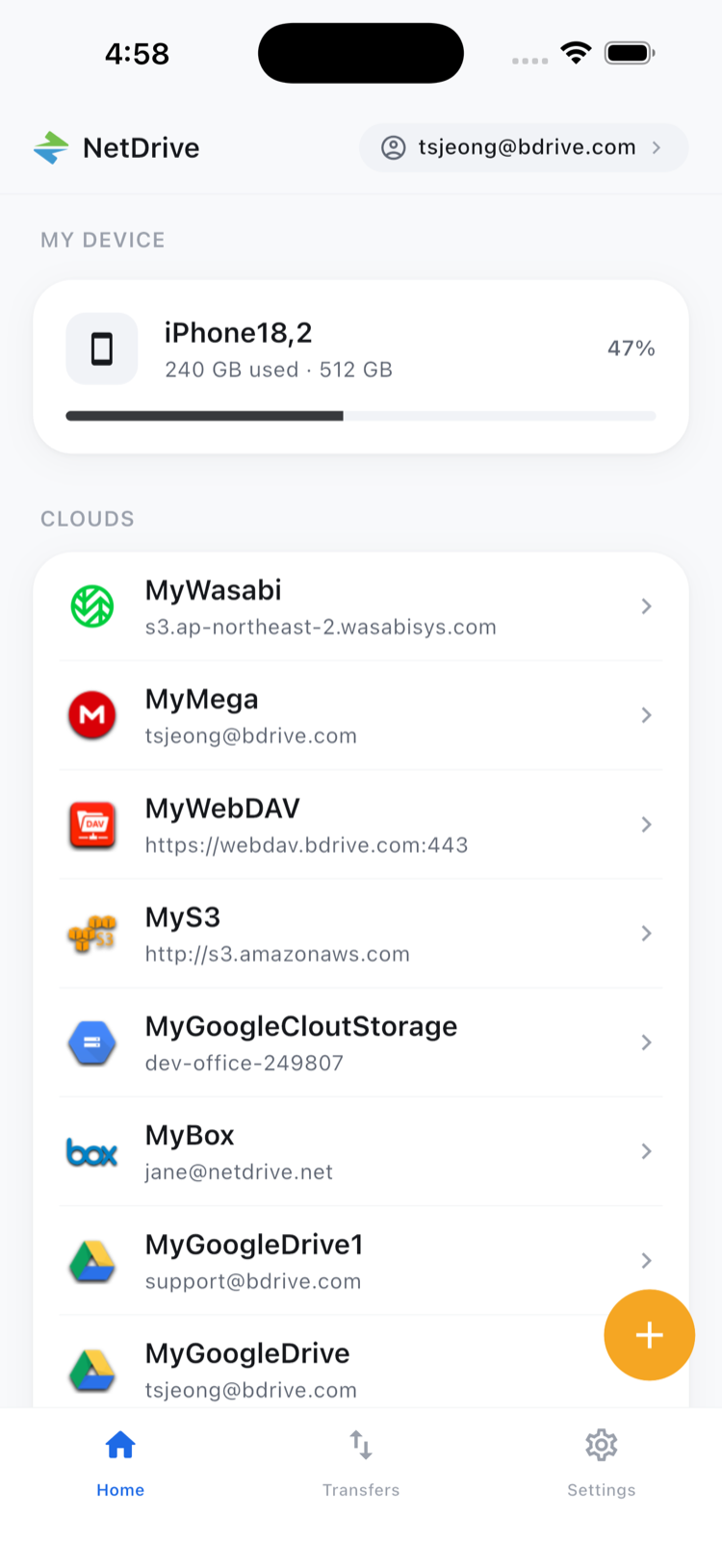
Navigating into the destination folder works through the same file browser used for downloads and previews — there’s no separate “upload mode” interface to learn. Browse to the right folder, or create a new one, then confirm the upload from there.
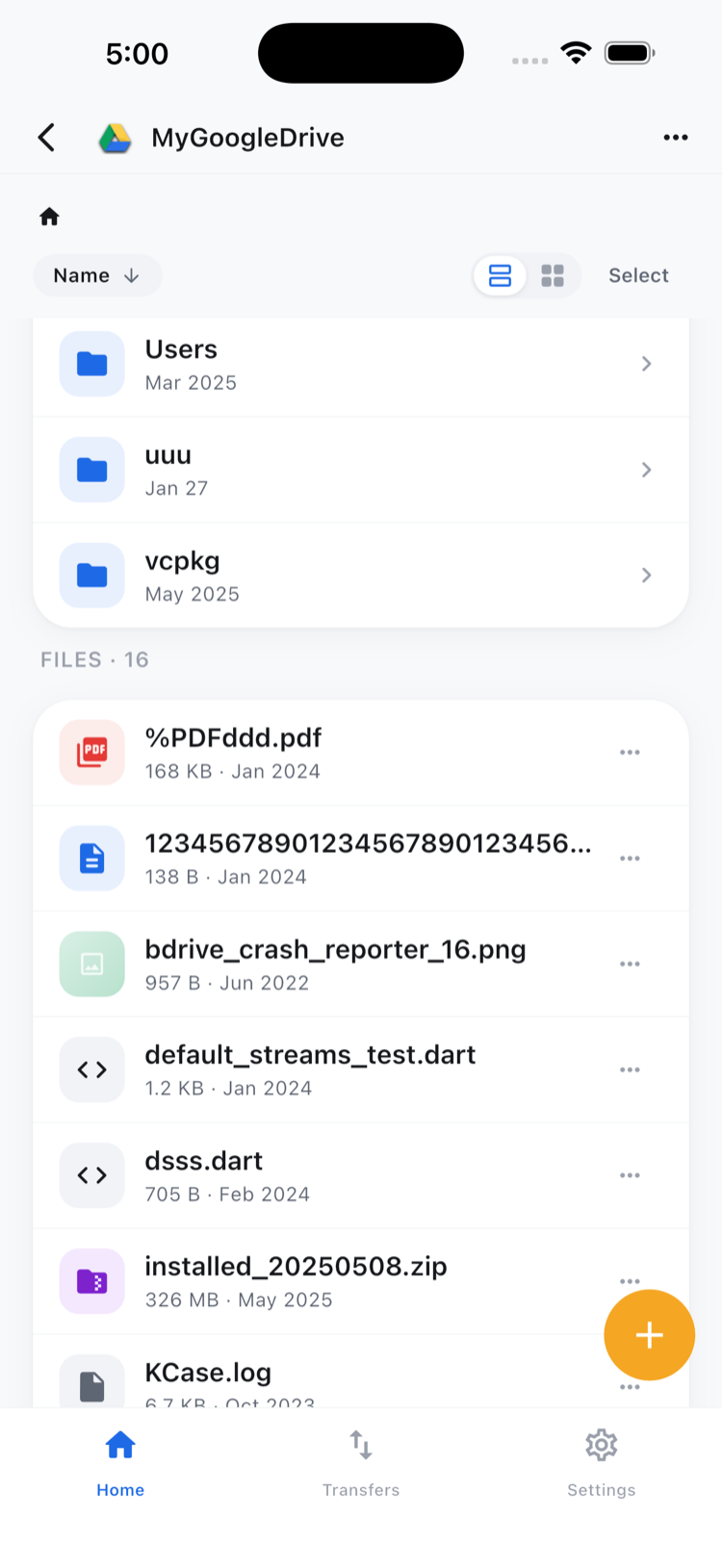
Multiple Photos, One Queue
Selecting more than one photo switches into multi-select mode, where a batch of images gets tapped once each and uploaded together instead of one at a time. This matters most right after an event — a hundred photos from a shoot, or a folder’s worth of scanned receipts — where uploading them individually would mean repeating the same picker flow a hundred times.
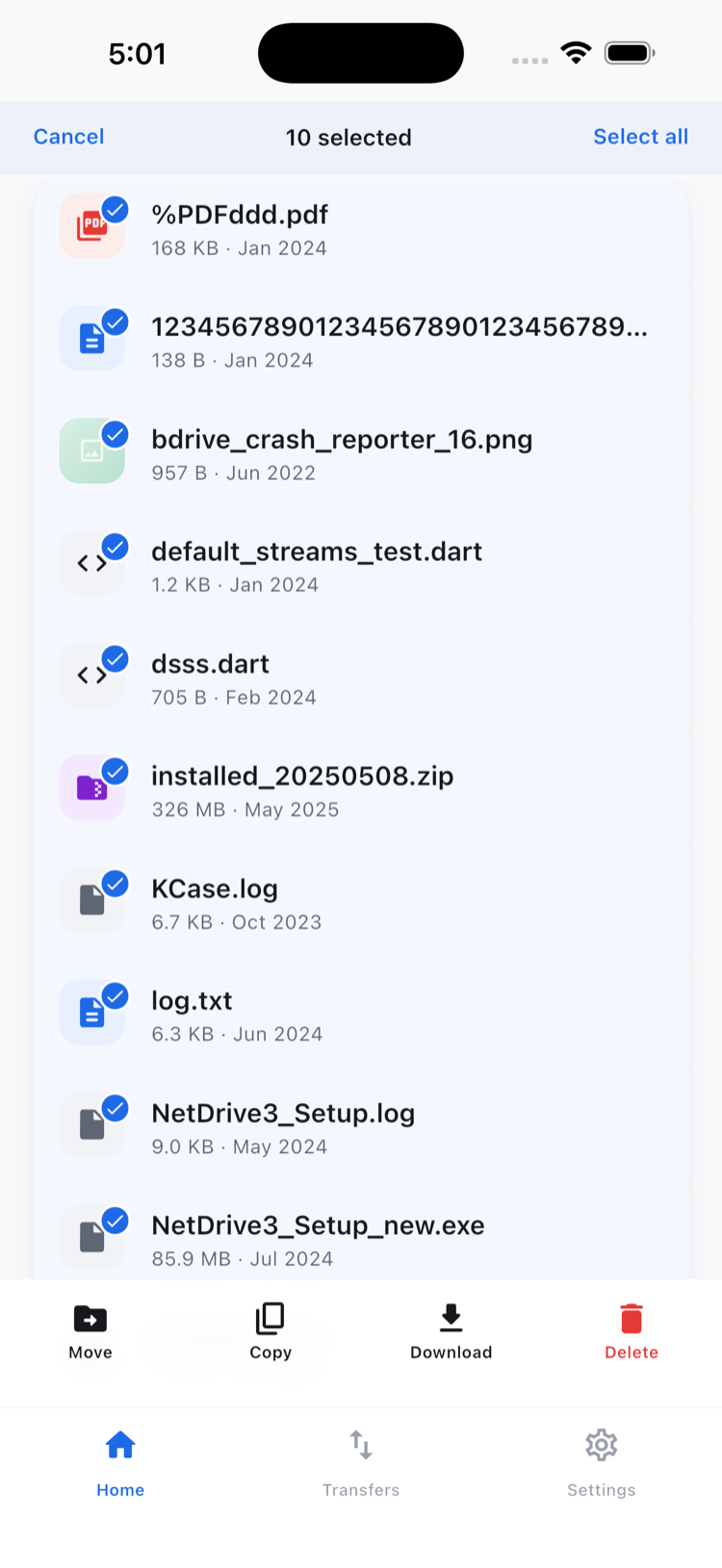
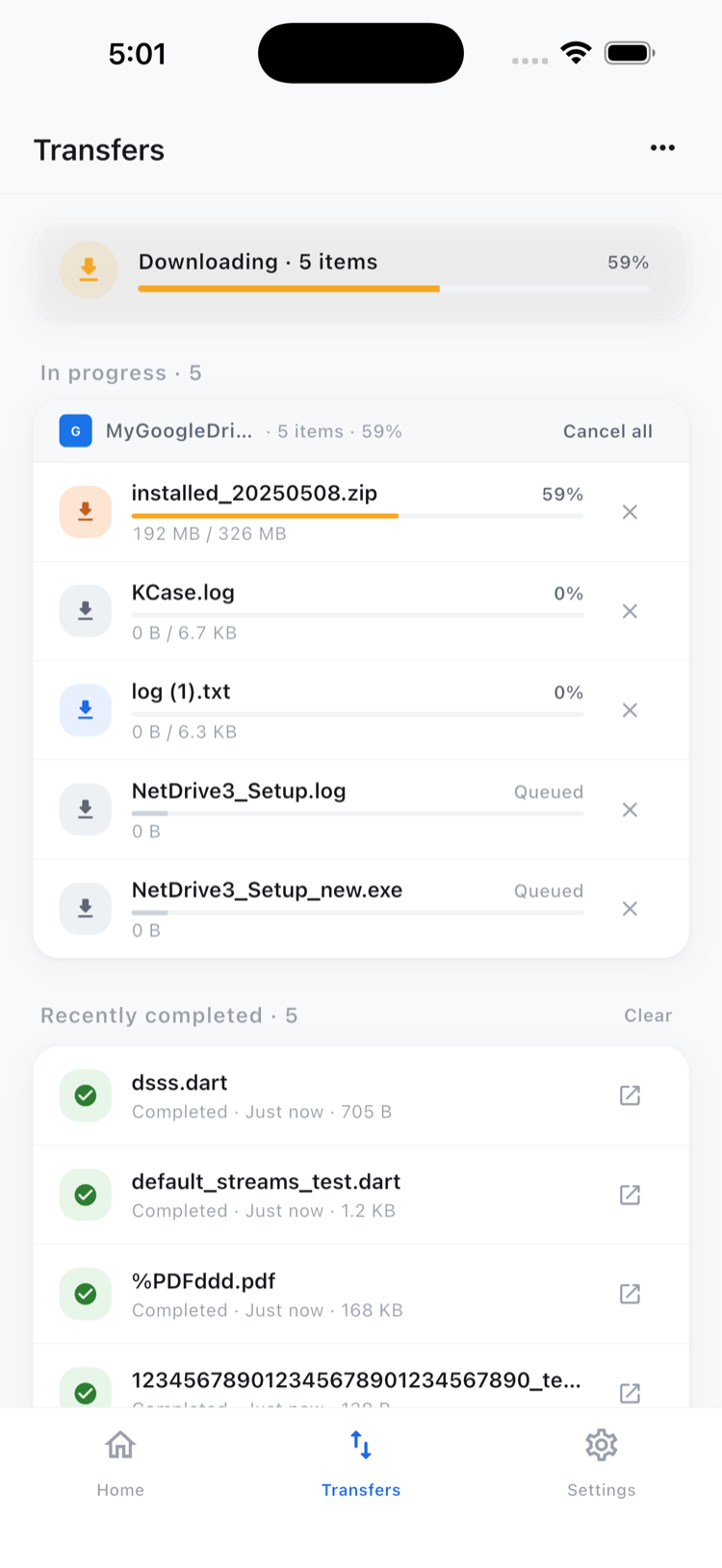
Once the upload starts, the Transfers tab shows live progress for every file in the batch, with a cancel option if a photo was selected by mistake or the upload needs to stop partway through. Transfers run concurrently rather than strictly one after another, so a batch of photos doesn’t queue up behind a single slow connection.
Step-by-Step: Send Photos to a Connected Cloud
- Open the destination cloud from the home screen’s Clouds list, and navigate to the folder photos should land in.
- Tap the upload button and choose Camera, Photos, or Files as the source.
- Select one photo or several — multi-select mode activates automatically once more than one is tapped.
- Confirm the upload. Progress appears immediately in the Transfers tab.
- Check Transfers to confirm every file finished, or cancel any that are still in progress.
Wrap-up
For anyone who moves photos off a phone more often than they’d like to think about, uploading straight from the camera roll to whichever cloud a project actually lives in beats juggling a separate app per provider — one destination picker, the same flow for one photo or a hundred. For what happens after a file lands in the cloud, see In-App Preview on NetDrive Mobile, or start from NetDrive Mobile — Every Cloud You Use, In One App for the full picture.
— Morgan, NetDrive