Mount KT ucloud biz on Windows — NetDrive

Step-by-step guide to mounting KT ucloud biz object storage as a native Windows drive letter with NetDrive. No sync client, no manual downloads.
A Seoul-based backend team storing build artifacts and object data on KT ucloud biz has the same problem every object-storage user eventually hits: the web console works for one-off uploads, but a build script, a media pipeline, or a developer who just wants to drag a file into a folder needs something that looks like a normal drive. NetDrive has supported KT ucloud biz since its earliest 3.x releases, and mounting it on Windows takes the same few minutes as any other provider in the list.


Mount KT ucloud biz as a Windows drive letter
NetDrive lets Google Drive, OneDrive, S3, SFTP, WebDAV and more appear as native drives on Windows and macOS — no syncing, no full downloads.
- Assign a drive letter to your KT ucloud biz storage
- Open and save files directly — no manual upload/download step
- Runs alongside S3, Wasabi, Alibaba Cloud, and 20+ other providers
Free trial. Lifetime and subscription plans available.
Why Mount KT ucloud biz Instead of Using the Console
KT ucloud biz’s own console handles browsing and one-off transfers well, but it breaks down for anything that expects a file path. A batch script that reads config files, a CI job pulling a dataset, or a designer who wants to open a PSD directly in Photoshop all need the storage to behave like a local disk. NetDrive closes that gap by presenting the bucket as a drive letter that any Windows application can read and write through, without a proprietary API call in sight.
Because KT ucloud biz has been part of NetDrive’s provider list since the product’s original release, the connection flow is stable and goes through the same drive manager used for every other provider — there’s no separate app or plugin to install.

What You Need Before You Start
Gather these before opening NetDrive:
- Access Key ID and Secret Access Key — generate a dedicated access key pair from your KT ucloud biz account rather than reusing a shared key. Scope it to the storage container the drive needs.
- Container or bucket name — the exact name of the storage space you want mounted.
- NetDrive on Windows — supported on Windows 8, 8.1, 10, 11, and Windows Server 2012 through 2022. Download the EXE installer from netdrive.net/download/windows; an MSI is also available for IT administrators rolling it out via Group Policy.
A 7-day free trial covers the full feature set, so you can validate the setup before committing to a license.
Adding KT ucloud biz as a Drive
- Open NetDrive and click the + (Add Drive) button in the Drive Manager.
- Scroll the provider list and select KT ucloud biz.
- Enter your Access Key ID and Secret Access Key in the credential fields — NetDrive stores these encrypted on your local machine, not in plain text.
- Enter the container or bucket name, or use the browse option if your credentials have list permissions.
- Choose an available drive letter. Any unused letter works; a letter near the end of the alphabet avoids collisions with existing local or network drives.
- Click Save, then Mount. The drive appears in Windows Explorer within a few seconds.
Working With the Mounted Drive
Once mounted, KT ucloud biz storage behaves like any other NTFS volume from the application’s point of view — a Python script iterating the drive with standard file APIs works unchanged, and opening a document in Word or a spreadsheet in Excel saves back to the bucket without an explicit upload step.
Uploads run through NetDrive’s background queue by default, so a save operation returns control to your application immediately while the bytes transfer in the background. For read-heavy workloads — a reporting job that opens the same reference files repeatedly during a session — NetDrive’s local cache (adjustable from 100 GB up to 1 TB) keeps recently accessed content on local disk and skips the round trip on the second read.
If you need read-only access instead — for example, mounting an archive container that should never be modified from a workstation — choose Read-only drive as the mount type when adding the drive. Windows rejects any write attempt at the OS level before it reaches KT ucloud biz.
Auto-Mounting for Unattended Machines
For a build server or a workstation that starts processing before anyone logs in, open the drive’s settings and set Mount at to Boot. NetDrive re-establishes the connection during the Windows startup sequence, using the encrypted local credential store, with no interactive prompt.
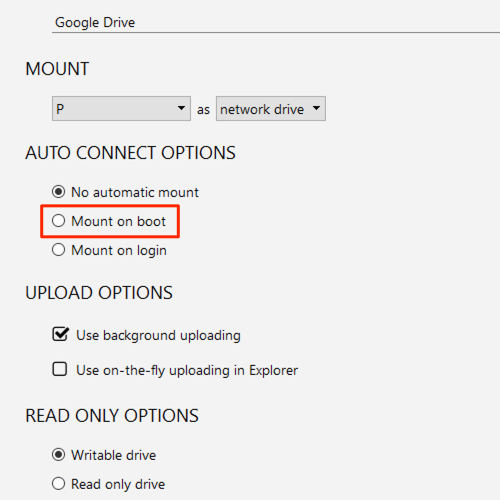
This matters most for CI agents and scheduled jobs: a script that references Z:\data\ in its configuration gets a live KT ucloud biz mount every time the machine restarts, without a manual reconnect step.
Wrap-up
Once connected, KT ucloud biz storage works like any other drive letter on Windows — no separate sync client, no browser tab left open, no manual download queue. If your infrastructure spans multiple regional or object-storage providers, NetDrive mounts them side by side; see mounting Alibaba Cloud on Windows or mounting Tencent Cloud on Windows for the equivalent setup with those providers. For AWS-backed workloads on the same machine, the Amazon S3 Windows guide covers a nearly identical connection flow.
— Morgan, NetDrive