Background Upload Mode in NetDrive — Asynchronous vs Synchronous Explained

NetDrive uploads files in the background so drive writes don't block. Here's how asynchronous and synchronous upload mode differ, and when to switch.
A video editor drags 40 GB of raw footage onto a mounted S3 bucket and expects the copy dialog to close in a few seconds, not sit open for as long as the actual upload takes. A CI script writing a build artifact to a mounted bucket has the opposite need — it wants to know the file has genuinely landed before triggering the next job. NetDrive handles both cases through the same setting: background upload with a choice between asynchronous and synchronous mode.


Uploads that don't block your work
NetDrive lets Google Drive, OneDrive, S3, SFTP, WebDAV and more appear as native drives on Windows and macOS — no syncing, no full downloads.
- Background upload has been in NetDrive since its first 3.x release
- Choose asynchronous or synchronous mode per drive
- Works the same way across every supported provider
Free trial. Lifetime and subscription plans available.
What Happens When You Drop a File on a Mounted Drive
Every write to a NetDrive-mounted folder eventually has to reach the cloud provider on the other end, but that transfer doesn’t have to happen while Explorer or Finder is still waiting on the copy operation. Background upload — queuing the transfer and letting the file operation return control right away — has been part of NetDrive since its very first 3.x release in September 2017, alongside the async/sync mode choice that governs it.
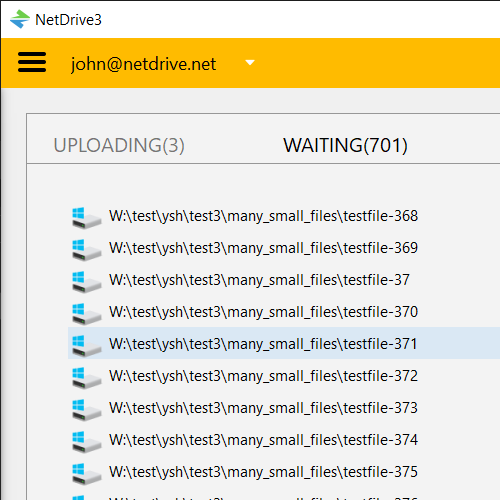
Without this, copying a large batch of files onto a mounted drive would mean the file manager stays locked up for the full duration of the transfer. With it, the copy dialog finishes almost immediately and the actual upload continues in its own queue, visible separately from whatever you do next.
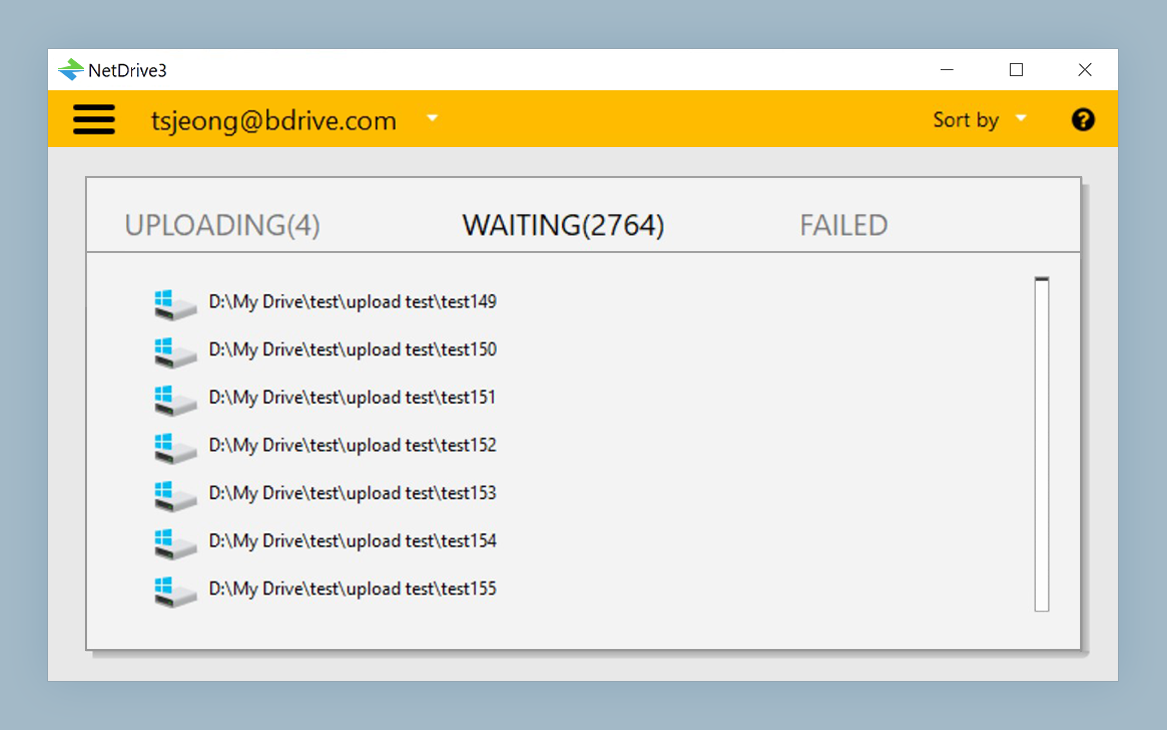
Asynchronous vs Synchronous Upload Mode
NetDrive exposes the underlying behavior as a per-drive setting with two options:
| Mode | What happens | Best for |
|---|---|---|
| Asynchronous (default) | The write operation returns immediately; the file finishes uploading from a background queue | Everyday drag-and-drop, large batches, anything where you don’t want Explorer or Finder to hang |
| Synchronous | The write operation doesn’t return until the upload actually completes | Scripts and automation that need certainty the remote copy exists before the next step runs |
Asynchronous mode is the default for a reason — most day-to-day use of a mounted drive is a person copying files and continuing to work, not a process that needs a guarantee. Synchronous mode trades that responsiveness for certainty, which matters more in an unattended pipeline than it does for someone editing files by hand.
Switching a Drive’s Upload Mode
The setting lives alongside every other per-drive option, so different mounted drives can run different modes at the same time — a footage archive can stay asynchronous while a CI-facing bucket runs synchronous:
- Open NetDrive and find the drive in the Drive Manager, or click Add Drive to configure a new connection.
- Open the drive’s settings — click the gear icon on the drive card.
- Locate the Upload Mode field and switch it between Asynchronous and Synchronous.
- Save and remount the drive for the change to take effect.
Nothing about the connection itself changes when you switch modes — the same provider, credentials, and mount point stay in place. Only how the write operation behaves while the upload is in flight changes.
When to Change the Default
Large batch copies. Dragging hundreds of files or a handful of very large ones onto a mounted drive is exactly what asynchronous mode is built for — the file manager stays responsive instead of appearing frozen for the length of the transfer.
Automation that depends on the upload finishing. A build script, a deploy step, or any process that writes a file and immediately expects a downstream system to read it back from the cloud should run that drive in synchronous mode. Otherwise the write can return success locally before the remote copy is actually in place, and a race condition follows.
Mixed workflows on the same machine. Because the setting is per-drive rather than global, a workstation can mount one drive for manual file work (asynchronous) and another for scripted output (synchronous) without any conflict between the two.
Wrap-up
Background upload is what keeps a NetDrive-mounted drive feeling like a local folder even when the data behind it lives in the cloud, and the asynchronous/synchronous choice is there for the cases where “feels local” isn’t actually what you want. For another per-drive setting worth knowing about, see Local Disk Mode in NetDrive; for tuning how much of a drive stays cached, see Cache Size Options in NetDrive.
— Robin, NetDrive