Mount Dropbox Business on Windows — NetDrive Team Setup Guide

Map Dropbox Business team folders as Windows drive letters with NetDrive. Covers OAuth setup, file locking for shared folders, and MSI deployment for IT admins.
An IT admin rolling out Dropbox Business to forty employees runs into the same wall every time: the Dropbox sync client wants each machine to download a local copy of every shared team folder, and laptops with 256 GB SSDs run out of space before onboarding finishes. NetDrive treats the Dropbox Business account differently — it maps the account to a drive letter, streams files on demand, and never forces a full local copy of the team’s shared folders.


Map Dropbox Business as a drive letter for your whole team
NetDrive lets Google Drive, OneDrive, S3, SFTP, WebDAV and more appear as native drives on Windows and macOS — no syncing, no full downloads.
- Each employee gets a drive letter — no local sync of shared team folders
- File locking prevents two people editing the same document at once
- MSI installer supports silent, IT-managed rollout across machines
Free trial. Lifetime and subscription plans available.
Dropbox Business vs. Personal Dropbox in NetDrive
Dropbox Business is a separate provider entry in NetDrive’s drive list, distinct from personal Dropbox — support for it was added in version 3.9.1190 (2020-04-24). Where a personal Dropbox account authenticates against an individual’s Dropbox login, Dropbox Business connects against the team’s Dropbox Business tenant, giving access to shared team folders and any personal storage tied to the business account.
If an employee also has a personal Dropbox account, NetDrive lets them add both as separate drives — one drive letter for the personal account, another for the business tenant. Neither setup requires the Dropbox desktop sync client to be installed at all.

Requirements
- Windows 8 / 8.1 / 10 / 11, or Windows Server 2012 / 2016 / 2019 / 2022
- A Dropbox Business account with access to at least one team folder
- NetDrive 3.19.7 — download the EXE installer at https://www.netdrive.net/download/windows/, or the MSI for scripted deployment
For a fleet rollout, the MSI installs silently via Group Policy or SCCM:
msiexec /i NetDrive3-3.19.7.msi REINSTALL=ALL REINSTALLMODE=vamusA 7-day free trial starts on first launch — no credit card required to evaluate the setup with a pilot group before licensing the full team.
Setting Up Dropbox Business in NetDrive
- Open NetDrive from the system tray icon. The Drive Manager window lists any drives already configured.
- Click + Add Drive.
- From the provider list, select Dropbox Business (not the plain Dropbox entry, which targets personal accounts).
- NetDrive opens your default browser to Dropbox’s OAuth login page. Sign in with the team member’s Dropbox Business credentials and approve access.
- Back in NetDrive, configure the drive:
- Drive letter: any available letter, such as
T:for “Team.” - Drive type: Network drive for normal day-to-day access, or Read-only drive if the folder should be view-only for that user.
- Drive letter: any available letter, such as
- Click Save, then ▶ Connect on the drive card.
The team folder appears under This PC within seconds, and any application — Excel, Acrobat, a legacy line-of-business tool that only understands drive letters — can open files directly from it.
Team Features: File Locking and Background Uploads
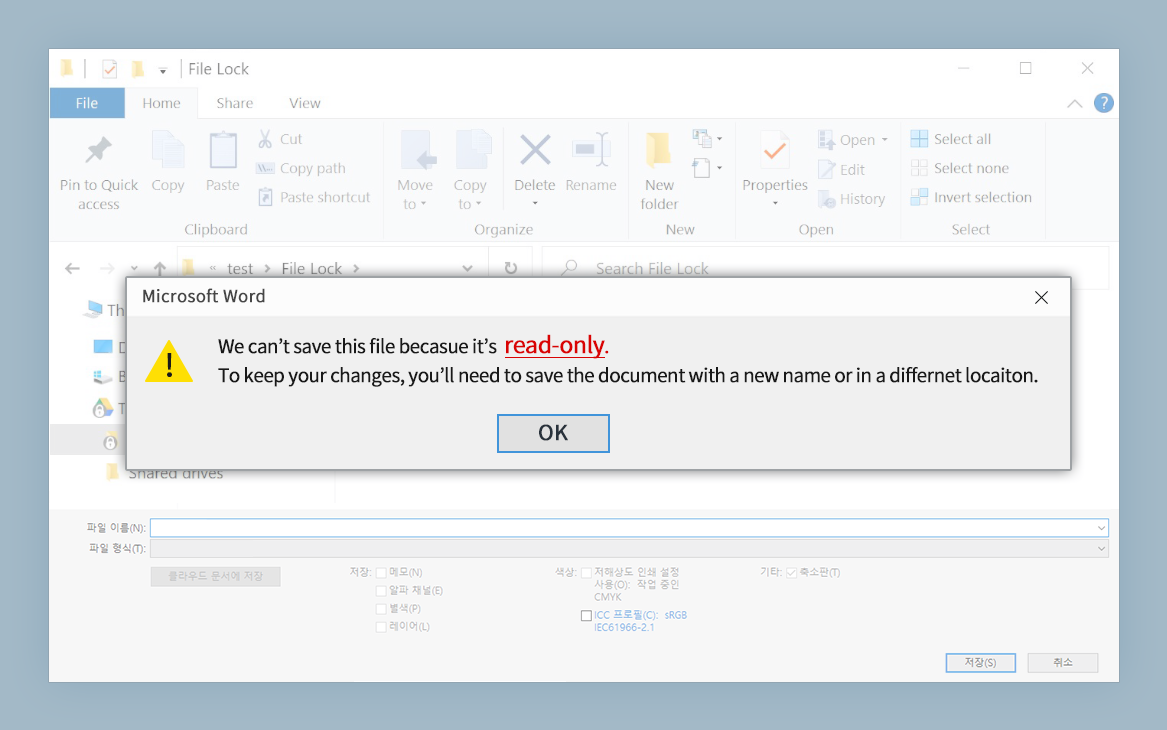
Shared team folders create the classic problem of two people editing the same spreadsheet at once. NetDrive’s file lock feature, covering all file types since version 3.9.1190, addresses this directly: right-click a file on the mounted drive and select Lock File, and teammates opening that file elsewhere see it flagged as locked. If someone opens a locked Office document anyway, they get a read-only warning rather than risking a conflicting save — the same protection NetDrive gives Microsoft Office files specifically since version 3.8.921.
When someone saves a large deck or drops a batch of client files into the mounted drive, the upload runs in the background — Explorer’s file status overlay icons show which files are still uploading, which finished, and which failed, so nobody has to guess whether a save actually reached Dropbox.
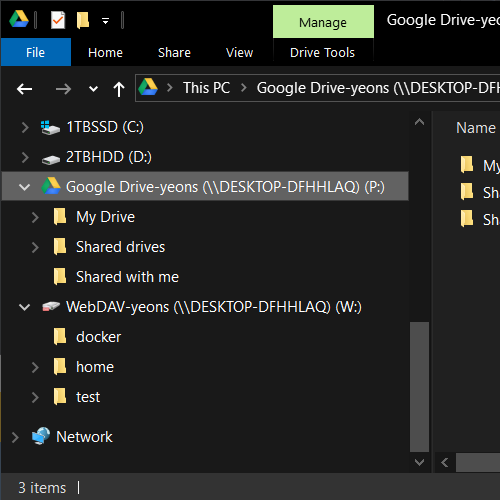
Admins deploying to Windows Terminal Server or shared RDP sessions can also rely on NetDrive’s multi-user support (since version 3.1.286): each session’s Dropbox Business drive stays independent, even when several employees are logged into the same server.
Wrap-up
Mounting Dropbox Business as a drive letter removes the sync client’s all-or-nothing local copy problem, replacing it with on-demand streaming and file locking built for shared folders. Pair the MSI installer with Group Policy for a rollout that needs no manual setup per machine. For a personal Dropbox account on the same network, see Mount Dropbox as a Windows Drive Letter with NetDrive; for Microsoft’s equivalent, Mount OneDrive for Business on Windows covers the same pattern.
— Robin, NetDrive