Mount OpenStack Swift on Windows — NetDrive Drive Setup

Mount an OpenStack Swift object store as a Windows drive letter with NetDrive. Step-by-step credential setup for private and public cloud deployments.
A university research group running 40 TB of sequencing data on an on-premises OpenStack cluster has a persistent problem: the data lives on Swift, but the analysis scripts on workstations expect local paths. Every transfer is a manual step, and manual steps accumulate into hours of lost research time every week. NetDrive solves this by presenting a Swift container as a lettered drive on Windows — S:\ looks local, but reads and writes go directly to your Swift cluster over HTTPS.
OpenStack Swift is widely deployed at research institutions, telecoms, and enterprises that run their own infrastructure. NetDrive has supported it since version 3.1, so any current install handles the connection without extra configuration.


Mount OpenStack Swift as a Windows Drive
NetDrive lets Google Drive, OneDrive, S3, SFTP, WebDAV and more appear as native drives on Windows and macOS — no syncing, no full downloads.
- Access Swift containers as a native drive letter
- Works with Keystone v2 and v3 authentication
- Supports Windows 10, Windows 11, and Windows Server
Free trial. Lifetime and subscription plans available.
Credentials You’ll Need
Before opening NetDrive, gather the connection details from your OpenStack administrator or your cluster’s Horizon dashboard:
- Auth URL — the Keystone identity endpoint, for example
https://keystone.example.org:5000/v3. Make sure this is the full URL including the version path. - Username and Password — your OpenStack user credentials (not your Horizon web password if they differ — some deployments use application credentials instead).
- Project / Tenant name — the project or tenant that owns the target container. In Keystone v3 environments this is often called the project; in v2 it’s the tenant.
- Region — the region name if your cluster has more than one (e.g.,
RegionOne). Single-region setups can leave this field blank. - Container name — the Swift container you want to mount. Leaving this empty mounts the account level and lists all containers as top-level folders; entering a specific name mounts that container directly as the root of the drive.
HTTPS is required by default in current NetDrive versions and is strongly recommended — Swift auth tokens should never travel over plain HTTP.
Adding OpenStack Swift in NetDrive
- Open NetDrive on your Windows machine.
- Click + Add Drive in the drive manager.
- Select OpenStack Swift from the provider list.
- Fill in the credential fields: Auth URL, Username, Password, Project/Tenant Name, and optionally Region and Container Name.
- Assign a Drive Letter —
S:orO:are common choices for object-storage mounts; pick one that isn’t already taken. - Set Mount Type to Network Drive for standard read-write access, or Read-only Drive if workstations should never write back to the cluster.
- Click Mount.
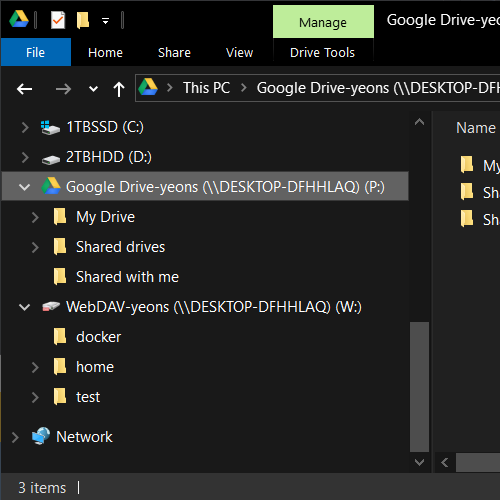
Windows Explorer shows the new drive under This PC within a few seconds. Existing scripts that reference a path like S:\datasets\sample_001.fastq work immediately — no path changes required.
Auto-Mount on Boot for Servers and Shared Workstations
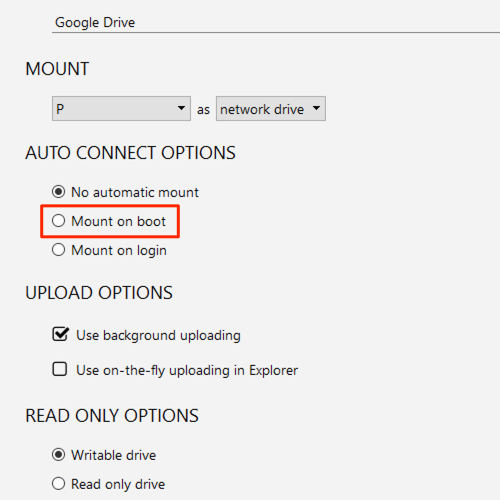
Research workstations often run overnight jobs that need the Swift mount to be present before any user logs in. NetDrive supports On Boot auto-mount — the drive connects at system startup, before the login screen:
- Open the drive’s settings in NetDrive.
- Set Auto Mount to On Boot.
- Save.
Credentials are stored securely in the Windows Credential Manager, so no interactive login is needed for the reconnection. For unattended Windows Server environments, this means your ETL pipelines or batch jobs find the drive ready from the first scheduled task.
File Status and Explorer Integration
Once mounted, the Swift drive integrates with Windows Explorer the same way a local disk would. Status overlay icons show whether a file is actively being uploaded, queued, or fully synced — useful when multiple researchers are pushing large files simultaneously.
For teams sharing a container, NetDrive’s file locking feature prevents two people from overwriting the same object at the same time. Right-clicking a file in Explorer surfaces the lock option; a locked file shows a lock icon overlay and opens as read-only for anyone else on the team until the lock is released.
Wrap-up
Mounting OpenStack Swift on Windows with NetDrive gives you a drive letter backed by your private cloud — no client-side rearchitecting, no path changes in existing scripts. The connection works with any Keystone v2 or v3 deployment, including major distributions like Red Hat OpenStack Platform, Canonical’s OpenStack, and self-built clusters.
If you’re running a hybrid environment that also uses S3-compatible storage alongside Swift, the same NetDrive install can mount both simultaneously on separate drive letters. See Mount Amazon S3 on Windows with NetDrive for the S3 setup, which follows the same pattern. For WebDAV-based NAS shares in the same environment, Mount WebDAV on Windows with NetDrive covers that path.
— Kai, NetDrive