Students with NetDrive — One Laptop, Every Cloud Drive Your Courses Use

How students use NetDrive to mount a school Google Drive, OneDrive, and personal cloud storage as drives on one Windows or macOS laptop for coursework and thesis files.
A second-year engineering student has a school Google account where lab partners share reports, a university Microsoft account that holds course handouts, and a personal cloud drive with everything from last year. Her thesis draft lives in one of them, the datasets in another, and the figures in a third. Every deadline week she spends a surprising amount of time asking “which drive was that file in?” and re-uploading through three different browser tabs.
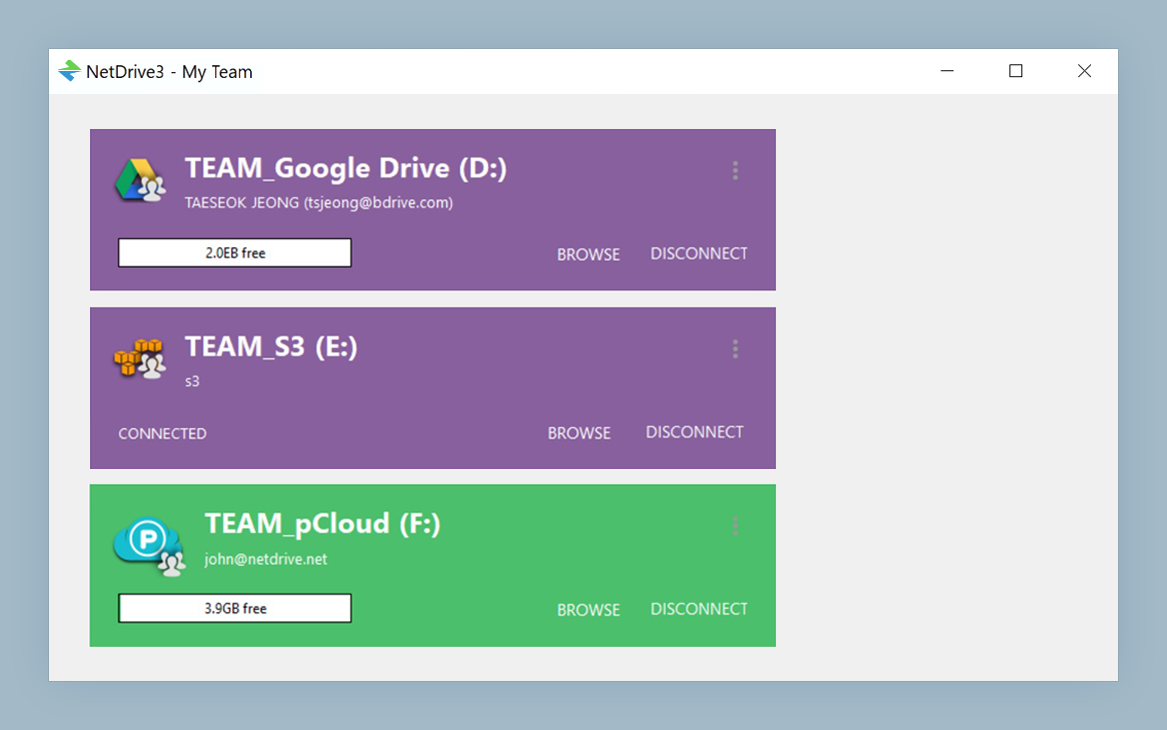
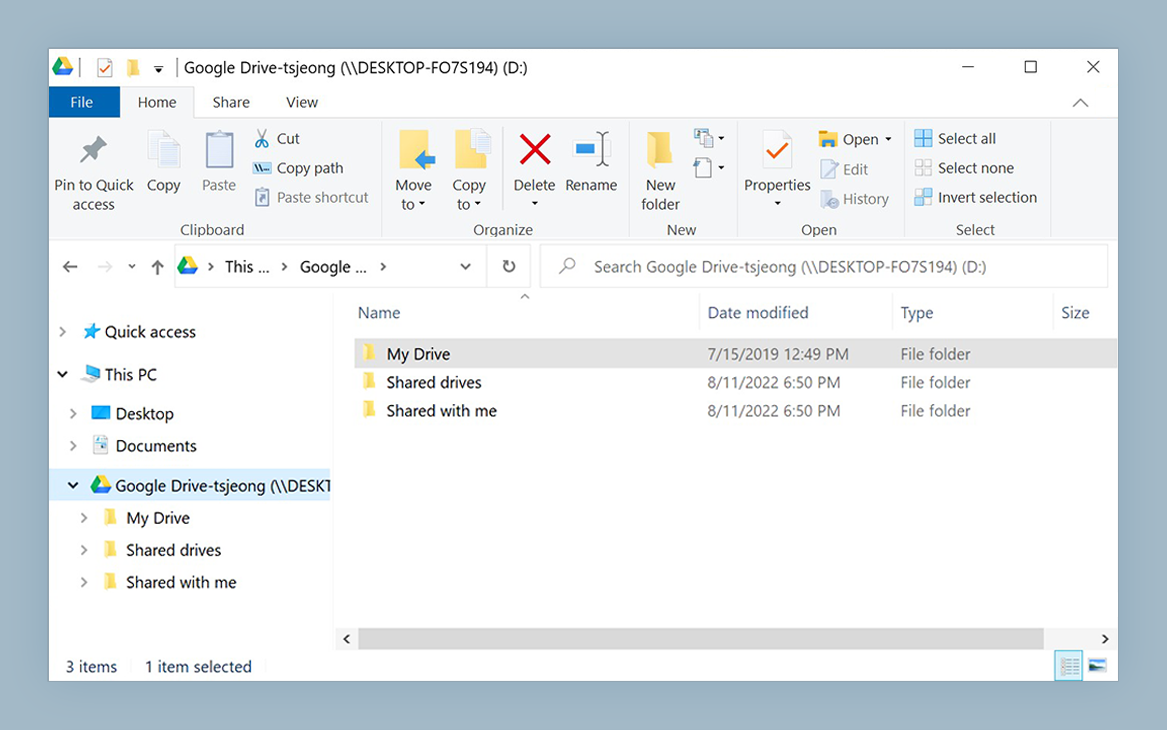
All your course drives in one file manager
NetDrive lets Google Drive, OneDrive, S3, SFTP, WebDAV and more appear as native drives on Windows and macOS — no syncing, no full downloads.
- Mount Google Drive, OneDrive, and more as separate drives
- Open files from Word, Excel, or your editor like local files
- Works on Windows and macOS laptops
Free trial. Lifetime and subscription plans available.
The Problem Is Not Storage, It Is Scatter
Most students are not short on space. They are short on one place to look. A school typically hands out one cloud account, another institution or club hands out a second, and the personal account predates both. Each has its own website, its own sync client, and its own idea of where a folder should go.
NetDrive does one thing here: it mounts each of those accounts as its own drive in Windows Explorer or macOS Finder. Nothing is merged. A drive is a drive, and your school Google Drive stays separate from your personal one. What changes is that every one of them shows up in the same Open and Save dialogs as your Documents folder.
A Setup That Survives a Semester
Three drives cover most students:
- School Google Drive. Group projects, shared reports, lab write-ups. Shared drives from your school account are supported; if one does not appear, Fix Google Drive Shared Drive Not Showing walks through the usual causes.
- School Microsoft account. Handouts and submission folders. Depending on the account type this is OneDrive or OneDrive for Business; see Mount OneDrive on Windows or the Business variant, and Mount SharePoint on Windows if your department publishes a SharePoint site.
- Personal archive. Last year’s notes, photos, personal projects. NetDrive supports many providers, including Dropbox, pCloud, and Mega, so your personal drive probably qualifies. Mega users with two-factor login should read Fix Mega 2FA Authentication Errors before setup.
Setting Up a Drive
- Install NetDrive on your laptop from the download page. Windows 8 through 11 and macOS 14 (Sonoma) or later are supported.
- Add a drive and pick the provider that matches the account, for example Google Drive.
- Enter the account details when prompted. Use the school account for the school drive, and repeat for each additional account.
- Choose a drive letter on Windows, or a name on macOS, that tells you what it is. “School” and “Personal” beat “Z:” and “Y:” at 2 a.m.
- Repeat for the next account.
On a MacBook with an M-series chip, NetDrive runs natively; details are in NetDrive on Apple Silicon.
Habits That Save a Deadline
Save straight to the drive for finished work. When your professor wants the PDF in the shared folder, export directly into the mounted drive. NetDrive’s background upload mode lets the transfer finish while you move on to the next problem set.
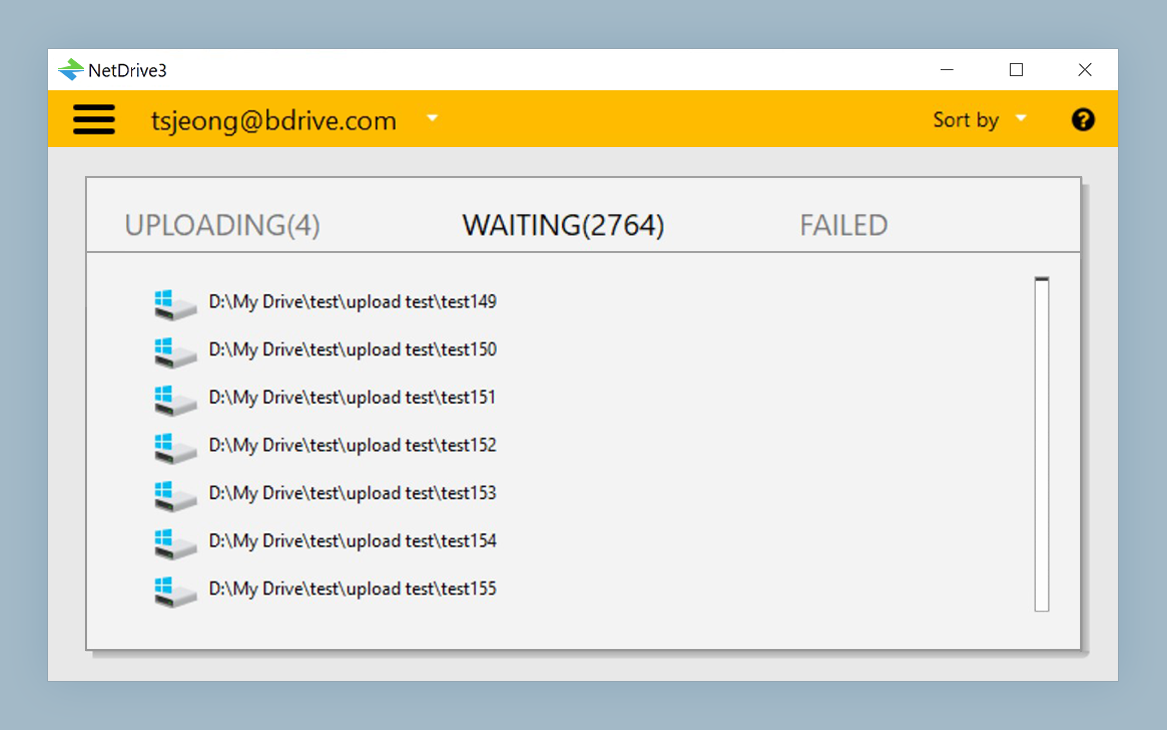
Check the queue before you close the lid. A file still uploading is not in the cloud yet. Wait for the transfer to complete before you put a laptop to sleep or leave campus Wi-Fi.
Keep handouts read-only. If a folder is only for reading, mount it as a read-only drive so a misclick cannot overwrite the original. See Read-Only Drives in NetDrive.
Mount at login. If you open the same drives every day, auto-mount means they are waiting when you open the laptop.
Watch your disk. NetDrive keeps a local cache; if your laptop’s storage is tight, review Cache Size Options.
What It Will Not Do
Be realistic about two limits. NetDrive does not offer an offline mode, so a file you need on a flight must be copied to local storage first. And it does not encrypt files on your side before upload, so sensitive research data should follow your institution’s storage rules rather than rely on NetDrive for protection.
Also, NetDrive mounts accounts; it does not copy between clouds. Moving last year’s archive from one provider to another is a bulk transfer job better suited to a dedicated tool.
If you mostly work from a phone or tablet, the sibling app is a better fit; see Students with NetDrive Mobile.
Wrap-up
You do not need a better storage plan, you need fewer places to look. Mount each account once, name the drives clearly, and your coursework stops depending on which browser tab you left open. For a plain-language comparison with the phone app, read NetDrive Desktop vs Mobile.
— Steve, NetDrive