Fix Azure Blob Storage Authentication Errors — NetDrive

An Azure Blob drive that worked yesterday now fails to authenticate in NetDrive. Walk through SAS token expiry, account key rotation, and storage firewall rules.
An Azure Blob drive that mounted fine last week now refuses to reconnect — Explorer shows a drive letter with an authentication error instead of your build artifacts, and nothing in your pipeline changed. This is almost always one of three things: an expired SAS token, a rotated account key that NetDrive doesn’t know about yet, or a storage account firewall rule that started blocking the machine’s public IP.


Mount Azure Blob Storage as a local drive
NetDrive lets Google Drive, OneDrive, S3, SFTP, WebDAV and more appear as native drives on Windows and macOS — no syncing, no full downloads.
- Connect with an account key or a scoped SAS token
- File Browser lets you test container access before mounting
- Background uploads keep large writes off the critical path
Free trial. Lifetime and subscription plans available.
Why a Working Azure Blob Drive Suddenly Fails Authentication
Unlike a bad password, Azure Blob authentication failures are rarely “wrong from the start.” NetDrive supports two credential types for Azure Blob Storage: the storage account’s primary or secondary account key, or a Shared Access Signature (SAS) token scoped to the container. Both are time-sensitive in different ways — a SAS token carries a hard expiry date you set when generating it, and an account key stays valid until someone in the Azure Portal regenerates it, which immediately invalidates every connection still using the old value.
The third cause sits outside credentials entirely: the storage account’s network firewall. If Networking → Firewalls and virtual networks is set to “Selected networks” instead of “All networks,” Azure rejects the request before it even checks the credential — and the resulting error can look identical to a bad key.
Check 1: SAS Token Expiry or Account Key Rotation
Start here — it resolves the majority of “worked yesterday, not today” cases.
- In the Azure Portal, open your storage account and check which credential type the drive was configured with.
- If you’re using a SAS token: go to Security + networking → Shared access signature, and confirm the Expiry date on the token you generated hasn’t passed. SAS tokens are commonly set to expire in 30, 90, or 365 days — a value that seemed generous at setup time.
- If you’re using an account key: go to Security + networking → Access keys and check whether key1 or key2 was regenerated recently. Regenerating a key invalidates it immediately for every client still using the old value, including NetDrive.
- Generate a fresh SAS token (with at minimum
Read,Write,Delete,List,Add,Createpermissions on the container) or copy the current account key. - Open NetDrive → click the gear icon on the affected Azure Blob drive to open its connection settings, and paste the new credential into the Authentication field.
- Click Save, then reconnect the drive.
Check 2: Storage Account Firewall Rules
If the credential is current and the drive still won’t authenticate, the storage account’s network rules are the next place to look.
- In the Azure Portal, open Networking → Firewalls and virtual networks for the storage account.
- If the setting is Enabled from selected virtual networks and IP addresses, NetDrive’s requests are rejected unless the machine’s public IP is explicitly allowed.
- Find the machine’s current public IP — it’s easy to check from a browser search or a command-line tool, and worth confirming directly rather than assuming it hasn’t changed.
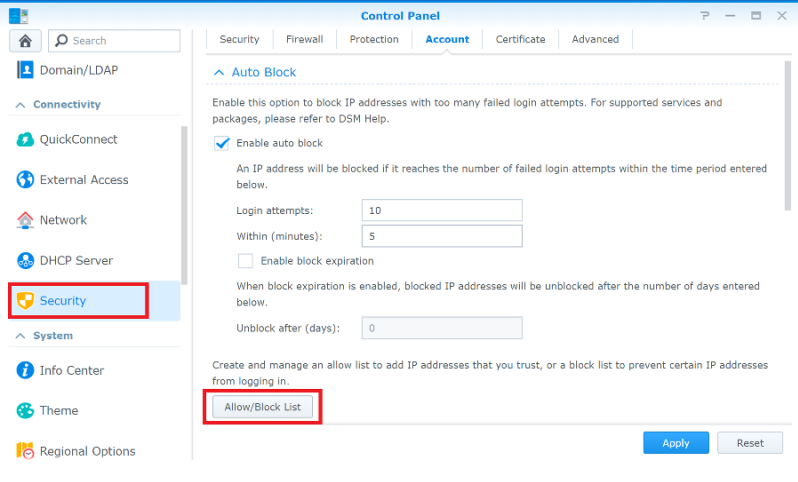
- Add that IP under Firewall → Address range, or switch the rule to allow all networks if IP-based restriction isn’t required for your setup.
- Save the network rule change in Azure — it can take a minute or two to propagate — then retry the connection in NetDrive.
A residential or office internet connection with a dynamic IP is a common repeat offender here: the firewall rule was correct when it was added, and then the ISP handed out a new address.
Confirming the Fix
After updating credentials or firewall rules, reconnect the drive and confirm it’s actually serving data rather than just showing “Connected” in the drive list.

Open the mounted drive in Explorer or Finder and list a folder that has files you recognize. If the directory listing populates and a file opens without error, both the credential and the network path are working.
Wrap-up
Azure Blob authentication failures in NetDrive trace back to a SAS token expiry, a rotated account key, or a storage account firewall rule far more often than to a typo in the original setup. Check credentials first since they’re faster to rule out, then move to networking. For the initial connection walkthrough, see Mount Azure Blob Storage on Windows with NetDrive; if your storage account uses Azure File Storage instead of Blob, Mount Azure File Storage on Windows covers the equivalent setup.
— Alex, NetDrive