Mount Files.com on Windows — Enterprise File Transfers as a Drive Letter

Mount Files.com as a native Windows drive letter with NetDrive. Skip the browser uploader for enterprise file transfers and compliance archives.
An IT admin at a mid-size insurance brokerage manages a Files.com account that compliance, underwriting, and an outside audit firm all touch for document exchange. Every quarterly audit means the same routine: log in to the Files.com web console, click into the right folder, and drag files up one at a time because the browser uploader chokes on a batch of 200 PDFs. NetDrive now supports Files.com as a provider, so that account can show up as an ordinary drive letter instead of a tab that has to stay open all afternoon.


Give Files.com a drive letter on Windows
NetDrive lets Google Drive, OneDrive, S3, SFTP, WebDAV and more appear as native drives on Windows and macOS — no syncing, no full downloads.
- Browse Files.com folders in File Explorer, no browser tab required
- Drag-and-drop uploads instead of the web console's file picker
- Works alongside your other cloud drives in one drive manager
Free trial. Lifetime and subscription plans available.
What Changes Once Files.com Is a Drive Letter
Files.com is built as a business file platform — the kind of account a company sets up for exchanging documents with auditors, clients, or outside vendors, with permissions and folder structure managed centrally by an admin. Without NetDrive, using it from a Windows desktop means the web interface for every operation: navigating folders, queuing uploads through a browser file picker, and downloading files one click at a time before they can be attached to an email or opened in another application.
Mounting Files.com through NetDrive gives the account a drive letter (for example F:) that behaves like any other Windows drive. File Explorer lists it, Save As dialogs from Word, Excel, or Acrobat can save straight into it, and command-line tools can read from it without a separate export step. There’s no second copy of the archive syncing to local disk — saving a file to the drive letter pushes it back to Files.com as a background upload, the same way NetDrive handles any other mounted provider.
Adding a Files.com Drive in NetDrive
- Open NetDrive → click Add a Drive in the drive manager.
- Select Files.com from the provider list.
- Sign in with the Files.com account credentials when prompted.
- Pick a drive letter (NetDrive suggests the next free one, such as
F:) and confirm. - Click Mount. The Files.com root folder appears in File Explorer within a few seconds.
No separate installer or sync agent is needed — the connection lives inside NetDrive next to any other providers already configured, so an admin who also manages an S3 bucket or a SharePoint site sees all of them in the same drive list.
Working With Files.com Day to Day
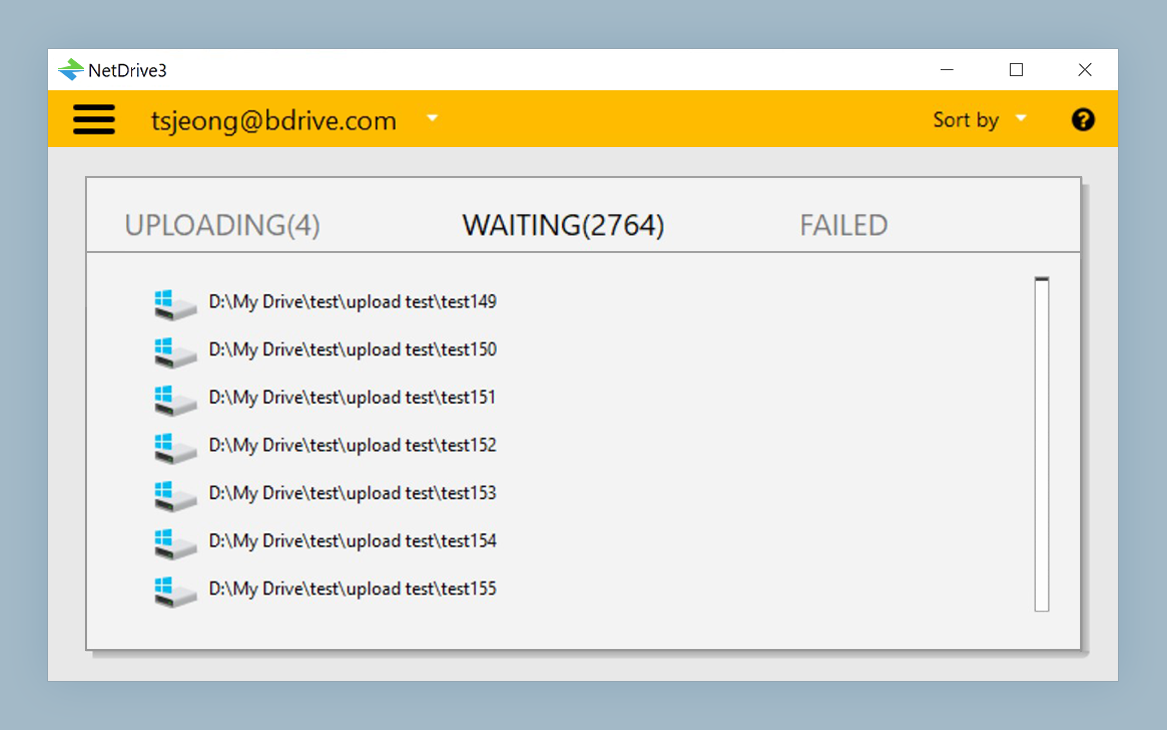
Once mounted, the Files.com drive behaves like local storage for everyday tasks. Dropping a folder of scanned invoices onto it queues a background upload — visible in NetDrive’s upload tray — so a large batch transfer doesn’t freeze the app doing the copying. Renames, deletes, and folder moves happen through the drive letter the same way they would on a local disk, and NetDrive reflects the change back to Files.com.
For an admin juggling several external-facing accounts, that consistency matters more than any single feature: Files.com for auditor exchanges, SharePoint for internal document libraries, an S3 bucket for long-term archives — all listed with mount status in one drive manager instead of three separate browser tabs and three separate mental models.
Locking Files During an Active Exchange
Document exchanges with outside parties often involve more than one internal person touching the same folder — compliance uploading a document while an auditor is mid-review of a related file, for instance. NetDrive’s file lock applies to any file type on a mounted drive, not just Office documents, so a spreadsheet or a PDF can be marked locked while someone edits it, preventing a collaborator from opening a stale copy and overwriting changes. The lock status shows as an icon overlay directly in Explorer, so there’s no separate status page to check before opening something.
Completed exchanges that need to stay available for reference — a closed audit cycle, for example — can also be mounted read-only, so the folder remains browsable in Explorer without anyone accidentally renaming or deleting a file inside it months later.
A Growing List of Providers to Choose From
Files.com is one of several providers NetDrive added support for this release cycle, alongside Koofr, Filen, ImageKit, and OpenDrive — each aimed at a different kind of storage need, from European-hosted personal clouds to media-focused object storage. Anyone standardizing on a business file platform can mount it alongside whatever else the team already uses and compare the day-to-day experience directly instead of relying on marketing claims.
Wrap-up
Mounting Files.com as a Windows drive letter turns a browser-only workflow into something that behaves like local storage for every app on the desktop. For related reading, see how Koofr mounts on Windows, check NetDrive on Windows 11 24H2 for platform-specific notes, or read more about the read-only drive option.
— Alex, NetDrive