Browse Box Files on iPhone and Android — NetDrive Mobile

Access your Box account from iOS and Android with NetDrive Mobile. Browse folders, preview documents, upload photos, and download multiple files in one tap.
Legal teams, HR departments, and anyone whose organization runs on Box knows the friction: you’re between meetings, a colleague pings you about a contract, and reviewing it on the mobile Box app means leaving your other cloud tools behind. NetDrive Mobile puts your Box account on the same home screen as your Google Drive, Dropbox, S3 buckets, and NAS shares—one app, one place to look, no switching required. A free Bdrive account is all you need to get started.
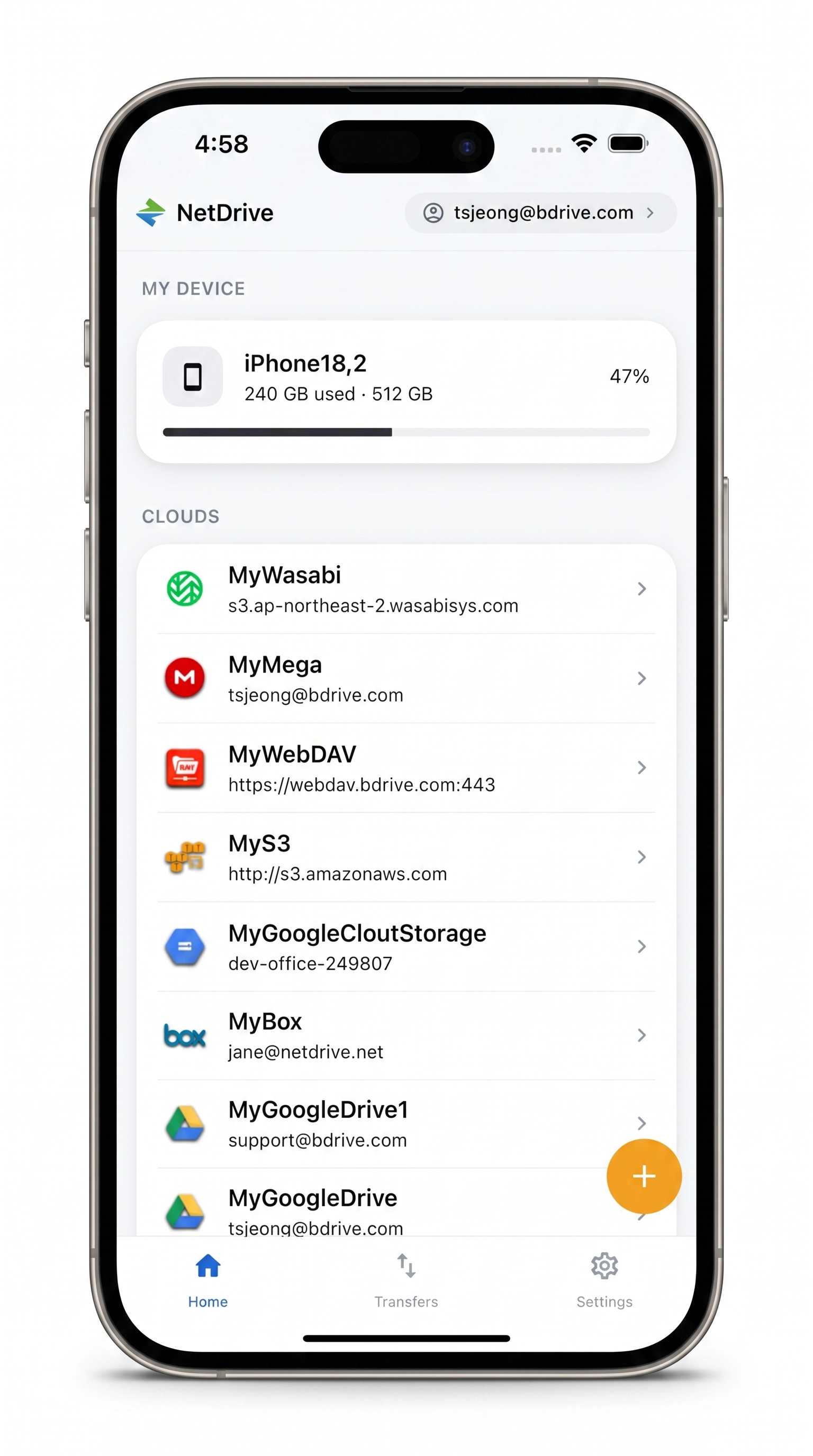
All Your Clouds in One App — Including Box
Browse, preview, and transfer Box files alongside Google Drive, Dropbox, S3, and more.
- In-app preview for documents, images, and videos
- Multi-file download with live progress tracking
- 2FA codes delivered as lock-screen notifications
Free Bdrive account required.
Connecting Your Box Account
Before you begin, create a free Bdrive account at netdrive.net if you don’t have one, then install NetDrive Mobile from the App Store (iOS 15+) or Google Play (Android). Sign in to the app with your Bdrive credentials.
To add Box:
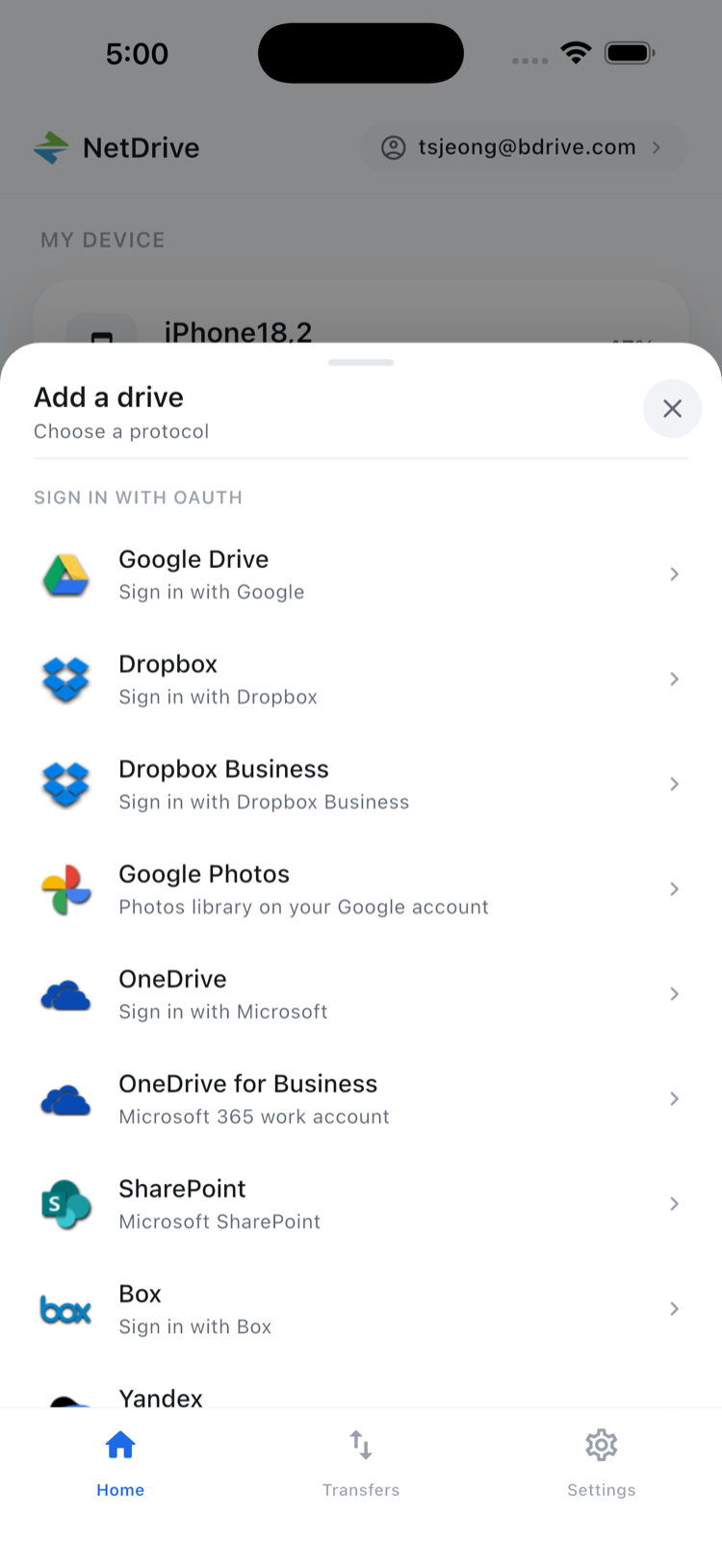
- Tap the + icon at the top of the NetDrive Mobile home screen.
- In the “Add a drive” sheet, scroll to Box and tap it.
- A Box OAuth login page opens inside the app. Sign in with your Box email and password.
- If your organization uses Box SSO, tap Use SSO on the login page and enter your company’s Box subdomain before signing in.
- After authorization, tap Allow to grant NetDrive Mobile read/write access to your Box files.
Your Box account now appears on the NetDrive Mobile home screen alongside any other connected clouds. Tap it at any time to open your Box content.
Browsing and Previewing Files
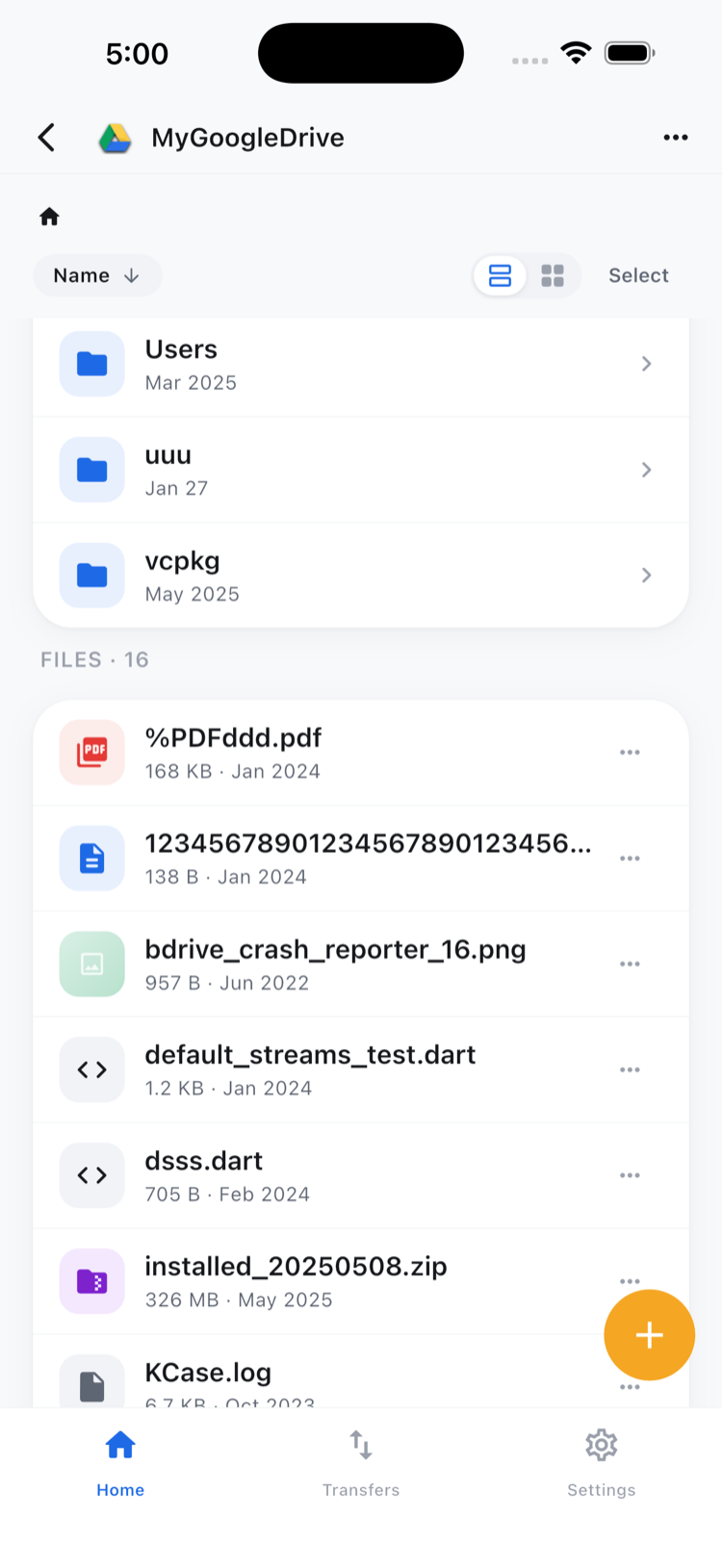
Tap your Box account to open the file browser. The view works like a standard file manager: tap a folder to drill in, tap the back arrow to go up. The toolbar offers a grid/list toggle and a sort menu (by name, date, or size) to orient yourself in large folder trees.
Tap any file to open it in the in-app previewer. NetDrive Mobile renders PDFs, images, Microsoft Office documents, and videos without leaving the app. This is particularly handy for reviewing a proposal or checking a spreadsheet without installing a separate viewer.
For more options, tap the ⋮ icon next to a file to open the actions sheet.
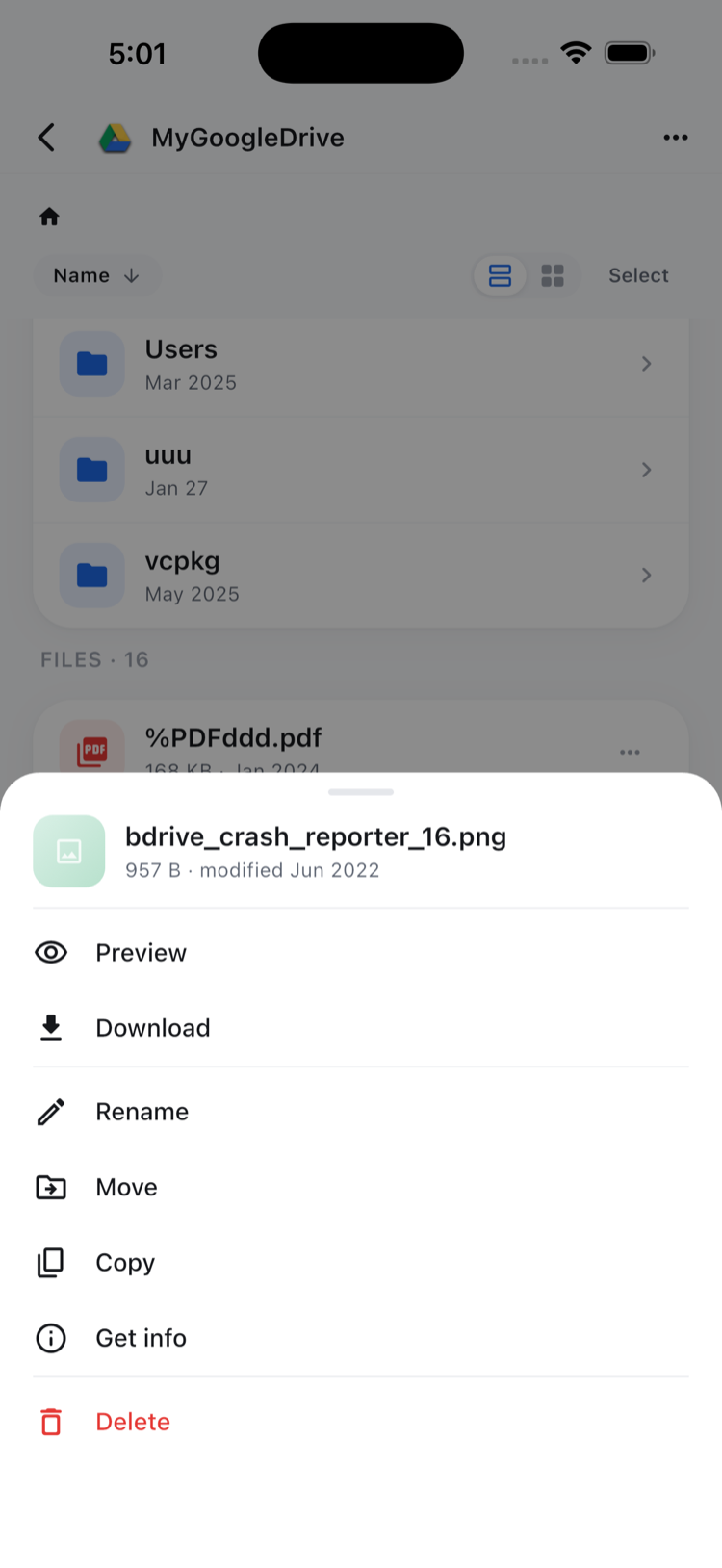
Available actions: Preview, Download, Rename, Move, Copy, Get info, and Delete. Move and Copy operate within Box—you can reorganize your Box folder structure without going back to a desktop.
Downloading Multiple Files at Once
When you need to pull several files in one shot—say, all the supporting documents for a client meeting—tap Select in the top-right corner to enter multi-select mode.
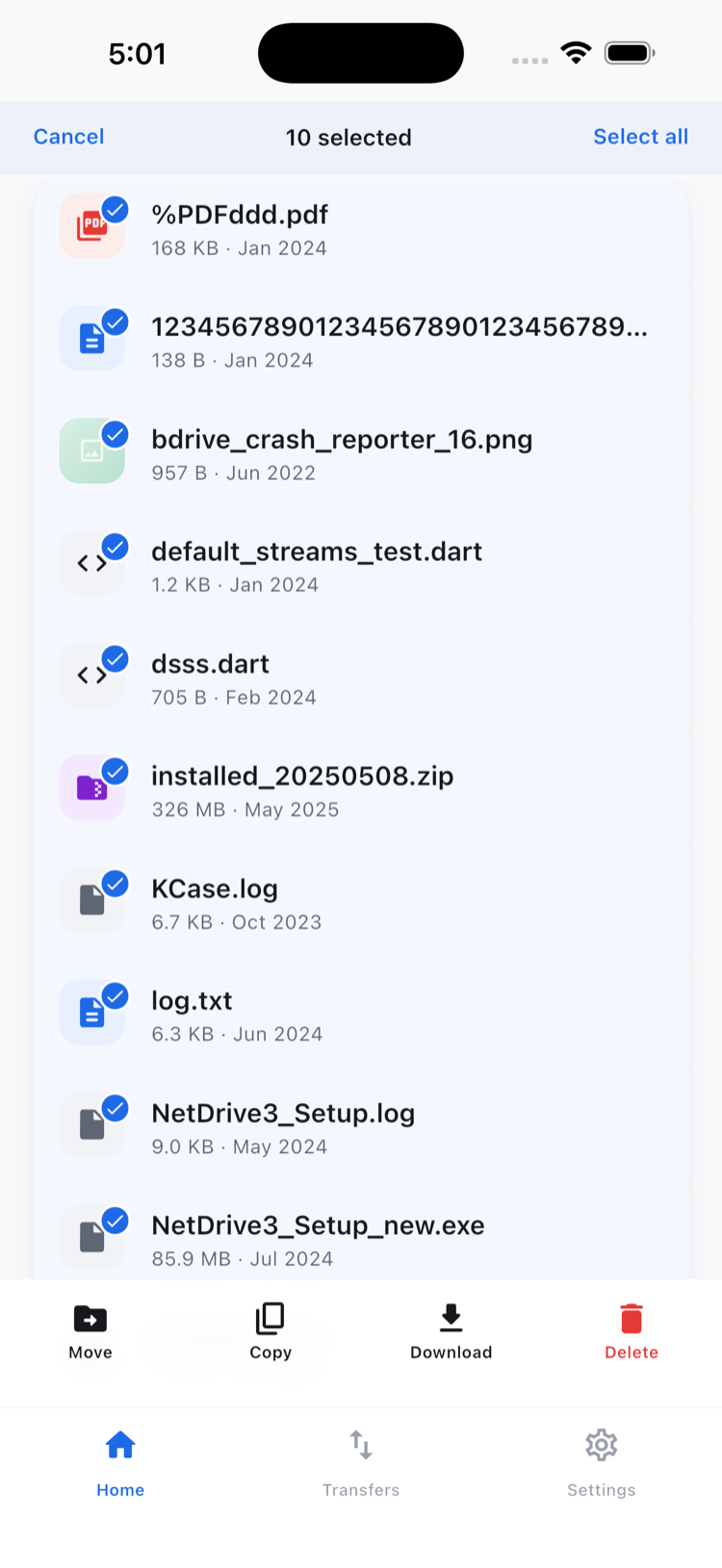
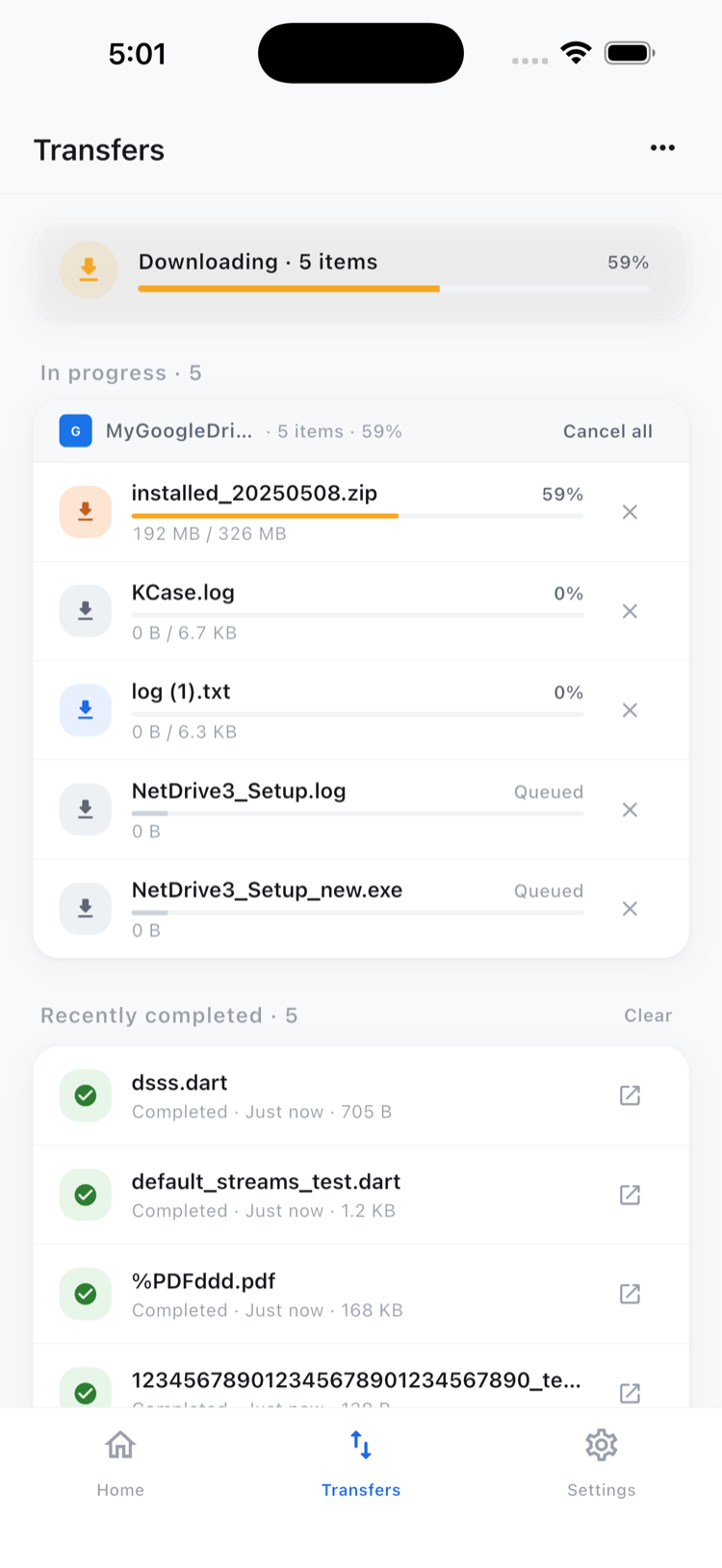
Check each file or folder you want, then tap Download in the action bar at the bottom. NetDrive Mobile queues all selected items and shows live progress for each in the Transfers tab. You can queue more downloads while earlier ones are still running, and individual transfers can be cancelled from the Transfers view.
Uploading Files to Box from Your Phone
Navigate to the destination folder inside your Box account, then tap the upload icon. NetDrive Mobile lets you choose from three sources: Camera (capture a new photo or video), Photos (pick from your camera roll), or Files (access documents from your device storage or other connected apps). Select one or more items—they all queue together and upload in parallel.
Account Security
NetDrive Mobile stores your Box OAuth token in the device’s secure storage—iOS Keychain on iPhone, Android Keystore on Android—so credentials never leave the device unencrypted. When your Bdrive account itself has two-factor authentication enabled, login codes arrive as app notifications including on the lock screen, so you can copy the code without unlocking the phone.
Wrap-up
NetDrive Mobile treats Box as one cloud among many. If your workflow also touches OneDrive, Google Drive, or an S3 bucket, all of them show up on the same home screen—switch clouds with a single tap. Explore the other provider guides if you want to add more accounts: browse Google Drive on mobile, browse OneDrive on mobile, or see the NetDrive Mobile overview for the full picture.
— Casey, NetDrive