Sales Teams with NetDrive Mobile — Decks and Contracts on the Go
Reps use NetDrive Mobile to open decks and case studies from SharePoint, Google Drive, and Dropbox, and upload signed documents from an iPhone or Android phone.
An account executive steps out of a client lobby with ten minutes before the next meeting and realizes the case study she promised lives in the company SharePoint, while the overview deck sits in a teammate’s Google Drive. Two apps, two logins, and a parking-lot search later, the follow-up email goes out an hour late. NetDrive Mobile puts both clouds in one app so the lookup takes a few taps.

Your sales collateral, in one app
NetDrive Mobile opens SharePoint, Google Drive, Dropbox, OneDrive and more side by side — preview decks and upload signed files from your phone.
- Switch between company and personal clouds in one app
- Preview PDFs and decks in-app before you send them
- Upload photos and documents with progress and cancel
Free Bdrive account required.
Collateral never lives in just one place
Marketing publishes decks to one cloud, sales operations keeps contract templates in another, and a rep’s own notes sit in a third. Single-provider apps force a reshuffle each time you switch. NetDrive Mobile connects each provider as its own drive and lists them together on the home screen, so the SharePoint site, the shared Google Drive, and a Dropbox folder from a partner are all one tap apart.
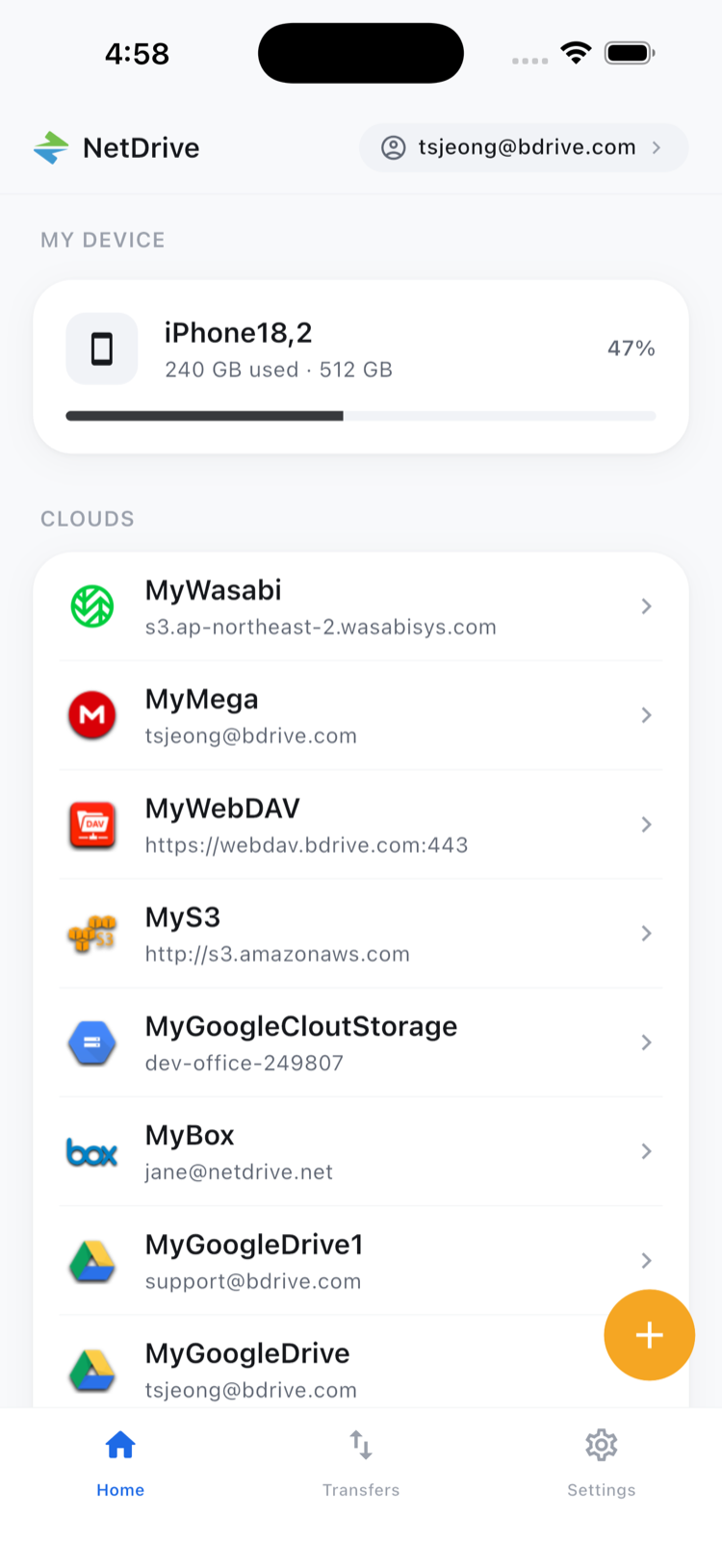
Each drive stays separate. Copying or moving a file happens within the cloud it belongs to; the app is for reaching what you need, not for merging storage.
Adding the clouds your team uses
Setup is a one-time job. Open the Add a drive sheet, choose a provider such as SharePoint, Google Drive, Dropbox, or OneDrive for Business, and sign in. A free Bdrive account is required, and the app supports Sign in with Apple and Google as well as two-factor verification for the account.
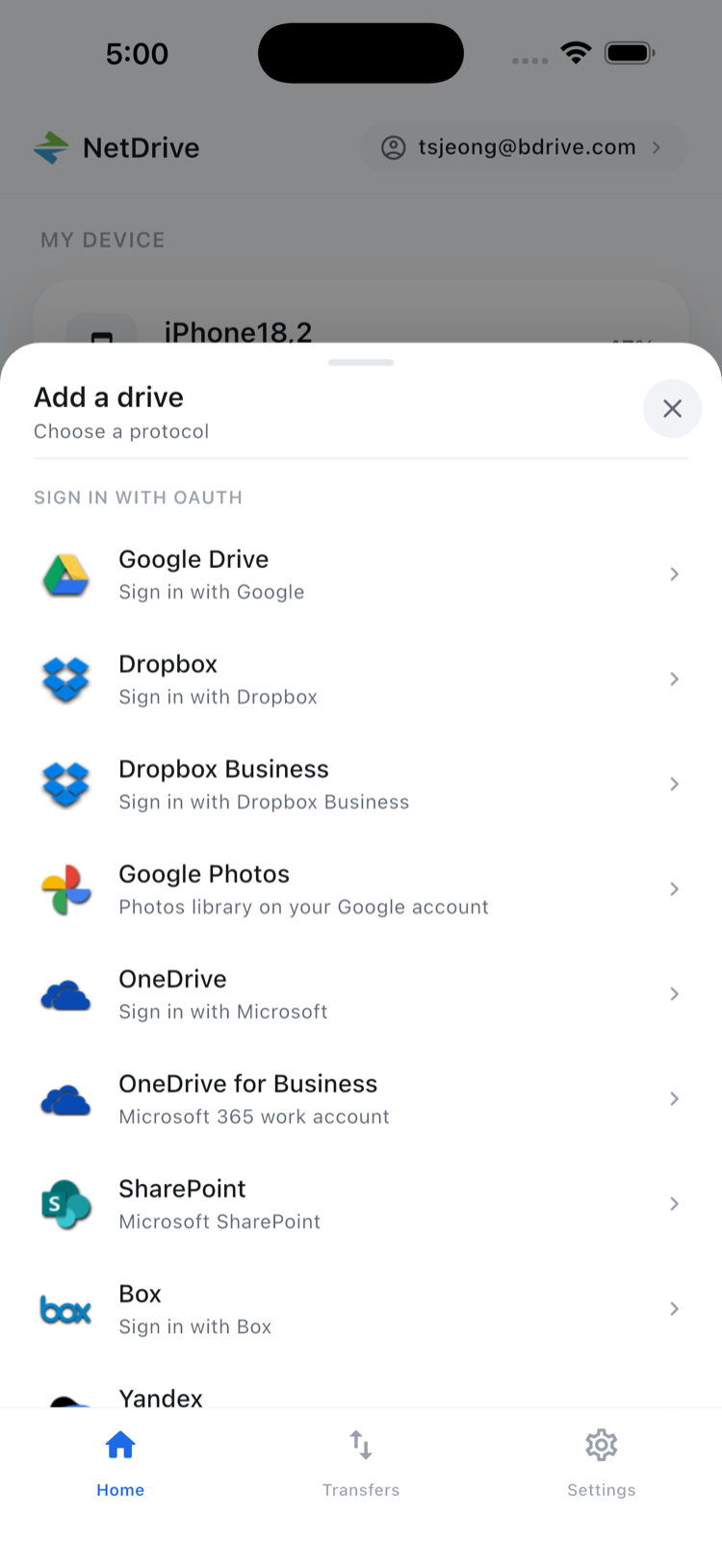
Finding and previewing a file before you send it
Open a drive, navigate to the folder, and use sort or the list and grid toggle to scan for the right file. Tapping a file opens the in-app preview for documents, images, and video, so you can confirm it is the current version before it goes anywhere.
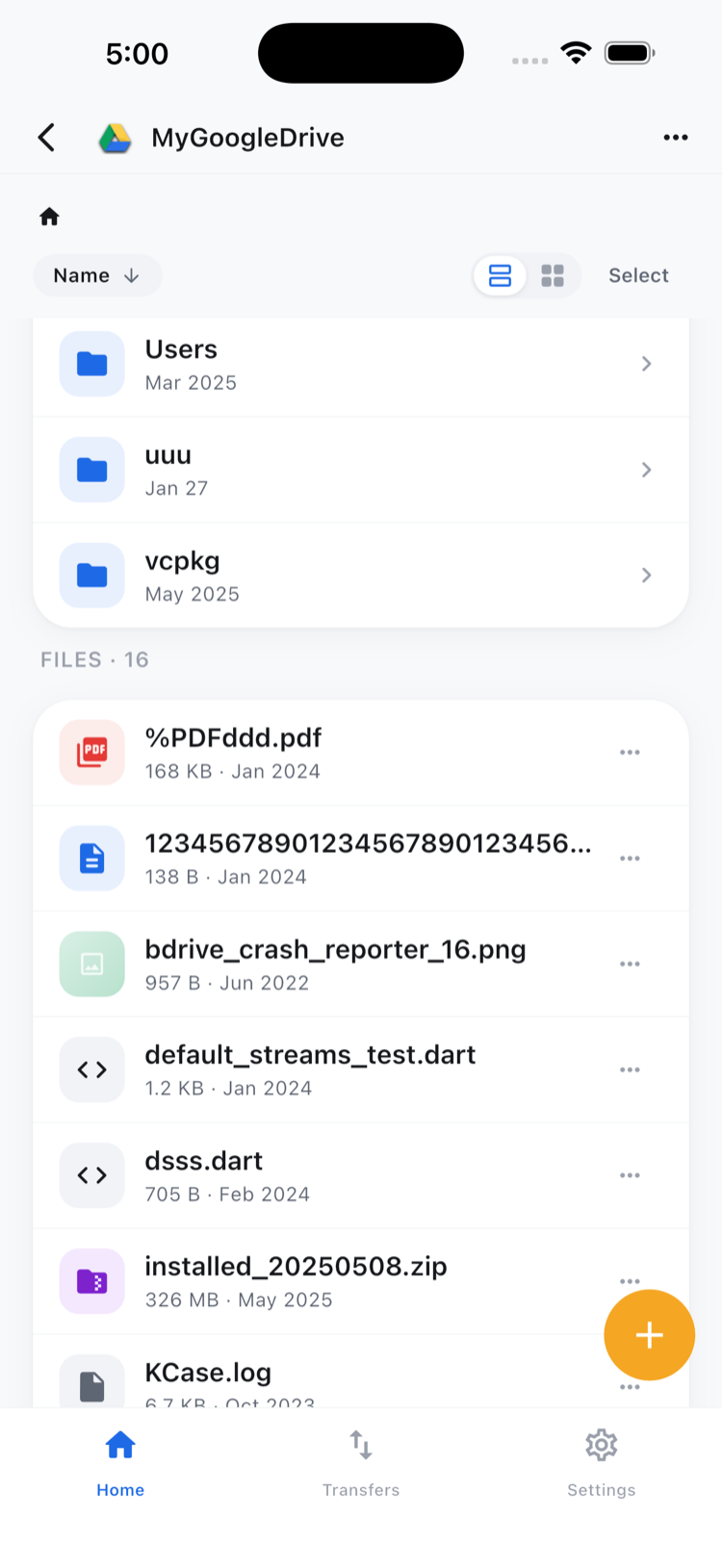
The file action sheet offers Preview, Download, Rename, Move, Copy, and Delete. Download pulls a copy to your phone when you need to attach it from another app.
Uploading a signed document or a photo of the whiteboard
After a meeting, the signed order form or a photo of the whiteboard needs to reach the account folder. Open the target drive, go to the right folder, and upload from the camera, photo library, or the files on your device. Transfers run with live progress and a cancel option, and you can queue several at once.
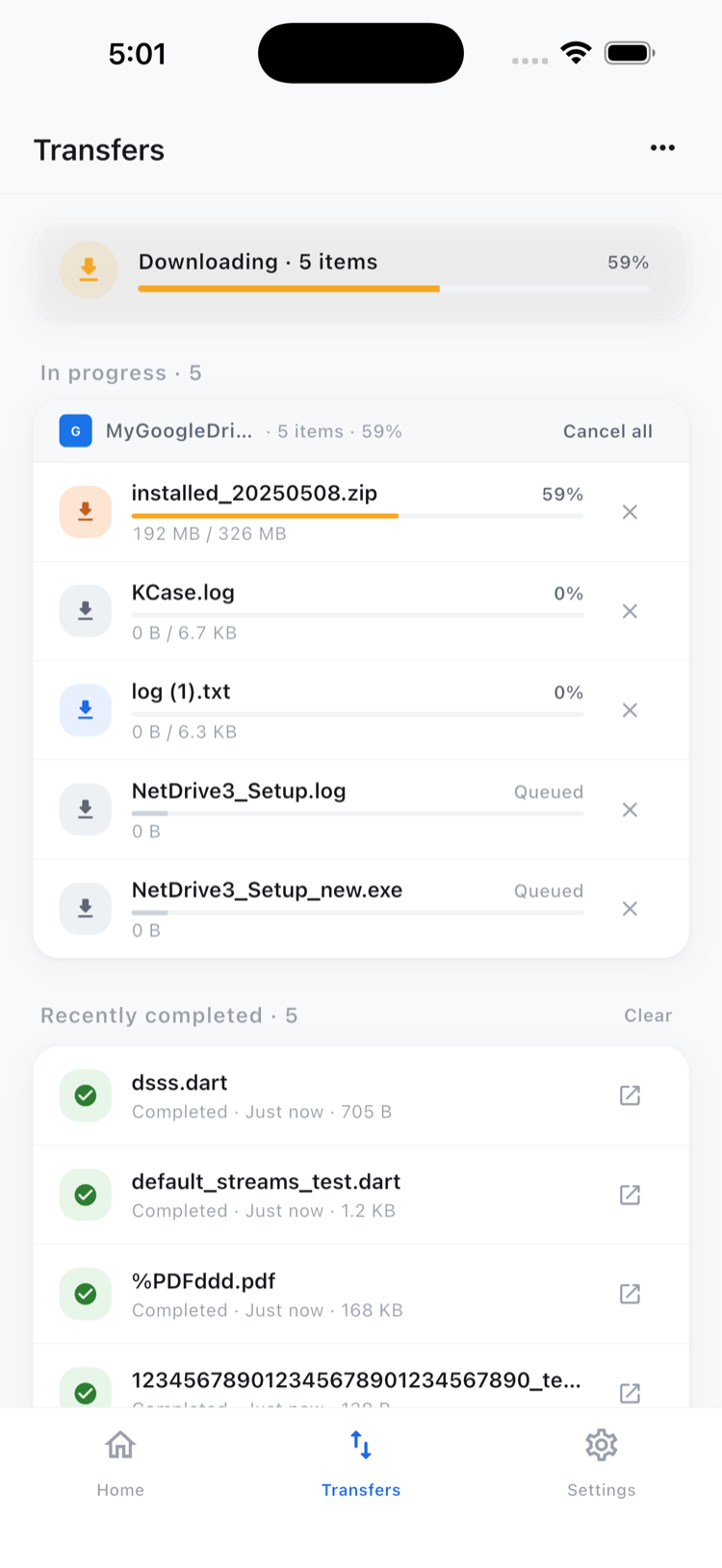
Getting a team started
- Create a free Bdrive account at netdrive.net.
- Install NetDrive Mobile from the App Store or Google Play.
- Add each cloud the team uses through the Add a drive sheet.
- Keep a consistent folder habit, such as one account folder per client, so uploads land in the same place every time.
Wrap-up
Sales is a business of small timing windows, and NetDrive Mobile shortens the gap between “I need that file” and “it’s open.” For setup details see NetDrive Mobile — Getting Started, and for SharePoint specifically read Browse SharePoint on iPhone & Android. If you also work at a desk, NetDrive Desktop vs Mobile explains how the two fit together.
— Tayson, NetDrive