Mount OpenDrive on Windows with NetDrive

Mount OpenDrive cloud storage as a drive letter on Windows with NetDrive. Step-by-step setup in File Explorer, no separate sync client required.
A small print shop keeps its customer proofs on OpenDrive because the plan covers the whole team without per-seat fees, but pulling a file into an editing app on a shop PC has always meant a detour through the browser: sign in, find the file, download it, then upload the reprint back the same way. NetDrive now lists OpenDrive as a provider, so that storage can show up as a normal drive letter on Windows instead.


Give OpenDrive a drive letter on Windows
NetDrive lets Google Drive, OneDrive, S3, SFTP, WebDAV and more appear as native drives on Windows and macOS — no syncing, no full downloads.
- Browse OpenDrive files in File Explorer, no browser tab needed
- Save directly from any app's Save dialog
- Works alongside your other cloud drives in one drive manager
Free trial. Lifetime and subscription plans available.
What You Need Before Starting
NetDrive installs on Windows 8, 8.1, 10, and 11, along with Server 2012, 2016, 2019, and 2022. The installer is available as either an EXE for a normal desktop install or an MSI for IT admins pushing NetDrive to multiple machines over a network. OpenDrive was added to NetDrive’s provider list this release cycle, alongside Koofr, Filen, Files.com, and ImageKit — no separate plugin or configuration step is needed beyond a normal install.
If the installer reports a missing runtime, grab the matching Visual C++ Redistributable from the download page — 32-bit and 64-bit builds are both listed there.
Adding an OpenDrive Drive in NetDrive
- Open NetDrive → click Add a Drive in the drive manager.
- Select OpenDrive from the provider list.
- Sign in with the OpenDrive account credentials when prompted.
- Pick a drive letter — NetDrive suggests the next free one, such as
O:— and confirm. - Click Mount. The OpenDrive root folder appears in File Explorer within a few seconds.
No separate installer or sync agent runs alongside NetDrive; the connection lives inside the same drive manager as any other mounted provider.
Working With OpenDrive Day to Day
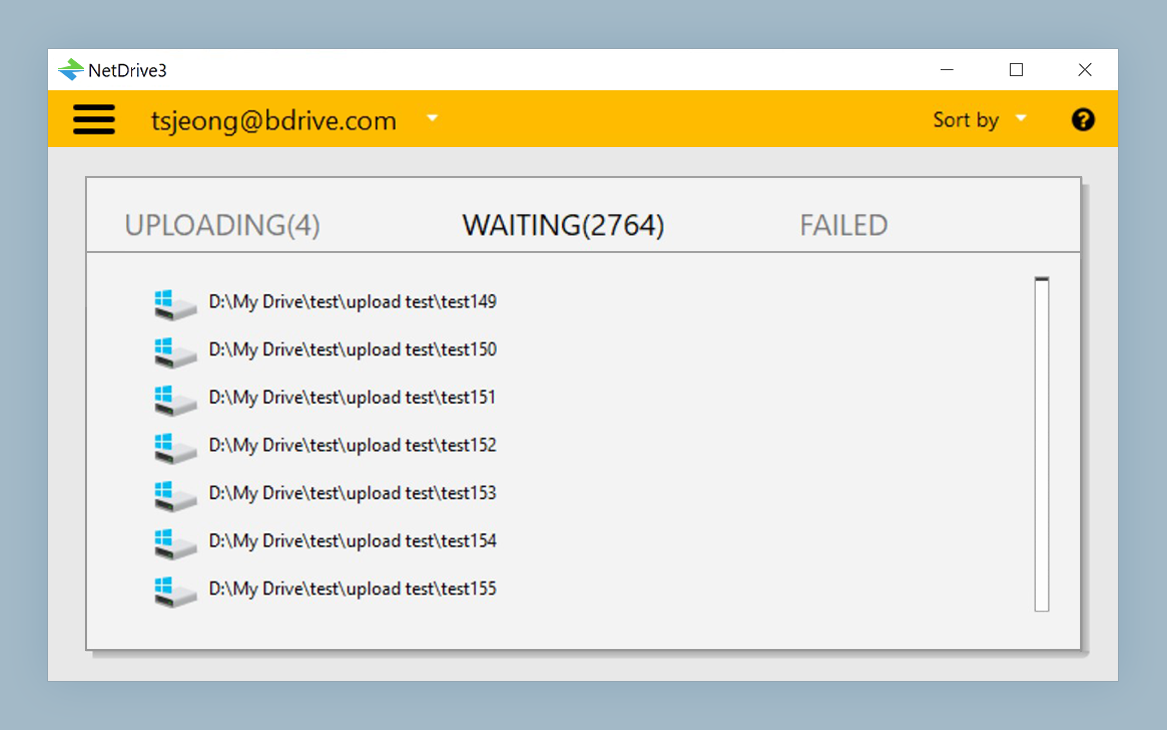
Once mounted, the OpenDrive drive behaves like any other Windows drive. Copying a folder into it queues a background upload — visible in NetDrive’s upload tray — so a batch of large proof files doesn’t lock up the app doing the copying. Reopening a folder of images that’s already been viewed once skips a repeat download, since NetDrive keeps a local disk cache of recently accessed files, adjustable from 100 GB up to 1 TB in the drive’s settings.
For a shop that mounts more than one provider — OpenDrive for customer proofs, an S3 bucket for print-ready archives, a NAS over SFTP for local backups — the drive manager keeps them all listed with mount status in one window, instead of juggling a separate app per provider.
That single drive manager also matters when a shop machine gets handed off between shifts. Whoever logs in next sees the same set of mounted drives, with the same letters, rather than having to re-enter credentials or re-map anything by hand. Since the OpenDrive connection lives inside NetDrive rather than a standalone sync client, there’s nothing extra running in the background competing for disk I/O while a large batch job prints.
Read-Only Access and Auto-Mount
A finished job folder that’s already been billed and delivered usually only needs to stay reachable for reference, not editable. NetDrive lets any mounted drive — including an OpenDrive connection — be set to read-only at mount time, so the drive shows up in Explorer but any attempt to save, rename, or delete inside it is rejected.
For a drive that should reconnect on its own, set Auto Mount to On Login in the drive’s settings so it’s available whenever someone signs in, or On Boot for a shop machine where the drive needs to be present before anyone logs in at all.
Wrap-up
Mounting OpenDrive as a Windows drive letter removes the download-then-reupload loop that comes with browser-only cloud storage. For the Mac version of this same setup, see Mount OpenDrive on macOS, or check NetDrive on Windows 11 24H2 for platform-specific notes.
— Alex, NetDrive