Mount Mega on Windows — NetDrive

Mount your Mega cloud storage as a Windows drive letter with NetDrive. Browse and open Mega files directly in File Explorer without syncing, with two-factor authentication support.
A design freelancer keeps 80 GB of client project files in Mega. Every few days they need to review a specific folder, open a source file in Illustrator, or deliver a finalized export. Without NetDrive, that means either installing the Mega desktop sync app and waiting for it to pull everything locally, or hunting for individual files through the Mega browser interface. NetDrive mounts Mega as a Windows drive letter — M:\Client-Projects\ in File Explorer, accessible immediately, with no local copy of the entire account required.


Access Mega Files Like a Local Drive on Windows
NetDrive lets Google Drive, OneDrive, S3, SFTP, WebDAV and more appear as native drives on Windows and macOS — no syncing, no full downloads.
- Mount Mega as any drive letter (M:, N:, etc.) in Windows Explorer
- Open files directly without downloading your whole Mega account
- Two-factor authentication supported for secure access
Free trial. Lifetime and subscription plans available.
Before You Start
- Windows 10 or 11 (or Windows Server 2012 / 2016 / 2019 / 2022)
- NetDrive 3.19.7 — install the EXE from netdrive.net/download/windows. A 7-day trial activates on first launch.
- A Mega account. NetDrive works regardless of your Mega plan tier.
- If your Mega account uses two-factor authentication (recommended), have your authenticator app ready. NetDrive has supported Mega 2FA since version 3.14.309 (December 2020).
Adding Mega in NetDrive
Mega support has been part of NetDrive since version 3.11.204 (July 2020). Setup takes about a minute:
- Open NetDrive from the system tray or Start menu. The Drive Manager window shows all configured drives.
- Click + (Add new drive). A provider list appears.
- Select Mega.
- Enter your Mega email and password. Unlike OAuth-based providers such as Google Drive or OneDrive, Mega authenticates with email and password directly. NetDrive does not store your plaintext password — it derives and stores the session credential after successful authentication.
- Complete 2FA if prompted: if your Mega account has two-factor authentication enabled, NetDrive will ask for the TOTP code from your authenticator app after you enter your credentials.
- Assign a drive letter —
M:is a natural fit for Mega, but any available letter works. - Set Mount Type:
- Network drive: Standard Windows network share. Works for all workflows.
- Local disk: Appears as a hard drive under “This PC”. Useful when an application checks whether the drive path is a local disk.
- Read-only: Browse files without risking accidental changes.
- Click Connect. Mega’s root folder mounts and appears in File Explorer.
Mega’s directory listing is somewhat slower than object-storage providers like S3 or Google Drive for accounts with tens of thousands of files — this reflects Mega’s API characteristics, not a NetDrive issue. NetDrive 3.17.799’s async listing improvements reduce the wait during initial folder enumeration on large accounts.
Working With Files in Mega From Windows
Once M:\ appears in File Explorer, your standard Windows workflow applies. Navigate to a folder, double-click a .psd or .docx to open it in the appropriate app, edit, and save. NetDrive streams the file over HTTPS and buffers it locally for the duration of your session. The save goes back to Mega in the background.
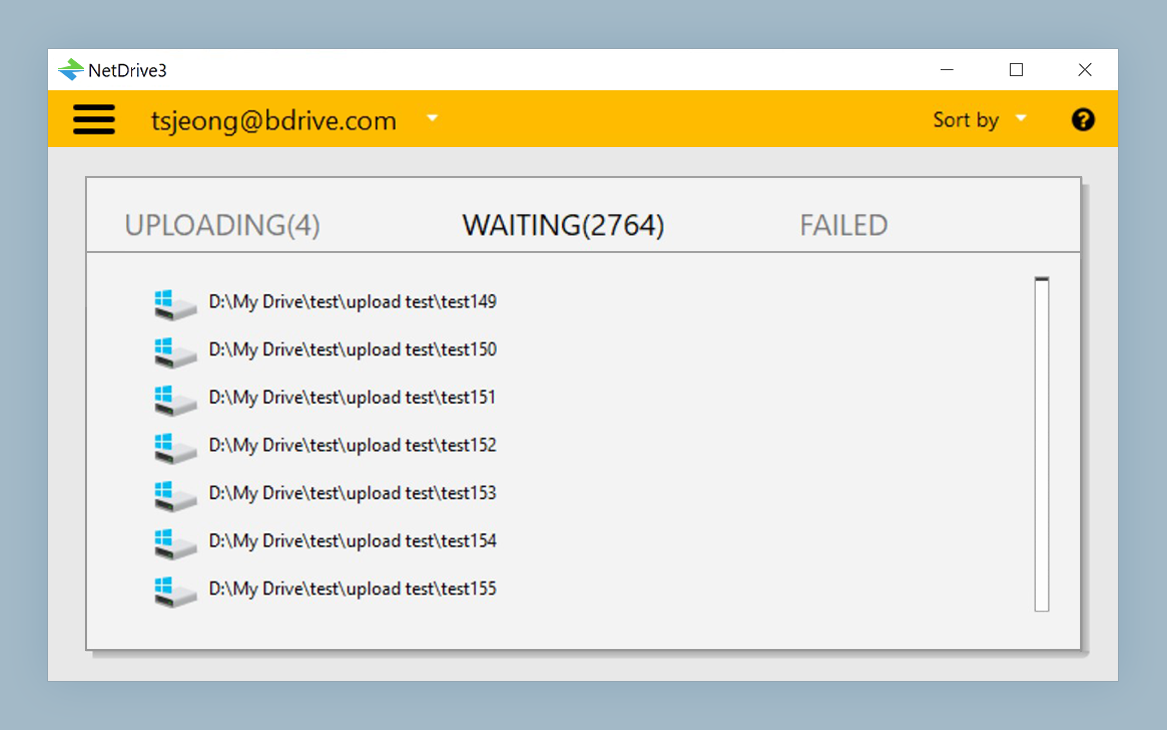
Uploading files: Drag files or folders into M:\ in Explorer and NetDrive queues them for upload. You can keep working while a multi-gigabyte archive transfers — NetDrive’s background upload queue handles arbitrarily large files without blocking the UI. The system tray icon shows a progress indicator while uploads are in flight.
File status overlays: NetDrive adds small status icons to files in Explorer — a spinning icon for in-progress uploads, a clean icon for idle files. These overlays look the same across all NetDrive providers.
Two-Factor Authentication With Mega
Mega is one of the few consumer cloud providers where NetDrive explicitly supports TOTP two-factor authentication. The flow:
- Enable 2FA on your Mega account through Mega’s security settings (this is a Mega account change, done outside of NetDrive).
- The next time you add or reconnect the Mega drive in NetDrive, the authentication sequence includes a TOTP prompt after your email and password.
- Enter the 6-digit code from your authenticator app.
After a successful authenticated session, NetDrive stores the session credential, so you won’t need to re-enter your 2FA code on every mount — only when the session token expires or you reconfigure the drive.
Auto-Mounting Mega at Windows Startup
If Mega is part of your daily workflow, configure it to mount automatically. In Drive Manager, select your Mega drive entry and open the Mount dropdown:
- Login: Mounts
M:\when the current user signs into Windows. This is the right option for personal workstations. - Boot: Mounts before the login screen, using the stored session token. Useful on shared machines where automated processes need Mega access from the moment Windows starts.
- Disabled: Manual mount only.
Wrap-up
Mounting Mega with NetDrive gives you a drive letter in Explorer and eliminates the background sync daemon. Whether your Mega account holds client deliverables, personal backups, or shared project files, M:\ puts them one double-click away on Windows.
For a similar setup with a different provider, see Mount Backblaze B2 on Windows with NetDrive — Backblaze B2 is a cost-effective alternative for large archives. If you also work on macOS, the NetDrive on Apple Silicon guide covers the macOS-specific setup considerations.
— Alex, NetDrive