Multi-Select — Move, Copy, and Delete in Bulk on NetDrive Mobile

Select several files at once in NetDrive Mobile and move, copy, or delete them together within the same cloud, instead of tapping through one file at a time.
A photographer wraps a shoot and needs to clear forty raw exports out of a client’s shared Dropbox folder into an archive folder before the next job starts filling it back up. Doing that one file at a time, on a phone, between client meetings, isn’t realistic. NetDrive Mobile’s multi-select mode lets her tap through all forty in a few seconds, then move them as one batch instead of forty separate taps.
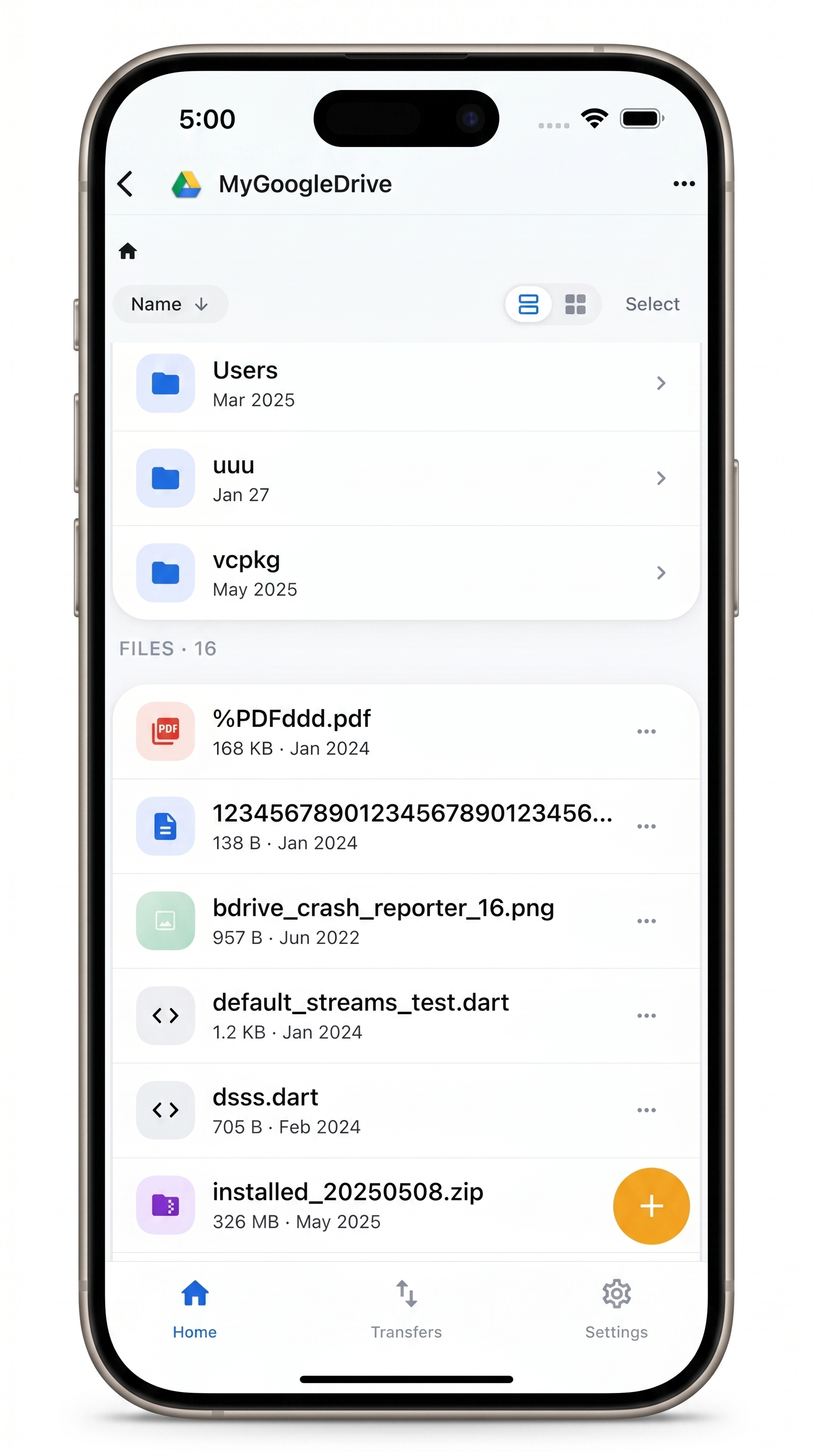
Organize files in bulk, right from your phone
Select several files at once and move, copy, or delete them together
- Multi-select across folders in the same cloud account
- Batch move, copy, and delete instead of one file at a time
- Works alongside upload, download, and in-app preview
Free Bdrive account required.
Selecting More Than One File at a Time
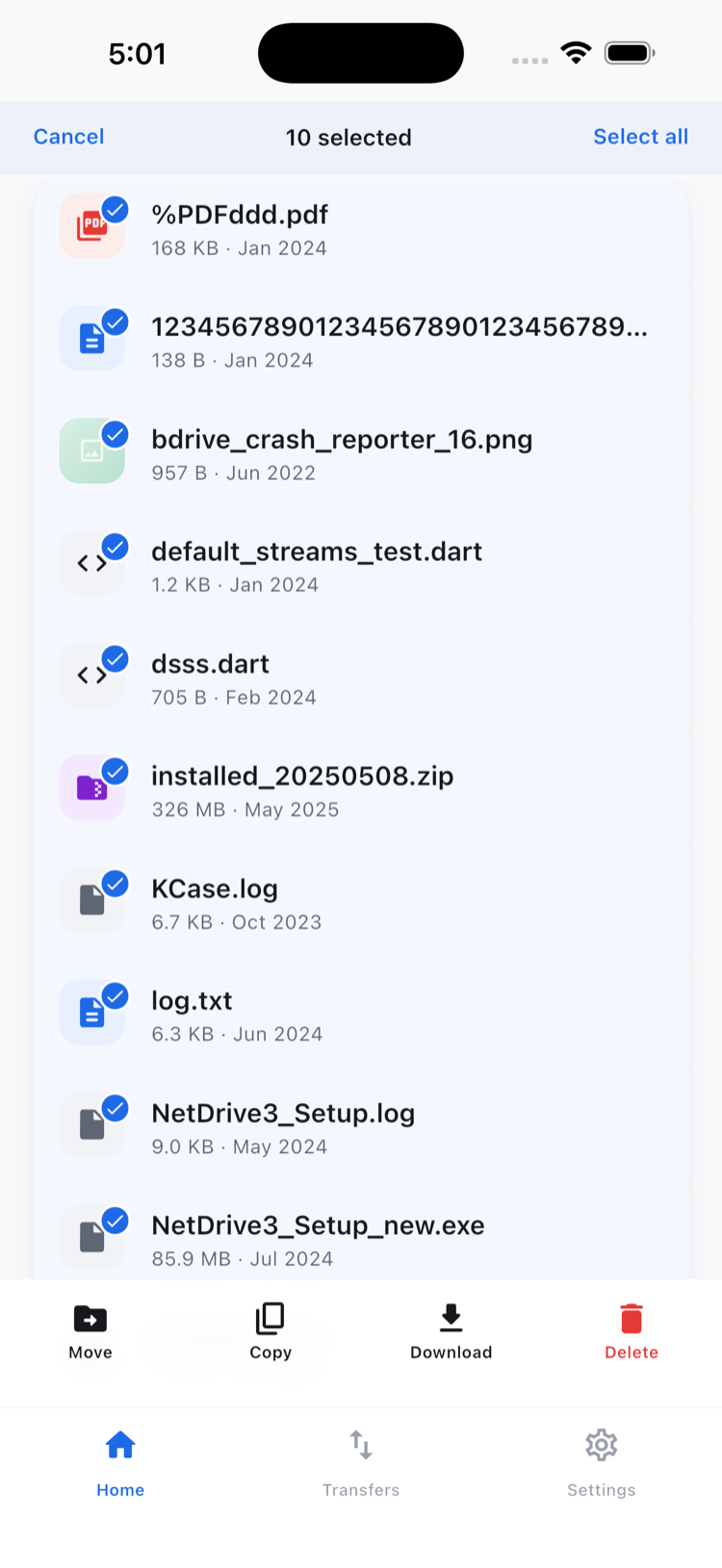
NetDrive Mobile’s file browser normally opens a single file when you tap it — preview, download, rename, whatever you need for that one item. Multi-select mode changes that behavior for the whole screen at once. Long-press any file or folder to enter selection mode, then tap additional items to add them to the selection. A running count at the top keeps track of how many are checked, and a bar at the bottom exposes the actions available for the group: move, copy, download, and delete.
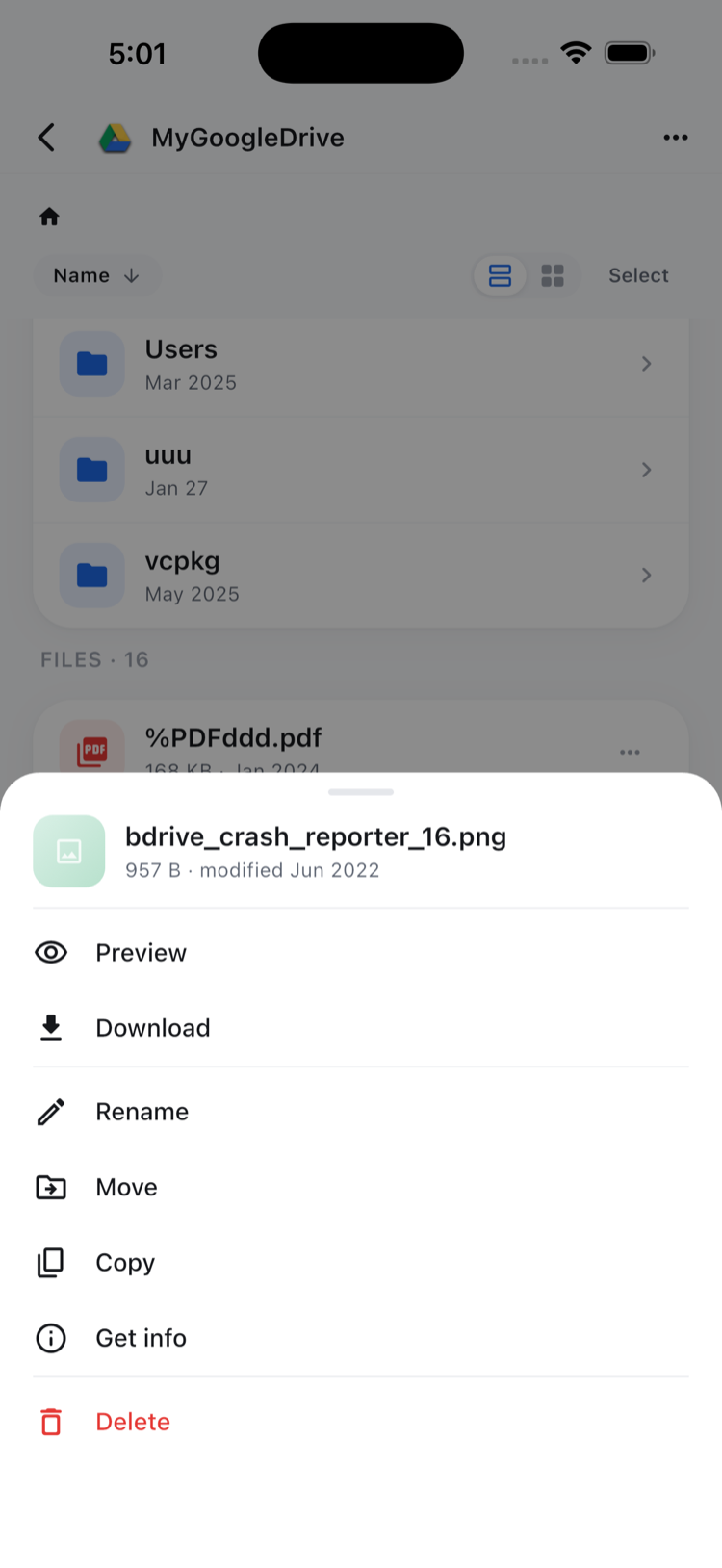
This matters most when a folder has accumulated dozens of files that all need the same treatment — a batch of invoices to move into an archive, a set of screenshots to delete after a project wraps, a handful of assets to copy into a shared folder before a handoff. Doing each one individually through the single-file action sheet works, but it doesn’t scale past a handful of items.
What Batch Actions Actually Do
The four batch actions mirror what’s available per-file, just applied to the whole selection at once:
- Move relocates every selected item to a different folder you pick from a destination browser.
- Copy duplicates the selection into another folder, leaving the originals in place.
- Download pulls every selected file to the device at once, queued in the Transfers tab with progress for each.
- Delete removes everything selected, after a confirmation step to avoid an accidental wipe of a large batch.
One boundary worth being explicit about: move and copy in NetDrive Mobile work within a single connected cloud account. Selecting files in a Google Drive folder and moving them stays inside that same Google Drive — it doesn’t copy them into a different provider like Dropbox or S3 in the same step. Direct cloud-to-cloud transfer between two different providers is handled by NetDrive’s sibling product, RcloneView, not by the mobile app’s move and copy actions.
Running a Batch Move
- Open the folder in the file browser and long-press the first file you want to include — this switches the screen into selection mode.
- Tap each additional file or folder to add it to the selection; tap a selected item again to remove it.
- Tap Move in the bottom action bar, then browse to the destination folder within the same cloud account and confirm.
- Check the Transfers tab if the move includes files still finishing an upload or download in the background.
For a folder with mixed file types — documents alongside images and video — the selection works the same way regardless of file type, so a shoot’s raw files and its contact sheet PDF can move together in one pass.
Wrap-up
Multi-select turns routine cleanup — archiving, clearing a shared folder, pulling a batch of files down before a flight — into a handful of taps instead of a repetitive slog. For a closer look at how downloads and uploads queue once a batch action kicks them off, see the multi-file transfers guide; for previewing files before deciding what to move, see the in-app preview guide.
— Jay, NetDrive