HR and Recruiting Teams with NetDrive — One Shared Drive for Candidate Files

HR and recruiting teams use NetDrive on Windows and macOS to mount cloud storage as a drive, publish team drives, lock documents and keep records in read-only archives.
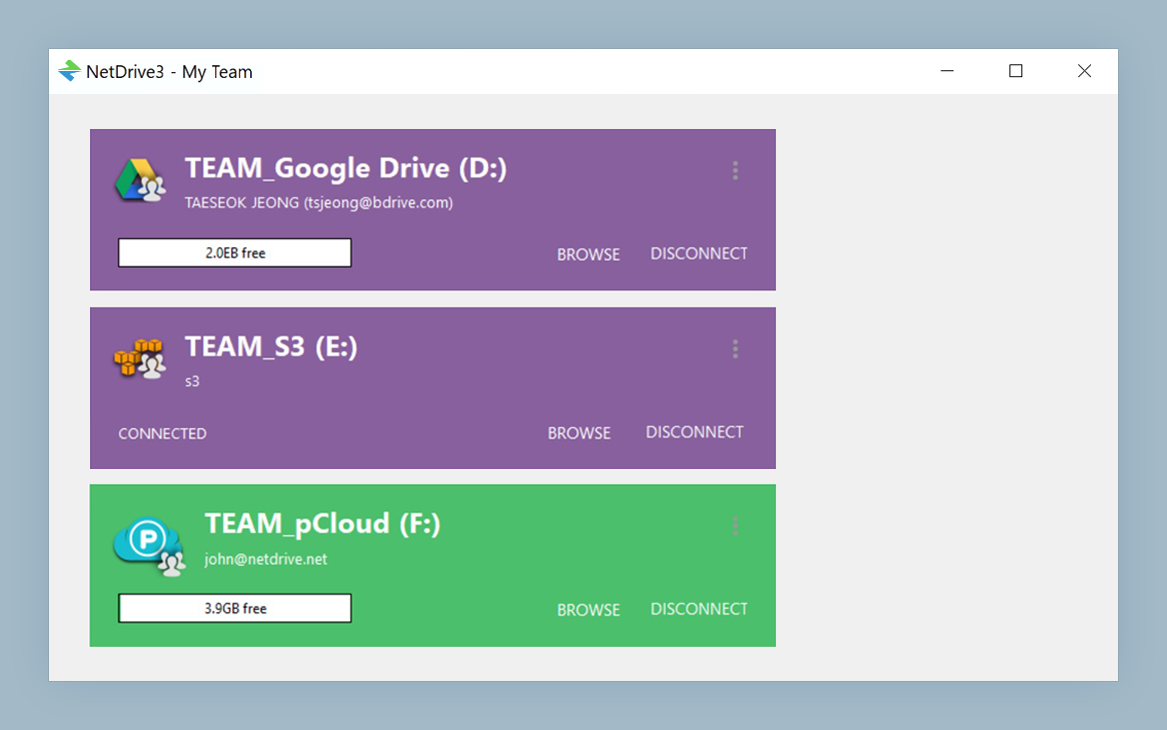
A four-person recruiting team is filling nine roles at once. Resumes arrive by email, interview notes live in someone’s personal folder, and the offer letter template exists in three slightly different versions. When a hiring manager asks for “the latest panel feedback”, nobody is sure which copy that is. NetDrive puts the team’s cloud storage on every Windows or macOS machine as one ordinary drive, so there is one folder tree and one place to look.
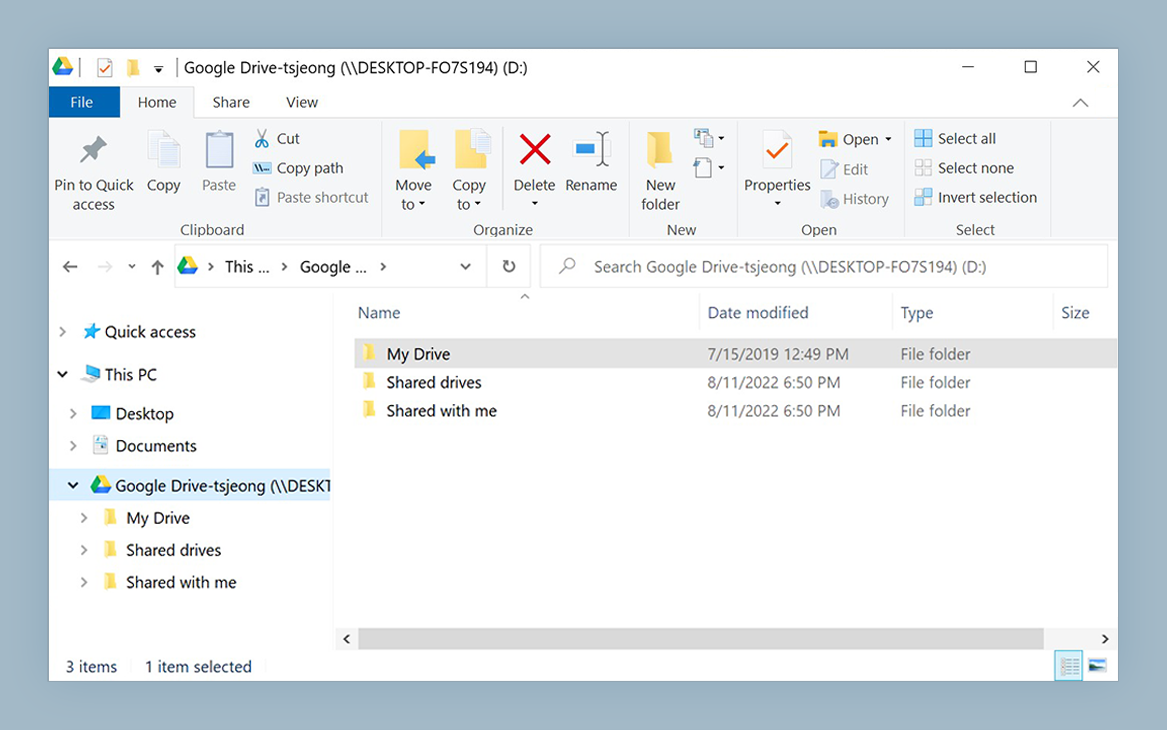
One folder tree for every open role
NetDrive lets Google Drive, OneDrive, S3, SFTP, WebDAV and more appear as native drives on Windows and macOS — no syncing, no full downloads.
- Mount your team cloud storage as a drive on Windows and macOS
- Publish a team drive to recruiters without sharing credentials
- Lock documents so two people never edit the same offer letter
Free trial. Lifetime and subscription plans available.
Why Candidate Files Scatter
Hiring is a relay. A sourcer finds a resume, a recruiter screens it, interviewers add notes, and an HR partner prepares the offer. Each handoff is a chance for a file to be downloaded, renamed and re-uploaded somewhere else. Within a month the same candidate has files in an inbox, a downloads folder and two cloud accounts.
NetDrive mounts the provider your company already pays for (Google Drive, OneDrive for Business, SharePoint, Dropbox Business, Box and others) as a drive in Explorer or Finder. Everyone works in the same folders instead of keeping private copies. Your provider’s own access controls still decide who can see what, so set those up first. NetDrive does not offer an offline mode, so the drive needs a connection; keep that in mind for recruiters who travel to job fairs.
A Folder Layout That Survives Busy Quarters
Structure matters more than tooling. A layout that scales from five roles to fifty:
- Open Roles, with one folder per requisition, holding Job Description, Candidates, Interview Kits and Offers.
- Templates for offer letters, scorecards and rejection emails, edited by one or two owners only.
- Onboarding, with a folder per new hire for signed forms and equipment requests.
- Closed Requisitions, the archive for finished searches.
Inside each Candidates folder, name files predictably, for example Lastname_Firstname_Resume.pdf and Lastname_Firstname_Scorecard-R2.docx. A mounted drive lets Windows search or Finder find them like any local file.
Team Drives Instead of Shared Passwords
With a NetDrive team license, an administrator can publish a drive to team members from the team management console, and assign or release member licenses as people join or leave. A contractor recruiter who finishes in March loses access when the license is released, rather than keeping a password you forgot to rotate.
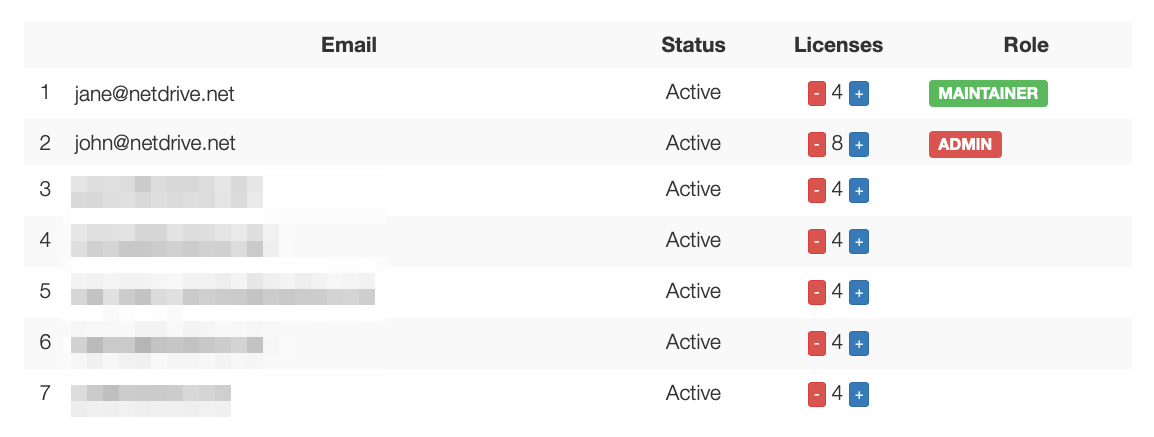
The full walkthrough is in NetDrive Team Drive and Shared Drives Guide.
Lock the Offer Letter, Archive the Rest
Interview notes are many-writer documents. Offer letters are the opposite: one person should hold the pen. NetDrive’s file lock works for every file type, and for Microsoft Office files, a second person who opens a file already in use gets it read-only. That protects the signed-off version from a well-meaning edit.
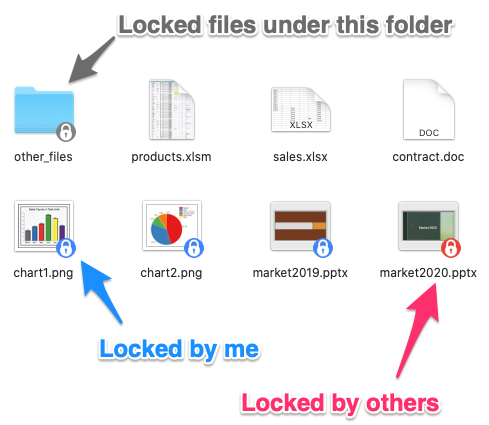
For finished searches, add the archive as a read-only drive so nobody can change a closed requisition by accident. Read-Only Drive in NetDrive covers the setup, and Office File Locking in NetDrive explains the Office behavior in detail.
Setting It Up for the Team
- Install NetDrive on each Windows or macOS machine. Current macOS releases need macOS 14 (Sonoma) or later.
- Open NetDrive and add the cloud storage account the company uses.
- Publish it as a team drive from the team management console to the recruiters and HR partners who need it.
- Build the folder template once and copy it for each new requisition.
- Add the archive as a read-only drive for hiring managers who only need to look things up.
- Turn on auto mount so the drive is ready when a laptop starts; see Auto-Mount on Boot in NetDrive.
If a folder looks stale after a colleague uploads a scorecard, use the refresh option in Force Folder Refresh in NetDrive.
Limits to Know
NetDrive does not provide client-side encryption, so sensitive personnel records depend on your provider’s security settings and your company’s data policies. It is also a mount tool, not a sync or cloud-to-cloud transfer tool. Do not treat it as a compliance product; confirm retention and privacy requirements with your legal team.
Wrap-up
One mounted drive, a team console and file locks remove most of the “which version is current” questions in a hiring process. Start with the folder template and the lock habit, then tighten access in your provider as the team grows.
— Casey, NetDrive