Engineering Firms with NetDrive — Project Files Without Another Sync Client

How civil, mechanical, and structural engineering firms use NetDrive to mount SharePoint, S3, and SFTP project storage as drives, with file locking for shared drawings.
A structural engineer opens a drawing set from last year’s bridge retrofit because the owner has a question about a bearing detail. The drawings live in SharePoint, the survey exports sit on a contractor’s SFTP server, and the archived calculation packages were pushed to an S3 bucket by whoever left in March. Three places, three tools, and ten minutes gone before anyone has looked at the detail. NetDrive mounts all three as drives on the engineer’s Windows or macOS machine, so every tool that can open a file can open them.
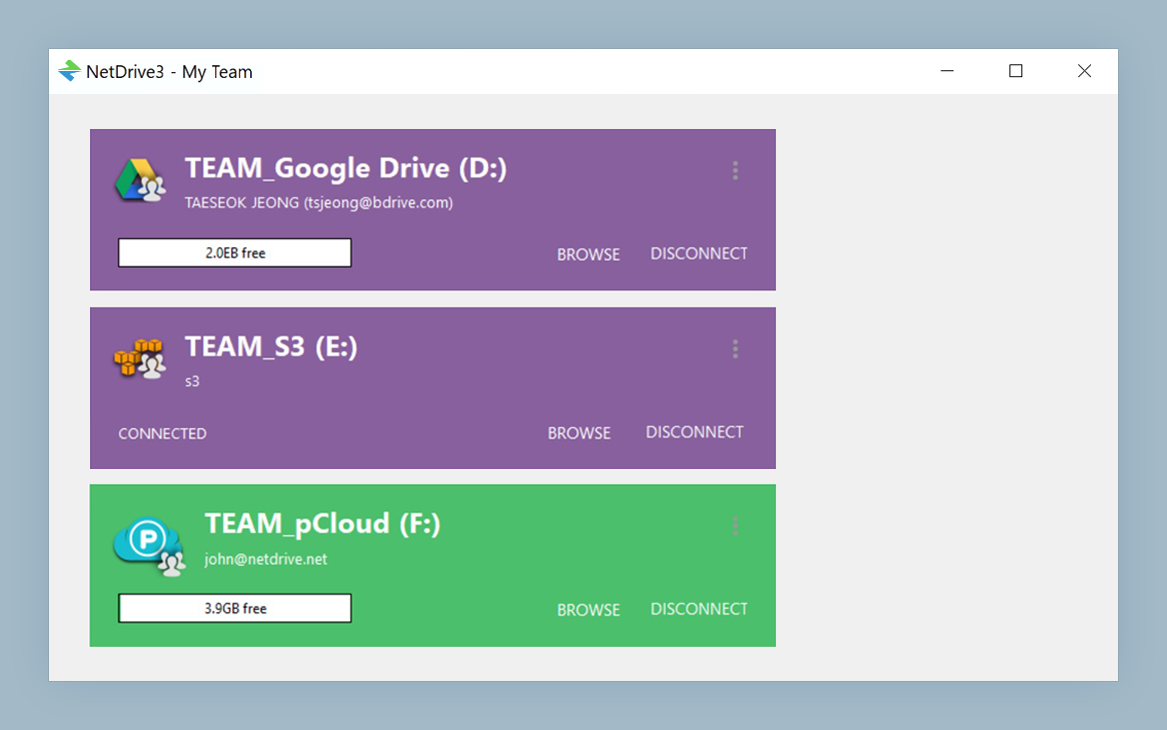
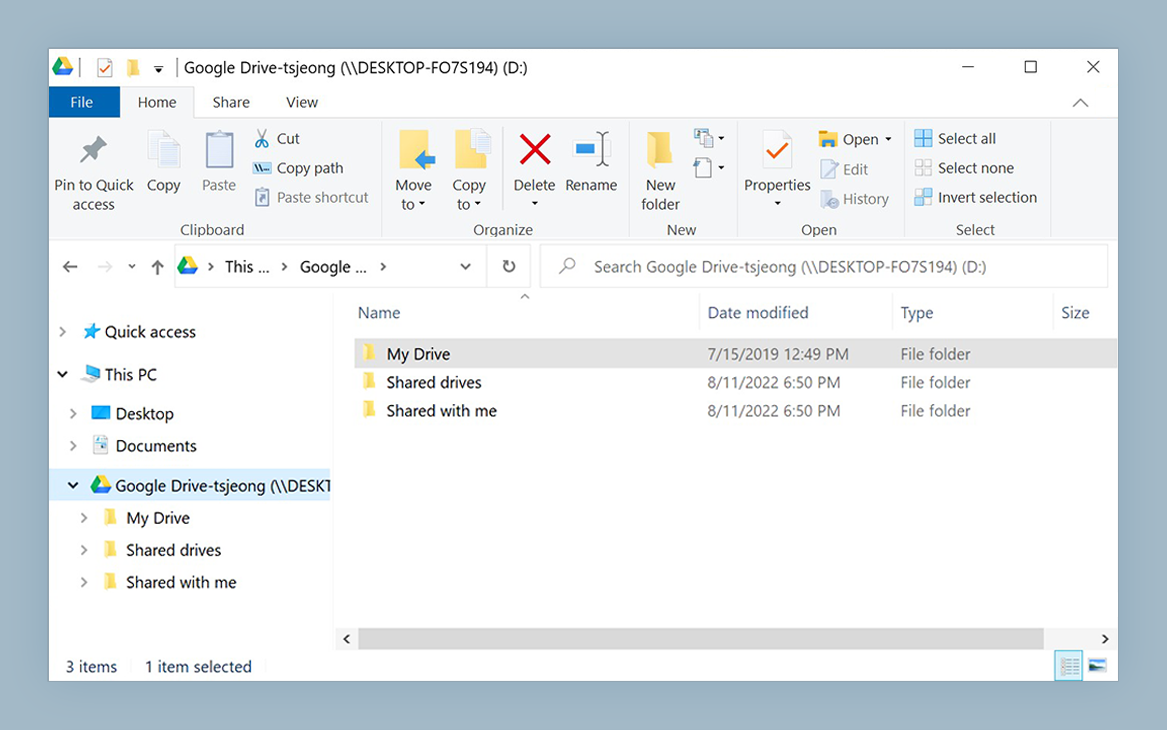
Project files as ordinary drives
NetDrive lets Google Drive, OneDrive, S3, SFTP, WebDAV and more appear as native drives on Windows and macOS — no syncing, no full downloads.
- Mount SharePoint, S3, SFTP and more as drives on Windows and macOS
- File locking helps stop two people overwriting one drawing
- Team drives published to staff from one admin console
Free trial. Lifetime and subscription plans available.
One Drive Letter per Storage Silo
Engineering storage grows by accident. Active projects sit in SharePoint or OneDrive for Business, long-term archives go to an object store like Amazon S3 or Backblaze B2, and field data arrives from surveyors over SFTP or WebDAV. NetDrive supports all of these, and each connection becomes its own entry in the drive manager, mounted as a native drive in Explorer or Finder.
Because the mounted drive looks like any other volume, CAD viewers, PDF markup tools, and spreadsheets open files from it without a plug-in. You are not syncing a project tree to every laptop first; you open what you need from the drive.
Stopping Two People Editing One Drawing
The classic failure in a shared project folder is two people saving over each other’s work. NetDrive’s team features include file locking for any file type, available since version 3.9.1190, and a dedicated Microsoft Office lock since 3.8.921. When someone locks a file, teammates see it is locked and by whom, instead of finding out when a save collides.
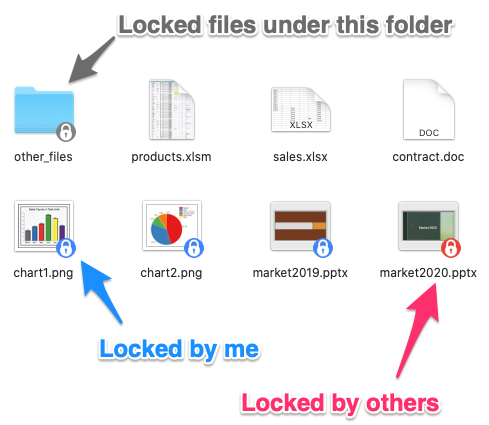
Locking is a team-license feature, and it works inside NetDrive. It does not change the permissions on the storage provider itself, so keep your SharePoint or bucket access rules as they are. For setup details, read File Locking Across Every File Type in NetDrive and the Team Drive guide.
Publishing Project Drives to the Team
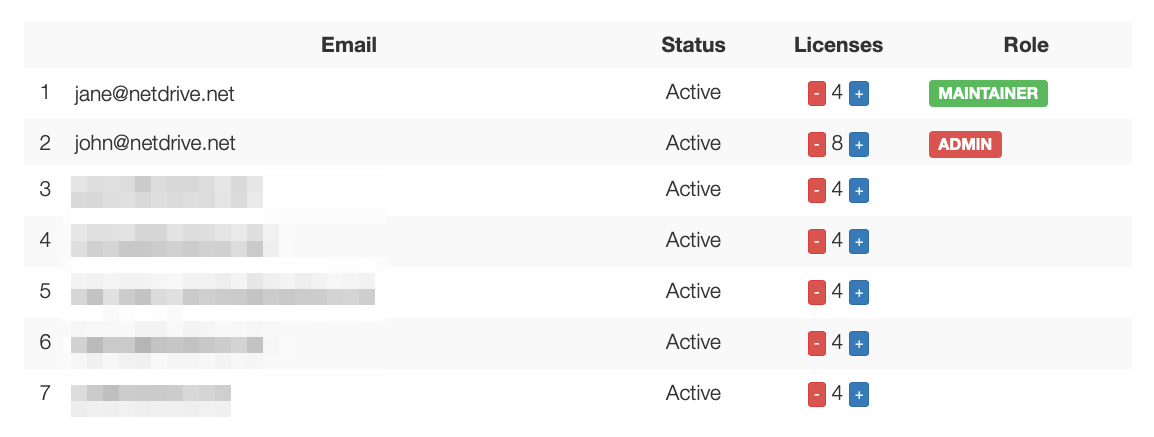
An admin who sets up the project archive once does not need to walk each engineer through it. With a team license, a drive can be published from the team management console and members see it in their own drive list.
Good habits for a firm rolling this out:
- Use read-only drives where it fits. Closed projects and issued drawing sets rarely need edits; see Read-Only Drive Mode in NetDrive.
- Mount at startup for shared workstations. Plotting stations and review PCs can mount drives at boot without a user logged in; see Auto-Mount on Boot.
- Mind the limits. NetDrive does not offer offline mode, so a laptop on a site trailer with no connection cannot open mounted files. Copy what you need locally before travelling.
- Check the OS. NetDrive runs on Windows 8 through 11 and on macOS 14 Sonoma or later with current releases.
Large Drawing Sets and Slow Folders
Big projects mean folders with thousands of sheets and models. NetDrive uploads in the background so saving a large file does not freeze your CAD session, and a cache size option (100 GB to 1 TB) is available. If a listing looks out of date after a colleague adds files, force a refresh as described in Force Folder Refresh in NetDrive. For SharePoint libraries that feel slow to open, see Fix Slow SharePoint Directory Listing.
Wrap-up
An engineering firm does not need one more place to keep files. It needs the existing ones reachable without a sync client per vendor. Try one project archive first, mount it, lock a drawing, and see whether your team stops asking where things live. If you work in architecture rather than engineering, Architecture and CAD Teams with NetDrive covers the neighbouring workflow.
— Casey, NetDrive