Small Business Owners with NetDrive — Use the Cloud Storage You Already Pay For

A small business rarely lives in one cloud. See how NetDrive mounts Google Drive, OneDrive, and Dropbox as drives so a five-person team works from one place.
A six-person design-and-print shop keeps client proofs on Google Drive, invoices on a OneDrive that came with the accounting software, and supplier price lists in a Dropbox the owner started in 2016. Nobody planned it, and finding last spring’s quote means checking three web interfaces. The owner does not want a migration project; they want to open a folder and see their files.


One folder view across every cloud
NetDrive lets Google Drive, OneDrive, S3, SFTP, WebDAV and more appear as native drives on Windows and macOS — no syncing, no full downloads.
- Mount Google Drive, OneDrive, and Dropbox side by side
- Open and save from any desktop application
- Share team drives and lock files while someone edits
Free trial. Lifetime and subscription plans available.
Why Small Teams End Up With Several Clouds
Cloud storage tends to arrive bundled. An accounting package includes a OneDrive allowance, a client insists on sharing through Dropbox, and the founder’s Google account holds everything created before the company had a name. Consolidating means moving years of files, rewriting shared links, and retraining staff.
NetDrive takes the other route. It mounts each existing cloud as a native drive in Windows Explorer or macOS Finder, so the files stay where they are and the team opens them like any other folder. Supported providers include Google Drive, OneDrive, OneDrive for Business, Dropbox, Dropbox Business, Box, SharePoint, and Amazon S3, plus WebDAV, FTP, and SFTP.
Working From Real Applications
The practical gain is the Save dialog. A bookkeeper can open a spreadsheet straight from the OneDrive drive, update it, and press Ctrl+S, with no download-edit-reupload loop. A designer exports a proof from a layout program directly into the client’s Google Drive folder.
Keeping Two People Out of the Same File
Quote season means two people touching the same price list. With a NetDrive team license, file locking applies to all file types on team drives, and Microsoft Office files are handled as well: the second person to open a file in use gets a read-only copy instead of a conflicting version. The Office File Locking guide shows exactly what each person sees.
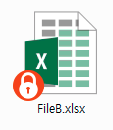
For a small shop, one team drive per function usually works: sales, production, and finance. The administrator publishes each drive to the right people from the team management console and withdraws access when someone leaves. See the Team Drive guide for the setup.
Setting Up the Shop in an Afternoon
- Install NetDrive on each work computer and open the Drive Manager.
- Add Drive for each cloud the business uses and sign in with the account that owns the files.
- Choose the drive type. Keep Network drive for people who edit. Use Read-only drive for archives such as old invoices, so nothing is changed by accident; the Read-Only Drive guide explains it.
- Set auto-mount so the drives are present at login each morning. See Auto-Mount on Boot.
- Add team drives for shared folders, and assign licenses to the staff who need them.
Limits to Plan Around
NetDrive has no offline mode, so files must be reachable over the network when opened. It also does not provide client-side encryption; protection comes from the settings of each cloud provider. It is a way to reach storage you already have, not a backup tool. A 7-day free trial lets a small team try the workflow first, and the store page lists current plans.
Wrap-up
For a business that grew up on whatever storage was convenient, the useful change is small: one place to look, the same folders as before, and sensible access for each person. If your biggest cloud is Google Drive, Mount Google Drive on Windows 11 is the natural next step, and NetDrive vs Google Drive for Desktop compares the two approaches.
— Robin, NetDrive