Browse a Remote Server on Your Phone — SFTP with NetDrive Mobile

Developers use NetDrive Mobile to browse, download, and upload files on a remote Linux server over SFTP, right from iPhone or Android, without SSHing in.
An on-call engineer gets paged about a failing job, and pulling the last few lines of a log file off the app server confirms the cause quicker than spinning up a laptop and opening a terminal from a coffee shop table. The server already speaks SFTP, the same protocol a deploy script uses. NetDrive Mobile connects to it directly, so checking that log — or grabbing a config file, or dropping a patched one back — takes a few taps instead of a full SSH session.
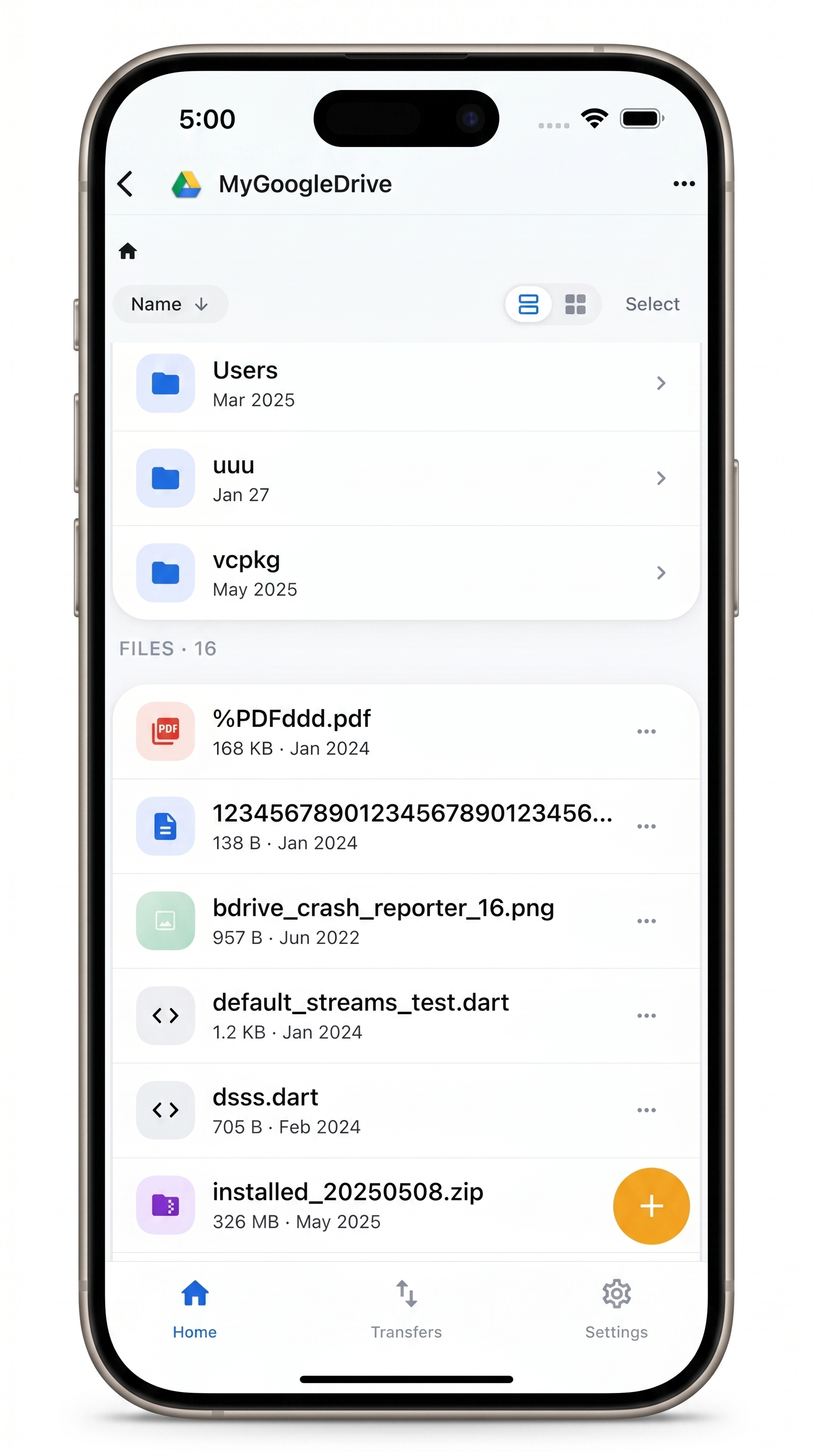
Your servers, one tap away
NetDrive Mobile connects to any SFTP server from iPhone and Android — browse the file tree, pull a file down, push one back up.
- Connect to any SFTP server by host and port
- Browse the remote file tree like a normal folder
- Download and upload in the background, with progress and cancel
Free Bdrive account required.
When SSH is more than the job needs
Opening a full terminal session just to look at one file is a lot of overhead for a quick check — especially from a phone, where a terminal app adds its own friction on top of typing a command over a small keyboard. Most of the time, what’s actually needed is simpler: see the file, read it, maybe grab a copy. NetDrive Mobile treats a remote server the same way it treats a cloud drive — a place with folders and files you can browse, preview, and transfer, without a shell in between.
Connecting over SFTP
In NetDrive Mobile, open the Add a drive sheet and choose SFTP as the protocol. Enter the server’s host and port, then your username and password — the same values a deploy script or SSH client already uses.
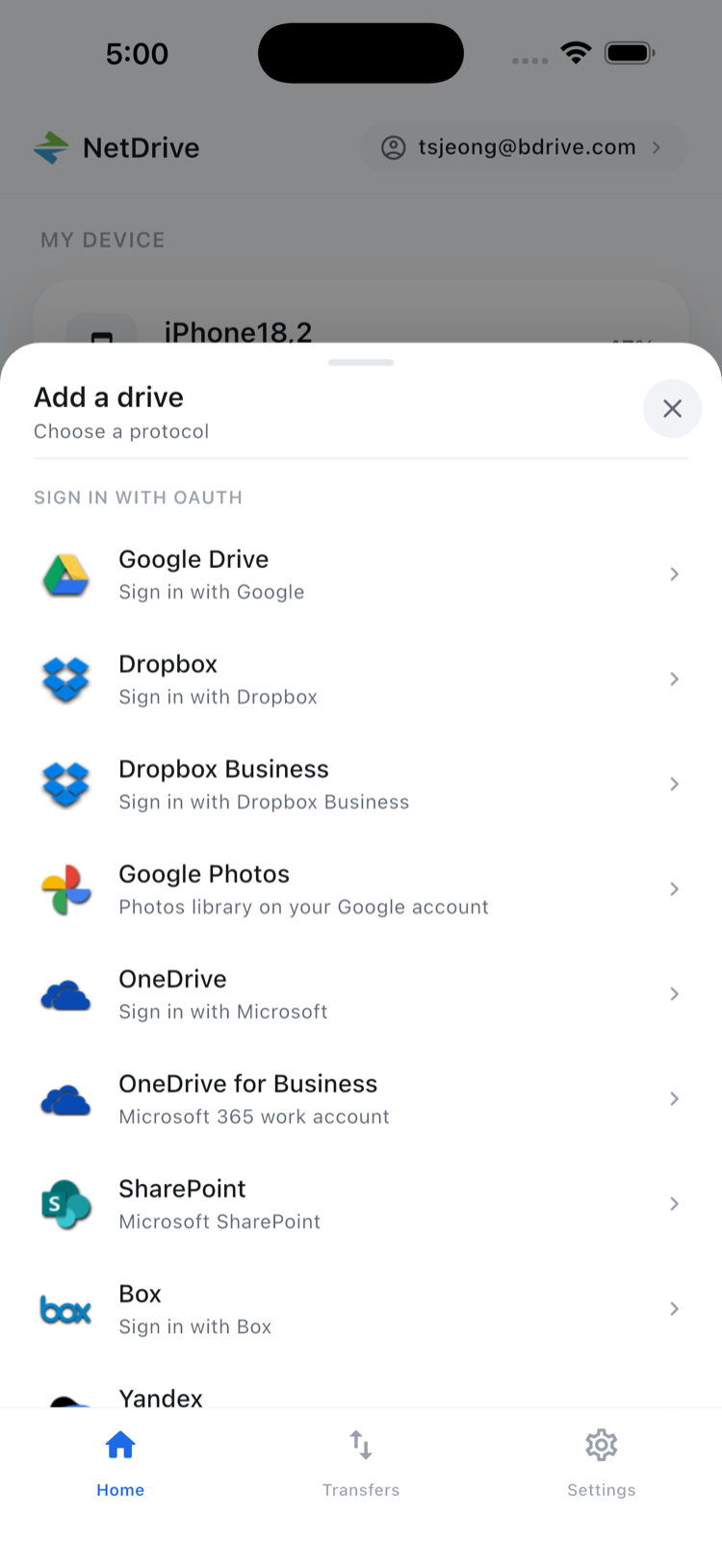
Those credentials are stored in the device’s secure storage — iOS Keychain or Android Keystore — so a connection set up on a phone isn’t sitting around as plain text. Once the connection succeeds, the server shows up on the home screen next to any cloud accounts already connected, ready to open the next time it’s needed.
Browsing the file tree
Tapping into the server drops you into a normal file list — folders, file sizes, modified dates — the same browsing experience NetDrive Mobile uses for Google Drive or S3. Drill into /var/log or wherever the file lives, sort by name or date, and open a text file or image directly in the app to confirm it’s the right one before downloading anything.
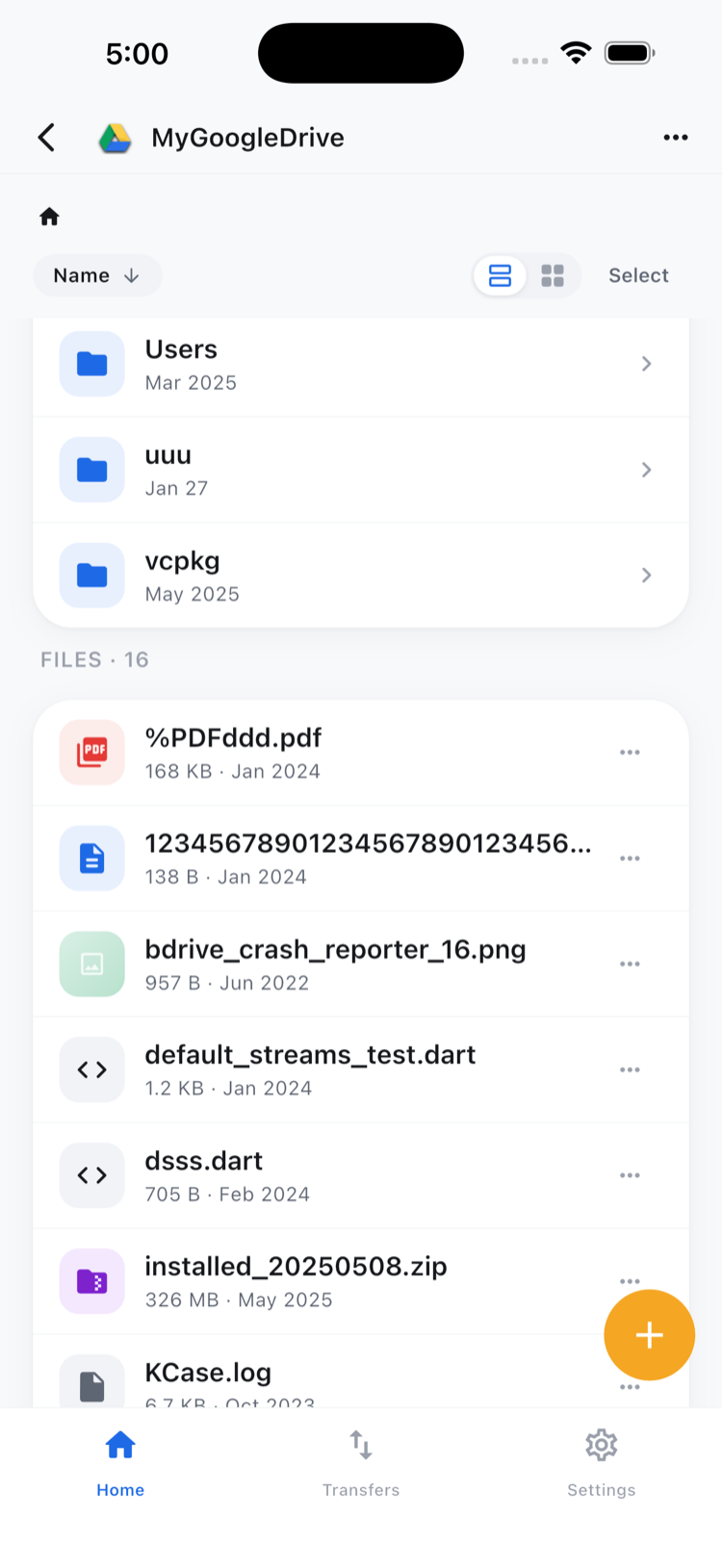
For a server with a deep directory structure, this beats scrolling through ls output on a phone-sized terminal window — you’re looking at an actual tree instead of parsing text.
Pulling a file down, pushing one back
Grab the log or config with a download, and it runs on the Transfers tab with progress, alongside anything else in flight. Need to push a patched file back to the server? Upload it from the device the same way — pick the file, choose the destination folder on that SFTP connection, and send it.
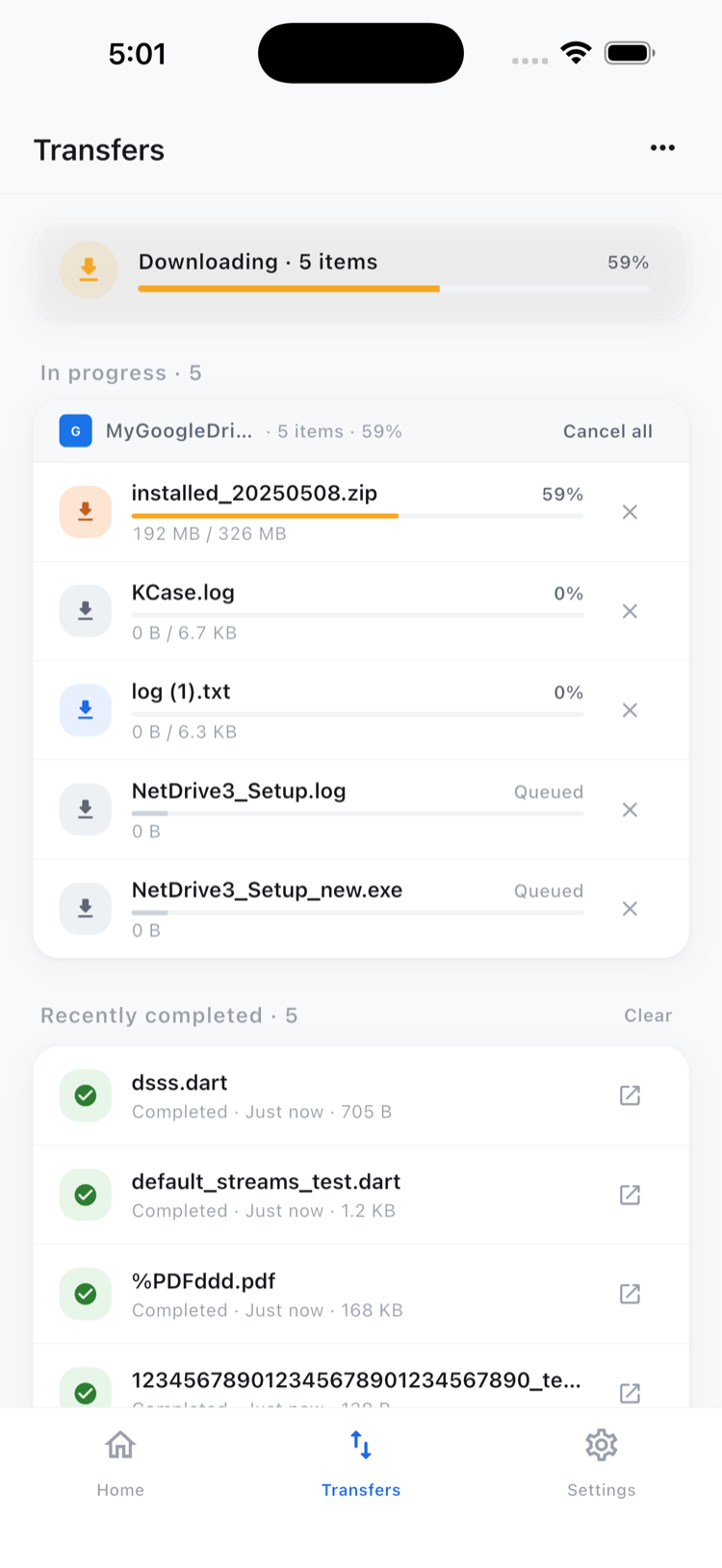
Both directions run in the background, so a slow connection on a mobile network doesn’t mean staring at the screen until it finishes.
One important boundary: this isn’t cloud-to-cloud
NetDrive Mobile’s copy and move actions work within a single connected drive — moving a file between two folders on the same SFTP server, for instance. Copying a file directly from that server into a separate cloud account, like a Google Drive or an S3 bucket, isn’t something the mobile app does; that kind of cross-provider transfer is the job of NetDrive’s sibling product, RcloneView. On mobile, pulling a file off a server and then uploading it to a different cloud is still two steps — download, then upload — not a single direct move.
Wrap-up
An SFTP server behaves like any other drive in NetDrive Mobile once it’s connected, which means checking a log or grabbing a config no longer requires a laptop and a terminal. For accessing a home NAS the same way, see Reach Your NAS From Your Phone — WebDAV and SFTP; if a connection won’t authenticate, Fix SFTP Authentication with NetDrive covers the credential checks that apply on desktop and mobile alike. Download NetDrive Mobile from the App Store or Google Play and sign in with a free Bdrive account to connect the first server.
— Steve, NetDrive