NetDrive Mobile — Sign-In Options and Where Your Credentials Live

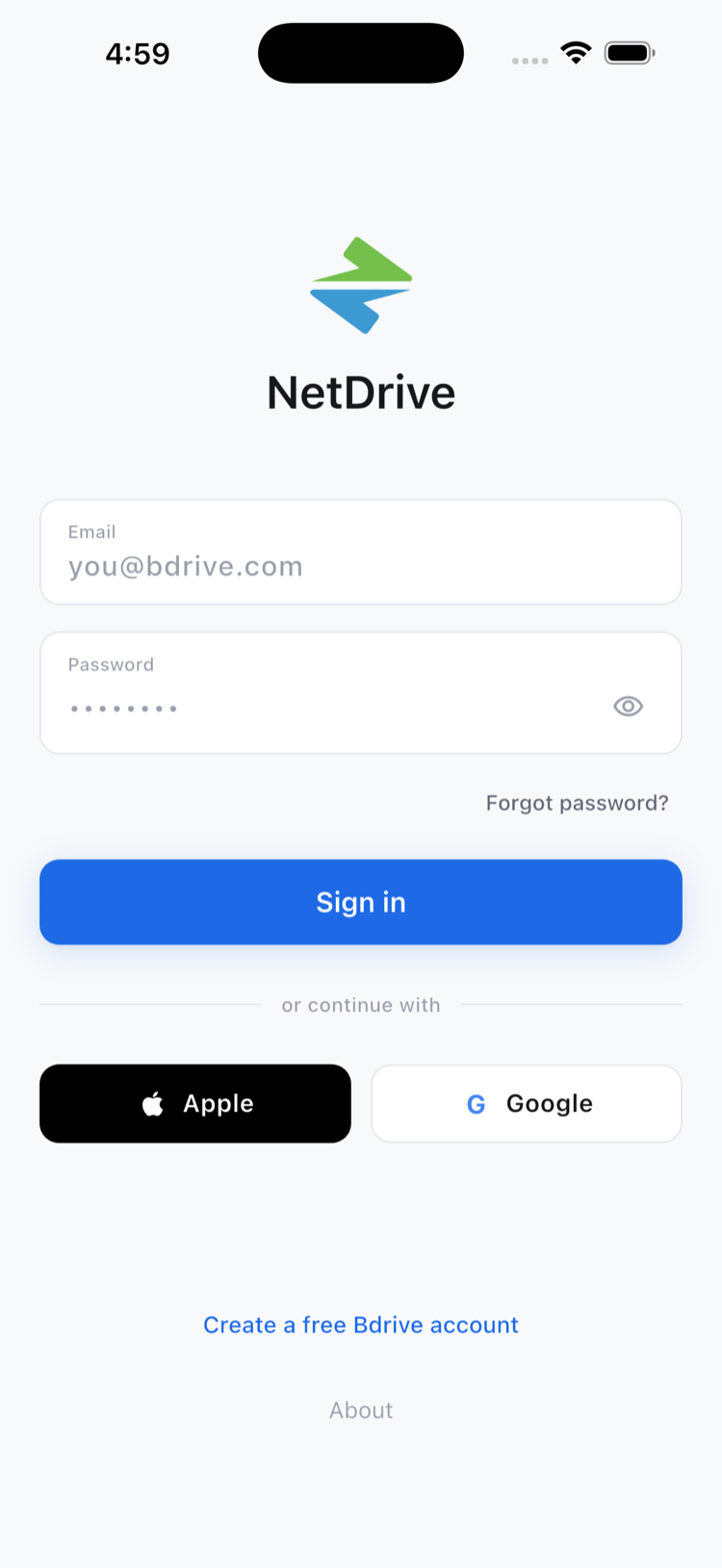
NetDrive Mobile supports email, Sign in with Apple, and Sign in with Google, and stores every connected cloud's credentials in your phone's secure storage, not a shared server.
Handing a mobile app your Google Drive, Dropbox, and S3 credentials is a reasonable thing to hesitate over — especially on a personal phone that also has work email on it. NetDrive Mobile splits the question in two: how you sign in to your own Bdrive account, and where the credentials for each cloud you add are actually kept once you’re in. Both are worth understanding before you connect a dozen drives to the app.

Every cloud, one sign-in
NetDrive Mobile opens Google Drive, Dropbox, OneDrive, S3, WebDAV, SFTP and more in one app — browse, upload, download, and preview right from your phone.
- Sign in with email or with Sign in with Apple / Google
- Each connected cloud keeps its own credentials on your device
- Free Bdrive account required to get started
Free Bdrive account required.
Two Ways to Sign In
NetDrive Mobile requires a free Bdrive account before you can add any cloud — that account is what ties your connected drives, settings, and (if you use it) two-factor login together across the app. You have two ways to get in:
- Email and password, the standard Bdrive account login.
- Social sign-in, using Sign in with Apple or Sign in with Google, so you can start the app without creating a new password to remember.
Both land you on the same account type — social sign-in isn’t a lighter or more limited login, it’s just a shortcut past typing a password on a phone keyboard.
Where Each Cloud’s Credentials Actually Go
Signing in to your Bdrive account is a separate step from connecting a cloud. Each time you add Google Drive, a NAS over SFTP, or an S3 bucket, NetDrive Mobile stores that connection’s credentials in your device’s own secure storage — iOS Keychain on iPhone and iPad, Android Keystore on Android. They don’t leave the device unencrypted, and they aren’t held in some shared, cloud-side credential store separate from the phone you’re using.
That matters in practice: if you sign in to your Bdrive account on a second phone, you’re not automatically re-exposing every connected cloud’s credentials on that new device. You add drives per device, the same way you would set them up the first time.
Setting Up Sign-In the First Time
- Open NetDrive Mobile and tap Sign in on the first-run screen.
- Choose email or a social option — Sign in with Apple or Sign in with Google — and complete the Bdrive account login. If you don’t have a Bdrive account yet, the same screen lets you create one for free.
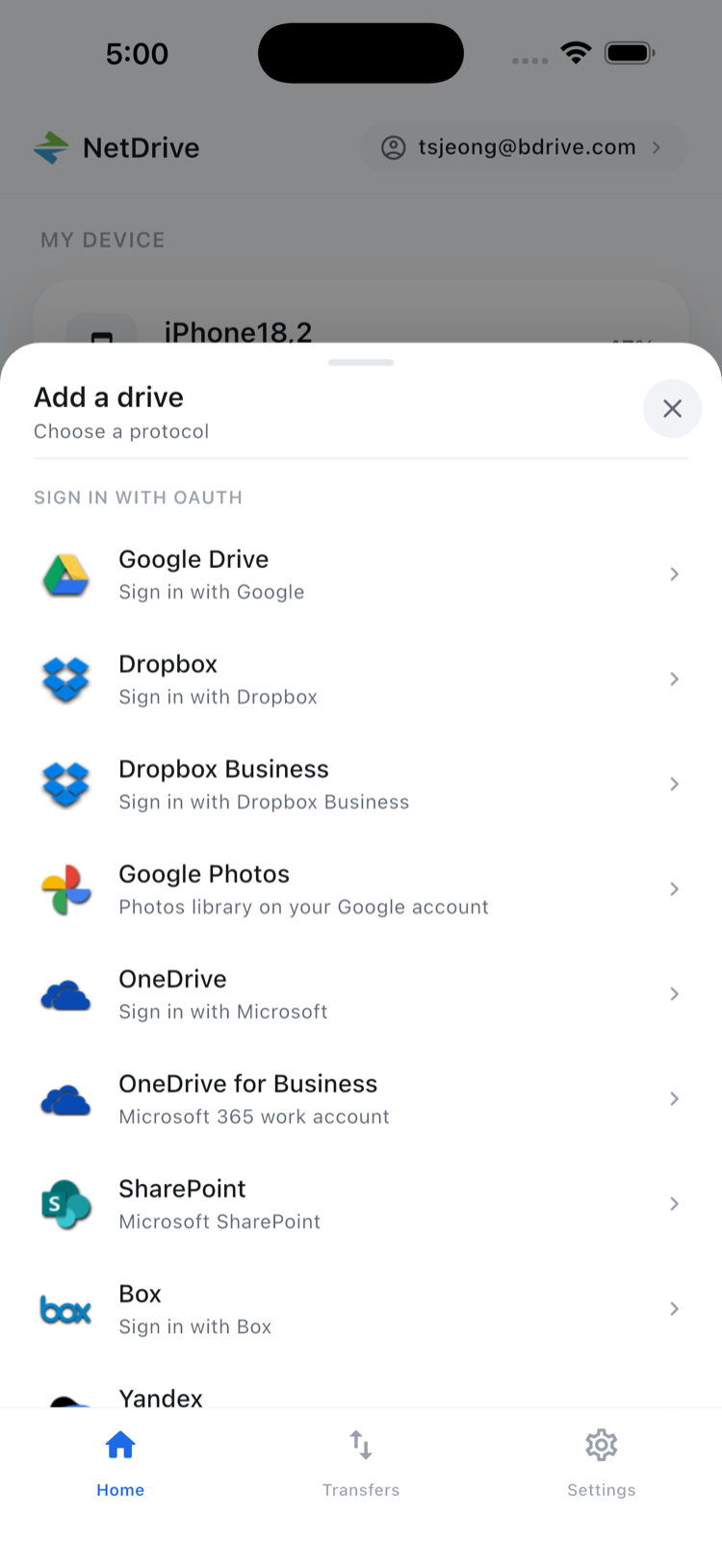
- Tap Add a drive from the home screen and pick a provider from the sheet — Google Drive, Dropbox, OneDrive, SharePoint, S3, WebDAV, and the rest of the supported list.
- Authorize that provider through its own login flow (OAuth for cloud providers, credentials for WebDAV/FTP/SFTP). This is a separate authorization from your Bdrive sign-in.
- Repeat step 3–4 for every additional cloud — each one is authorized and stored independently.
If your Bdrive account also has two-factor login enabled, you’ll confirm a code as part of step 2 — see Two-Factor Login Codes in NetDrive Mobile for how that confirmation works.
Wrap-up
Sign-in and per-drive credentials are deliberately separate layers in NetDrive Mobile: one identity for the app, independent storage for every cloud you connect to it. If you’re still deciding whether to set up the app at all, NetDrive Mobile — Every Cloud in One App covers what the app does day to day, and NetDrive Mobile Getting Started walks through the first-run setup in more detail.
— Robin, NetDrive