Finance & Accounting Teams with NetDrive — Shared Workbooks on SharePoint

How finance and accounting teams use NetDrive to mount SharePoint and OneDrive for Business, lock Excel workbooks, and give reviewers read-only access.
It is the fourth working day of month-end close. Three accountants need the same reconciliation workbook, a controller wants to read the final version without touching it, and the source files live in a SharePoint document library that nobody enjoys navigating in a browser. Mounting that library as a drive with NetDrive lets the team open and save Excel files from the normal file dialog, with Office file locking preventing two people from saving over each other.


Close the Books Without Version Chaos
NetDrive lets Google Drive, OneDrive, S3, SFTP, WebDAV and more appear as native drives on Windows and macOS — no syncing, no full downloads.
- Mount SharePoint and OneDrive for Business as drives
- Office file locking for shared workbooks
- Read-only drives for controllers and reviewers
Free trial. Lifetime and subscription plans available.
Why Spreadsheets Break in Shared Folders
Finance files are rarely large, but they are order-sensitive. A workbook that links to other workbooks, or a reconciliation template that several people fill in, becomes unreliable the moment two copies exist. Emailing versions around is the usual cause; shared folders without locking are the second most common one.
NetDrive supports SharePoint and OneDrive for Business as drive types, so the library your organisation already uses appears as a letter in Windows Explorer or a volume in Finder. Excel, PDF viewers, and the accounting software’s import dialog all see an ordinary path.
Office File Locking on Shared Workbooks
When a colleague already has a workbook open on a team drive, NetDrive opens your copy as read-only and warns you, instead of letting both of you save and discover the conflict later. Office file locking has been part of NetDrive since 3.8.921.
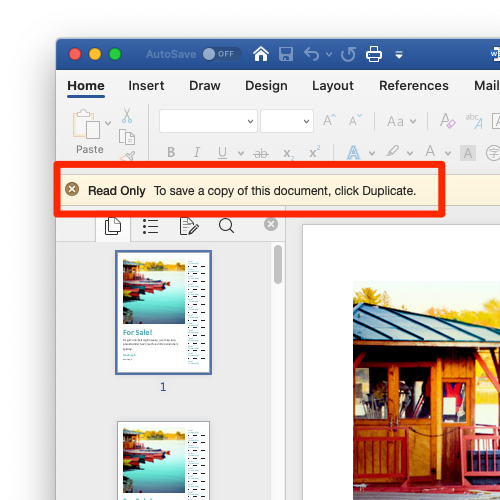
The practical rule for a close checklist: if you get the read-only warning, the workbook is in use. Ask the person who has it, or work in a separate sheet and merge afterwards. Fix Office Files Opening Read-Only in NetDrive covers why the warning appears and what to check.
A Read-Only Drive for Controllers and Reviewers
Reviewers should be able to read final numbers without any chance of altering them. NetDrive can mount the same library as a read-only drive, so the file system itself refuses writes from that machine.
- Open NetDrive and click + Add Drive in the Drive Manager.
- Choose SharePoint (or OneDrive for Business) and sign in with your work account.
- Select the document library you want to expose.
- Set Drive Type to Read-only drive.
- Set Mount on to Login so the drive is there each morning.
- Click Mount.
More detail is in Read-Only Drives with NetDrive and, for the provider steps, Mount SharePoint on Windows with NetDrive.
Large Libraries and Slow Listings
Finance libraries accumulate years of folders. If opening a big folder feels slow, see Fix Slow SharePoint Directory Listing in NetDrive. If a listing looks out of date after a colleague uploaded something through the browser, Force Folder Refresh in NetDrive covers the refresh option.
Limits to Plan Around
NetDrive has no offline mode, so files you need on a train must be downloaded before you go. It also has no client-side encryption feature; protection of financial records relies on your organisation’s SharePoint or OneDrive configuration and access policies. Check those with your IT team rather than assuming NetDrive adds another layer.
Wrap-up
For a finance team the win is modest but real: the library you already use, presented as a normal drive, with locking for the people writing and read-only access for the people reviewing. If your IT group is rolling this out to many machines, Deploy NetDrive with MSI on Windows is the place to start.
— Robin, NetDrive