Managed Service Providers with NetDrive — One Setup for Every Client Desk

IT consultants and small MSPs use NetDrive on Windows and macOS to deploy cloud drives by MSI, mount at boot, and publish team drives without handing out credentials.
A two-person IT shop supports eight small offices. Every new client means the same afternoon: install something on each PC, type the same storage credentials into each machine, and then field a call on Monday because one drive letter did not come back after a reboot. NetDrive turns that afternoon into a repeatable routine, with cloud storage mounted as a normal drive on Windows or macOS and shared configuration pushed from one console.


Standardize cloud drives across client desks
NetDrive lets Google Drive, OneDrive, S3, SFTP, WebDAV and more appear as native drives on Windows and macOS — no syncing, no full downloads.
- Silent MSI install for Windows fleets
- Publish team drives to members, no shared passwords
- Mount at boot for servers nobody logs in to
Free trial. Lifetime and subscription plans available.
Why Per-Machine Setup Does Not Scale
Most small clients already pay for some cloud storage: Google Drive, OneDrive for Business, SharePoint, Dropbox Business or an S3 bucket. The problem is not the storage. It is that staff want it to look like a folder, and each workstation gets configured slightly differently by whoever had time that day.
NetDrive mounts those providers as drives in Explorer or Finder, so the client’s staff open Z:\Projects the way they always opened a file server share. As the person supporting them, you get one tool for many providers instead of one sync client per vendor. NetDrive does not offer an offline mode, so tell clients up front that a mounted drive needs a connection.
Rolling Out to Windows Fleets
For Windows machines, NetDrive ships an MSI installer meant for administrators and network deployment. Hand it to whatever deployment tool you already use, then run it with:
msiexec /i NetDrive3-<version>.msi REINSTALL=ALL REINSTALLMODE=vamusNetDrive supports Windows 8 through 11 and Windows Server 2012, 2016, 2019 and 2022, so one package covers most client environments. The Visual C++ redistributables it depends on are linked from the download page. Pre-stage them on older machines. The full walkthrough is in Deploy NetDrive on Windows with MSI.
On Macs, install from the DMG on the download page. Current releases need macOS 14 (Sonoma) or later, which is worth checking in your client inventory before you promise a date.
Publishing Team Drives Instead of Credentials
The part that saves the most time is the Team Drive. With a team license, an administrator creates the drive once in the team console and publishes it to chosen members. Staff sign in with their own Bdrive account and the drive appears. Nobody pastes an S3 key into a chat window.
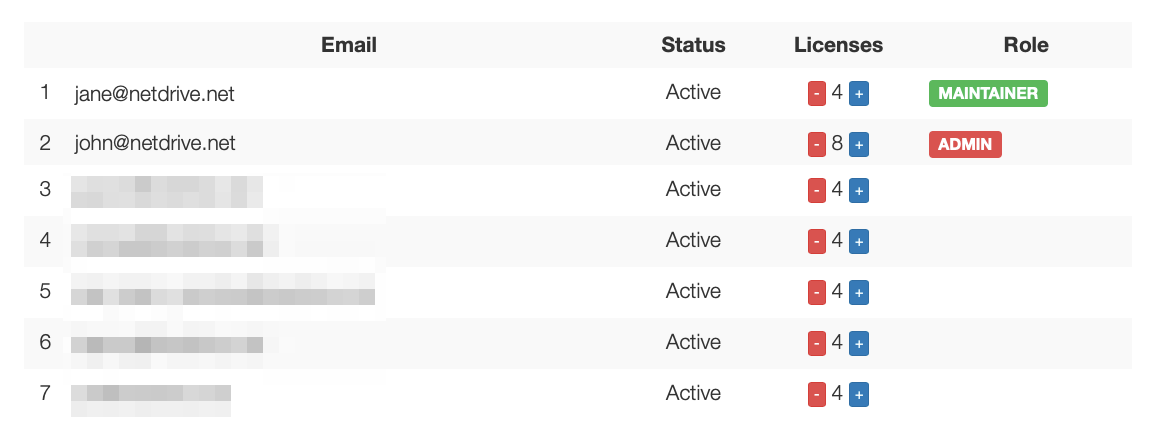
Selective publishing matters for contractors and part-time staff. A bookkeeper can receive the accounting drive without seeing the engineering share, and when someone leaves you reassign their license instead of rotating credentials on every machine. Details are in NetDrive Team Drive.
Servers, Terminal Servers and Reboots
Some client drives have to exist when nobody is logged in: a backup job writing to Azure Blob, a scan-to-folder device, a line-of-business app reading from S3. Each drive can be set to mount at boot, at login, or not automatically, and boot mode reconnects it during startup.
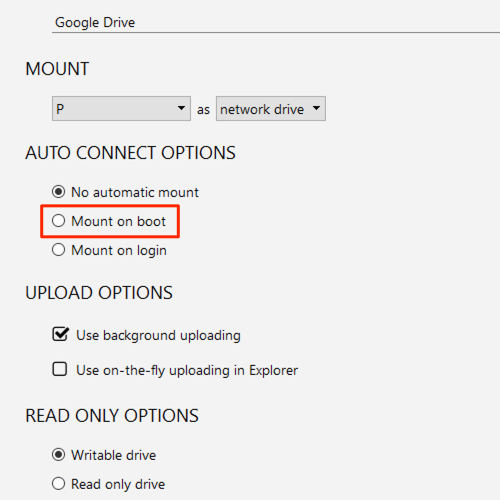
For clients on a Windows Terminal Server, NetDrive has supported multi-user environments with a team license since 3.1.286. If a boot-time mount ever fails after an update, Fix NetDrive Auto-Mount on Startup lists the usual causes.
A Repeatable Onboarding Checklist
- Inventory the client: Windows or macOS versions, and which cloud storage they use.
- Create the team and assign licenses to the client’s staff.
- Add the shared drive once in the team console and publish it to the right members.
- Deploy NetDrive by MSI on Windows, or DMG on macOS.
- Set Auto Mount to boot for server-side drives and login for desktops.
- Test one reboot before you leave the site.
- Use read-only drives for archives, so closed projects cannot be edited by accident (Read-Only Drive).
If someone reports a stale folder listing, Force Folder Refresh fixes it without a remount.
Limits Worth Telling Clients
NetDrive mounts storage; it is not a sync or backup tool, and it has no client-side encryption feature. Linux support is experimental, so keep client Linux boxes out of the promise. Be honest about those edges and the rest of the rollout stays simple.
Wrap-up
For a small provider, the win is consistency: the same installer, the same drive layout, and credentials that stay in one console. Start with your next onboarding and reuse the checklist after that. For the shared-file side, see Office File Locking.
— Kai, NetDrive