Browse OpenStack Swift on iPhone and Android — NetDrive Mobile

Access OpenStack Swift object storage containers from iOS and Android with NetDrive Mobile. Browse, download, preview, and upload files without a laptop.
An ops engineer gets a page that a nightly export into an OpenStack Swift container may have failed, and the laptop is at home. Or a teammate on a private OpenStack cloud asks for a quick look at a log object while you’re at lunch. NetDrive Mobile puts OpenStack Swift containers on your iPhone or Android phone alongside every other cloud you already use, so checking a container doesn’t require finding a laptop first.
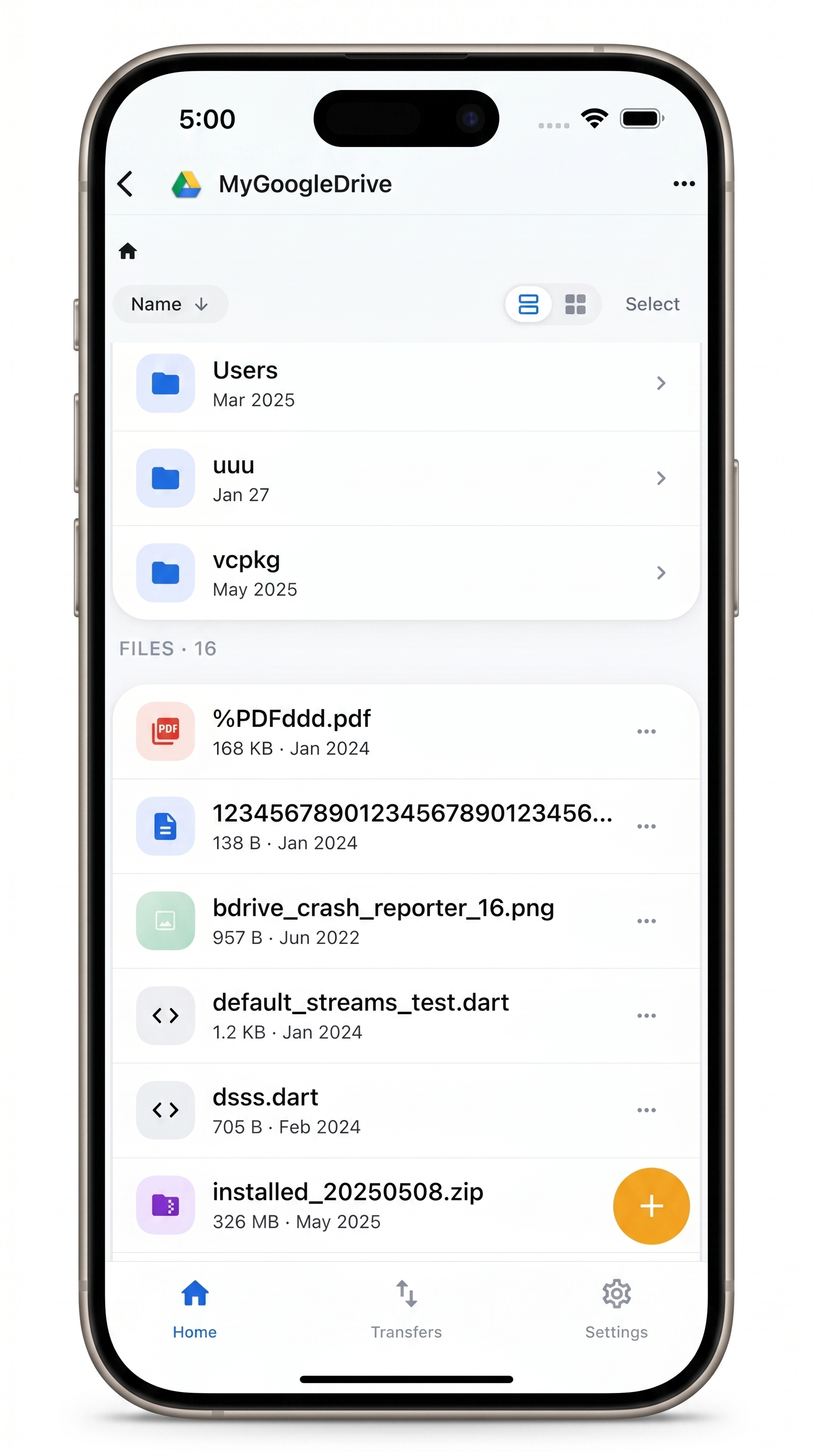
Every cloud in one app — including OpenStack Swift
Browse OpenStack Swift containers alongside Google Drive, S3, Dropbox, and more.
- Check Swift containers from your phone without a laptop
- Preview and download objects without leaving the app
- Upload photos or documents straight from your device
Free Bdrive account required.
What You Need Before You Start
- NetDrive Mobile installed — App Store for iOS 15.0 and later, or Google Play for Android
- A free Bdrive account — sign up at netdrive.net if you don’t already have one; every cloud you add in NetDrive Mobile connects through this account
- OpenStack Swift credentials: the auth endpoint URL for your OpenStack identity service, your username and password (or API key, depending on how the cloud is configured), and the container name you want to browse
Adding OpenStack Swift to NetDrive Mobile
Open NetDrive Mobile and tap + or pull up the Add a drive sheet from the home screen.
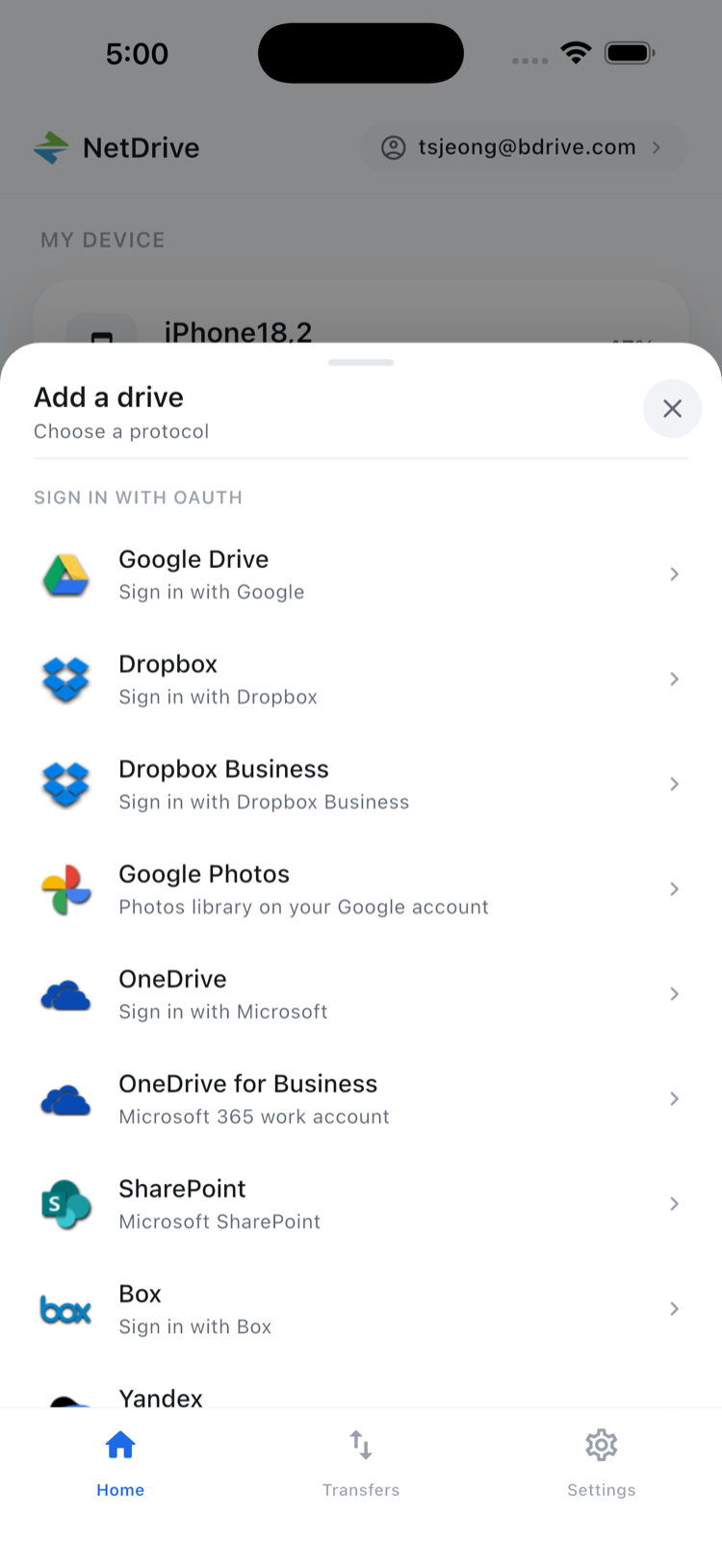
- Scroll to OpenStack Swift in the provider list and tap it.
- Enter the auth endpoint URL, your username, and password (or API key).
- Enter the container name you want to connect.
- Tap Connect. NetDrive Mobile fetches the container contents and adds it to your home screen under Clouds.
Your credentials stay in the device’s secure keystore — iOS Keychain or Android Keystore — and never leave the device unencrypted.
Browsing a Swift Container
Tap the OpenStack Swift entry on your home screen to open the file browser. Objects are listed by name with size and last-modified date, and you can sort or switch between list and grid view from the top right.
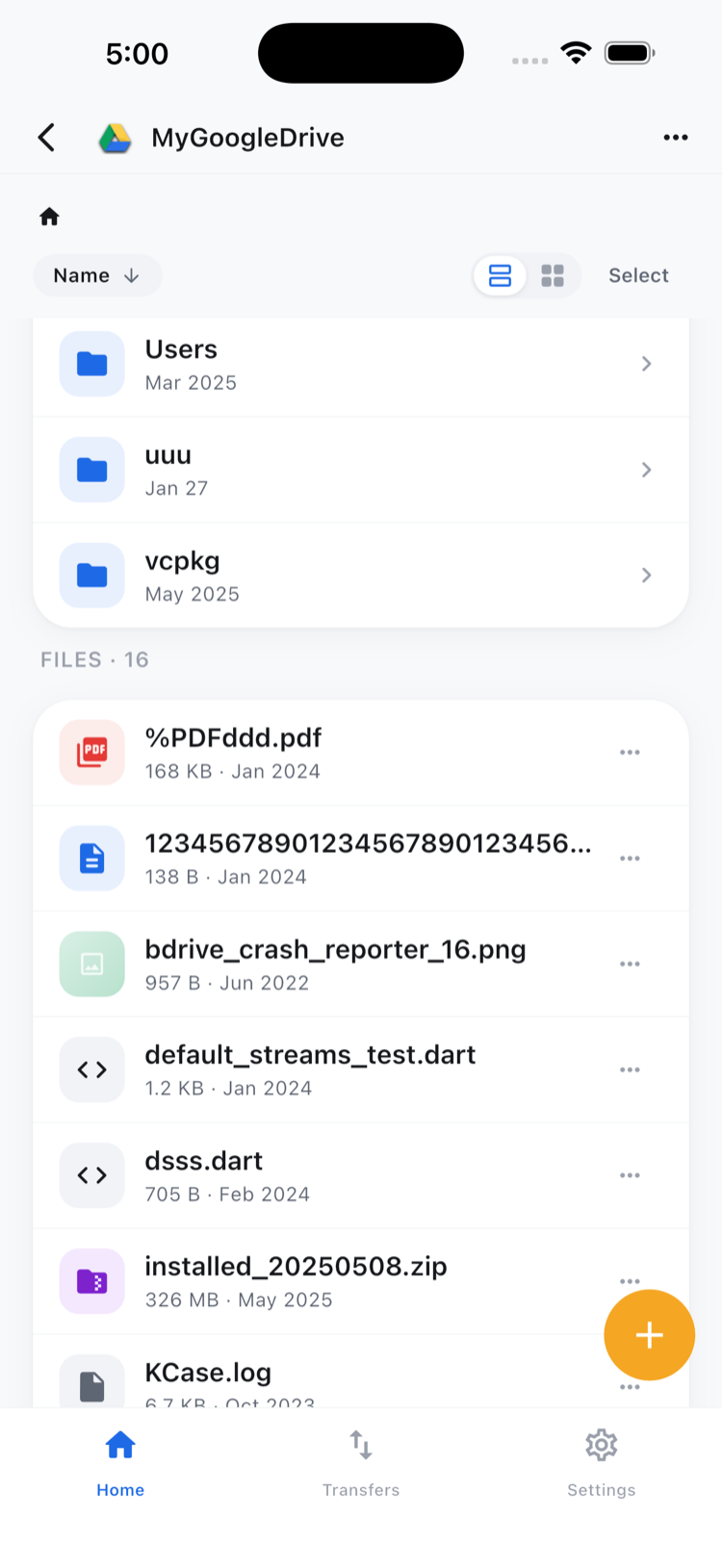
For a container organized by date or hostname prefix — common with log exports or nightly backup jobs — this makes it fast to jump straight to the object you’re checking without scrolling through the entire container.
Downloading, Previewing, and Uploading
Tap any object to open the action sheet: Preview, Download, Rename, Move, Copy, Get info, or Delete.
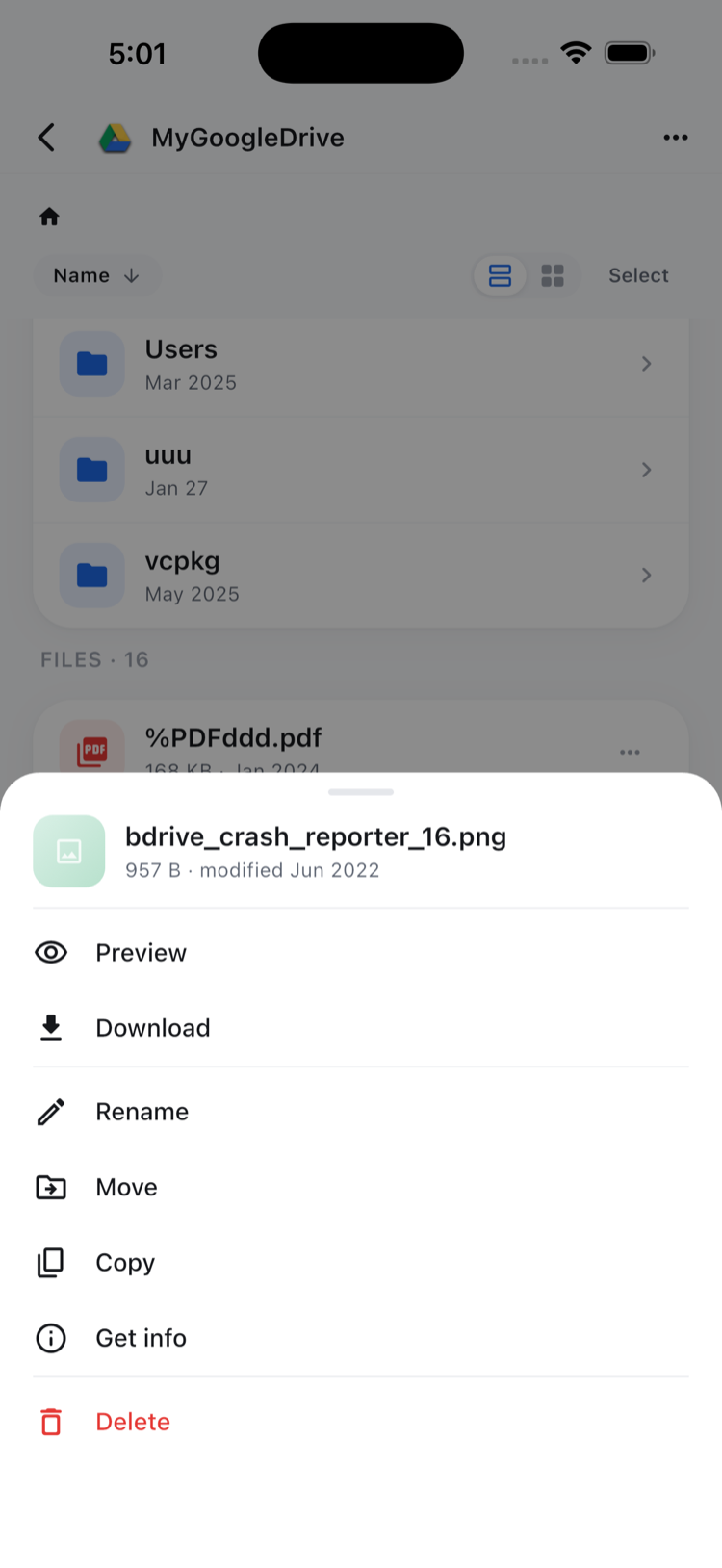
Preview opens images, PDFs, and text logs directly in the app — useful for confirming a job finished cleanly without downloading the object to your phone first. Download pulls a copy to your device when you need to hand it off to another app. To add an object to the container, navigate to the destination folder, tap the upload button, and choose Camera, Photos, or Files as the source.
Checking Multiple Objects at Once
During an incident, you often need more than one object at a time. Tap Select in the file browser, check each item, and use the bulk-action toolbar at the bottom to Download, Move, Copy, or Delete the selection in one pass.
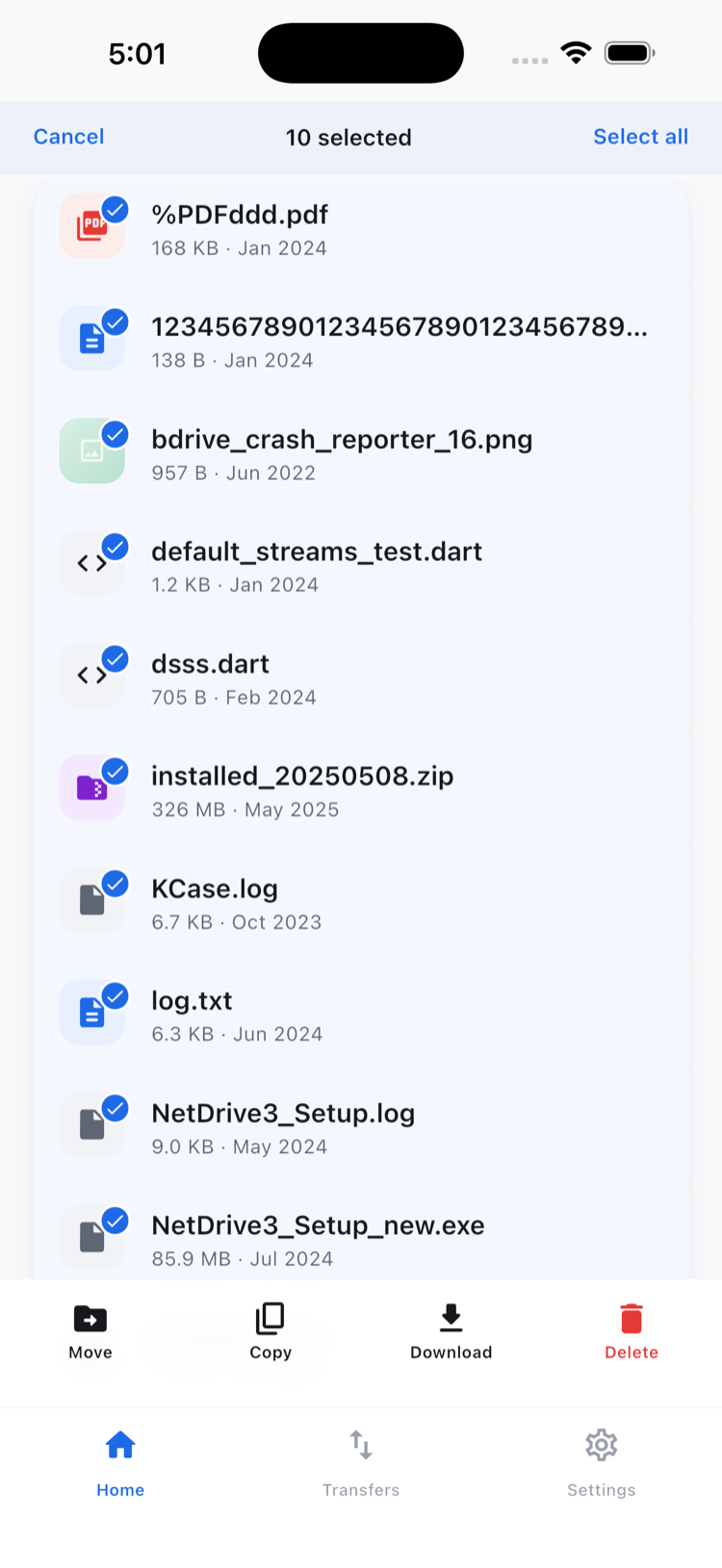
Downloads queue in the Transfers tab with live progress, so you can start pulling several log objects and keep browsing while they finish in the background.
One App for Every Cloud
If your team also keeps assets on Google Drive, S3, or a NAS reachable over WebDAV or SFTP, NetDrive Mobile keeps OpenStack Swift alongside those in the same app. Each provider is added and authenticated separately, and moving or copying files works within a single connected cloud — pulling an object from a Swift container and pushing it directly into a different provider isn’t something the mobile app does; for cross-provider transfers, NetDrive’s sibling product RcloneView handles that on desktop.
Wrap-up
Checking an OpenStack Swift container from your phone takes the same few taps as any other provider in NetDrive Mobile: install the app, sign in with a free Bdrive account, add the drive with your Swift credentials, and the container is one tap away from then on.
For other object-storage providers on mobile, see View Amazon S3 on iPhone and Android and Browse Backblaze B2 on Mobile.
— Jay, NetDrive