Publishing and Editorial Teams with NetDrive — One Drive List for All Files

How editorial teams use NetDrive to mount Google Drive, Dropbox, and Box as drives, lock Office manuscripts, and keep published assets read-only on Windows and macOS.
A small book publisher gets manuscripts from authors through Dropbox, keeps cover art with a freelance designer’s Google Drive folder, and archives final PDFs in Box for the printer. The managing editor spends the first hour of every production week asking which copy of chapter seven is the real one. NetDrive lets each of those clouds show up as an ordinary drive, so Word, InDesign, and the PDF proofing tools all open files by path.


Manuscripts and art, one drive list
NetDrive lets Google Drive, OneDrive, S3, SFTP, WebDAV and more appear as native drives on Windows and macOS — no syncing, no full downloads.
- Mount Google Drive, Dropbox, and Box as native drives
- Lock Office manuscripts so two editors never collide
- Keep final PDFs on a read-only drive
Free trial. Lifetime and subscription plans available.
Where editorial files actually live
Editorial work crosses organizational lines. Authors choose their own tools, designers bring their own storage, and printers want files delivered to a specific account. Asking everyone to move to one platform rarely survives the first deadline.
NetDrive does not move or merge anything. It mounts each existing cloud as a drive in Windows Explorer or macOS Finder. Supported providers include Google Drive, Dropbox, Dropbox Business, Box, OneDrive, SharePoint, and Amazon S3, plus WebDAV, FTP, and SFTP. Your layout tool saves to a path, and the file lands in the right cloud.
NetDrive runs on Windows and macOS (Linux support is experimental), and there is a 7-day free trial.
Keeping two editors out of the same chapter
Copy edit and developmental edit often overlap by a day. File locking on team drives covers all file types, and Microsoft Office files are included. When a colleague has a manuscript locked, you see it flagged before you can overwrite their changes.
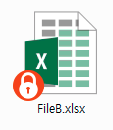
A team license also lets an administrator publish drives to specific members from the team management console, which suits a per-title or per-issue drive. Read the Office File Locking guide for what each person sees, and the Team Drive guide for publishing.
If Word opens a file as read-only unexpectedly, see Fix Office Files Opening Read-Only.
Protecting what has already shipped
Once a title goes to the printer, the final PDFs should not change. Set that connection’s drive type to Read-only drive and no application on that machine can save, rename, or delete files through it. Sales, marketing, and rights staff can still open and copy what they need. The Read-Only Drive guide covers the setting.
Setting up a production drive
- Open NetDrive and click Add Drive in the Drive Manager.
- Choose the provider that holds the project, for example Dropbox or Google Drive, and sign in.
- Pick the drive type. Use Network drive for people who edit and Read-only drive for archived or final files.
- Set auto-mount so the drive is there at login. See Auto-Mount on Boot.
- For a team, publish the drive to members from the team console and assign licenses.
Handling large art and layout files
Cover art and print-ready layouts can run to hundreds of megabytes. Saving to a mounted drive uses NetDrive’s background upload, so your layout tool does not sit waiting on a slow connection. The Background Upload Mode guide explains the options. If a folder looks out of date after a collaborator adds files, right-click and refresh it; see Force Folder Refresh.
What NetDrive does not do
NetDrive has no offline mode and no client-side encryption. Your files stay with your provider, and protection comes from that provider’s own access controls. It is not a backup, a version-control system, or a replacement for an editorial workflow tool. It also does not copy files between clouds for you; it makes each cloud reachable as a drive.
Wrap-up
For publishers whose files live in several clouds by necessity, mounting them as drives removes a lot of friction without a migration. A good next step is Mount Dropbox on Windows with NetDrive or Mount Google Drive on macOS.
— Kai, NetDrive