Fix FTP Connection Timeouts in NetDrive — Ports, NAT, and Session Limits

Troubleshoot FTP connection timeouts in NetDrive: passive mode and firewall issues, wrong port settings, and server-side connection limits on Windows and macOS.
You added an FTP server in NetDrive, clicked Connect, and the drive either hangs for thirty seconds before failing, or it mounts but the folder listing never loads. Unlike SFTP, where most failures trace back to credentials, FTP failures are usually a networking problem — the protocol opens a separate connection for data on top of the control connection, and that second connection is what firewalls and NAT routers tend to block.


Mount Any FTP Server as a Native Drive
NetDrive lets Google Drive, OneDrive, S3, SFTP, WebDAV and more appear as native drives on Windows and macOS — no syncing, no full downloads.
- Works with NAS devices, hosting accounts, and legacy FTP servers
- Anonymous or credential-based FTP — both supported
- Available on Windows and macOS
Free trial. Lifetime and subscription plans available.
Map Your Symptom to a Cause
Before changing any setting, identify which failure pattern you’re seeing:
| Symptom | Most likely cause |
|---|---|
| Hangs ~30 seconds during connect, then fails outright | Wrong host or port; outbound connection blocked |
| Connects, but the folder listing spins forever | Data connection blocked by a firewall or NAT |
| Worked earlier today, now refuses to connect at all | Server-side simultaneous connection limit reached |
Fix 1: Data Connection Blocked by Firewall or NAT
FTP uses two connections: one for commands (login, navigation) and a second one just to transfer the directory listing or file data. If the control connection succeeds — you see a brief “connected” state — but the listing never populates, the data connection is the suspect.
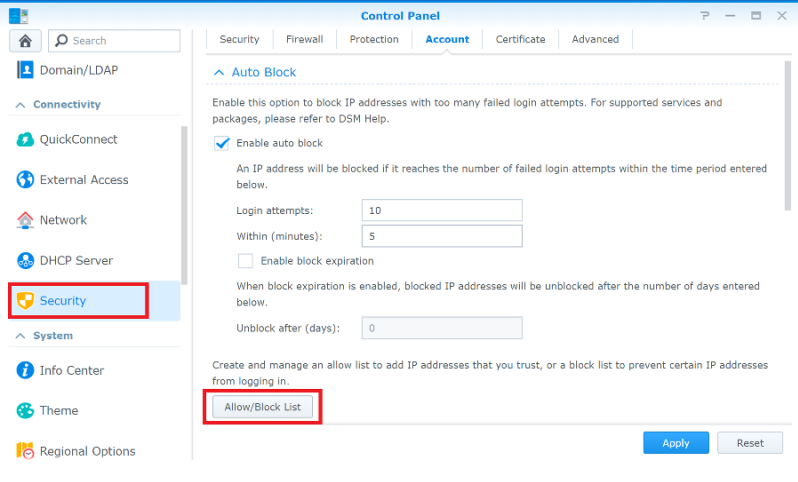
This is almost always a router, corporate firewall, or NAT configuration issue rather than anything in NetDrive’s settings. Check with whoever manages the network the FTP server sits behind:
- Confirm the server is configured for passive mode data connections, and that the passive port range it uses is open on the server’s firewall. Most consumer NAS devices and hosting control panels expose this as a setting on the FTP service itself.
- If you’re on a corporate network, ask IT whether outbound connections on non-standard high ports are blocked — this is a common default on locked-down office networks and is the single most frequent cause of “connects but never lists” reports.
Fix 2: Wrong Port
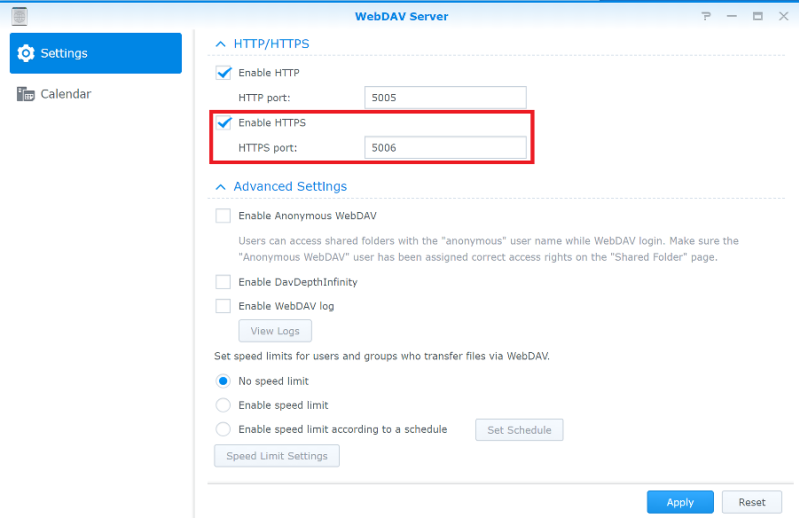
FTP defaults to port 21, but plenty of hosting providers and NAS setups move it. Some ISPs also block outbound port 21 entirely as an anti-spam measure, which produces the “hangs then fails” pattern from the table above rather than an explicit error.
In NetDrive’s drive settings for the connection, open Edit and confirm the Port field matches what your provider documents — 2121 is a common alternate. If you’re not sure, check your hosting control panel’s FTP/SFTP access page, which usually lists the exact port alongside the hostname.
Fix 3: Server-Side Connection Limits
Shared hosting accounts and consumer NAS devices commonly cap the number of simultaneous FTP sessions per account — often somewhere between two and ten. Two situations trip this limit:
- A stale session from an unclean disconnect. If your laptop went to sleep or the network dropped while NetDrive had the drive connected, the server may still be holding that session open until its own idle timeout expires (often 15–30 minutes). A new connection attempt in the meantime gets refused.
- Another client using the same account. If a backup job, website deployment tool, or a second machine is also connected with the same FTP credentials, NetDrive’s connection can be the one left waiting for a free slot.
Disconnect the drive in NetDrive, wait a few minutes for any stale session to time out server-side, and reconnect. If the problem persists, your hosting provider’s control panel usually has a way to view and terminate active FTP sessions for the account directly.

Wrap-up
Most FTP connection timeouts in NetDrive come down to the data connection, not the credentials — work through the firewall/NAT check, the port setting, and server-side session limits in that order and you’ll usually isolate the cause quickly. If none of these resolve it, enable verbose logging in NetDrive’s preferences and share the log on the NetDrive forum for further diagnosis.
For the full setup walkthrough, see Mount FTP Server on Windows with NetDrive. If your server also supports SFTP, Fix SFTP Authentication Failures in NetDrive covers the equivalent credential-side issues for the encrypted protocol.
— Steve, NetDrive