Fix 'Drive Letter Already In Use' When Mounting with NetDrive

NetDrive skips a mount or grabs the wrong letter because it's already assigned? Free up the conflicting drive letter or reassign it — here's how on Windows.
A finance analyst’s morning routine breaks the day a new USB backup drive grabs Z: before Windows finishes booting — the same letter a script has hardcoded for the S3 bucket NetDrive mounts every login. NetDrive doesn’t crash and nothing looks obviously wrong in the drive manager, but the expected drive is either missing from File Explorer or sitting under a different letter than every saved shortcut expects. This is a drive letter conflict, and it’s a Windows-level problem, not a broken NetDrive install.


Keep your mounted drives on the same letter, every login
NetDrive lets Google Drive, OneDrive, S3, SFTP, WebDAV and more appear as native drives on Windows and macOS — no syncing, no full downloads.
- Works on Windows 8, 8.1, 10, 11, and Server 2012–2022
- Pick a drive letter unlikely to collide with removable media
- Same fix applies after adding a USB drive or a new network share
Free trial. Lifetime and subscription plans available.
Confirm This Is Your Issue
The symptom is specific to drive letters, not to a particular provider: a drive that mounted fine yesterday is absent from File Explorer today, or it mounts under a different letter than the one configured in NetDrive’s drive manager. Opening the drive manager itself usually shows the drive listed but not connected, or connected under an unexpected letter. If instead the drive is missing entirely and NetDrive shows no error at all, check Fix NetDrive Not Auto-Mounting on Windows Startup first — that’s a related but distinct startup-timing issue.
Why Drive Letters Collide
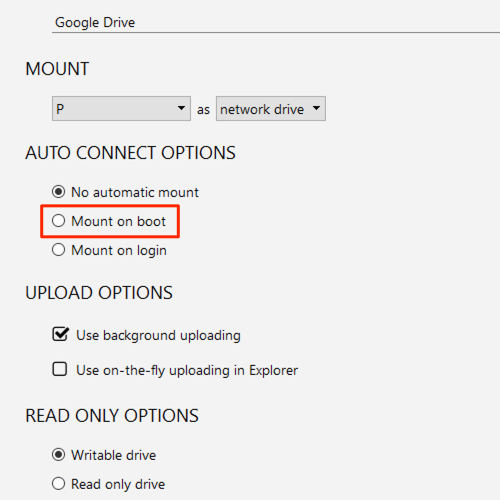
Windows assigns drive letters from a single shared pool — USB drives, mapped network shares, optical drives, and NetDrive’s mounted providers all draw from the same set of available letters. Whichever device claims a letter first during boot or login keeps it; anything that tries to use that letter afterward either gets skipped or bumped to the next free one. Machines that boot with a NetDrive mount configured for boot-time auto-mount are generally more stable here, since NetDrive claims its letter early, but the conflict still shows up when:
- A USB drive, phone, or SD card reader is already plugged in before NetDrive starts.
- A network drive from
net useor a mapped share was assigned the same letter in a prior session. - Two separate NetDrive drives were configured with overlapping letters after an update.
Freeing Up the Letter or Reassigning It
- Open NetDrive → in the drive manager, select the affected drive and open its settings.
- Check the drive letter it’s configured to use. If another device already holds that letter, either free it up or point NetDrive at a different one — NetDrive suggests the next free letter automatically when you clear the field.
- To free up the letter instead, open Windows’ Disk Management (
diskmgmt.msc), right-click the volume currently holding it, choose Change Drive Letter and Paths, and assign that volume a different letter. - Reconnect the NetDrive mount from the drive manager, or restart NetDrive, and confirm the drive now shows the expected letter in File Explorer.

Preventing Repeat Conflicts
Picking a letter further down the alphabet — N: or T: rather than E: or F: — cuts down on collisions, since Windows tends to hand out early letters to removable media like USB drives and card readers first. For a machine that regularly has a NetDrive mount alongside other network drives, keep a short written list of which letter belongs to which drive; it turns a confusing “wrong drive” report into a two-minute fix instead of a guessing game. IT admins rolling NetDrive out to a fleet with the MSI installer can pre-assign letters in the deployment script so every machine ends up consistent from the first login — see Deploying NetDrive via MSI for Windows IT Admins for that workflow.
Wrap-up
A drive letter conflict looks like a NetDrive problem but is really Windows arbitrating a shared resource between every drive on the machine, mounted or physical. Reassigning the colliding device’s letter — or pointing NetDrive at a free one — resolves it in a couple of minutes. For related reading, see Auto-Mounting NetDrive on Boot to make sure your drive claims its letter early, or Fix Stale File Listings in NetDrive if the drive itself is fine but its contents look out of date.
— Morgan, NetDrive