Broadcast and News Production Teams with NetDrive — One Drive for Every Edit Bay

How news and broadcast teams use NetDrive to mount Wasabi, Backblaze B2, or SharePoint storage on Windows and macOS edit bays, with file locks and read-only archives.
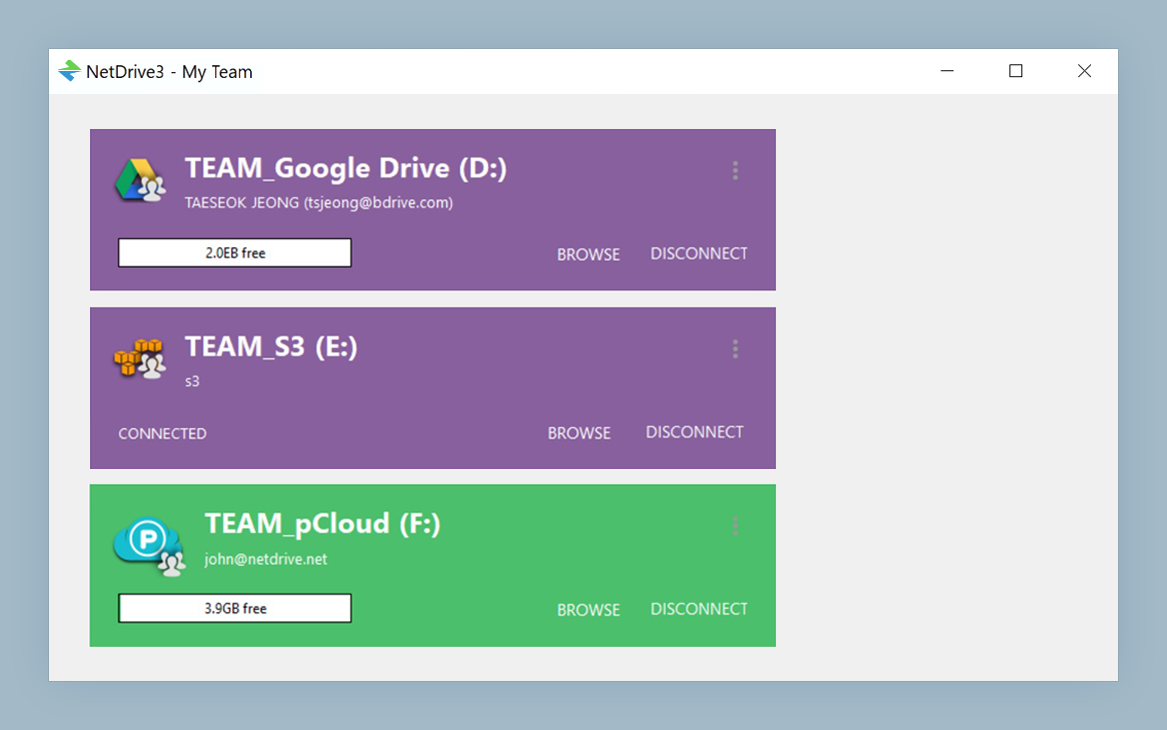
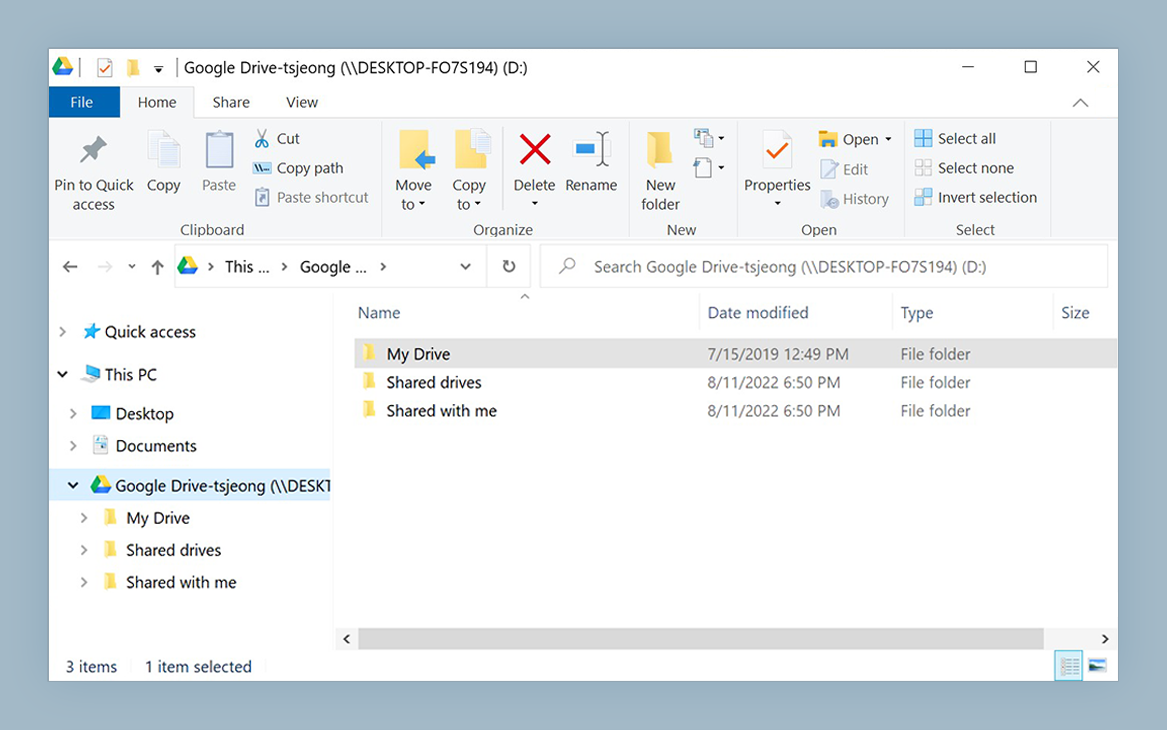
A local news station has three edit bays, a producer’s laptop, and a freelancer cutting a package from home. Raw interview footage lands on a card, gets copied to whichever machine is free, and by Friday nobody can say which bay holds the final cut of Tuesday’s story. NetDrive lets all of those machines see the same cloud storage as an ordinary drive on Windows or macOS, so footage has one home and the folder tree is the source of truth.
One cloud drive for every edit bay
NetDrive lets Google Drive, OneDrive, S3, SFTP, WebDAV and more appear as native drives on Windows and macOS — no syncing, no full downloads.
- Mount Wasabi, Backblaze B2, S3 or SharePoint as a drive on Windows and macOS
- Publish a team drive to editors and producers without sharing credentials
- Lock project files so two editors never overwrite each other
Free trial. Lifetime and subscription plans available.
Why Newsroom Storage Drifts
Broadcast work is fast and parallel. A reporter shoots, a producer logs clips, an editor builds a package, and a graphics artist adds lower thirds, often within the same afternoon. Under deadline, people copy files to the nearest local disk because it is quick, and the cloud copy falls behind.
NetDrive mounts the storage your organization already uses as a drive in Windows Explorer or macOS Finder. Object storage such as Wasabi, Backblaze B2, Amazon S3 and MinIO suits large footage libraries, while OneDrive for Business, SharePoint or Google Drive suit scripts and rundowns. Editors open files from the drive letter or Finder volume the same way they would from a local disk.
One honest limit: NetDrive has no offline mode, so a mounted drive needs a connection. A field crew in a dead zone should keep working on local media and move it once they are back online.
A Folder Layout That Survives Breaking News
Structure beats tooling when a story breaks at 5 p.m. A layout that holds up:
- Ingest, with one folder per shoot date, named
YYYY-MM-DD_Slugso they sort in order. - Projects, with one folder per story containing the edit project, graphics and script.
- Delivery, for finished packages ready for playout or web.
- Archive, for closed stories, added to editors’ machines as read-only.
Keep raw ingest separate from project files. Ingest is written once and read many times; projects are edited constantly and benefit from locking.
Team Drives and File Locks for Shared Projects
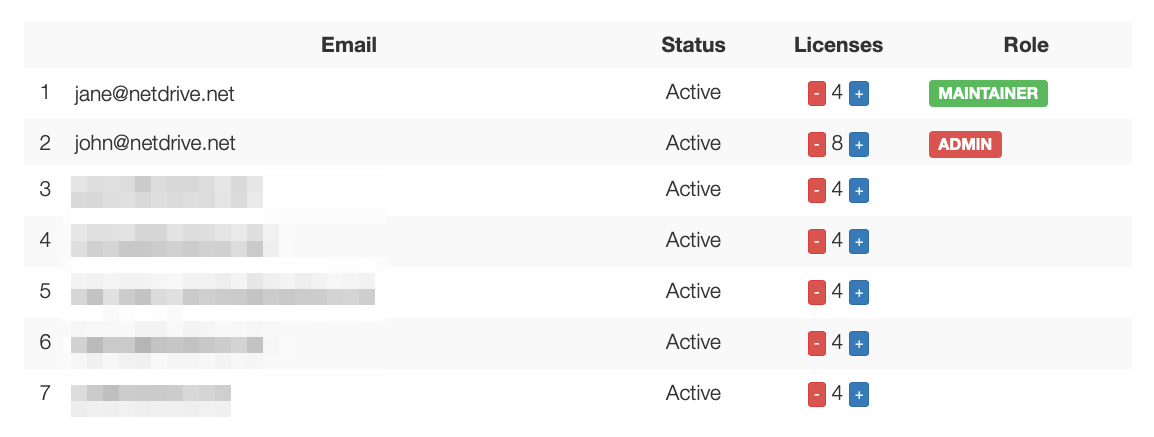
With a NetDrive team license, an administrator publishes a drive to team members from the team management console and assigns or releases licenses as people join or leave. A freelancer’s access ends when the license is released, instead of leaving a shared password in circulation.
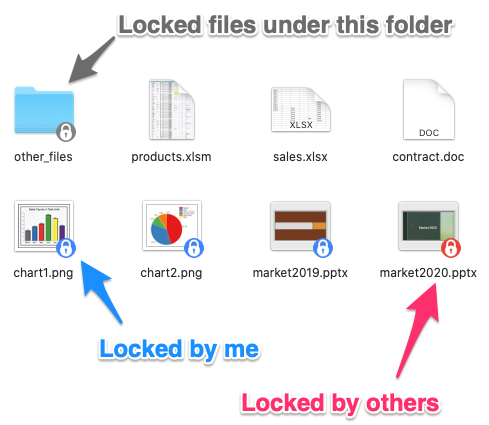
For project files, NetDrive’s file lock works on every file type. Lock a project file before you start and teammates see it is held, which prevents the classic Friday-night overwrite. Lock icons appear on files in Windows Explorer, and the locked files list shows who holds what.
The full walkthrough is in NetDrive Team Drive and Shared Drives Guide.
Getting Big Files Up Without Blocking the Edit
Exporting a package and copying a multi-gigabyte file to the cloud used to mean watching a progress bar. NetDrive supports background upload and a choice between asynchronous and synchronous upload modes, so you can set the export to land on the drive and keep working while it finishes. Confirm the upload has completed before you shut a laptop or leave the building.
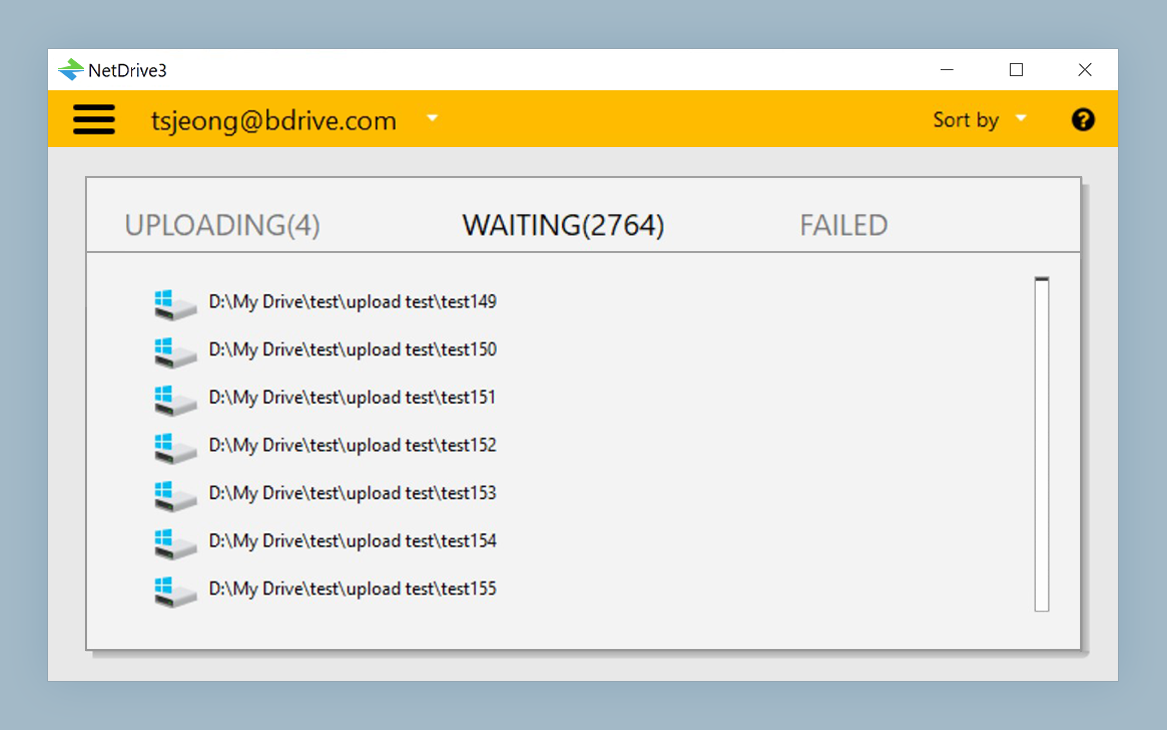
If bandwidth is tight because the whole newsroom shares one connection, a custom bandwidth limit stops uploads from starving everyone else; see Bandwidth Limit in NetDrive. For heavy libraries, Cache Size Options in NetDrive explains the local cache setting, and Video Editing 4K RAW with Cloud Storage goes deeper on large media.
Setting It Up for the Newsroom
- Install NetDrive on each Windows or macOS edit bay. Current macOS releases need macOS 14 (Sonoma) or later.
- Open NetDrive and add your storage account, for example Wasabi or Backblaze B2 for footage.
- Publish it as a team drive from the team management console to editors and producers.
- Add the archive as a read-only drive on machines where nobody should change closed stories. See Read-Only Drive in NetDrive.
- Agree on a lock habit: lock the project file when you open it, release it when you hand off.
Wrap-up
A newsroom does not need a new workflow; it needs one place where files live and a simple rule about who is holding the pen. NetDrive supplies the place and the lock, and your folder discipline supplies the rest. Start with a single story folder this week and see whether the Friday confusion disappears.
— Kai, NetDrive