NetDrive on Apple Silicon — M-Series Mac Setup Guide
NetDrive has run natively on Apple Silicon since version 3.14.309. Set up cloud drive mounts on your M-series Mac — including macOS 14 Sonoma and macOS 26 Tahoe.
A developer moving from an Intel MacBook Pro to an M4 MacBook wants their cloud storage workflow to carry over without friction: Amazon S3 buckets mounted as local volumes, SFTP servers browsed like Finder folders, a Backblaze B2 archive accessible from any app. NetDrive has been native on Apple Silicon since version 3.14.309 — released December 17, 2020 — so there’s no Rosetta 2 overhead, no compatibility workarounds, and no behavioral difference from the Intel build. Here’s what you need to know to get set up on any M-series Mac.


Mount any cloud as a drive on your Mac
NetDrive lets Google Drive, OneDrive, S3, SFTP, WebDAV and more appear as native drives on Windows and macOS — no syncing, no full downloads.
- Native Apple Silicon binary — no Rosetta translation overhead
- Supports Google Drive, S3, Dropbox, OneDrive, SFTP, and more
- macOS Sonoma and Tahoe ready
Free trial. Lifetime and subscription plans available.
Native Apple Silicon Support Since 3.14.309
When a macOS app runs under Rosetta 2, there’s a measurable CPU overhead on tasks like filesystem operations, which involve constant API calls between the app and the kernel. NetDrive went native for Apple Silicon in version 3.14.309, meaning the binary runs directly on the M-series CPU’s ARM instruction set — no translation layer.
For real-world cloud mount workloads this matters. NetDrive’s own testing shows macOS WebDAV transfers finishing 800 MB files in 85 seconds and 10,000 small (4 kB) files in 3 minutes, measured on a controlled network setup. Running those same transfers under Rosetta 2 on early Apple Silicon hardware showed higher sustained CPU use and fan activity. The native binary eliminates both.
NetDrive uses macFUSE — a kernel extension derived from the open-source osxfuse project — as its filesystem layer on macOS. The macFUSE driver handles the translation between POSIX filesystem calls from macOS applications and the cloud provider’s API. The NetDrive installer will prompt you to install macFUSE if it isn’t already present; you can also download it directly from https://osxfuse.github.io/. After installing the kernel extension you’ll need to reboot once.
NetDrive is notarized by Apple, so Gatekeeper won’t block installation on any current macOS version.
Installing NetDrive on an M-Series Mac
-
Download the DMG from https://www.netdrive.net/download/mac/. The same DMG contains a universal binary targeting both Intel and Apple Silicon — there’s no separate download for M-series.
-
Open the DMG and drag NetDrive to your Applications folder.
-
Install macFUSE if prompted. Open System Settings → Privacy & Security and click Allow next to the macFUSE system extension entry, then reboot.
-
Launch NetDrive from Applications or Spotlight. The Drive Manager opens as the main window.
-
Add your first drive: click + in Drive Manager, select your cloud provider (Google Drive, Amazon S3, Dropbox, OneDrive, SFTP, WebDAV, or any of the 20+ supported types), and complete the authentication flow.
-
Click Mount. The drive appears in the Finder sidebar and at
/Volumes/<drive-name>in the terminal. Any app — Finder, Terminal, Final Cut Pro, VS Code — can read and write it like a local volume.
macOS Version Requirements and Upgrade Path
NetDrive 3.18 raised the minimum macOS requirement to macOS 14 Sonoma. Every Apple Silicon Mac shipped with at least macOS 12 Monterey and is upgrade-eligible to Sonoma through System Settings → General → Software Update, so the Sonoma floor is not a practical barrier for current M-series hardware.
If you’re intentionally staying on macOS 13 Ventura — for example, because a third-party plugin isn’t Sonoma-compatible yet — the last NetDrive version that runs on Ventura is 3.17. Older builds are available from the release history at https://accounts.bdrive.com/product_history/NetDrive3/.
NetDrive 3.19.7 (released April 1, 2026) added support for macOS 26 Tahoe. If you’re running a Tahoe beta on an M-series Mac, install version 3.19.7 or later.
macOS Spotlight integration — introduced in 3.16.667 — works on Apple Silicon as well. Drives mounted as network drives participate in Spotlight indexing, so you can search for filenames on your S3 bucket or Dropbox mount from the Spotlight bar without opening Finder.
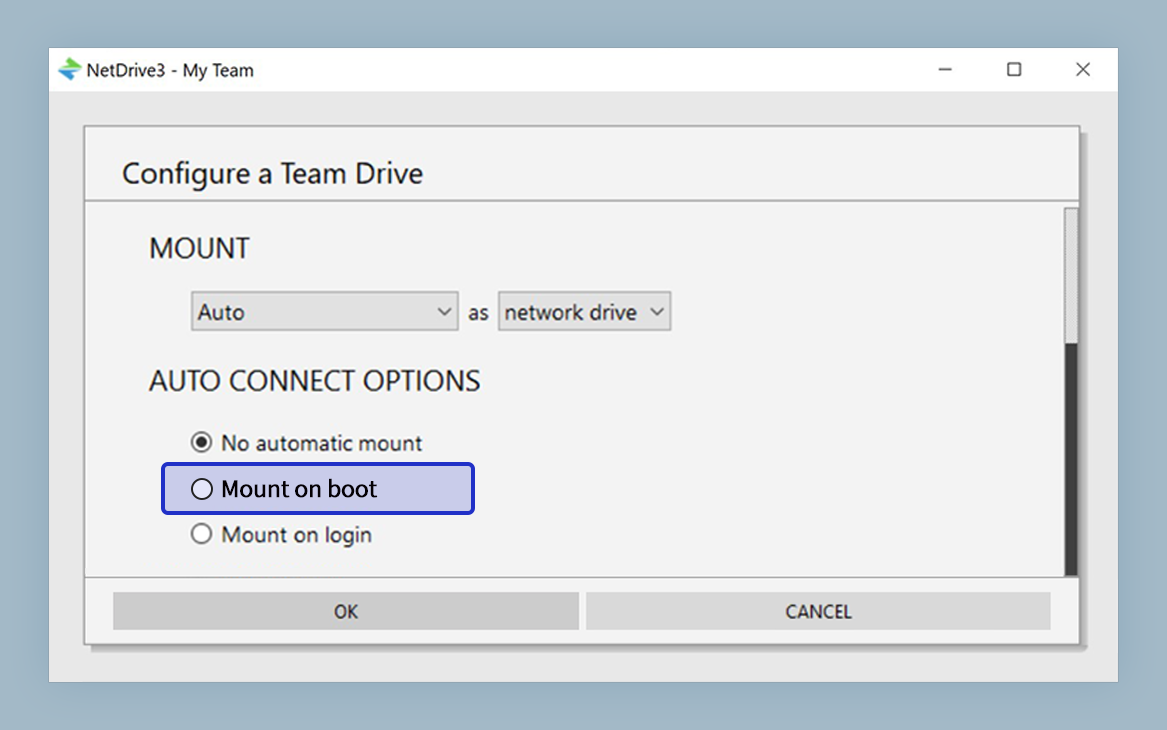
Auto-mount at boot — NetDrive supports mounting drives at system boot before any user logs in. This is useful for M-series Mac minis used as headless or shared workstations, where cloud storage should be available immediately on power-up.
Wrap-up
NetDrive on Apple Silicon is a fully native solution: a native ARM binary, macFUSE for stable kernel-level filesystem integration, and support through the current macOS 26 Tahoe release. Install takes under five minutes, and every cloud provider supported on Intel works identically on M-series — Google Drive, S3, Dropbox, Backblaze B2, SFTP, and the rest of the 20+ supported types.
For related guides: Mount Amazon S3 on macOS with NetDrive and Mount OneDrive on macOS with NetDrive.
— Tayson, NetDrive