Juggling Client Clouds — Multiple Accounts in NetDrive Mobile

NetDrive Mobile keeps every client's Google Drive, Dropbox, and Box account in one app — switch between cloud accounts on iPhone and Android without re-logging in.
A freelance video editor works with three clients this month: one shares footage through Google Drive, another through Dropbox Business, and a third keeps everything on Box. Checking a single new file used to mean signing out of one provider’s app and into another, over and over, on a five-inch screen. NetDrive Mobile keeps all three accounts sitting in one home screen instead, so switching between them is a tap, not a re-login.

Every client's cloud in one app
NetDrive Mobile opens Google Drive, Dropbox, OneDrive, S3, WebDAV, SFTP and more in one app — browse, upload, download, and preview right from your phone.
- Add Google Drive, Dropbox, Box, and more without leaving the app
- Switch between accounts with a tap — no signing out and back in
- Credentials stay in the device Keychain or Keystore, never in plain text
Free Bdrive account required.
One Home Screen, Every Account
NetDrive Mobile’s home screen lists every connected cloud under “Clouds” — Google Drive, Dropbox, Box, S3, WebDAV, whatever the job requires — as separate entries the app can browse without switching apps or accounts at the OS level. For anyone managing more than one client relationship, that’s the actual time saver: the app that shows client A’s shared folder is the same app that shows client B’s, one tap away.
This is different from consolidating the files themselves. Each connected cloud stays its own account with its own storage and its own permissions; NetDrive Mobile just gives them one shared front door instead of three separate apps competing for home-screen space.
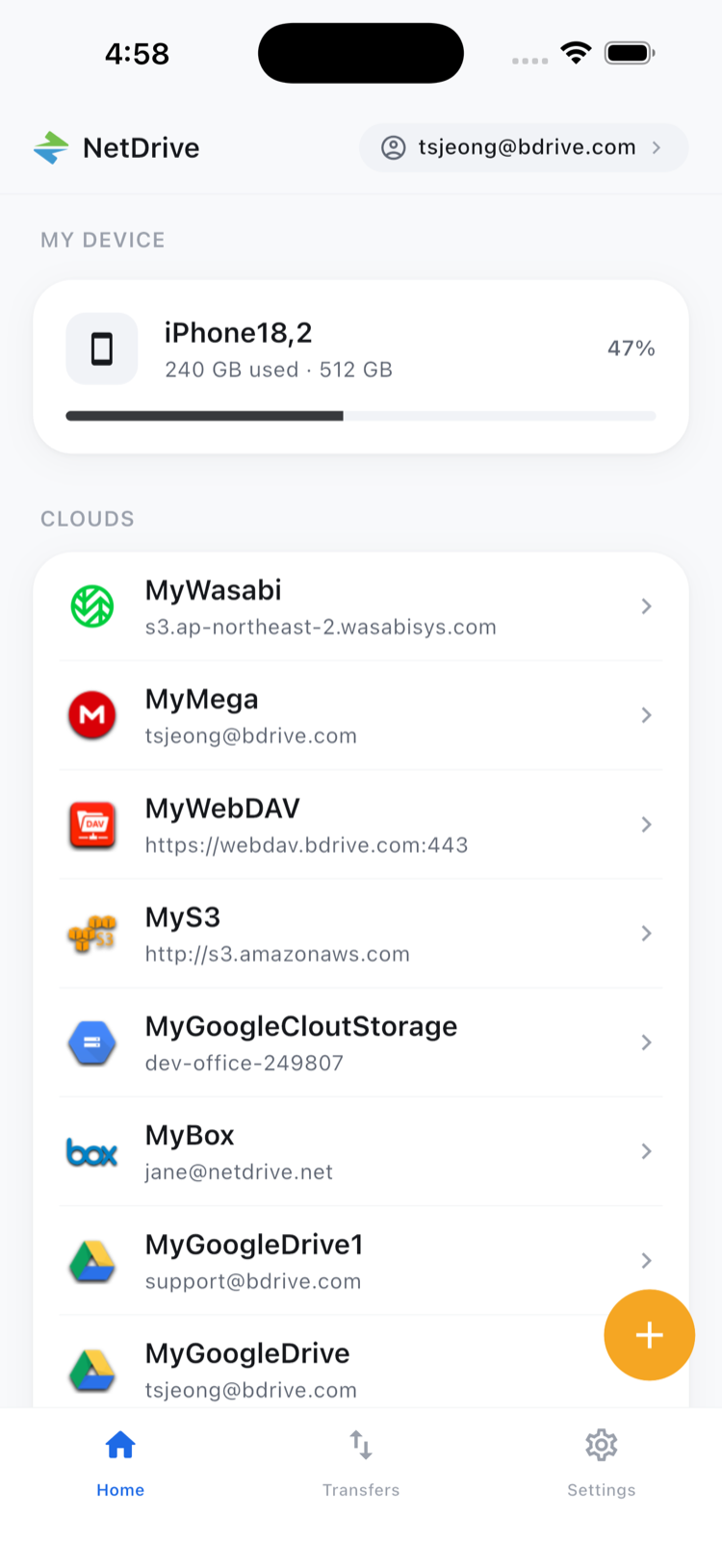
Adding a New Client’s Drive
Picking up a new client usually means adding one more cloud account, and NetDrive Mobile treats that as a routine step rather than a re-setup:
- From the home screen, open the Add a drive sheet.
- Choose the provider the new client uses — Google Drive, OneDrive, SharePoint, Dropbox, and the rest of the supported list all appear in the same picker.
- Sign in with that account’s credentials, or use Sign in with Apple or Sign in with Google where the provider supports it.
- The new drive appears alongside the existing ones on the home screen — nothing about the other clients’ connections changes.
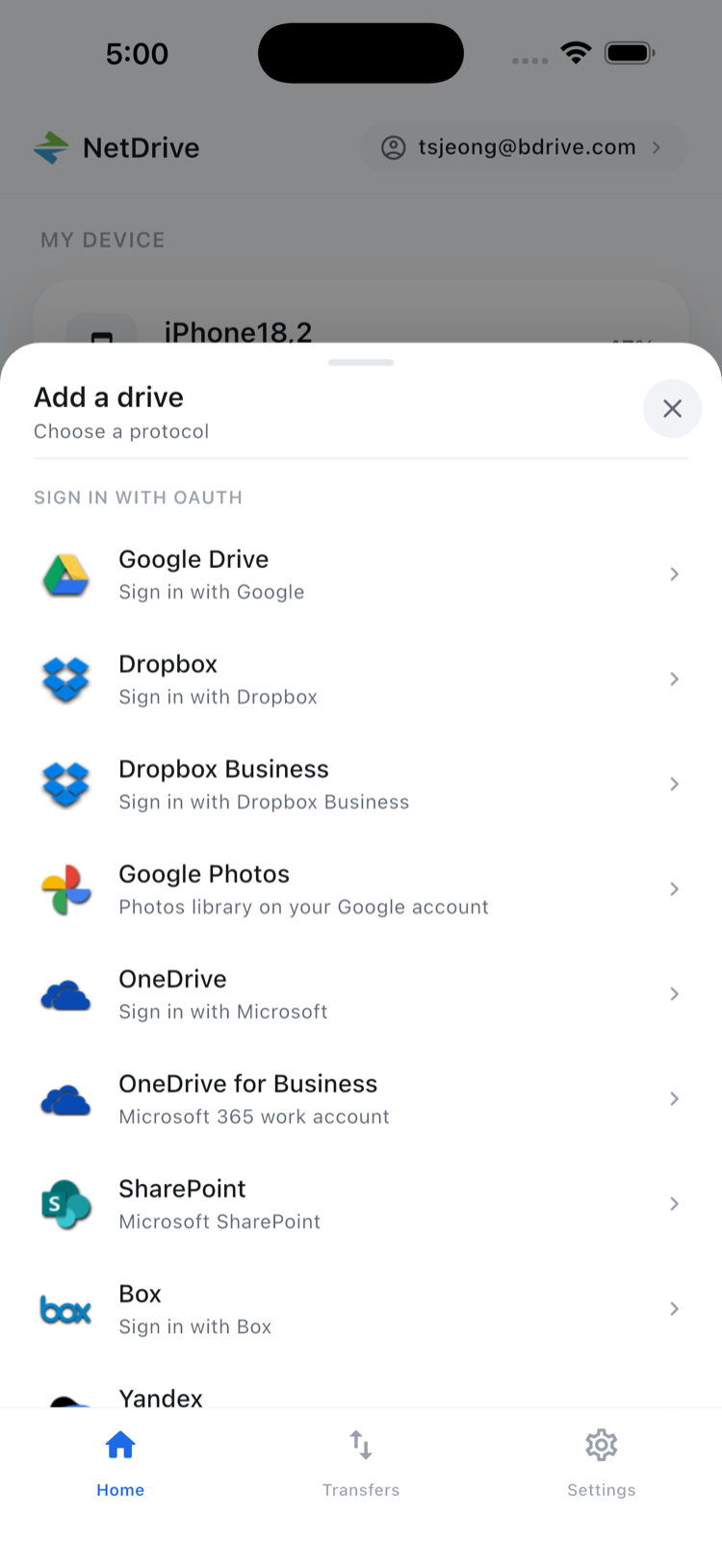
Each account keeps its own login session. Reopening the app after a few days doesn’t mean re-entering three separate passwords — NetDrive Mobile stores credentials in the device’s secure storage (iOS Keychain or Android Keystore), so returning to a client’s drive is just a tap on its entry.
Keeping Client Files Separate
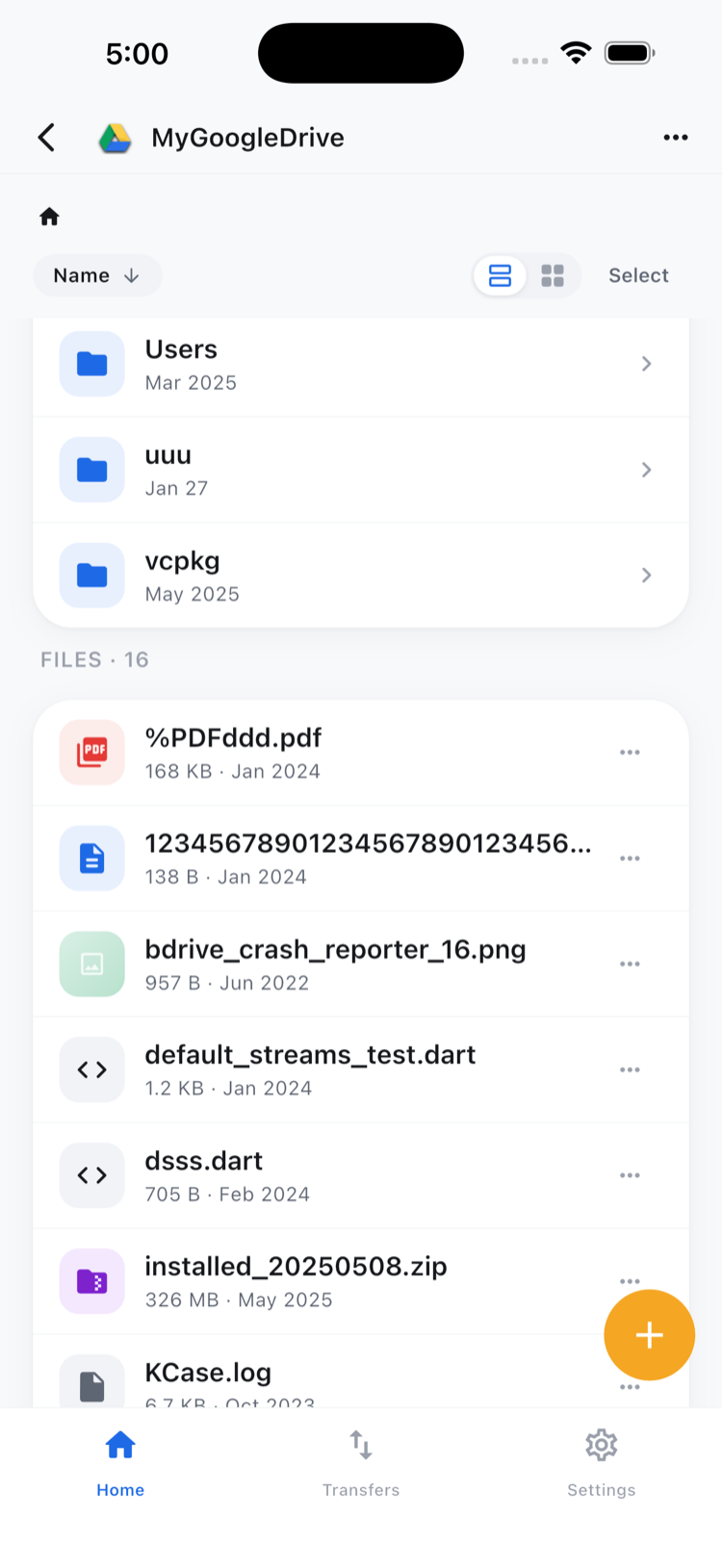
Browsing inside any one account works like a normal file manager — folders, previews, rename, move, copy, download, all scoped to that account’s storage. That scoping matters for client work specifically: file actions inside a drive stay inside that drive. Moving or copying a file is a same-cloud operation within the account you’re browsing, not a way to send a file from one client’s cloud straight into another’s. Getting a file from client A’s Dropbox into client B’s Google Drive still means downloading it out of one and uploading it into the other — the same separation you’d want for client confidentiality anyway.
Sign-In Options That Fit an Agency Workflow
Not every client’s cloud uses the same sign-in method, and NetDrive Mobile doesn’t force one. Some accounts connect with the provider’s own username and password, others go through Sign in with Apple or Sign in with Google when the provider supports it, and accounts with two-factor authentication get the code delivered as an app notification — including on the lock screen — rather than making you dig through a separate authenticator app mid-meeting. For an editor holding four or five client relationships at once, not having to remember which login method belongs to which client is a small thing that adds up over a week.
The same logic applies to preview and download. Opening a document, image, or video from any connected account works the same way regardless of which client it belongs to — there’s no separate viewer to learn per provider, and no need to download a file just to confirm it’s the right one before sending feedback.
Wrap-up
For anyone tracking more than one cloud account — freelancers with multiple clients, agency staff moving between projects, or just someone with a personal Google Drive and a work OneDrive — NetDrive Mobile’s single home screen cuts out the app-switching tax. New to the app entirely? NetDrive Mobile — Getting Started covers first-run setup, and NetDrive Mobile — Every Cloud in One App has the broader picture of what the app connects to. If you’re deciding whether you need the mobile app or the desktop app that turns clouds into native drives on Windows and macOS, NetDrive Desktop vs. Mobile lays out the difference.
— Morgan, NetDrive