Stop Overwriting Each Other — Office File Locking in NetDrive

NetDrive's file locking prevents cloud-stored Office files from being overwritten when multiple team members edit simultaneously. Learn how it works and how to enable it.
Two colleagues, same SharePoint folder mounted through NetDrive, same Excel workbook. One opens it at 9 AM and starts editing a budget model. The second opens it at 9:05 AM, unaware the first person is mid-edit. She saves at 9:30 AM — and overwrites two hours of work. NetDrive’s file locking feature is designed to break this cycle: the moment someone opens an Office file through a mounted drive, NetDrive registers a lock on it. The next person who opens the same file sees it as read-only until the lock clears.


Safer Office Collaboration Over Any Cloud Drive
NetDrive lets Google Drive, OneDrive, S3, SFTP, WebDAV and more appear as native drives on Windows and macOS — no syncing, no full downloads.
- Automatic lock the moment an Office file opens
- Visual lock-status icons in Windows Explorer
- Works across S3, SharePoint, WebDAV, and all other mounted providers
Free trial. Lifetime and subscription plans available.
Why Cloud-Mounted Drives Need External Locking
Cloud providers have native co-authoring built into their own web applications — Google Docs, Office 365 online, SharePoint browser view. But when you mount a cloud drive with NetDrive and open a .xlsx or .docx in the locally installed Excel or Word, those web-based co-authoring layers are bypassed. The file is accessed as an ordinary file through the mounted drive. Without an external signal, a second user’s machine has no way of knowing the file is open elsewhere.
NetDrive fills this gap with a locking mechanism at the drive level:
- Microsoft Office files (Word, Excel, PowerPoint): file locking was added in NetDrive 3.8.921 (September 2019)
- All other file types: locking extended to every file type in 3.9.1190 (April 2020) — Photoshop documents, PDFs, InDesign files, configuration files, anything your team stores on a shared mount
The lock is placed when a file is opened and released when it is closed. No manual unlock step is required for normal usage.
What Each Person Sees
When you open a locked file, two things happen for your teammates:
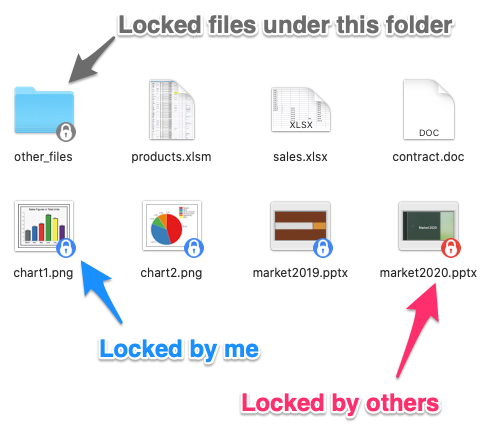
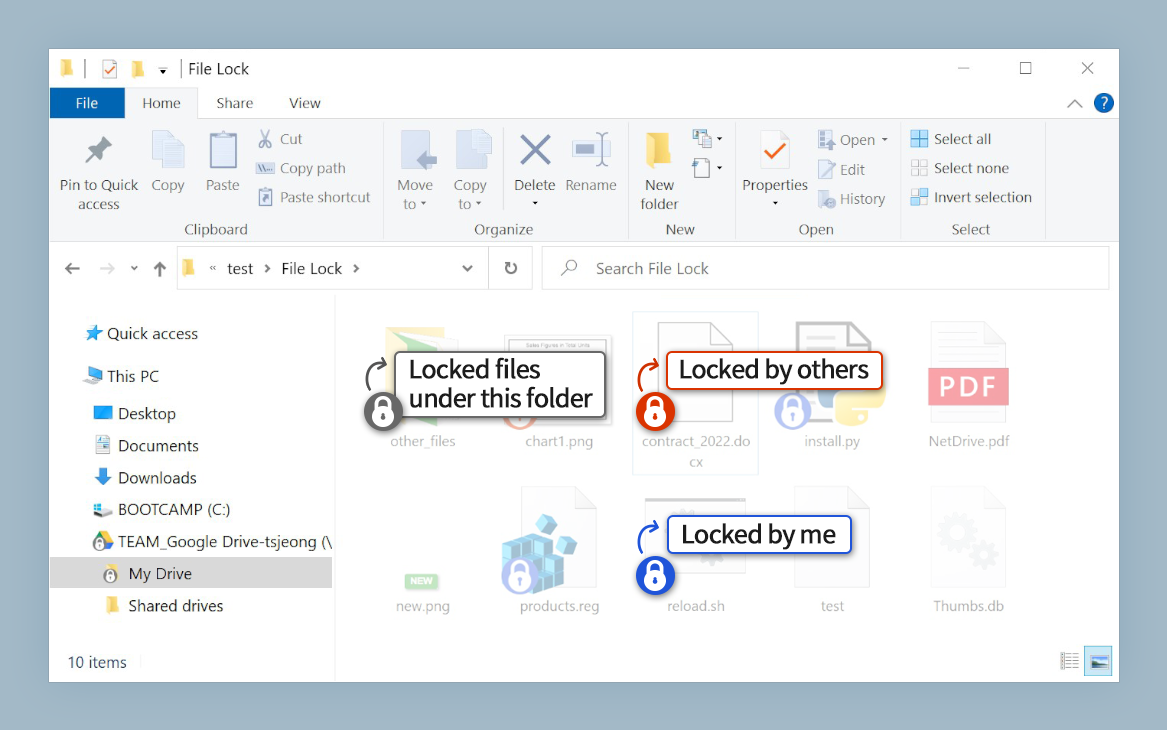
In Windows Explorer, a padlock overlay appears on the file icon — the same overlay position used for cloud sync status badges. A quick glance at a shared folder tells you exactly which files are in use without opening anything.
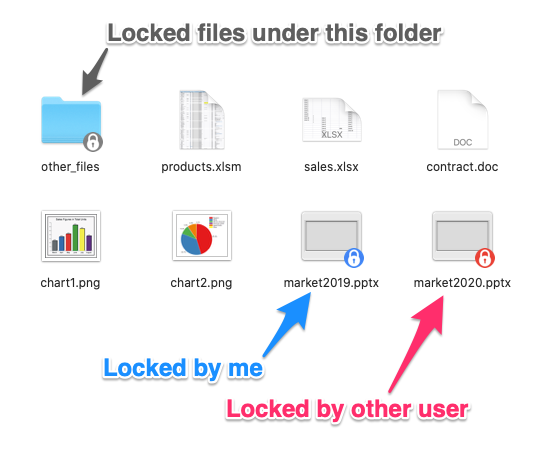
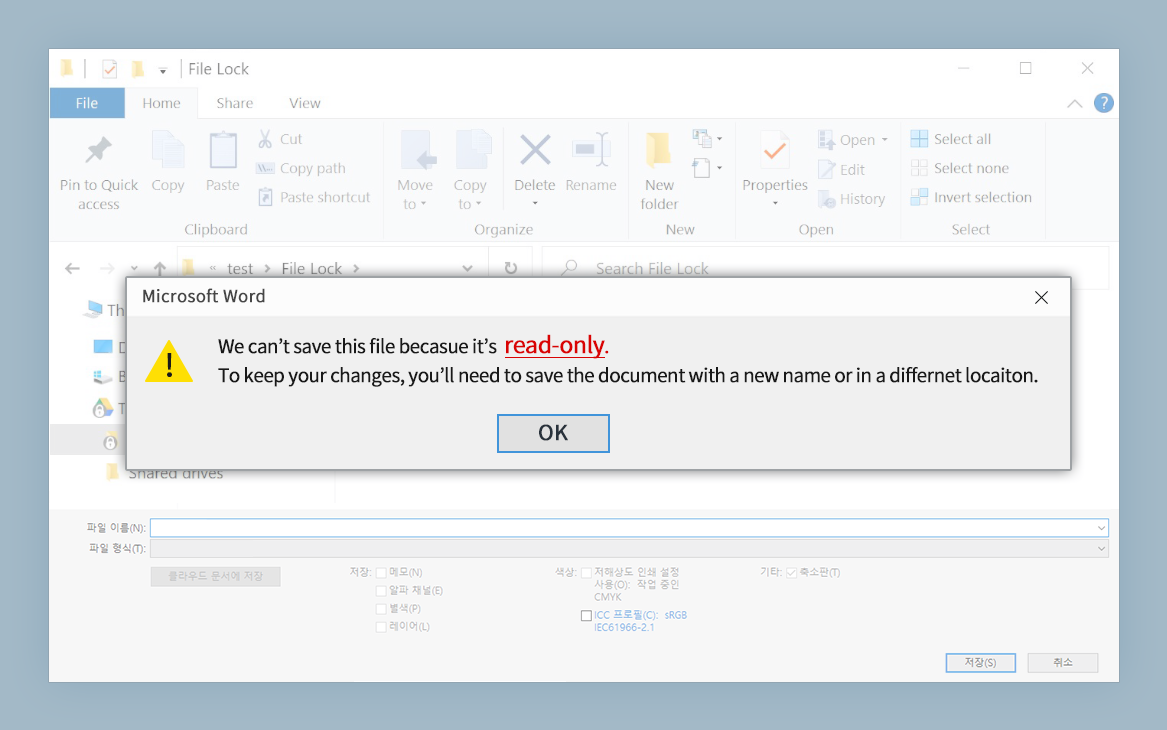
In Office applications, trying to open a locked file triggers the standard “File in Use” dialog that Word and Excel show for any file locked on a network share. The application offers to open a read-only copy or to be notified when the lock clears. This is familiar UX — the same behavior users see with a traditional file server.
NetDrive also surfaces an administrator view: the Locked Files panel shows every currently locked file across a drive, which user holds the lock, and when it was taken. This is useful when a machine crashes and leaves a stale lock that needs to be cleared manually.
Enabling File Locking on a Drive
File locking is available on every provider NetDrive supports — Google Drive, S3, OneDrive, SharePoint, WebDAV, Dropbox, and the rest. To enable it:
- Open NetDrive and click the settings icon on the drive you want to configure.
- Find the File Lock section in the drive settings.
- Enable locking for Office files, for all file types, or leave it off for drives where concurrent access isn’t a concern.
- Click Save and reconnect the drive if it is currently mounted.
The lock setting is per-drive, so you can tune the policy to match how each storage location is used. A shared S3 bucket containing raw video deliverables might warrant all-file locking, while a personal OneDrive you mount for convenience needs none.
Practical Notes for Teams
A few things worth knowing once locking is live:
- Stale locks after crashes: If a machine running NetDrive loses power or crashes while a file is open, the lock may persist until NetDrive reconnects and clears it. An admin can manually release it from the Locked Files panel.
- Lock scope: Locking applies within the NetDrive-mounted drive context. Team members accessing the same cloud storage through a different client (e.g., someone browsing SharePoint via a web browser) will not see the NetDrive lock. For full coverage, the team should access shared folders through NetDrive consistently.
- Notifications: NetDrive adds a lock/unlock notification (introduced in 3.10.145) so you can see when a file you were waiting on becomes available.
Wrap-up
File locking closes the gap between cloud storage and the collaborative file-sharing behavior teams expect from a traditional shared drive. The combination of automatic locking, Explorer overlay badges, and a centralized locked-files view gives teams a reliable layer of protection without requiring changes to how people open and save files.
If your team is using NetDrive with shared drives across multiple users, see Creative Team Collaboration with NetDrive for how team drives, shared credentials, and access management tie together. For troubleshooting the specific case where Office files open as read-only unexpectedly, Fix Office Files Opening Read-Only in NetDrive covers the diagnostic steps.
— Kai, NetDrive